SG50 Quick Start Guide
Overview
Packing List
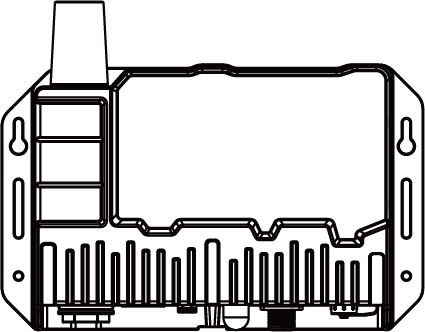 |
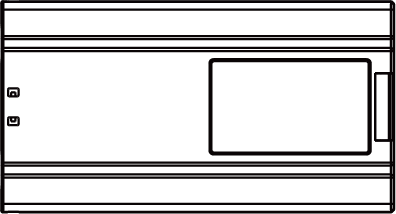 |
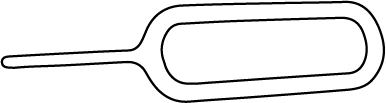 |
|
1 × SG50 Gateway |
1 × Battery Pack |
1 × SIM Card Ejector Tool |
 |
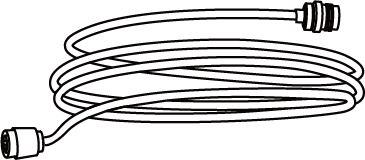 |
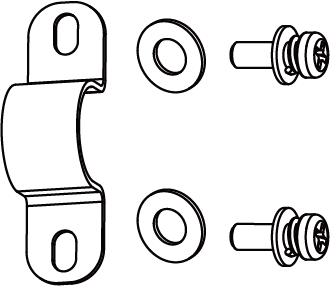 |
| 1 × LoRaWAN® Antenna (60cm) | 1 × Antenna Coaxial Cable (1m) | 1 × Antenna U-strap Kit |
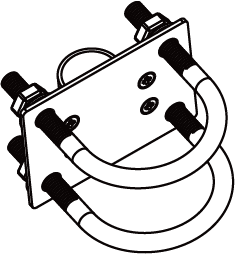 |
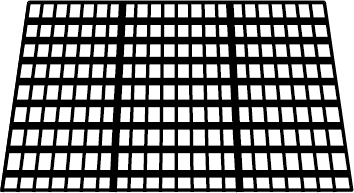 |
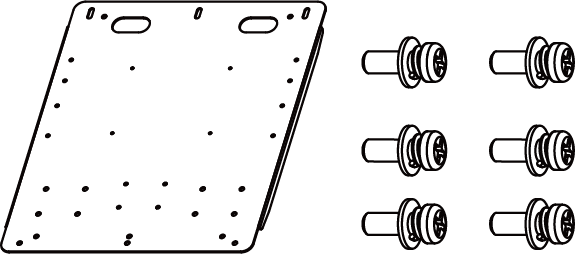 |
| 1 × Antenna U-bolt Clamp Kit | 1 × Solar Panel (with 50cm M12 Power Cable) | 1 × Solar Panel Bracket Kit |
 |
 |
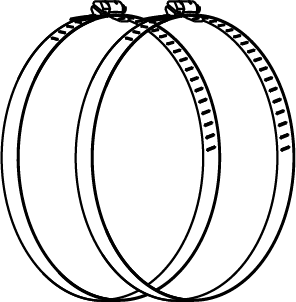 |
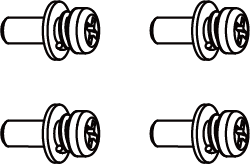
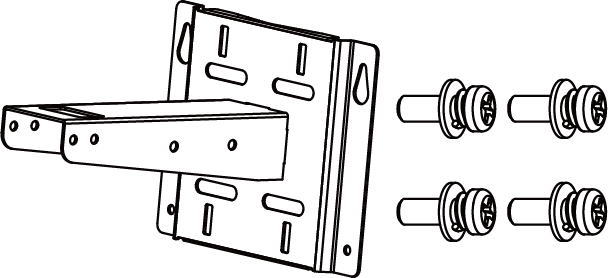
| 4 × Mounting Screws | 1 × Mounting Bracket Kit | 2 × Hose Clamps (⌀ 67-127mm) |
 |
 |
 |
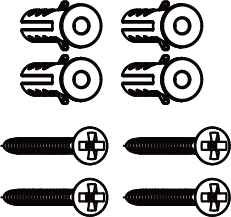
| 4 × Wall Mount Screw Sets | 1 × Warranty Card | 1 × Quick Guide Card |
Hardware Introduction
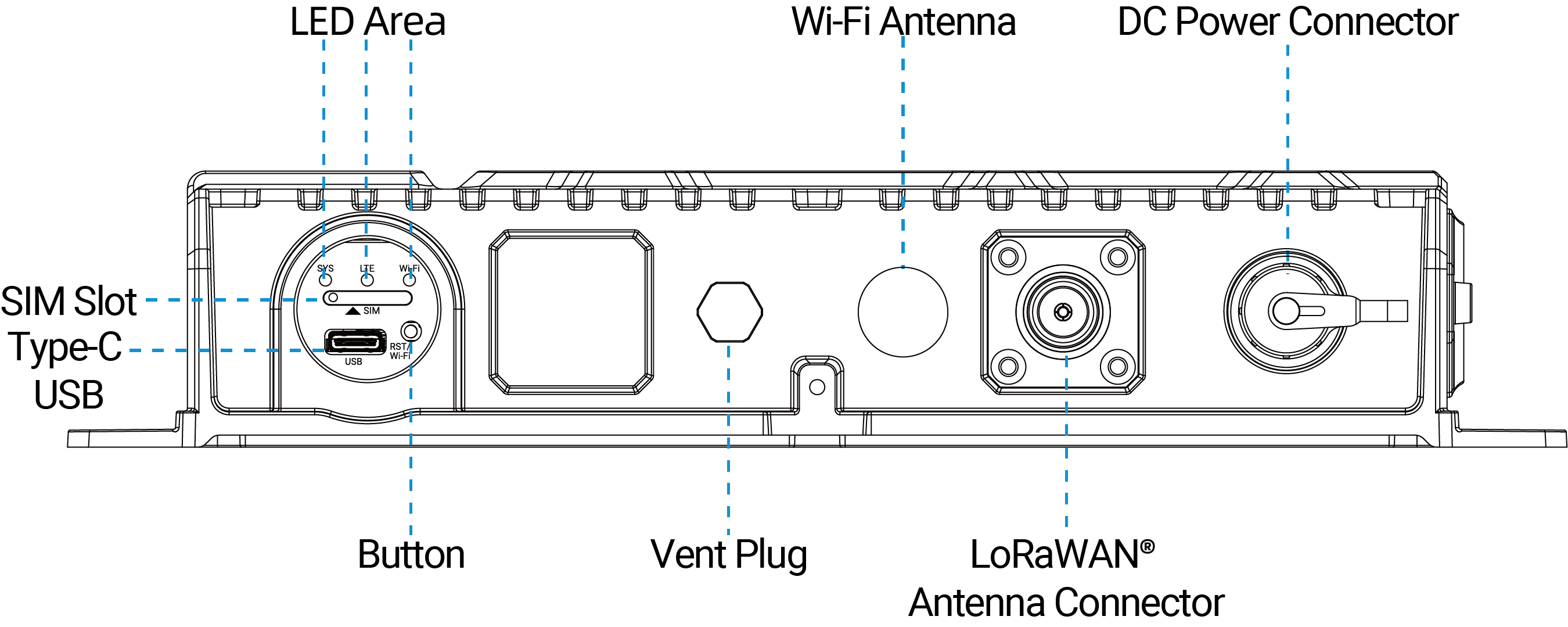
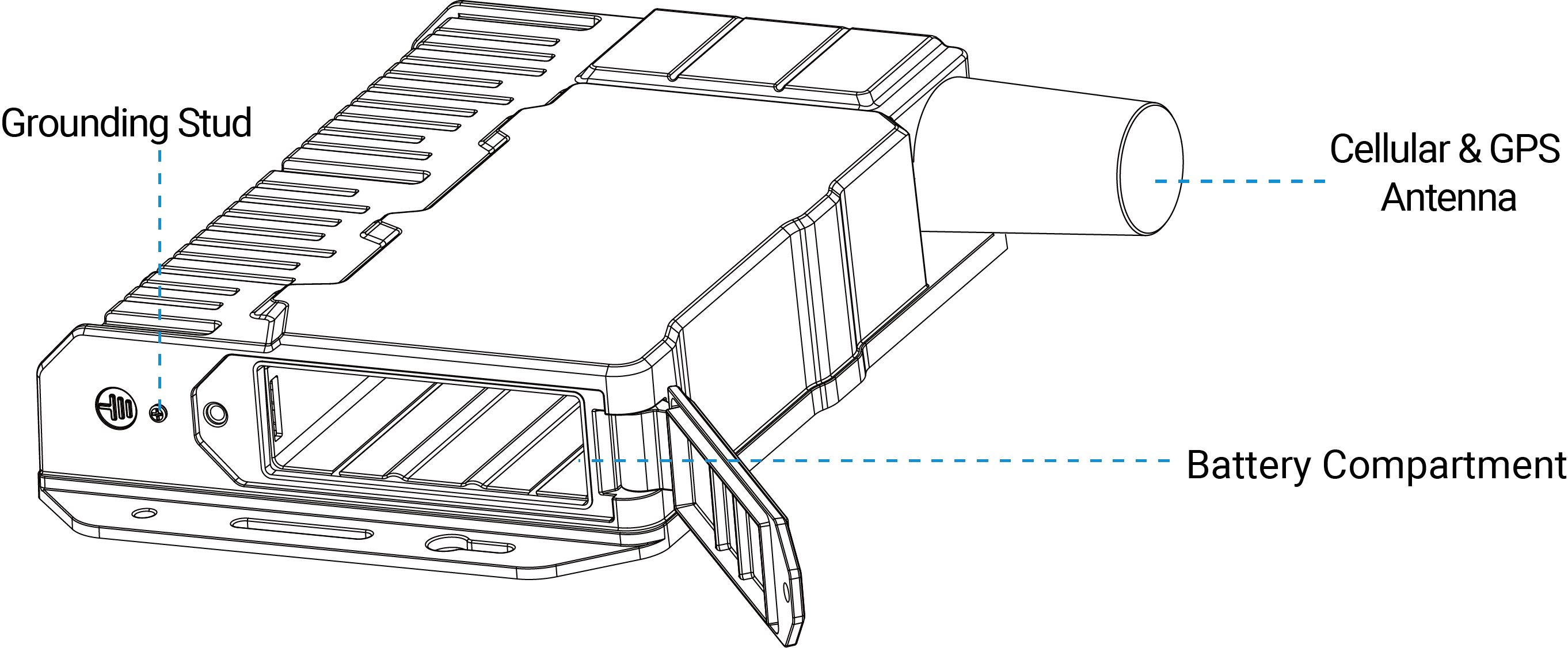
Hardware Overview
- Bottom View
-
- Side View
-
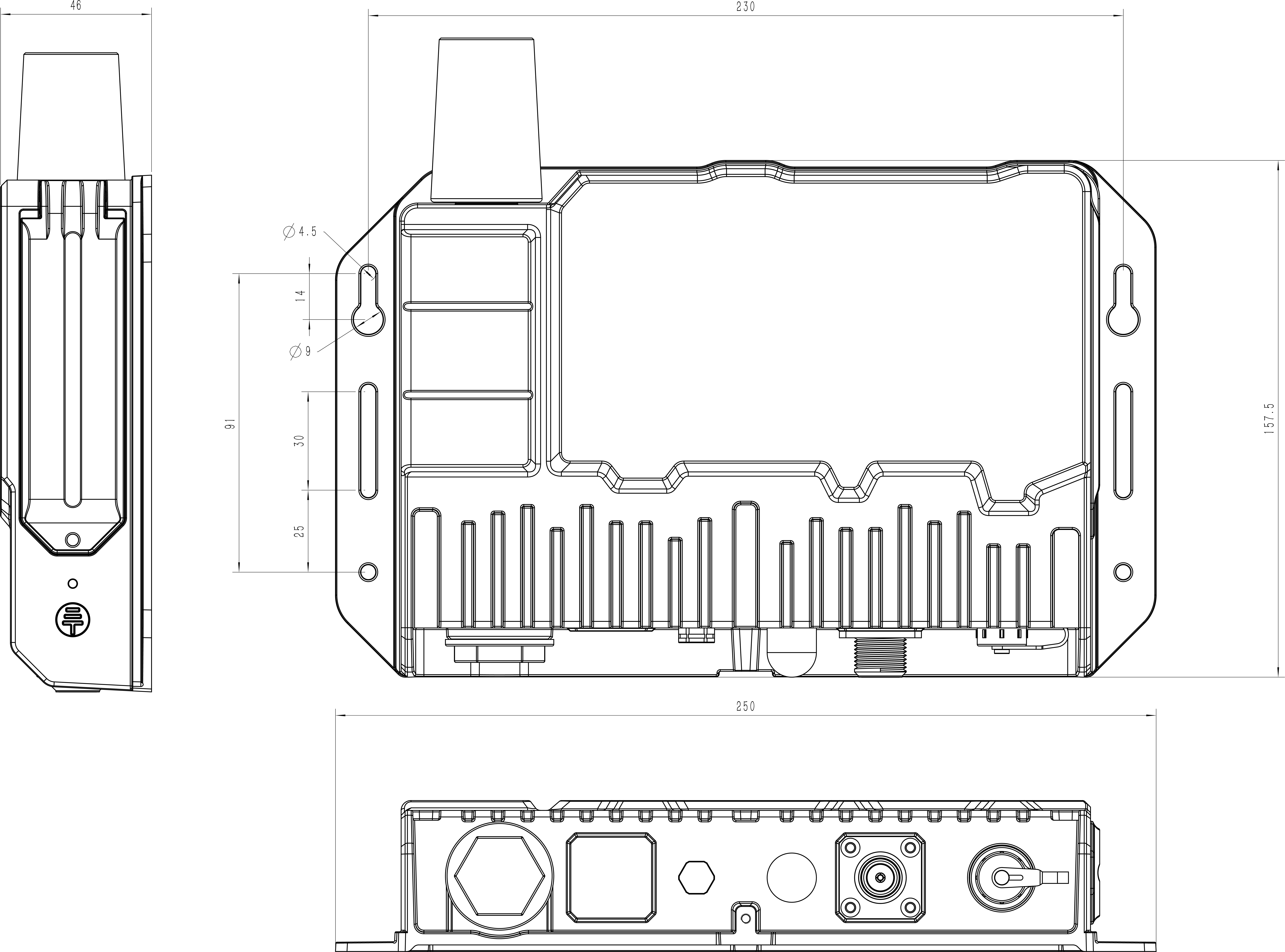
Device Dimensions
First Start
This chapter describes the required steps to complete the basic setup, and verify that the gateway is ready for deployment.
Prerequisites
- An activated Nano (4FF) SIM card. APN and PIN information are provided upon demand.
- SIM Card Ejector Tool
- Battery Pack
- LoRaWAN® Antenna
- Solar Panel or supported 12-24 VDC external power supply with the M12 cable
- Computer
- (Optional) A working LoRaWAN® network server. Recommended that NS adds the gateway first.
Prepare the Gateway
Complete the minimum hardware preparation required for first-time commissioning.
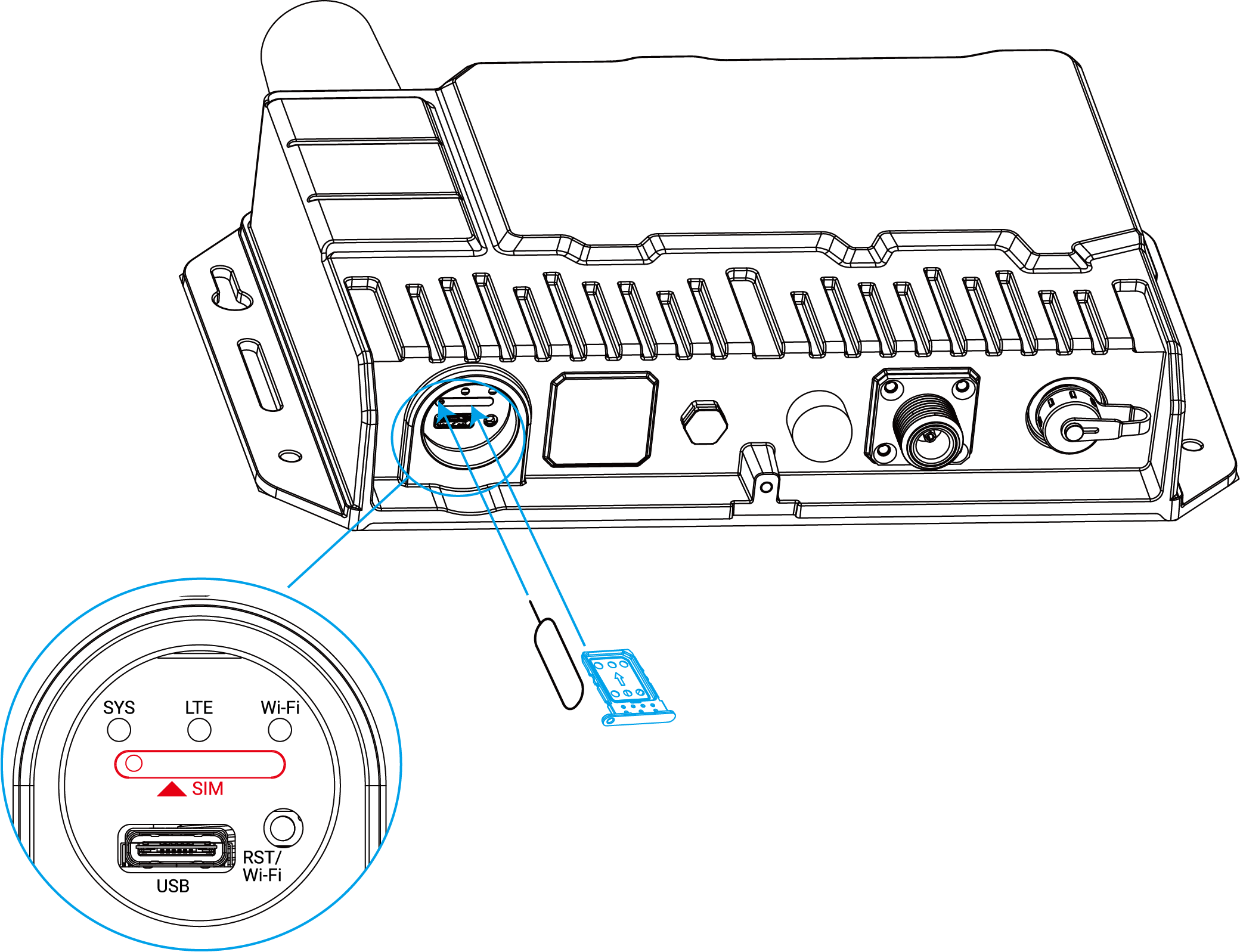
- Insert the SIM Card
-
- Remove the SIM cover.
- Use the SIM card ejector tool to open the SIM card tray.
- Insert the Nano (4FF) SIM card and put the tray back into the gateway.
- Rotate the SIM cover back into position.
- Install the Battery Pack
-
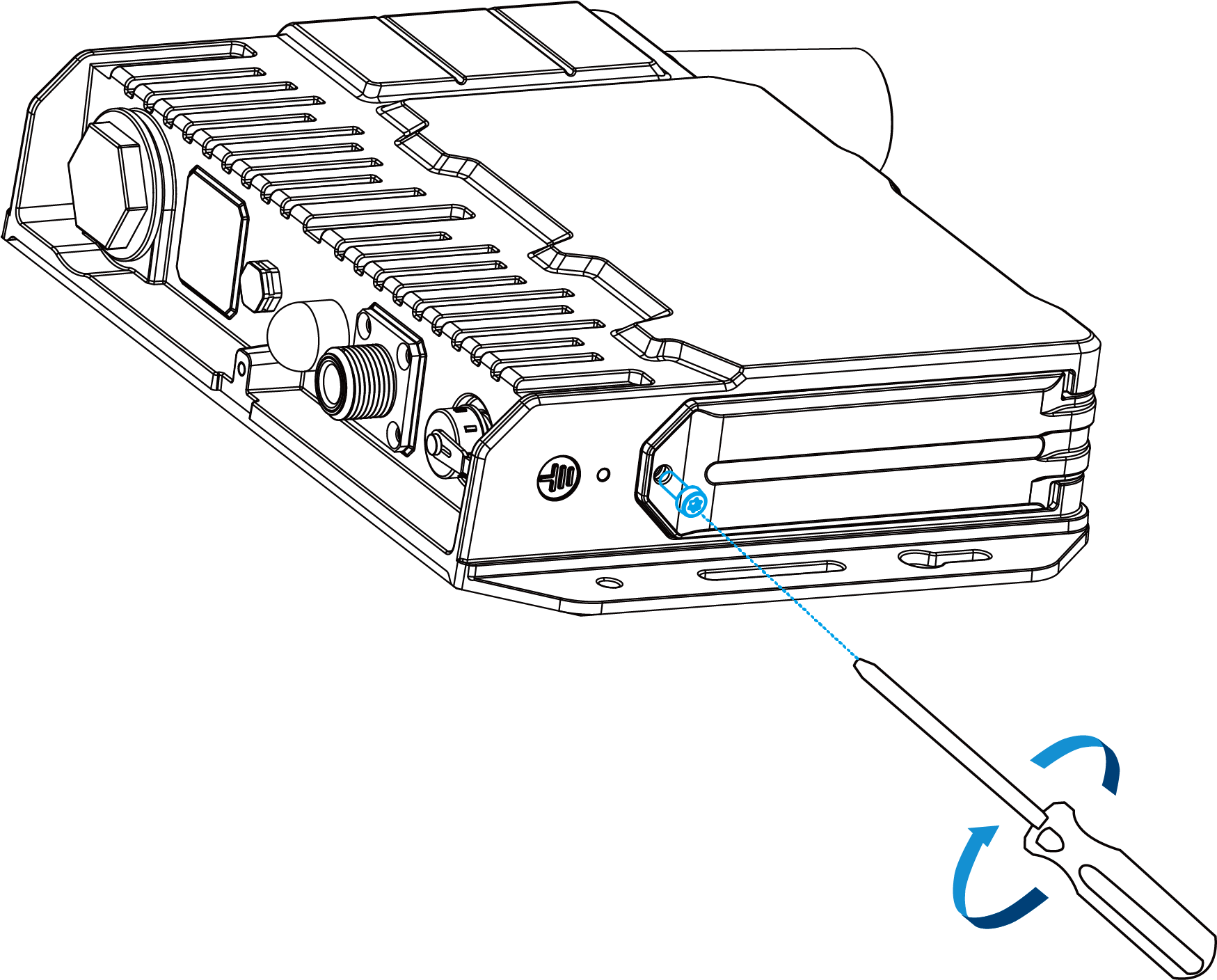
- Release the fixing screw on the side of the gateway and remove the battery compartment cover.
- Push the battery pack into the battery compartment.
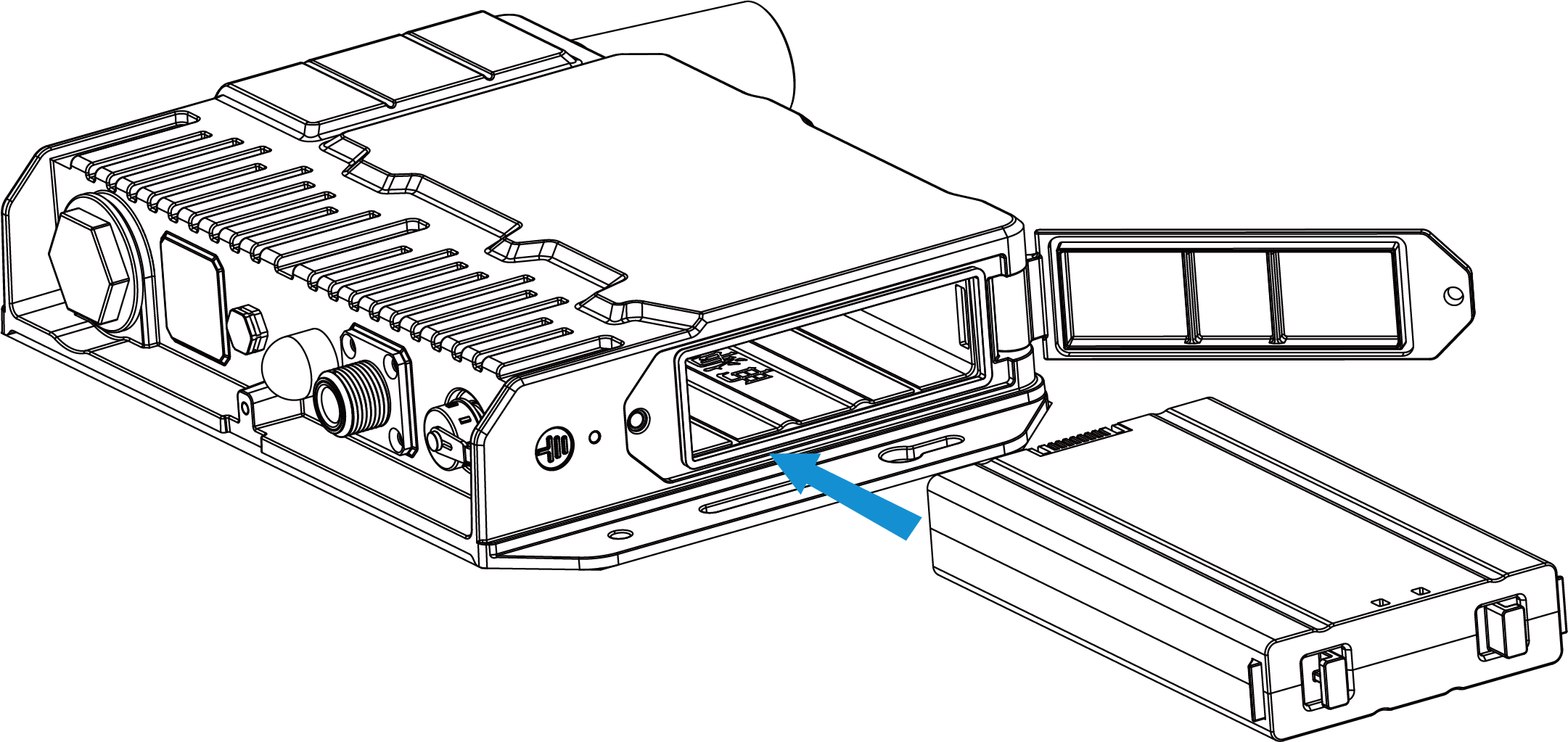 To remove the battery pack, hold on the latches on the battery.
- Reinstall the battery compartment cover and secure it with the fixing screw.
Tip:- Installing the battery pack does not power on the gateway automatically.
- The battery can only be charged through the DC power connector. USB charging is not supported.
- Connect the LoRaWAN® Antenna
- Connect the LoRaWAN® antenna to the LoRaWAN® antenna connector for end device communication testing.
- Power On the Gateway
-
- Connect the M12 power cable of the solar panel to the DC power connector.
- Wait for the gateway to start. The startup status can be checked via LED
indicators.
LED Expected Status SYS A green light indicates that the system is running properly. Wi-Fi A static green light indicates that Wi-Fi is on. LTE A static green light indicates that the SIM card has registered and cellular dial-up has completed successfully. Note: If Wi-Fi is disabled, quickly press the button once to turn on Wi-Fi for 10 minutes.
Access the Web GUI
- Enable Wi-Fi on the computer and connect to the gateway default access point: Gateway_XXXXXX. The SSID can be found on the gateway label.
- Open a web browser (Chrome is recommended) and enter https://192.168.23.1.
- Enter the default credentials to log
in.
Username: admin
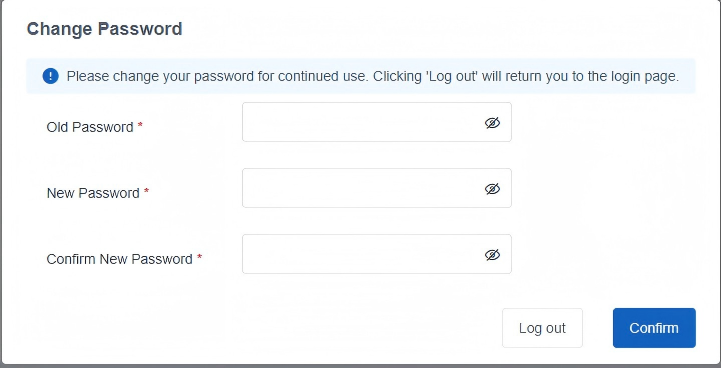
Password: password - Change the default password when prompted. The new password must contain at least one
letter and one number.
- Log in to the web GUI using the new credentials.
Complete the Setup Wizard
Follow the setup wizard to complete the basic settings. The wizard can also be skipped or exited if you want to configure the gateway manually.
- Configure the cellular settings. In most cases, enter the APN required by the cellular operator.
- Configure the correct system time.
- Configure the gateway to connect to the required LoRaWAN® network server.
- Configure packet filtering if required.
- Configure the WLAN settings.
Verify the Commissioning Result
After completing the basic configuration, open the Status page and check the gateway information.
- Check the configured LoRaWAN® region.
- Check the cellular network information and IP address.
- Check the LoRaWAN® Packet Forward connection status.
- Add a LoRaWAN® end device to the network server and check if it can join the network.
Hardware Installation
This chapter describes the preparation and installation procedures for mounting the gateway and its accessories at the deployment site.
Prerequisites
- Check the Accessories
-
The gateway with the solar panel can be mounted on a wall or a pole. Select the required mounting method and prepare the corresponding mounting accessories.
- Check the SIM Card
- Make sure the Nano (4FF) SIM card is installed and the SIM cover is tightened to prevent water from entering the gateway. The specified tightening torque is 0.7 N.m. See Insert the SIM Card.
- Check the Battery Pack
- Make sure the battery pack is installed in the battery compartment and the compartment cover is secured with the fixing screw. See Install the Battery Pack.
- Check the Power Supply
- The gateway can be powered by a 12-24 VDC external power supply or the solar panel. The internal battery pack is charged when an external power source is available and can power the gateway when the external supply is disconnected or solar power is insufficient.
Select Installation Location
- The antennas must extend beyond the wall or pillar surface and not be close to the poles or walls. If there are still walls nearby, please keep the antennas at least 35cm away from them.
- Ensure there are no obstacles or metal objects around.
- For better coverage, it is recommended to position the gateway at a higher location, but not the highest position.
- The wall or pole structure shall be sufficiently solid and stable to ensure overall mounting stability.
- Screw mounting positions must avoid internal wall electrical wiring, water pipes and other concealed utilities to prevent structural damage and potential safety hazards.
- Avoid installing the gateway where the device may be exposed to excessive heat. The battery cannot be charged when the device temperature exceeds 50°C.
Install the Mounting Bracket
Select one of the following mounting methods.
- Wall Mounting
-
- Align the mounting bracket horizontally to the target surface, use a pencil to
mark four mounting holes.Note: The connecting lines of adjacent points are at right angles.
- Drill four holes in the wall according to the mounting bracket.
- Insert the wall plugs into the holes.
- Secure the mounting bracket to the wall with the wall mounting screws.
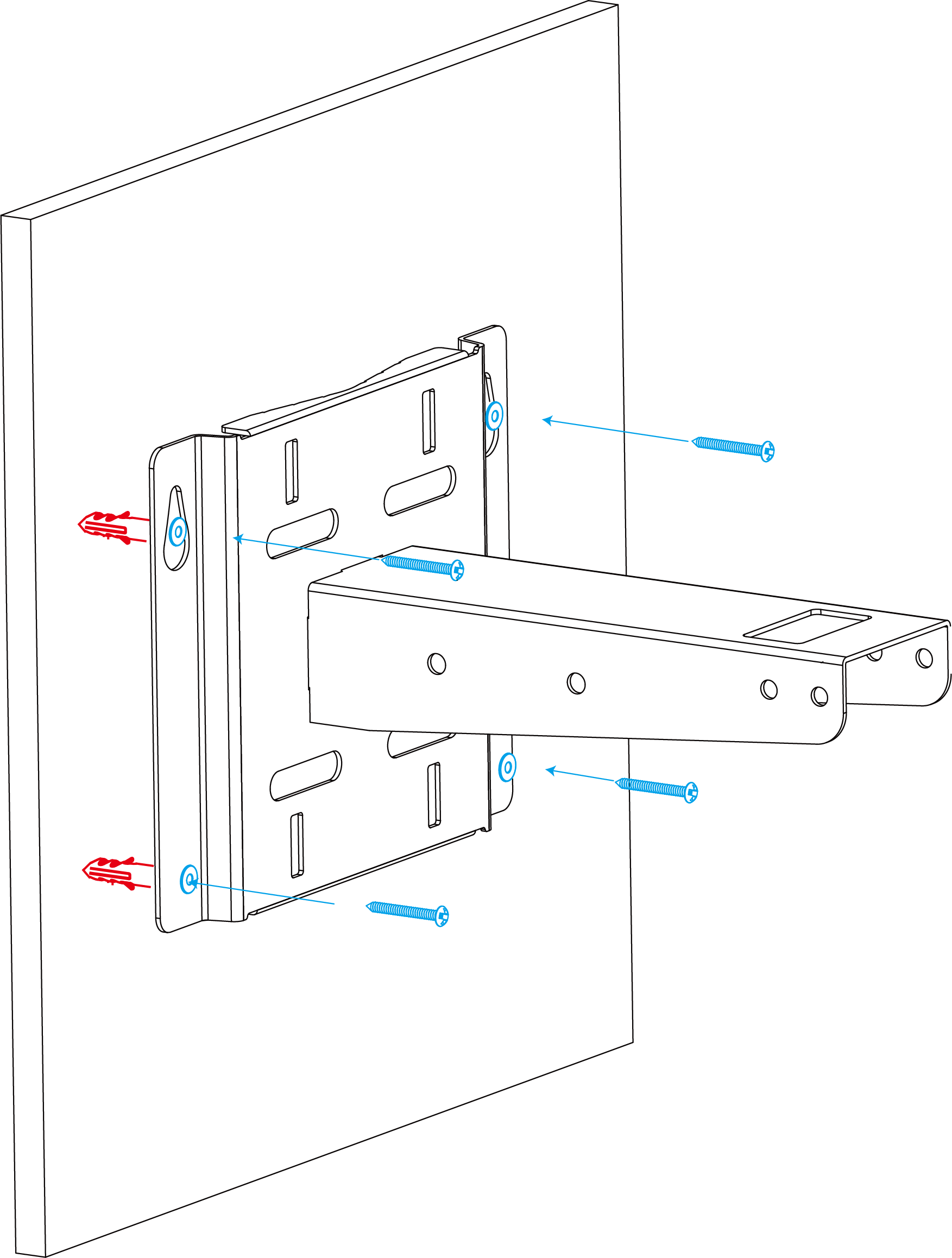
- Align the mounting bracket horizontally to the target surface, use a pencil to
mark four mounting holes.
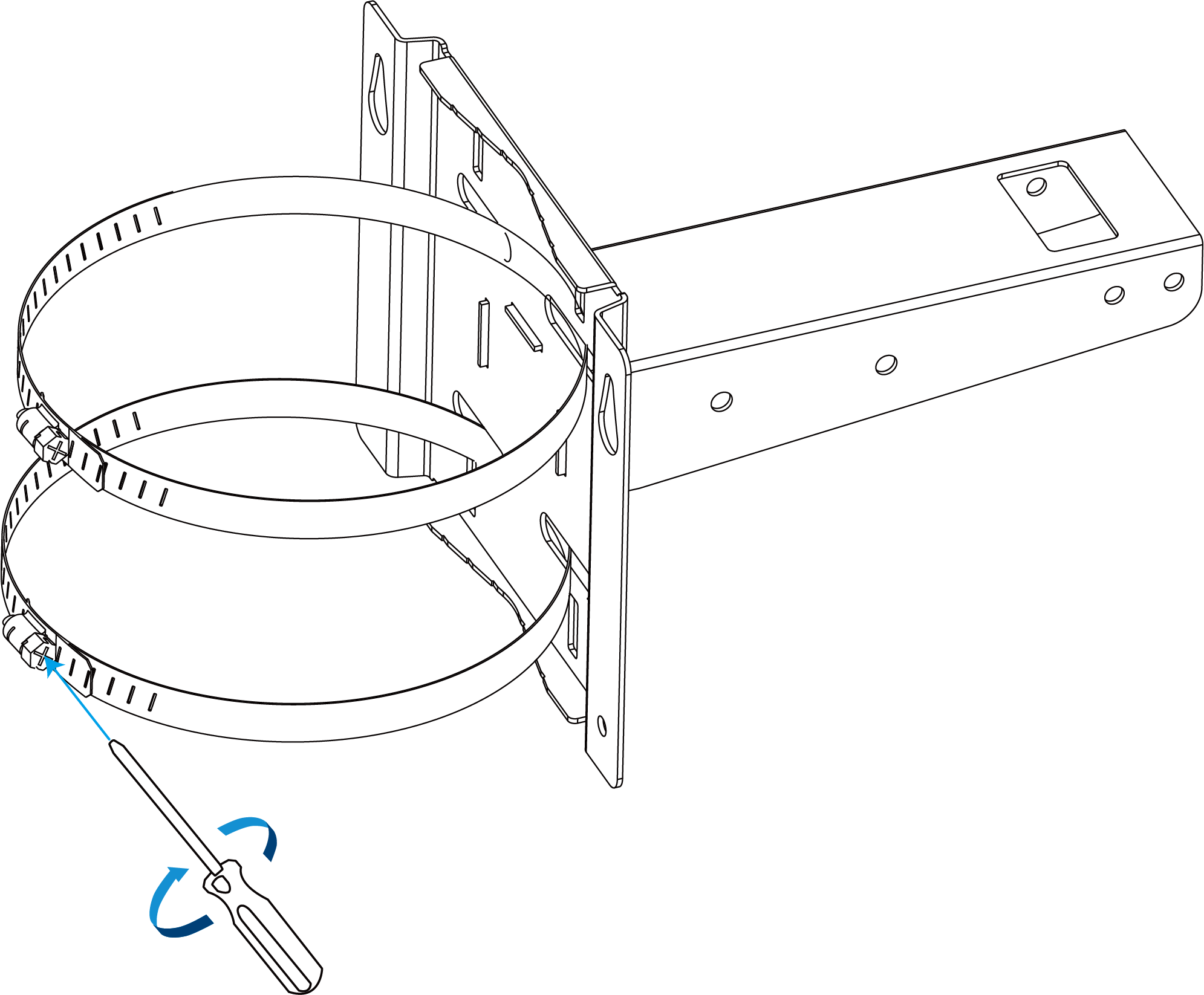
- Pole Mounting
-
- Straighten the hose clamps and slide them through the rectangular rings in the mounting bracket.
- Wrap the hose clamps around the pole.
- Use a screwdriver to tighten the locking mechanism clockwise.
Install the Solar Panel
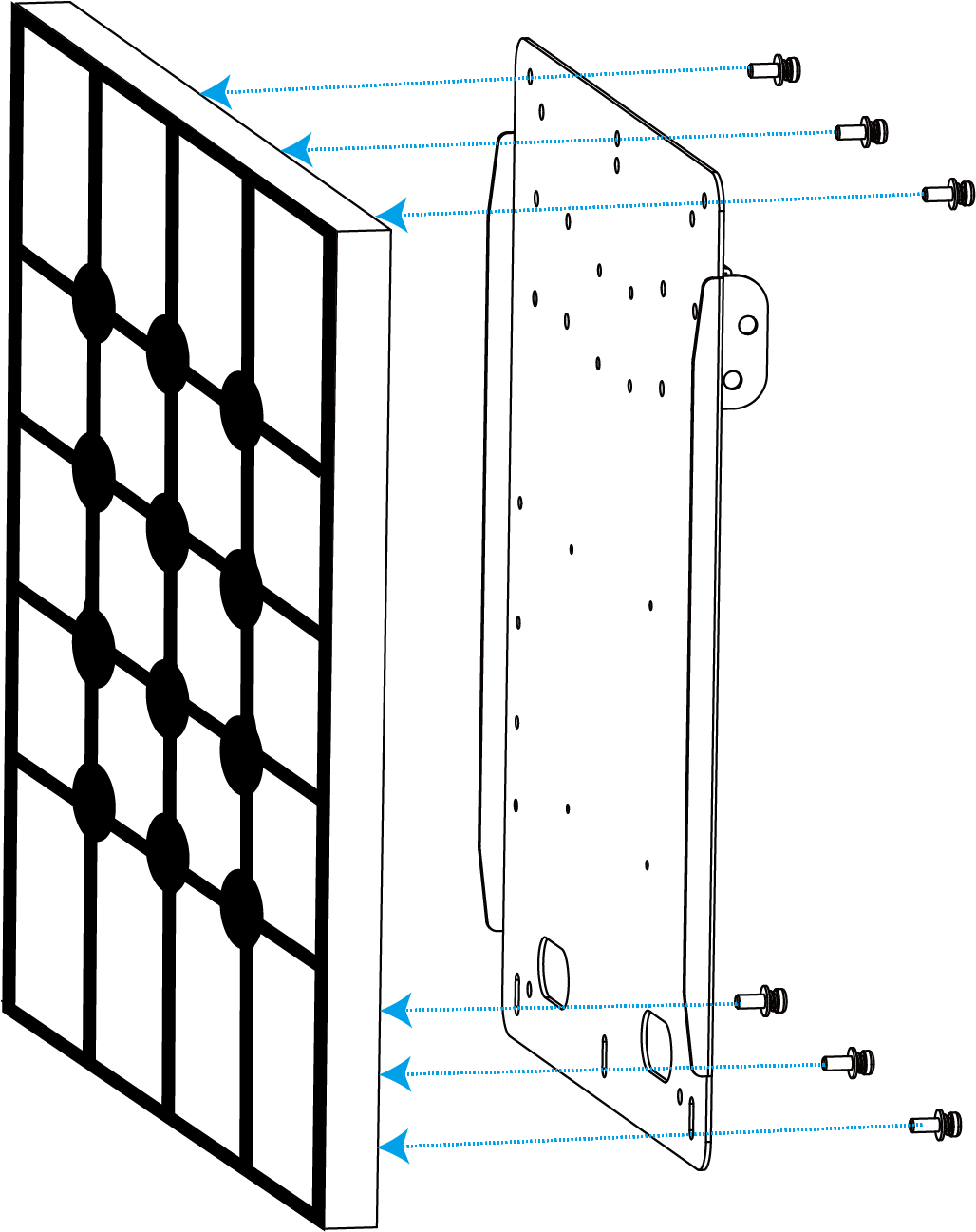
- Remove the protective plastics from the four corners of the solar panel.
- Secure the solar panel to the solar panel bracket with six fixing screws.
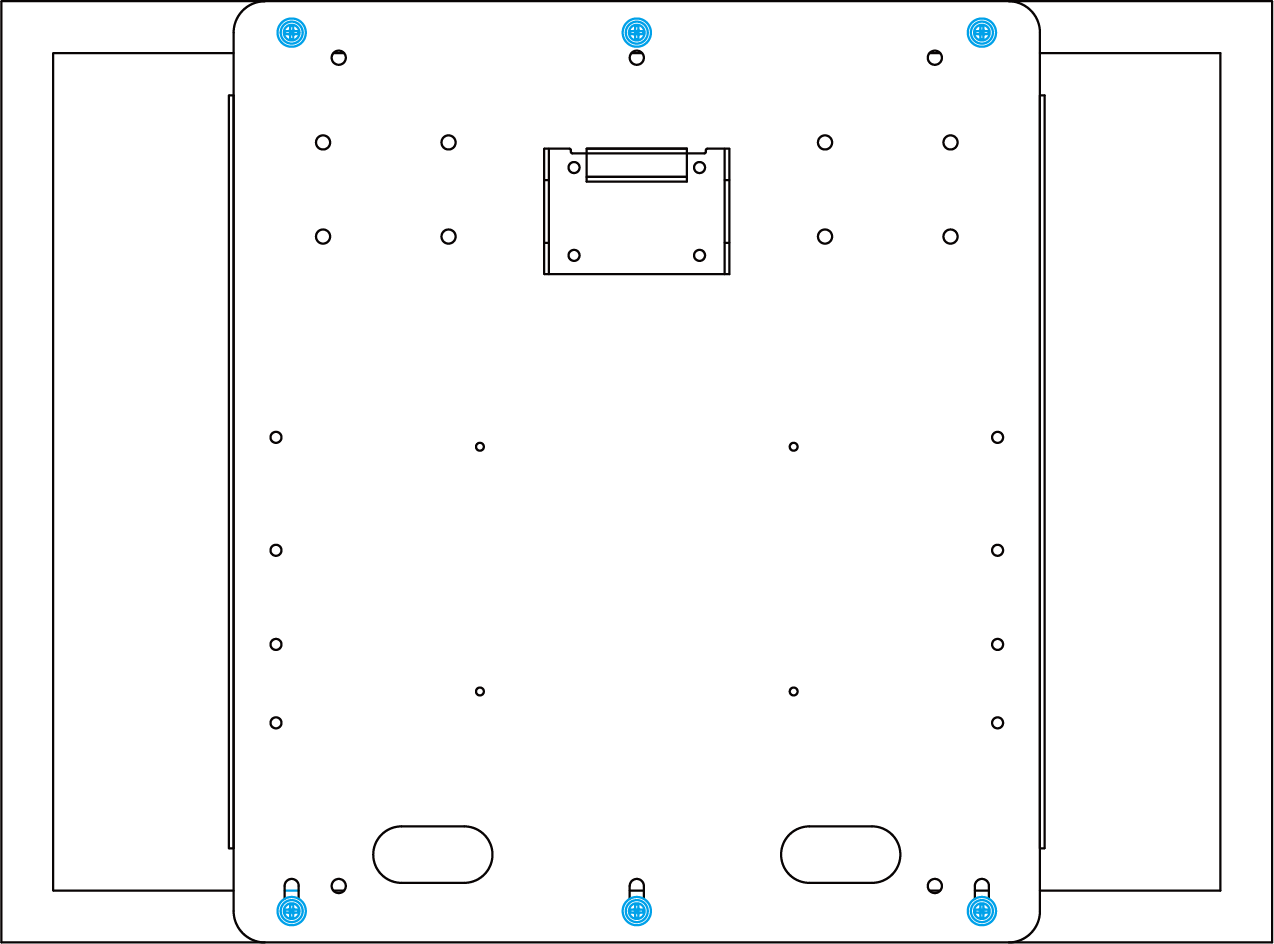
- Hang the solar panel bracket on the mounting bracket and secure the two parts with two fixing screws first.
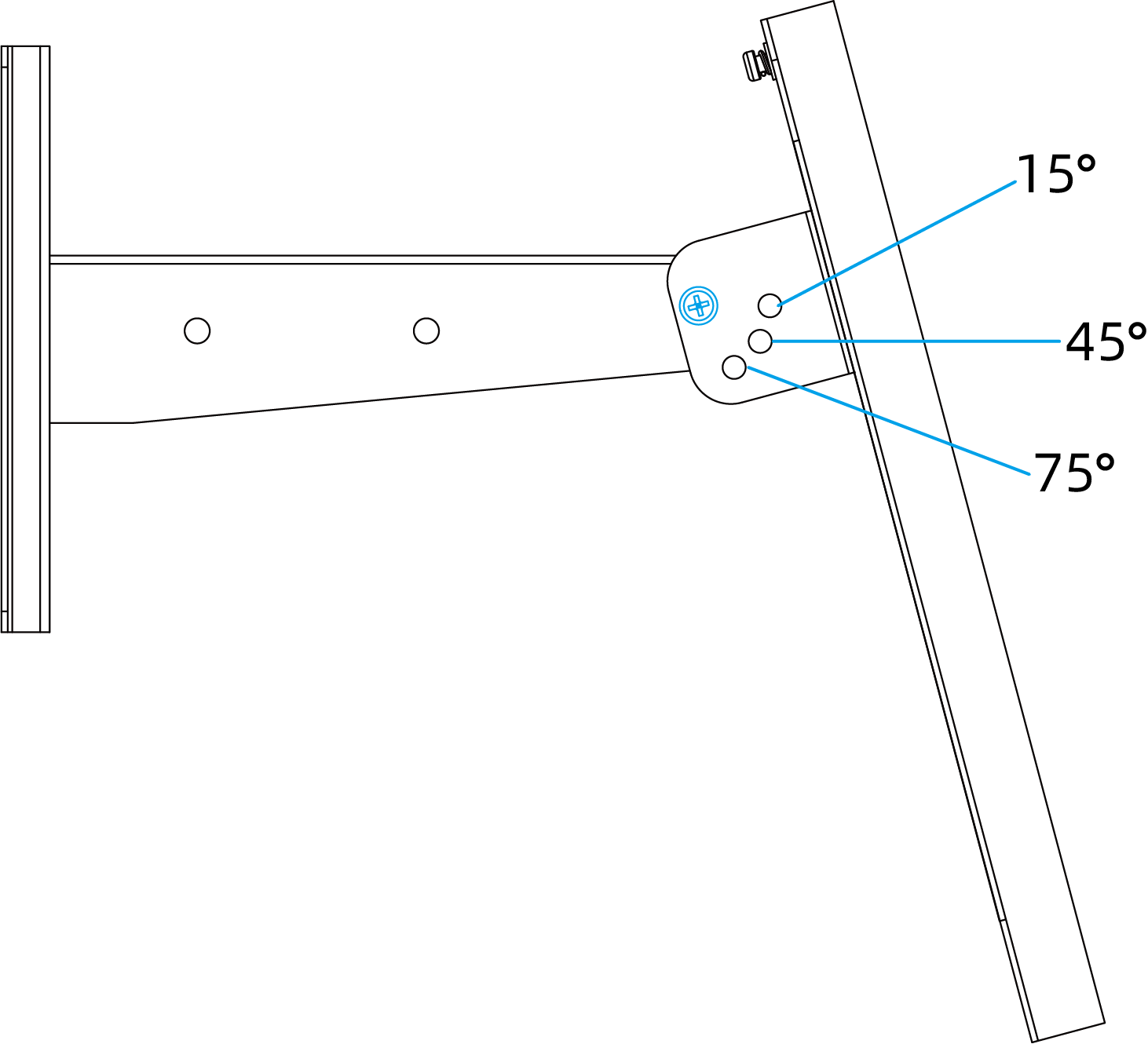
- Adjust the solar panel bracket angle according to the installation environment. The
supported installation angles are 15°, 45°, and 75°.
- Install the remaining two screws to secure the solar panel bracket.
Mount the Gateway
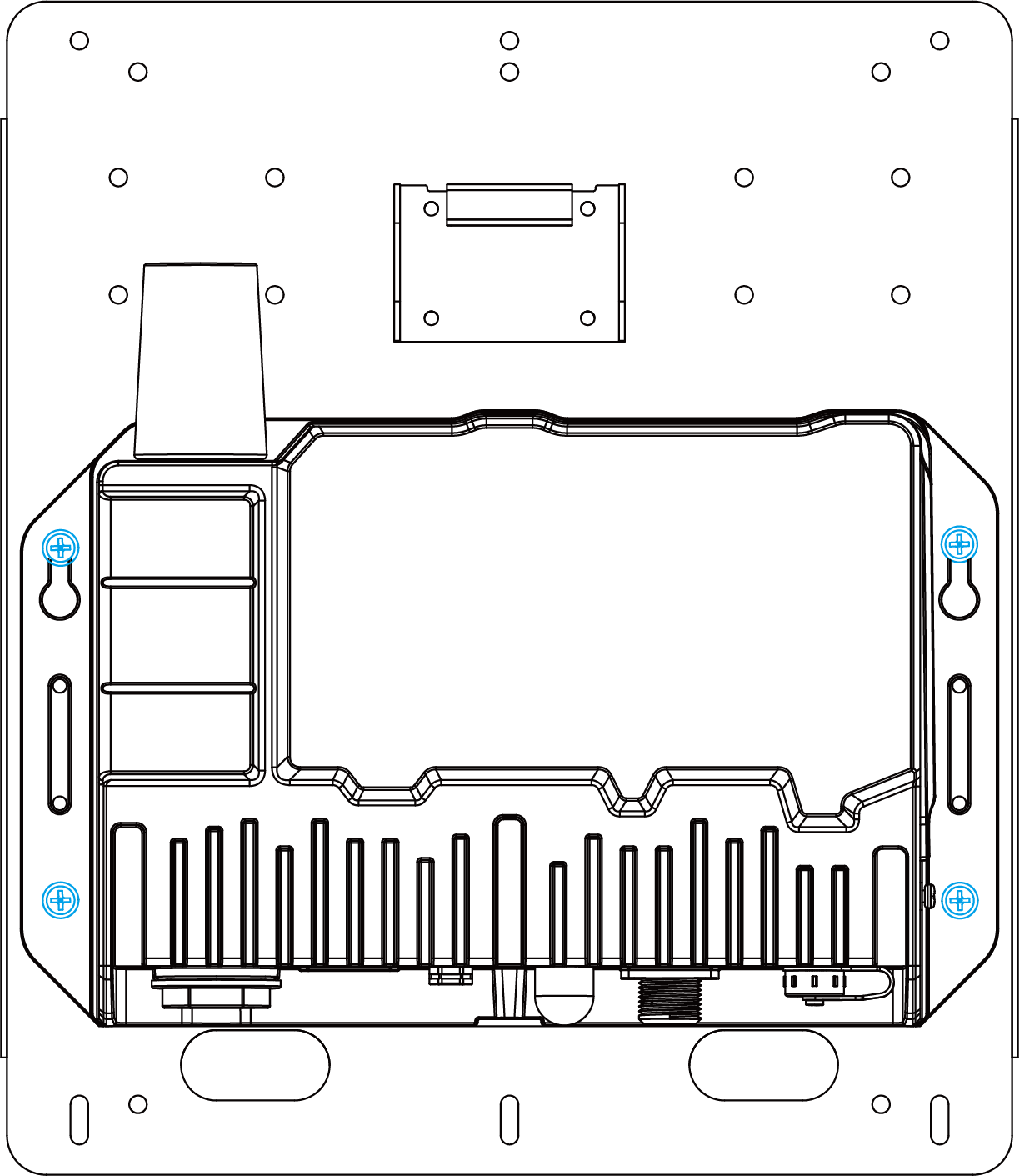
- Secure the gateway to the opposite side of the solar panel bracket with four screws. It
is suggested to install the two upper screws first.
- Install the LoRaWAN® antenna using one of the supported mounting methods.
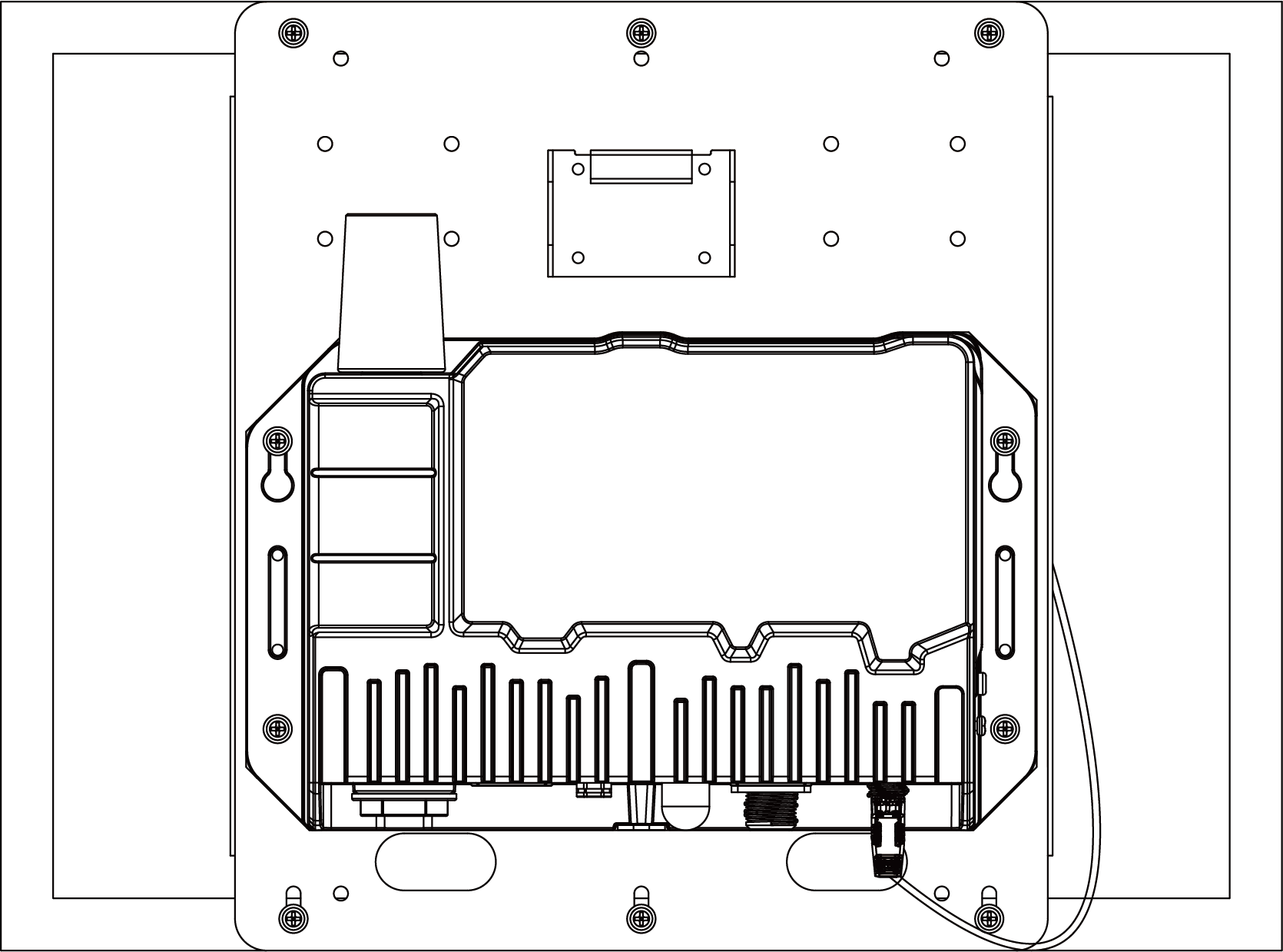
- After completing the required hardware installation, connect the M12 power cable of the
solar panel to the DC power connector. The gateway powers on automatically.
Install the LoRaWAN® Antenna
Select the U-strap or U-bolt mounting method according to the deployment.
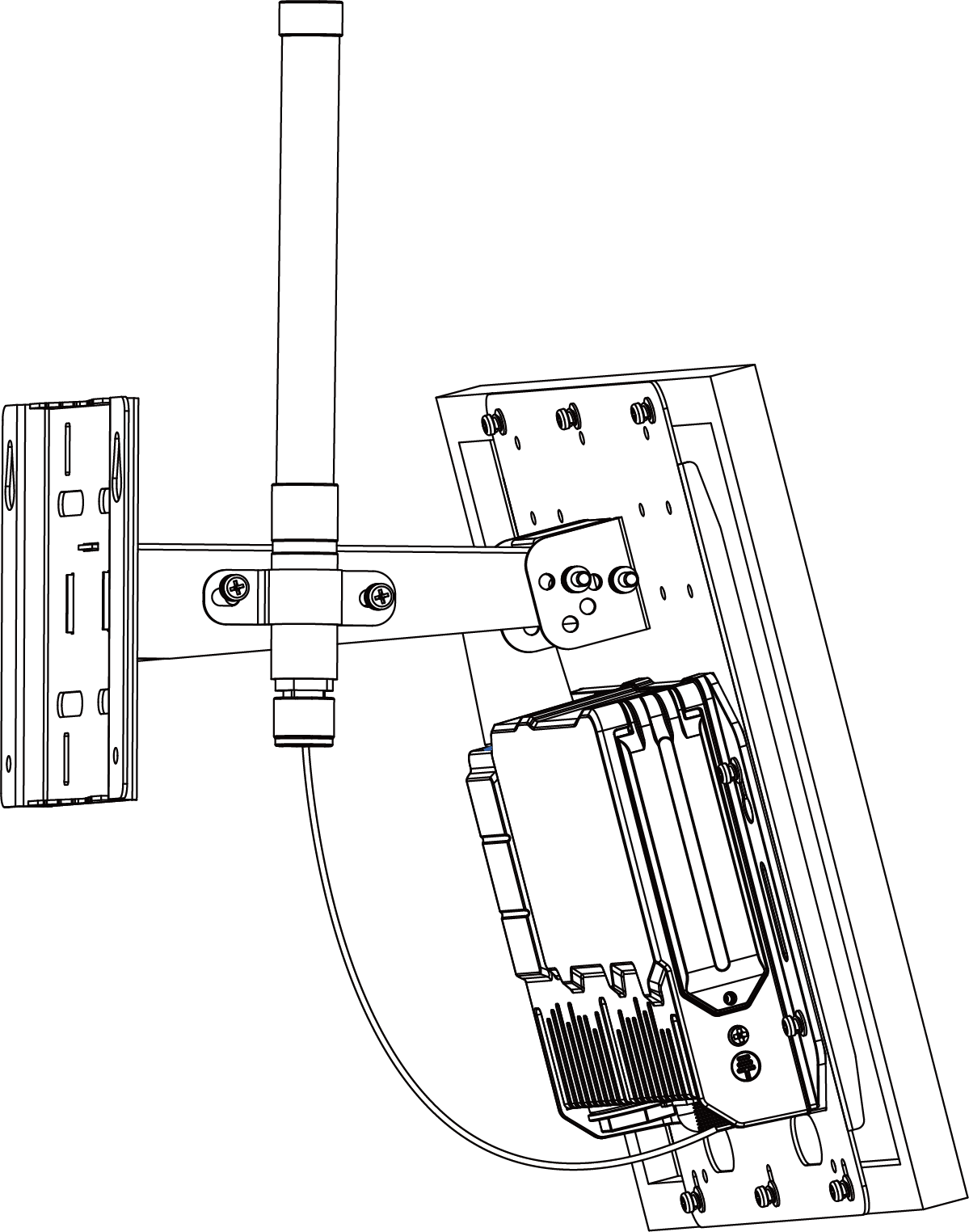
- U-strap Mounting
-
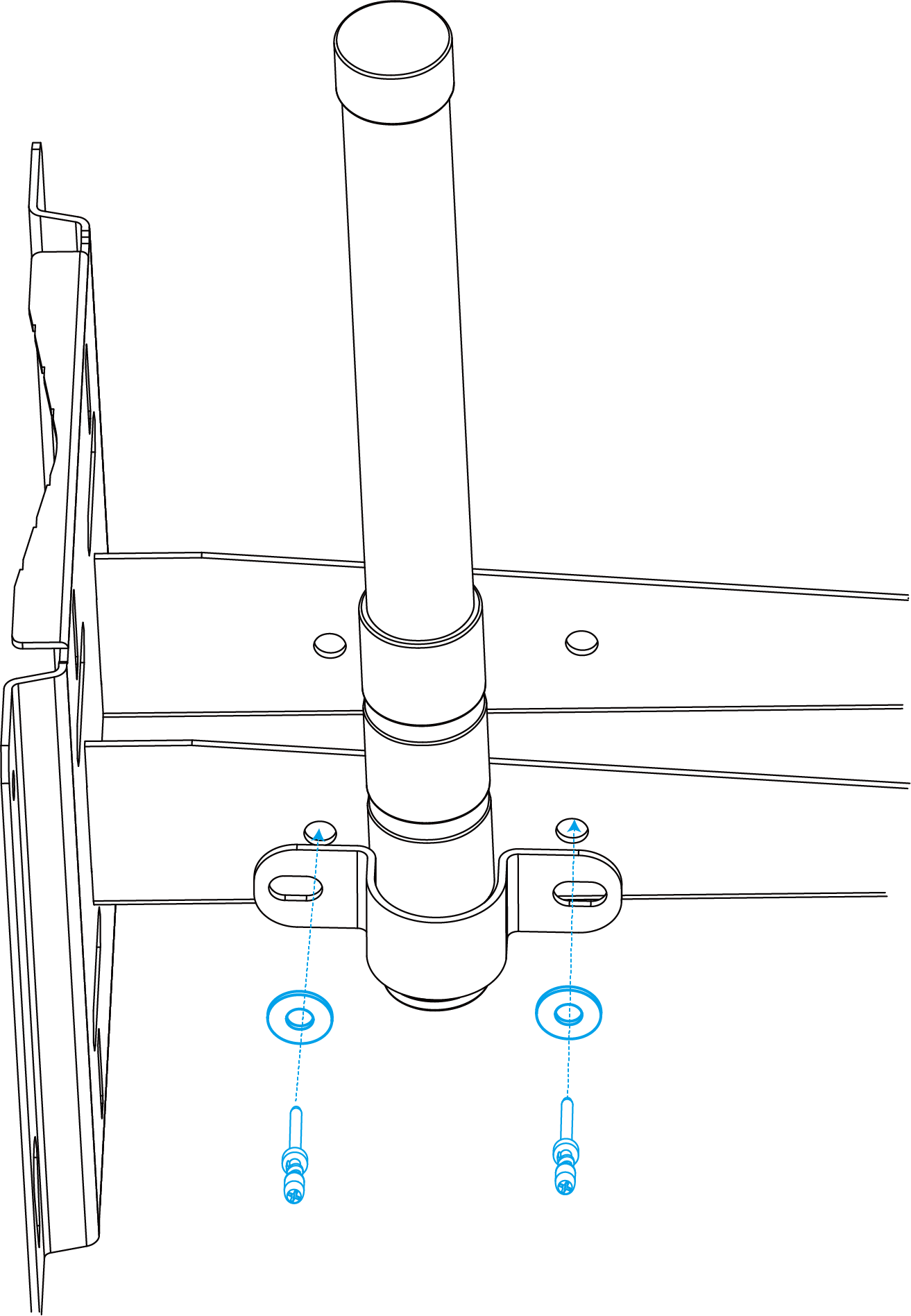
- Pass the LoRaWAN® antenna through the U-strap clamp.
- Secure the U-strap clamp to the side of the mounting bracket with two flat washers
and two screws.
- Connect one end of the antenna coaxial cable to the LoRaWAN® antenna
and the other end to the gateway antenna connector.
- U-bolt Mounting
-
- Pass the LoRaWAN® antenna through the antenna clamp and secure it with four screws.
- Wrap the U-bolt around the pole and secure the clamp with the nuts and other
accessories.
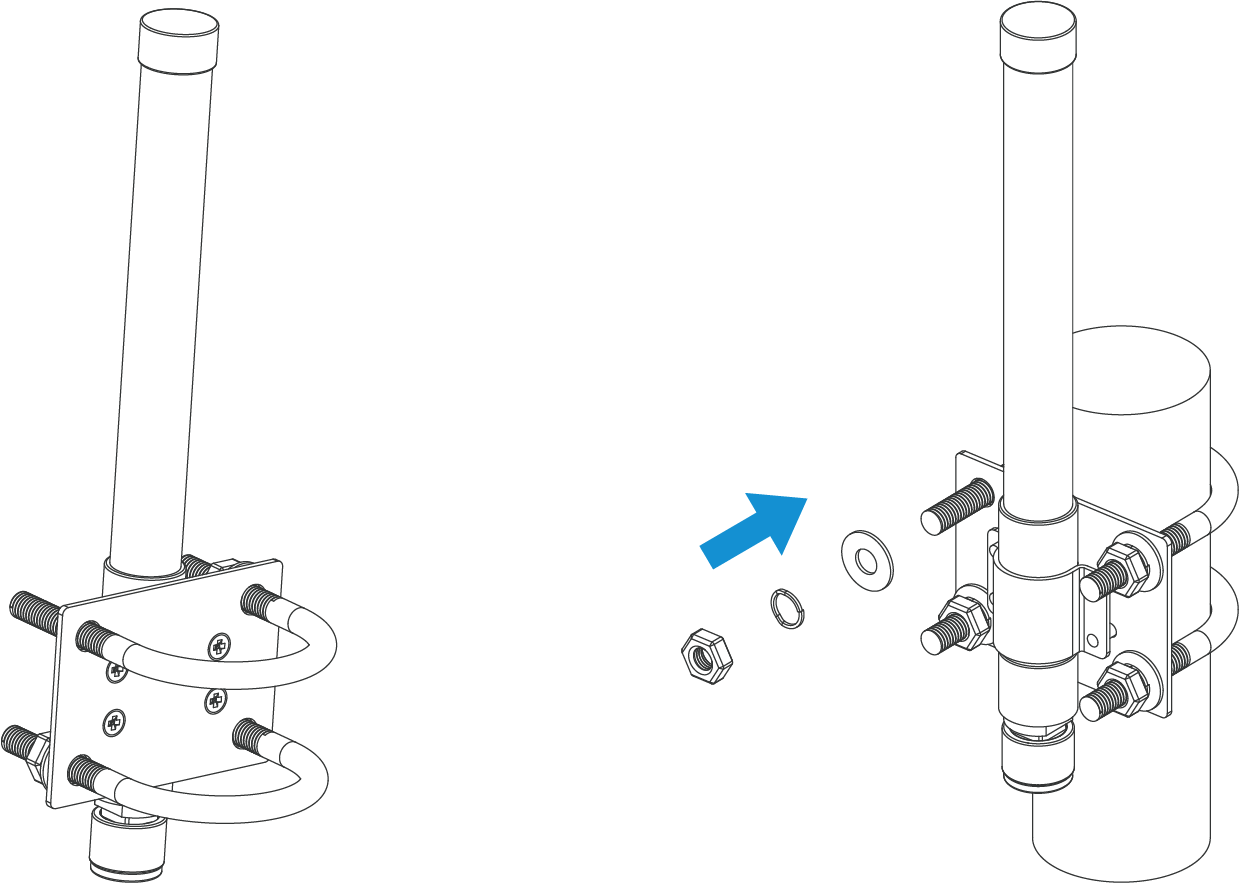
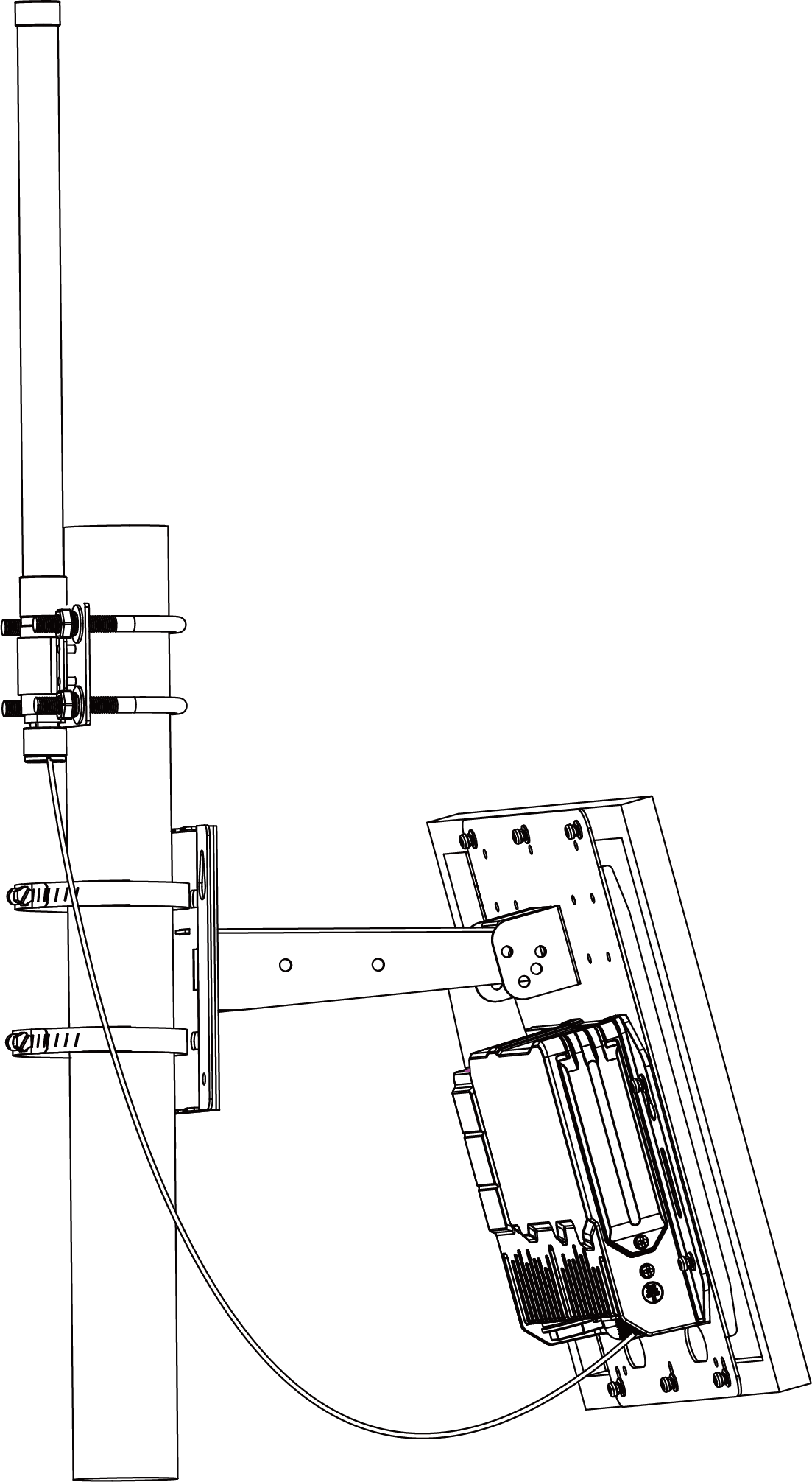
- Connect one end of the antenna coaxial cable to the LoRaWAN® antenna
and the other end to the gateway antenna connector.Tip: For better antenna signal, it is suggested to install the antenna at the top of the metal pole.
Weatherproof the Antenna Connection
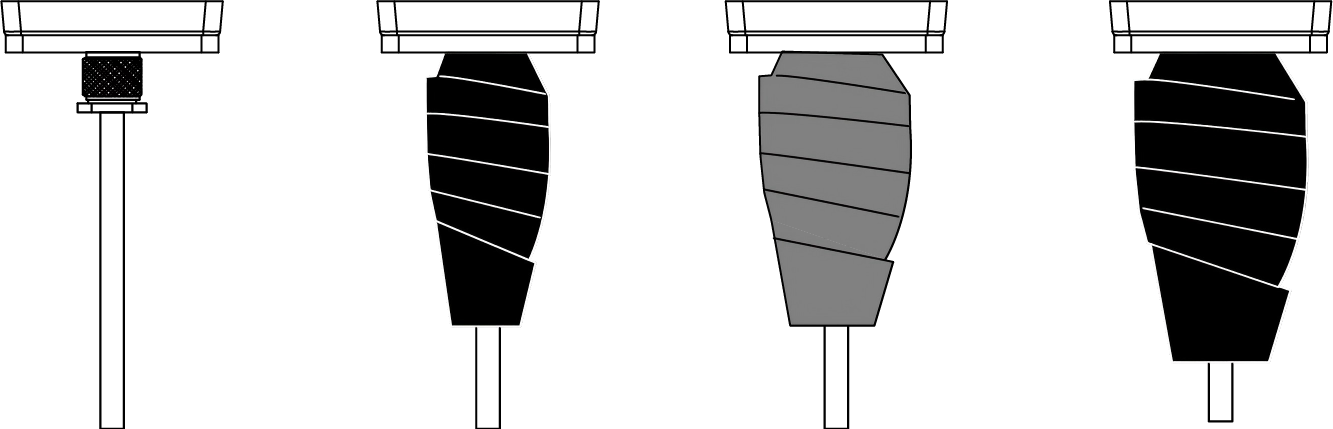
Cover the antenna connector with tape to protect the outdoor connection from bad weather.
Prerequisites: Electrical Insulation Tapes, 3M Waterproof Tapes- Make sure the antenna is installed tightly and clean the connector surfaces.
- Wrap one layer of electrical insulation tape tightly around the connector, overlapping the previous wrap by 50%.
- Wrap one layer of 3M waterproof tape tightly around the connector, overlapping the previous wrap by 50%. Stretch the waterproof tape to twice its length while wrapping.
- Wrap one final layer of electrical insulation tape around the connector with natural uncoiling force, overlapping the previous wrap by 50% and covering the head and tail of the connector.
Lightning Protection and Grounding
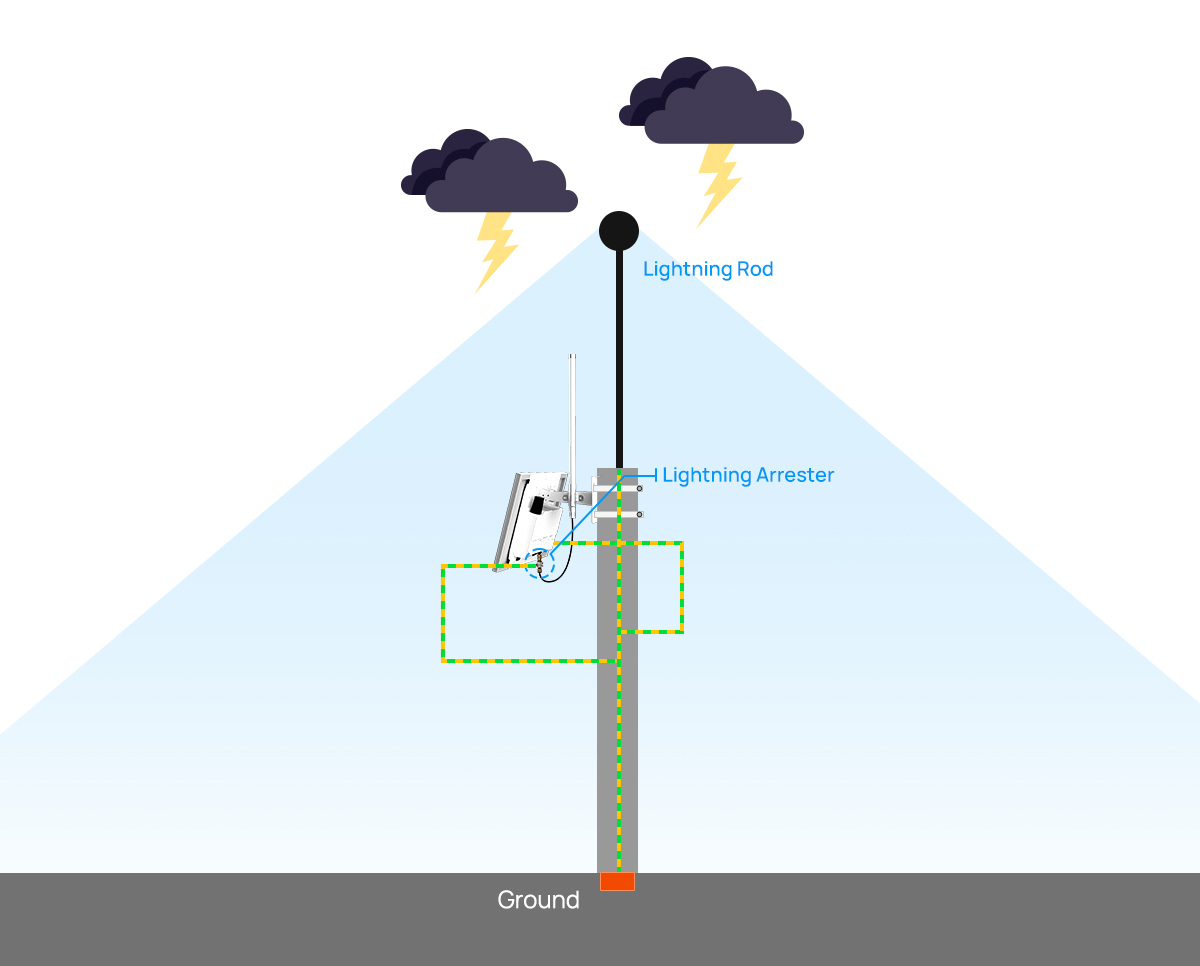
- Connect the gateway to earth ground.
- Add a lightning arrester to the antenna connector.
- Make sure the antennas are lower than the highest position of the building and the gateway and antennas are within the protection range of the lightning rod.
- If there is no lightning rod nearby, make sure the gateway is not installed in an area influenced by lightning, or install a lightning rod above the antennas.
- The cross-sectional area of the earthing wire should be more than 10 AWG.
FCC Statement
Any changes or modifications not expressly approved by the party responsible for compliance could void the user’s authority to operate the equipment. This device complies with part 15 of the FCC Rules. Operation is subject to the following two conditions:
(1) This device may not cause harmful interference, and.
(2) This device must accept any interference received, including interference that may cause undesired operation.
Note: This equipment has been tested and found to comply with the limits for a Class B digital device, pursuant to part 15 of the FCC Rules. These limits are designed to provide reasonable protection against harmful interference in a residential installation. This equipment generates, uses and can radiate radio frequency energy and, if not installed and used in accordance with the instructions, may cause harmful interference to radio communications. However, there is no guarantee that interference will not occur in a particular installation. If this equipment does cause harmful interference to radio or television reception, which can be determined by turning the equipment off and on, the user is encouraged to try to correct the interference by one or more of the following measures:
—Reorient or relocate the receiving antenna.
—Increase the separation between the equipment and receiver.
—Connect the equipment into an outlet on a circuit different from that to which the receiver is connected.
—Consult the dealer or an experienced radio/TV technician for help.
FCC Radiation Exposure Statement:
This equipment complies with FCC radiation exposure limits set forth for an uncontrolled environment. This equipment should be installed and operated with minimum distance 20cm between the radiator& your body. This transmitter must not be co-located or operating in conjunction with any other antenna or transmitter.
Related Resource
For more information, please refer to Milesight Document Center.