Access the Device
The device can be configured through the web GUI accessible over Ethernet port. The recommended browsers are Chrome and Microsoft Edge.
The default IP address of the device is 192.168.5.220 (can be found on
the device label).
Preparations: Computer and network cable
Steps:
- Use the network cable to connect the device and the computer.
- Click Start → Control Panel →
Network and Internet → Network and Sharing
Center.
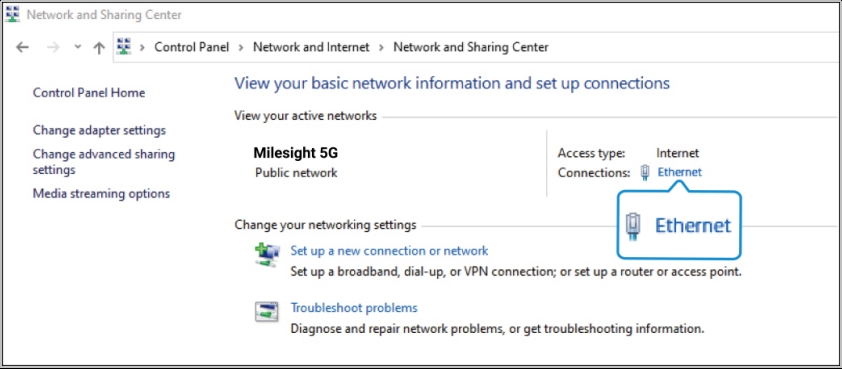
- Click Ethernet → Properties and double
click Internet Protocol Version 4 (TCP/IPv4). The
Internet Protocol Version 4 (TCP/IPv4) Properties
dialog box is displayed.
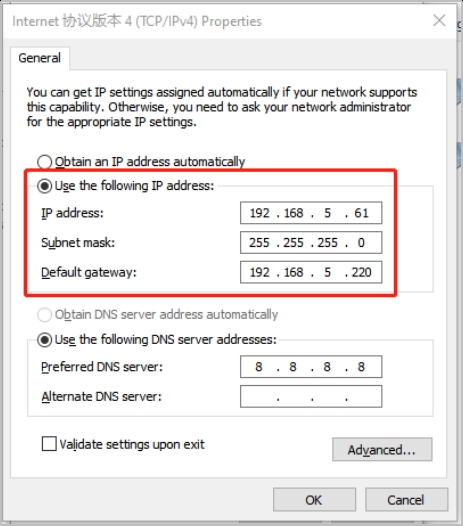
In the Use the following IP address area, perform the following operations:- Enter an IP address (such as
192.168.5.61) that is in the same subnet as the device.Note: This IP address must be unique and not used by any other device on the network. - Set Subnet mask to
255.255.255.0. - Set Default gateway to
192.168.5.220. - Click OK.
- Enter an IP address (such as
- Open a browser and enter Ethernet IP address
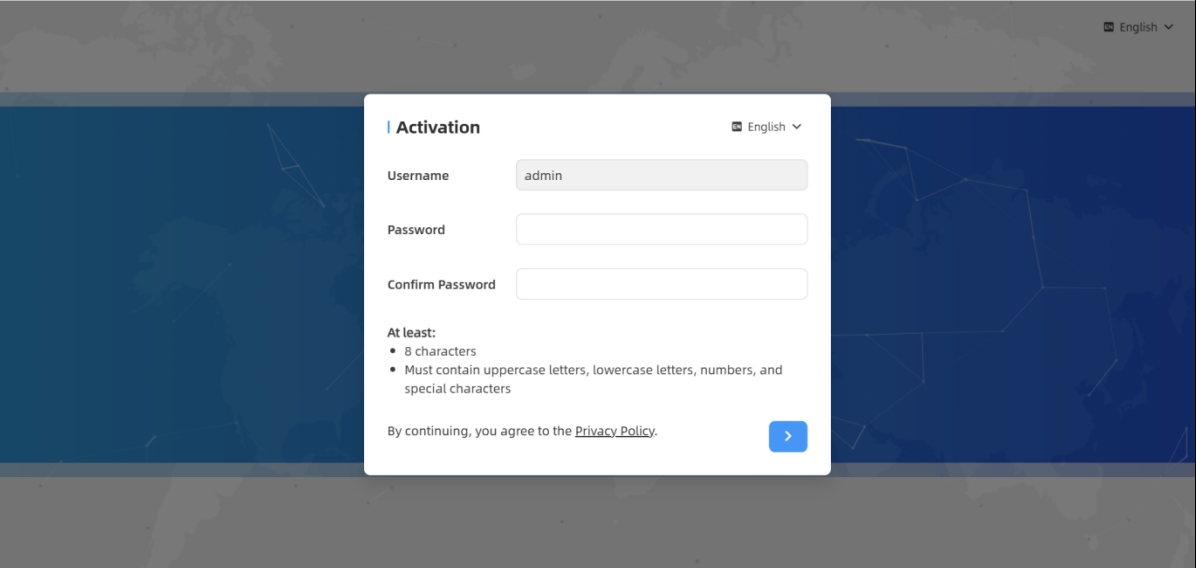
192.168.5.220. - The Activation dialog box is displayed. Set the login
password that is 8 to 63 characters long and contains numbers, lowercase
letters, uppercase letters, and special characters, then click
 .
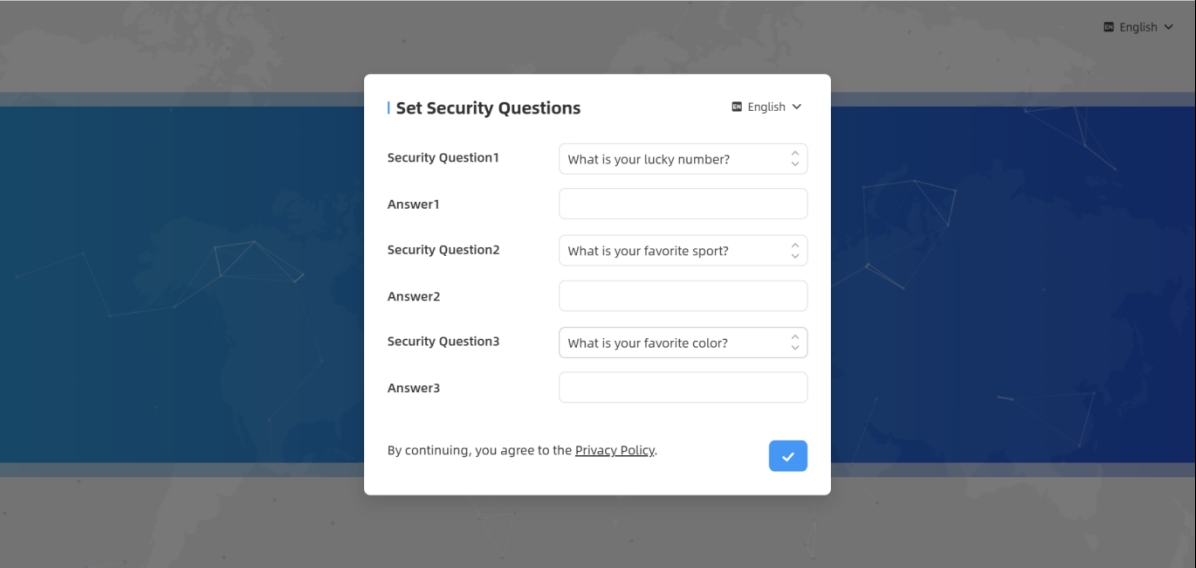
- The Set Security Questions dialog box is displayed. Set the
three security questions when using the device for the first time and click
 .
- The following page is displayed. Log in with username (admin) and
custom password.
 Note: The account will be locked for 10 minutes after five failed login attempts. It is recommended to regularly update the password to enhance device security.
- (Optional) You can click Forget Password? in the login page to reset the password by answering three security questions when you forget the password if you set the security questions in advance.