3.1.2 Login
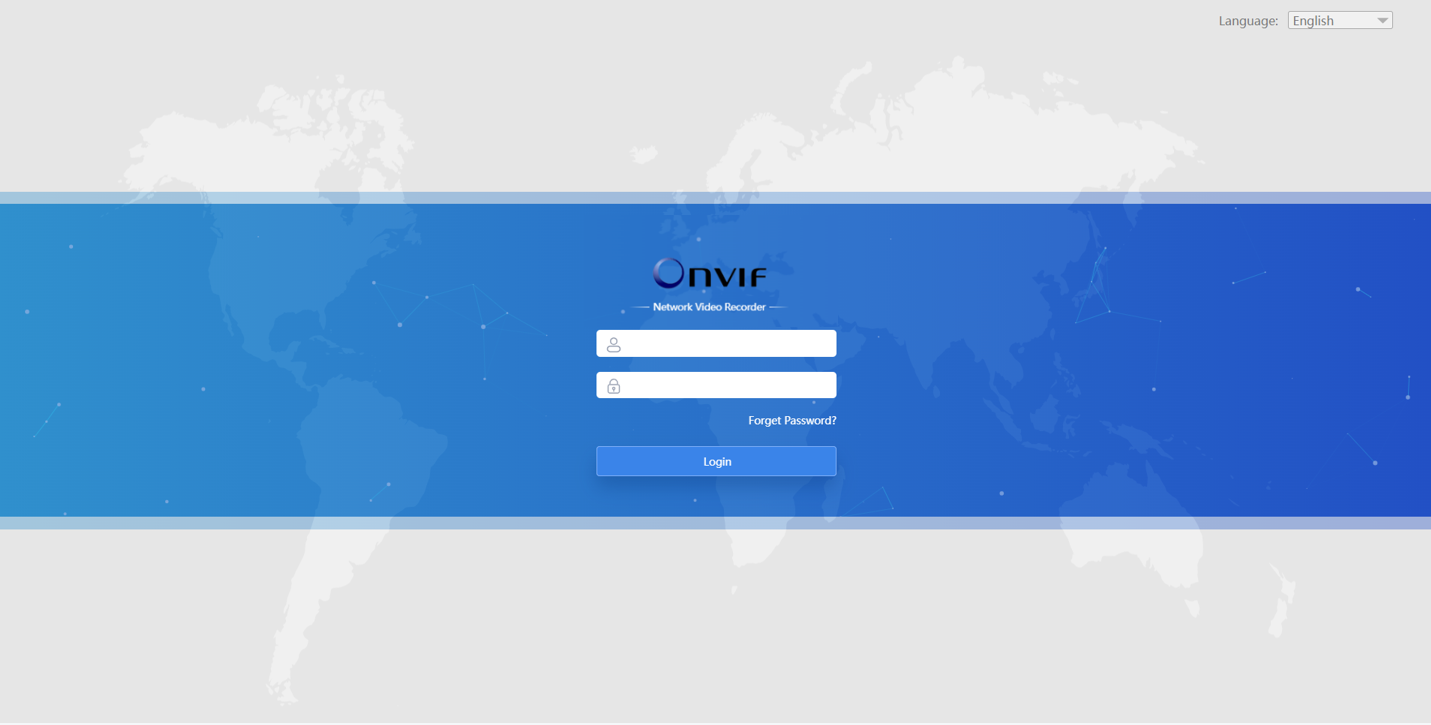
Step1: Select Language on the top-right of interface.
Step2: Input the user name, password and click "Login" button to log in to NVR web page.
- If the NVR firmware version is below xx.7.0.6, the default user name is “admin” and the default password is “123456”.
- If the NVR firmware version is between xx.7.0.6 and xx.9.0.3, the default user name is “admin” and the default password is “ms1234123456”.
- If the NVR firmware version is xx.9.0.3 or above, please set the password before login.
- The account will be locked if the password is entered incorrectly for four times.
- If you forget the password, click
 to reset
password (Only the NVR firmware version xx.9.0.3 or above supports this.).
to reset
password (Only the NVR firmware version xx.9.0.3 or above supports this.).

Step3: The NVR Web page can be used with the most standard operating systems and browsers.
If the NVR version is V7x.9.0.4 or above, Plugin-Free Mode is supported on the NVR. You can preview the video on the browser without plugin. For Windows system, Plugin-Free mode is supported in Chrome/Firefox/Microsoft Edge browser. For MAC system, Plugin-Free mode is supported in Chrome/Firefox/Safari browser.
- If the firmware version of NVR is below V7x.9.0.14, only H.264 video codec is supported on Plugin-Free Mode for NVR. For better user experience, we recommend that you set the "profile" option to "main" on the camera.
- If the firmware version of NVR is V7x.9.0.14 or above, H.265 video codec is supported on Plugin-Free Mode for NVR.
- Plugin-Free mode is only supported when Chrome version is above V45, Firefox version is above V52, Microsoft Edge version is above V11 and Safari version is above V11.
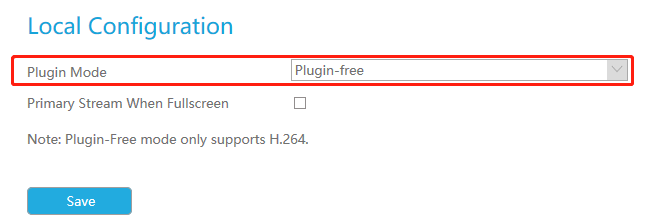
- When you use plugin-free mode, it will display “Plugin-Free” mode in “Settings”
- “Local Configuration” interface.
If the NVR version is below V7x.9.0.4, the browser will prompt to install the plugin
when first logging in the device. You can click “ ” to
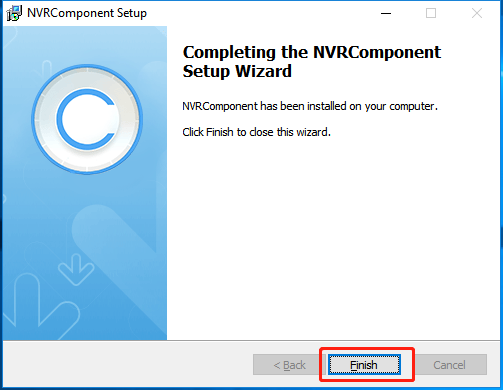
download the plugin for NVR. Please click “Finish” and refresh the browser, then you
will see the video.
” to
download the plugin for NVR. Please click “Finish” and refresh the browser, then you
will see the video.