Getting Started
Step 1. Log in to Controller Web GUI
The device can be configured through the web GUI accessible over Ethernet port.
The default IP address of the device is 192.168.2.251.
- Connect the LAN port of the device to your computer using a network cable.
- Configure the IP address of your computer, ensuring it is on the same subnet as
the device. Take Windows 10 as an example:
- Navigate to Control Panel > Network and Internet > Network and
Sharing Center and select “Ethernet” (It may have a
different name).
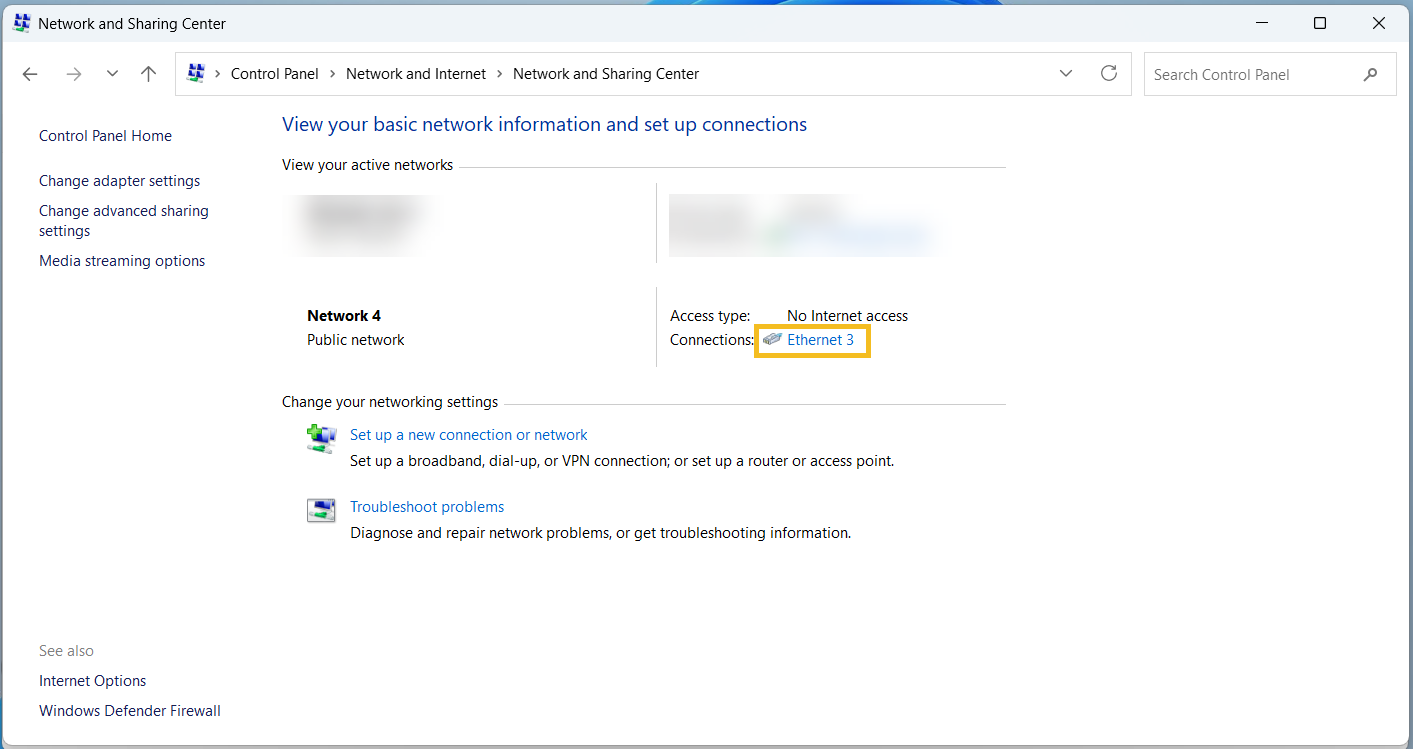
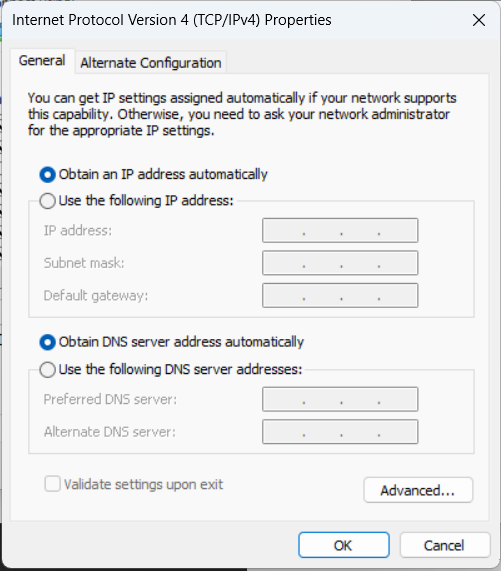
- Navigate to Properties > Internet Protocol Version 4 (TCP/IPv4)
Properties, then select Use the following IP address
to manually assign a static IP address, such as
192.168.2.201/255.255.255.0.
- Open a web browser (Chrome is recommended) and enter the static IP address of the device to access the web GUI.
- Navigate to Control Panel > Network and Internet > Network and
Sharing Center and select “Ethernet” (It may have a
different name).
- Log in to the web GUI using the default credentials.
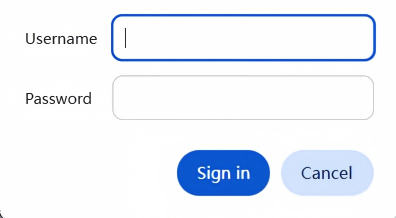
Item Default Username admin Password admin56789*
Step 2. Configure the WAN settings
It is necessary to configure the WAN to enable devices to access the network.
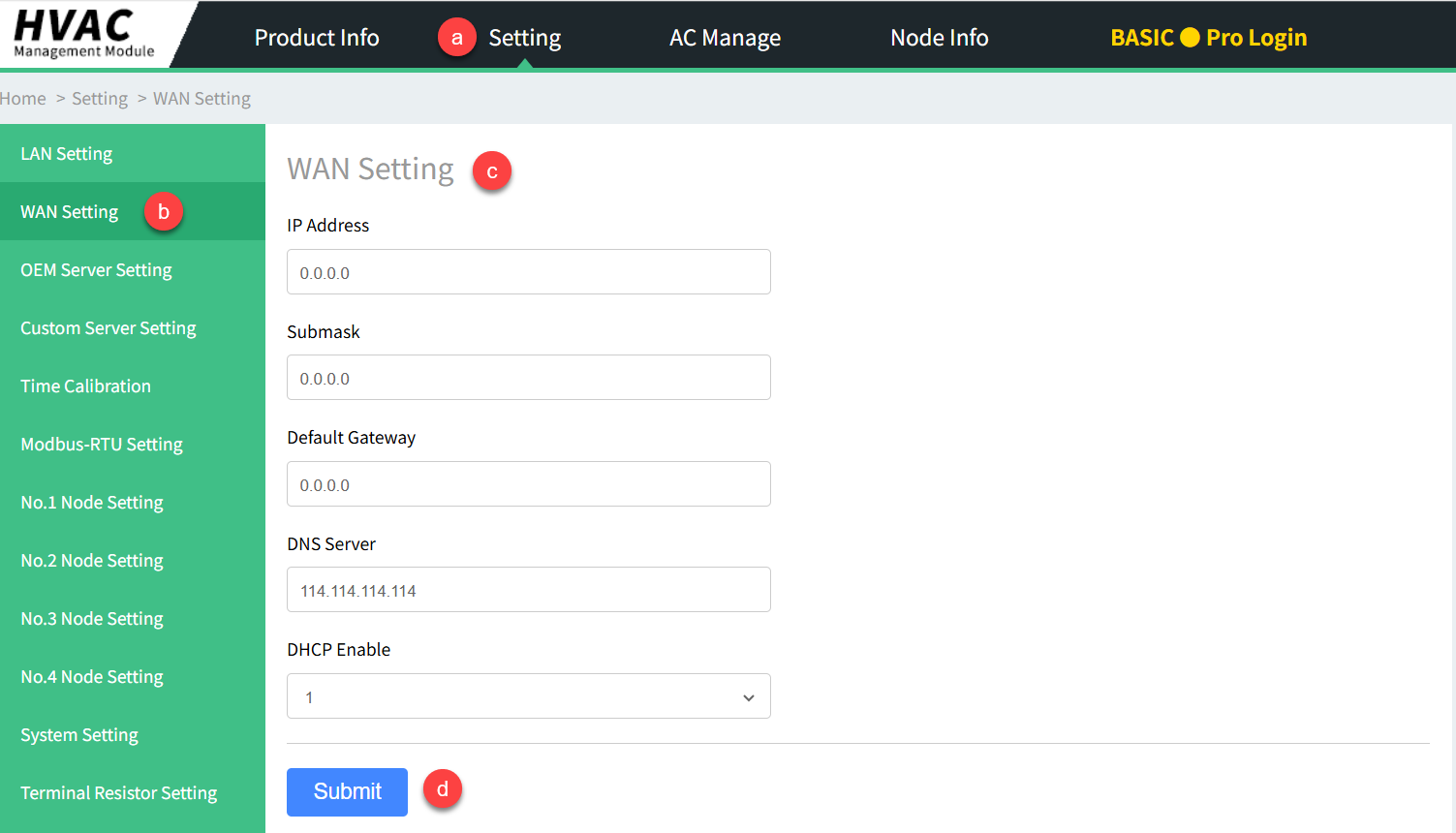
- Click Setting > WAN Setting to access the configuration page.
- Enter the related parameters and click Submit to save configuration.
- Connect the WAN port to an active Ethernet cable with network access.
- On the Device LCD screen, select the Network Setting page and enter
WAN Setting page to verify that the displayed IP address matches the
configured value.
Step 3. Calibrate the Device Time
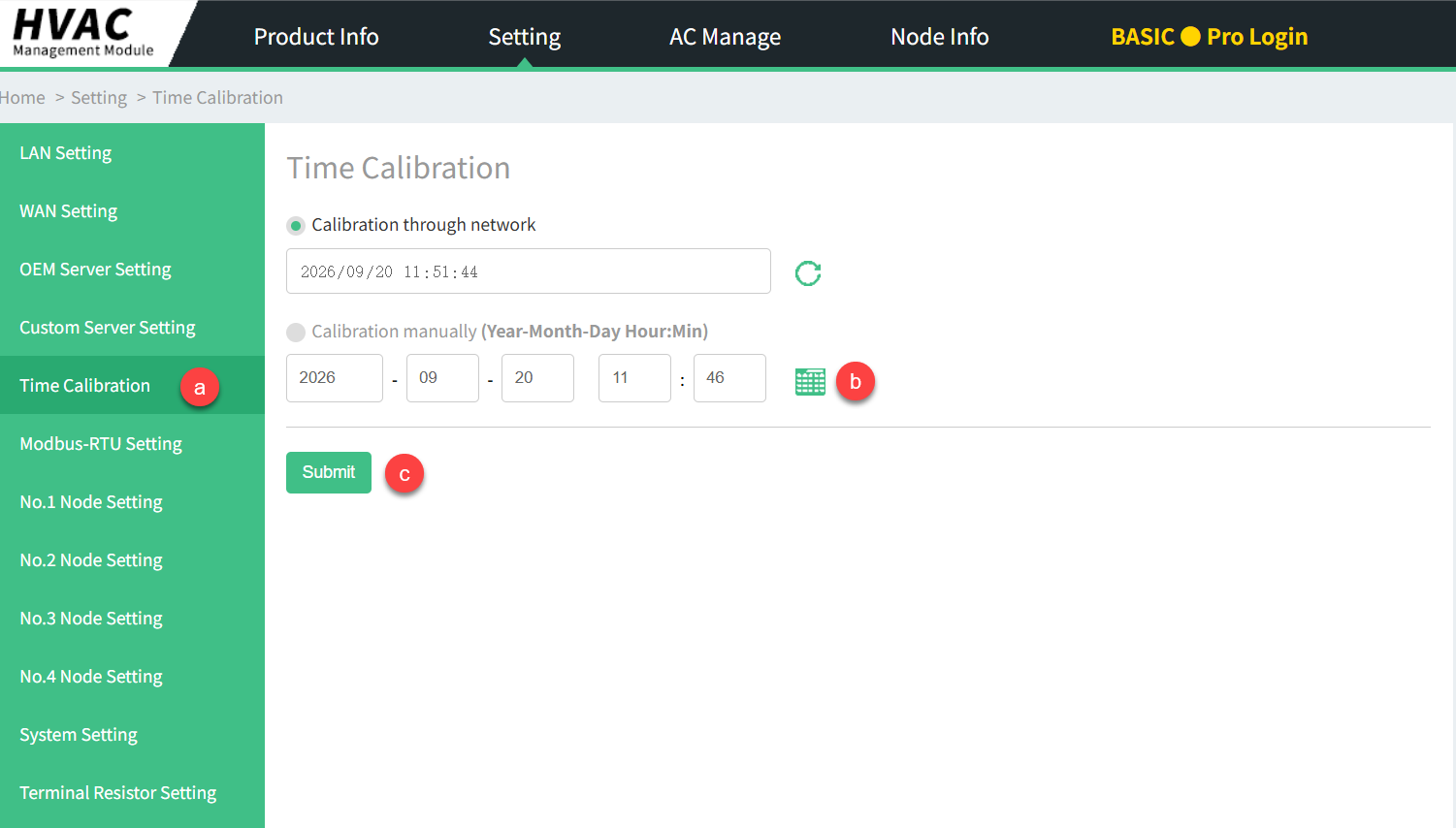
To ensure data accuracy, it is recommended to manually calibrate the time after logging in.
- Enter the Time Calibration interface under the Setting menu.
-
Select Calibration Manually, then enter the time manually.
- Click Submit to apply the changes.
Step 4. Configure the Customer Server Setting
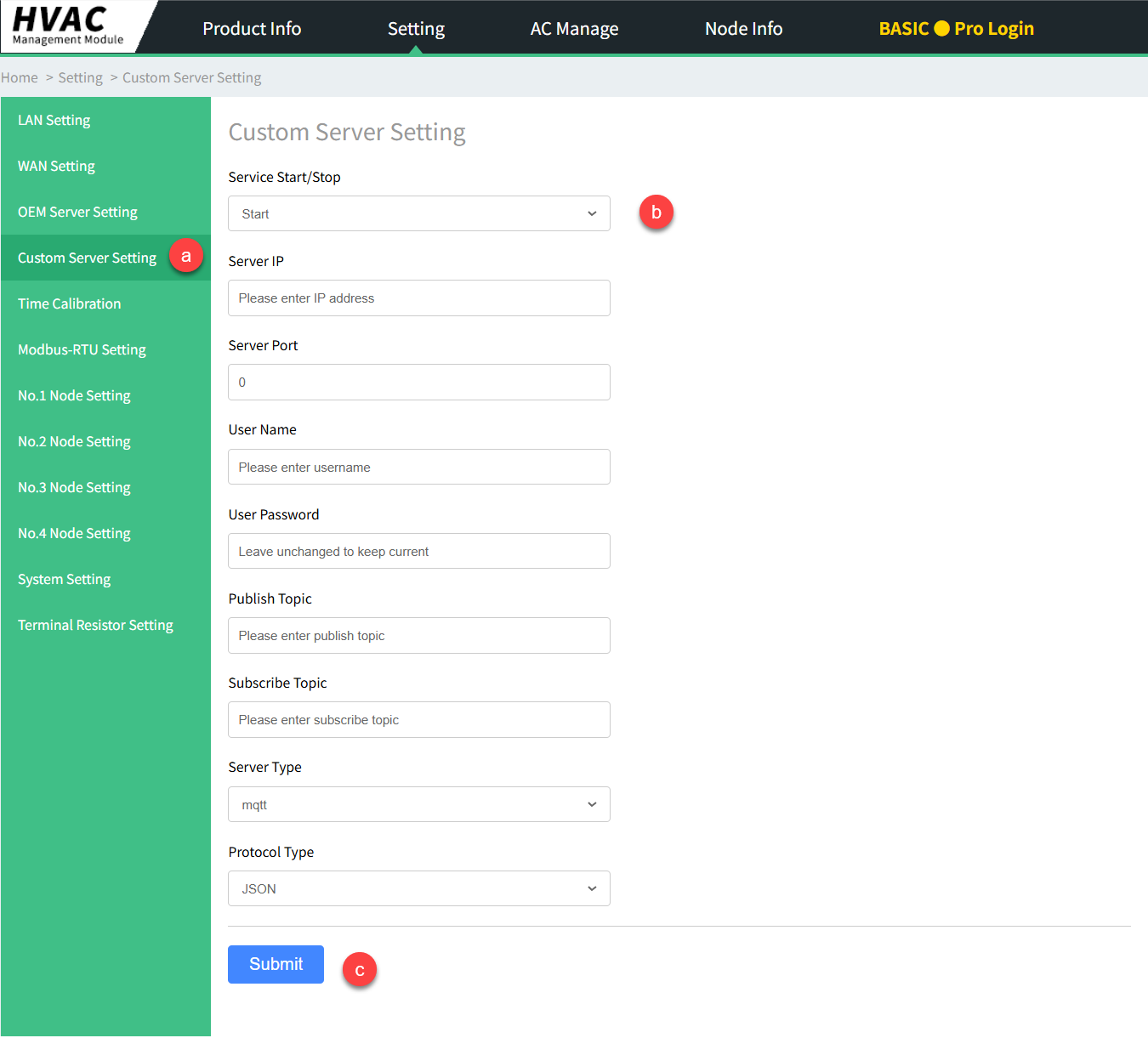
- Navigate to the Custom Server Setting interface under the Setting menu.
- Enter the relevant configuration details provided by the server.
- After configuration is complete, click Submit.
Step 5. Set the Air Conditioner Brand
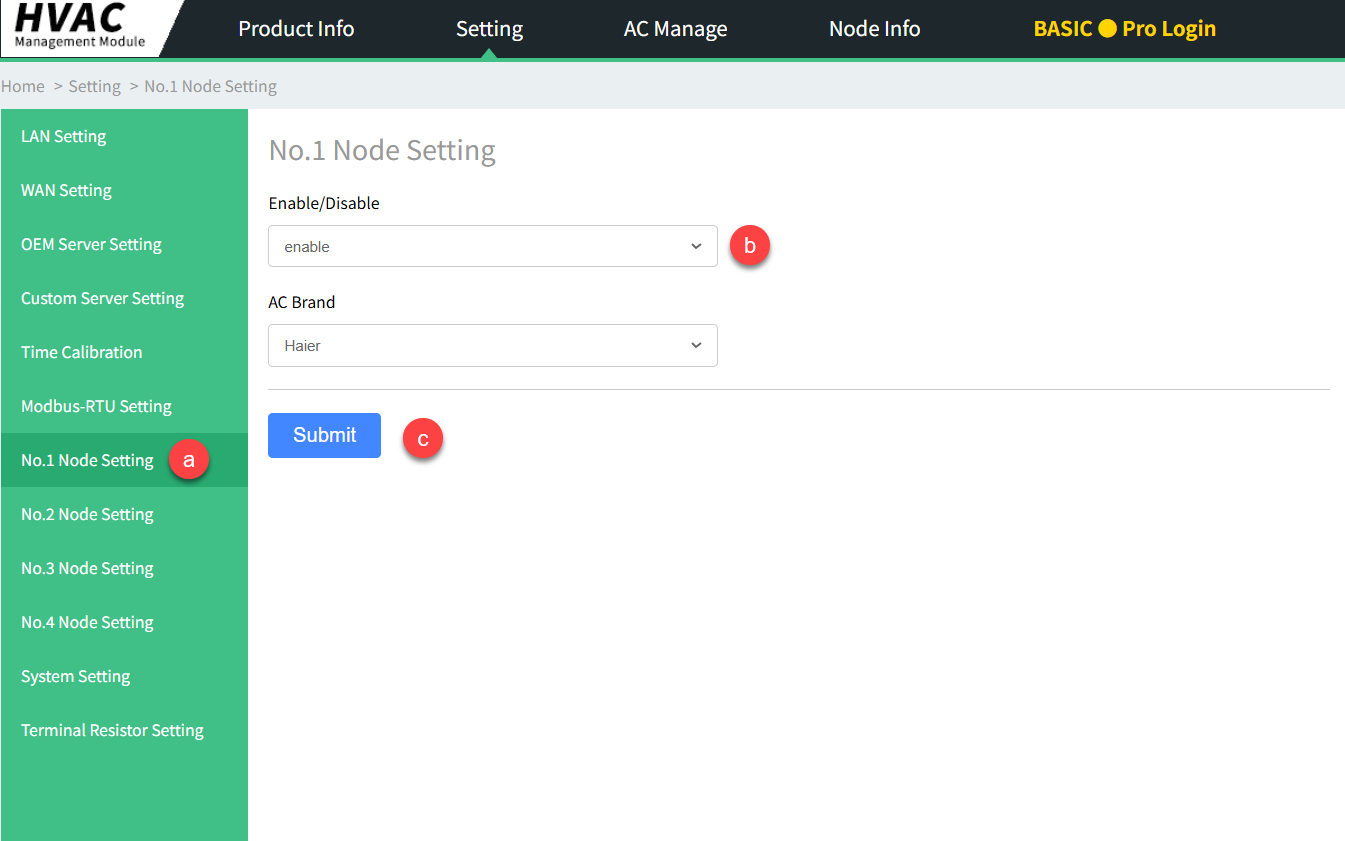
- Click Setting > No.x Node Setting to access the configuration page.
- Enable the channel.
- In the AC Brand field, select the actual brand of the air conditioner.
- After confirming the selection, click Submit to apply the
change.
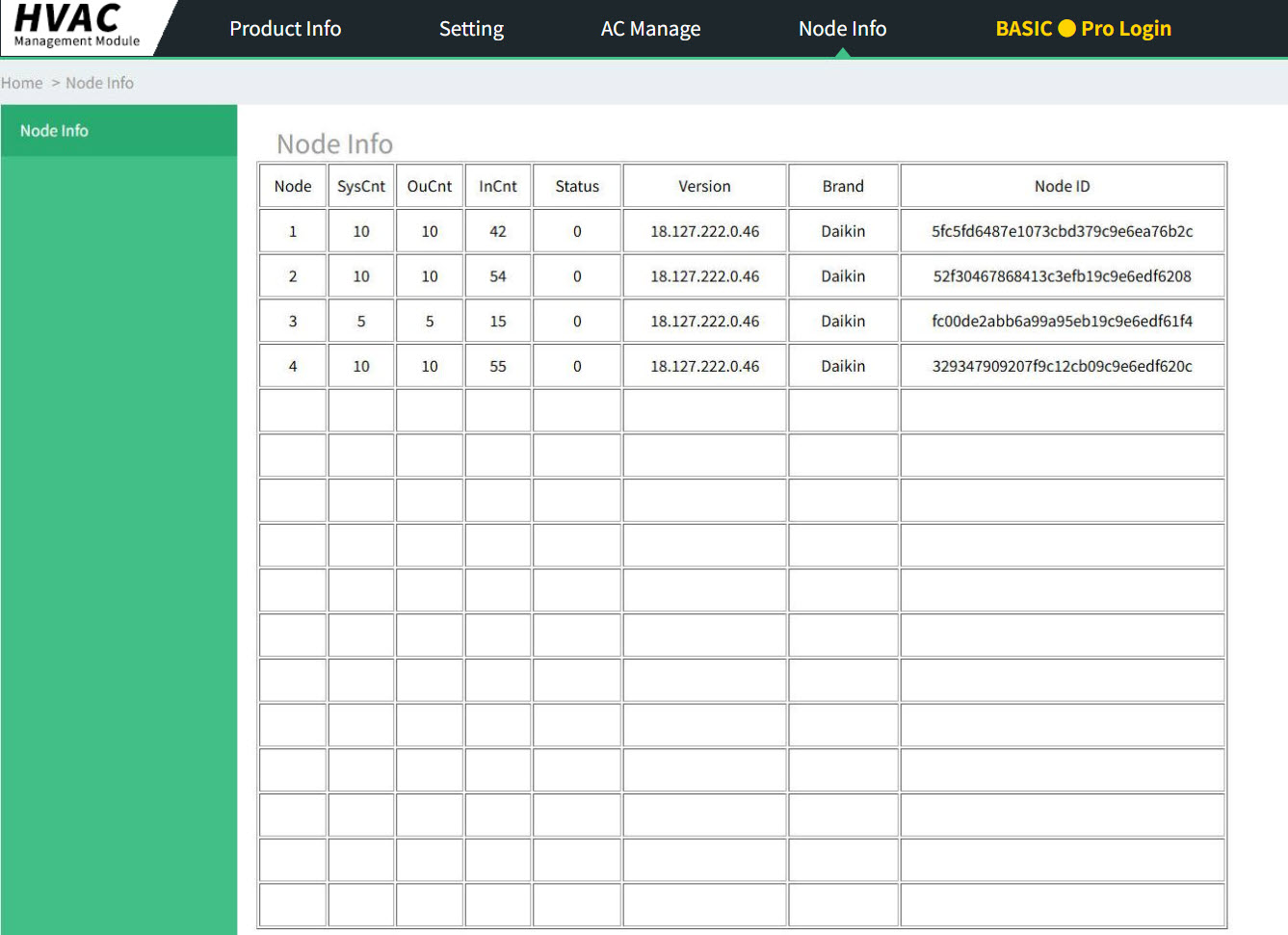
- Go to the Node Info interface to check if the brand under corresponding channel has been successfully changed.
- Restore power to the air conditioner’s outdoor unit.
- Wait for the device to automatically search for the indoor air conditioning
units
Step 6. Air Conditioner Management - Control the Air Conditioners
- Enter the AC Manage interface to view the air conditioners that have
been discovered.
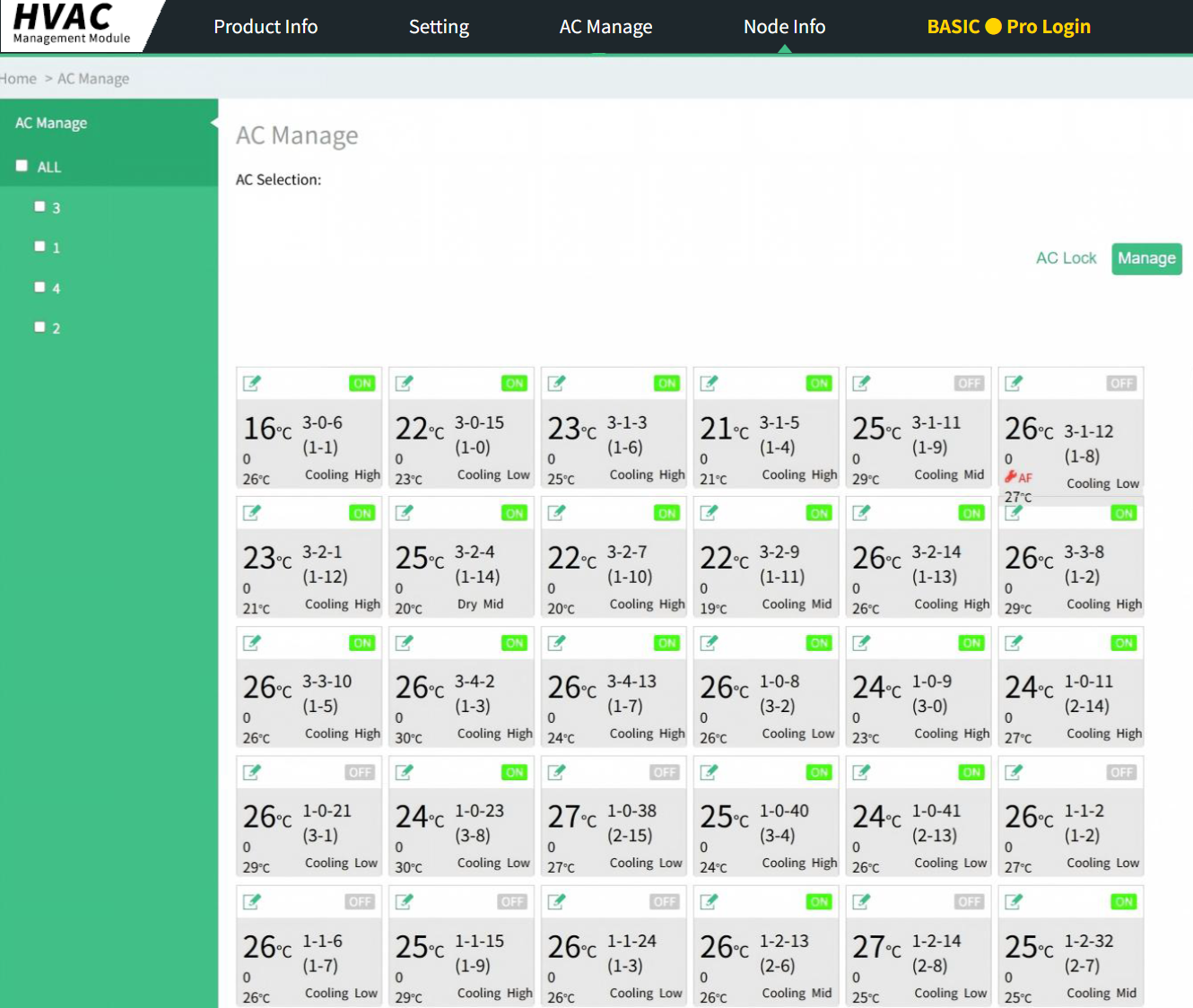
- Click on the corresponding air conditioner cards to select multiple units. Selected air conditioners will be displayed in the AC Selection bar at the top. You can also directly select all air conditioners under a single channel by using options 1, 2, 3, or 4 in the left-side AC Manage panel.
- Click Manage. In the new interface that appears, configure the
desired settings. After completing your selections, click
Submit.
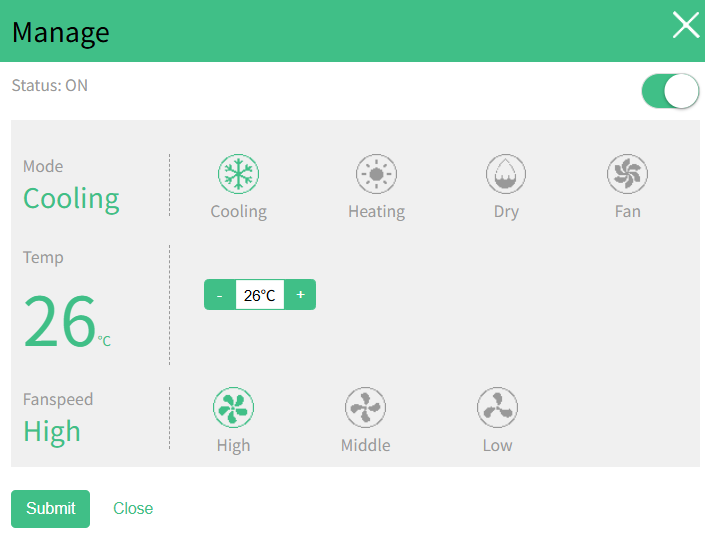
- After a control command is successfully sent, wait briefly for the air conditioner card information to sync and update.
Step 7. AC Location Record
- Physically change the temperature setting on an indoor unit on site, then look for which device in the management interface reflects the change, and make a note of the association between that the address of indoor unit and its physical location.
- Repeat the above steps until the spatial correspondence (mapping) of all air-conditioning units has been confirmed.