Access the Device Using NFC
This section describes how to access the device using NFC.
Prerequisites: The device is powered by internal or external power source.
Steps:
- Download Milesight ToolBox app from Google Play or Apple Store.
- Enable the NFC function on the smart phone.
- Launch ToolBox.
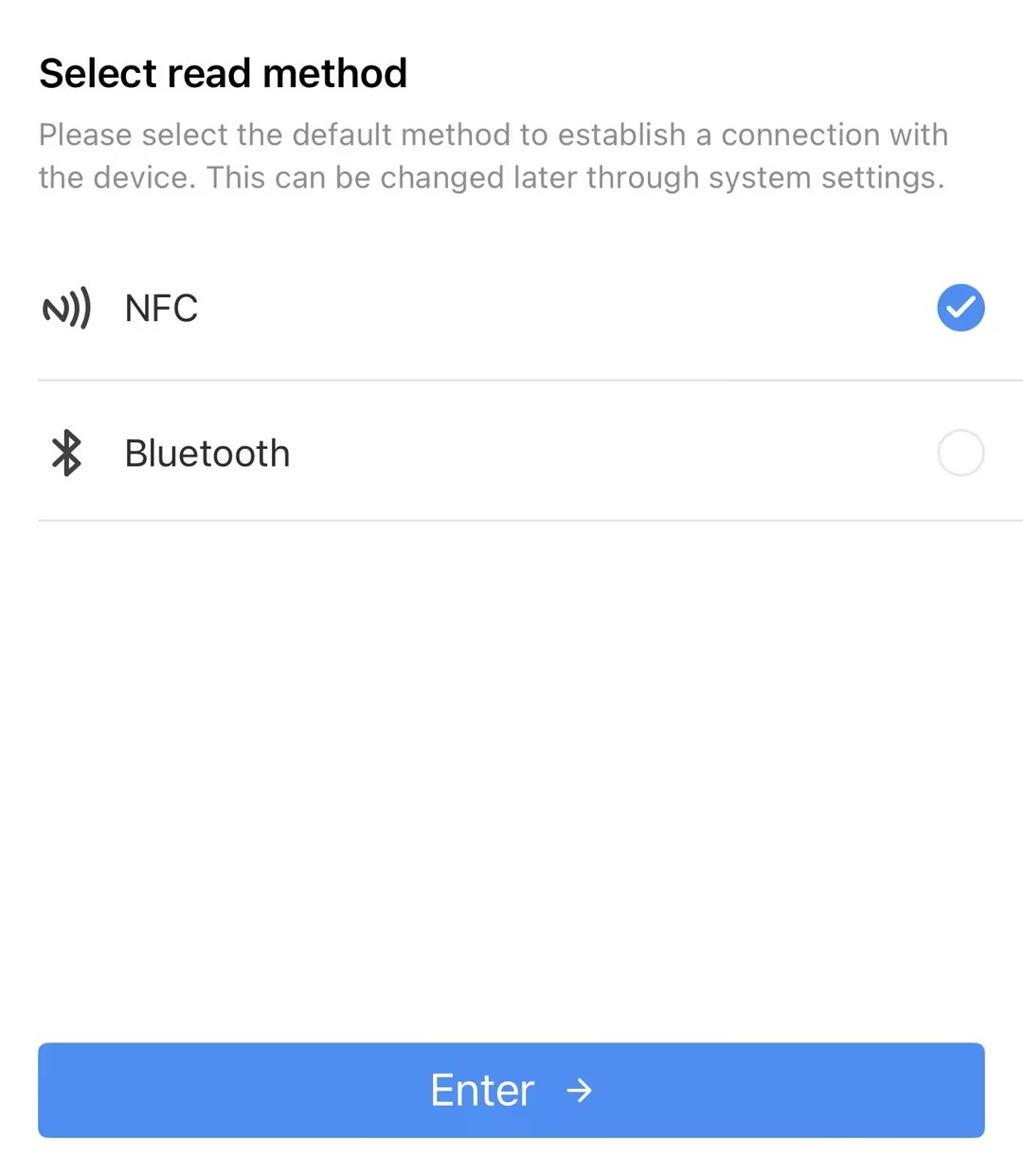
- Upon initial launch, the following page will appear. Select NFC
and click Enter.
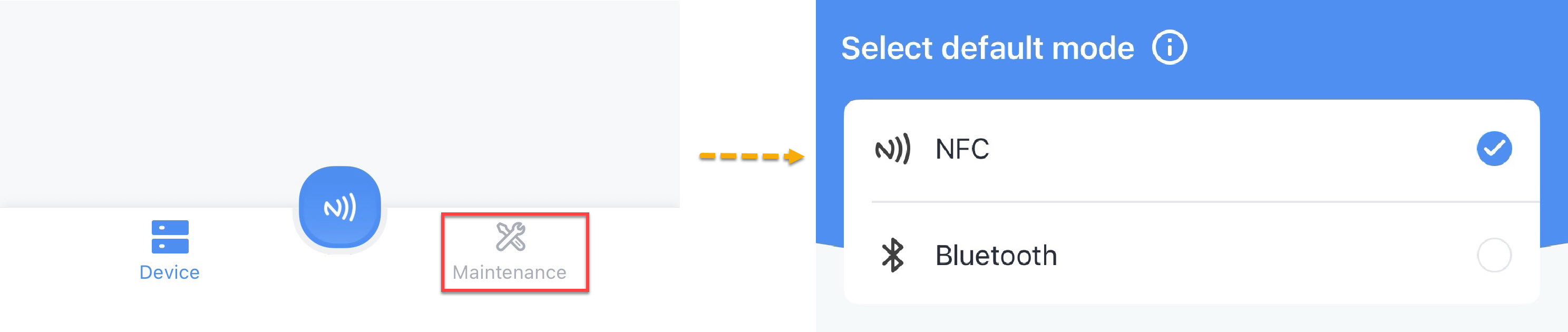
- Upon subsequent launches, Click Maintenance on the home page, and
then select NFC.
- Upon initial launch, the following page will appear. Select NFC
and click Enter.
- (Optional) To locate the NFC detection areas of the phone and the device, click Can't find the NFC location.
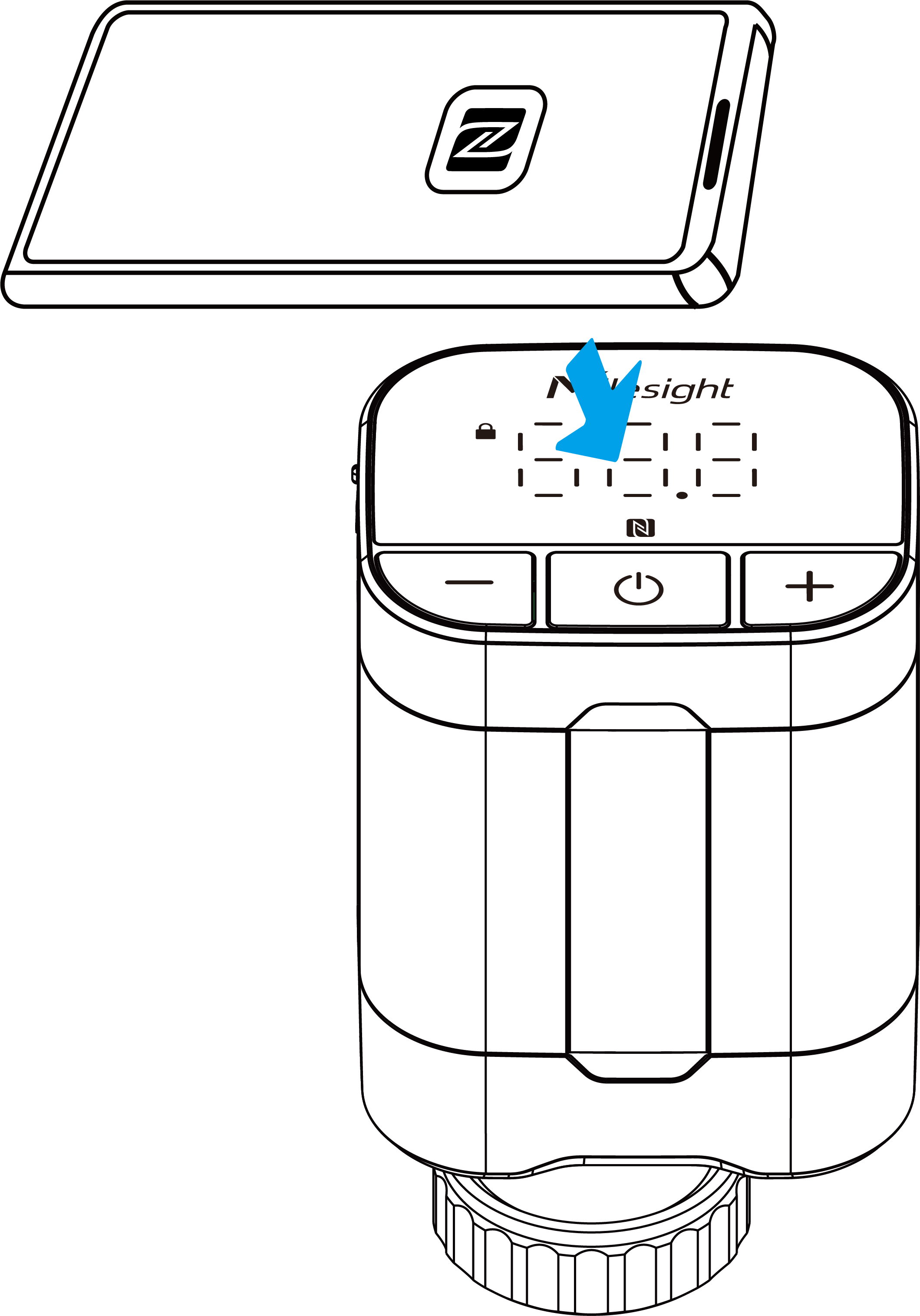
- Put the NFC detection area of the phone close to the NFC antenna of the device.Tip:
- It is recommended to remove the phone case.
- The device cannot be read from or written to during motor stroke calibration.
- Click
 . If the device is recognized successfully, the homepage is
displayed. Troubleshooting: If read fails, move the phone away and reposition it close to the sensor to try again.For a description of the homepage, refer to the following table.
. If the device is recognized successfully, the homepage is
displayed. Troubleshooting: If read fails, move the phone away and reposition it close to the sensor to try again.For a description of the homepage, refer to the following table.Item Description Basic Information Show basic device information and sync the device time. Setting Set the device and network parameters. 
Import, add, export or delete a template. 
Select language, show NFC positions, check App version, etc..