2.3 Hardware Introduction
Hardware Overview
- Front View
-
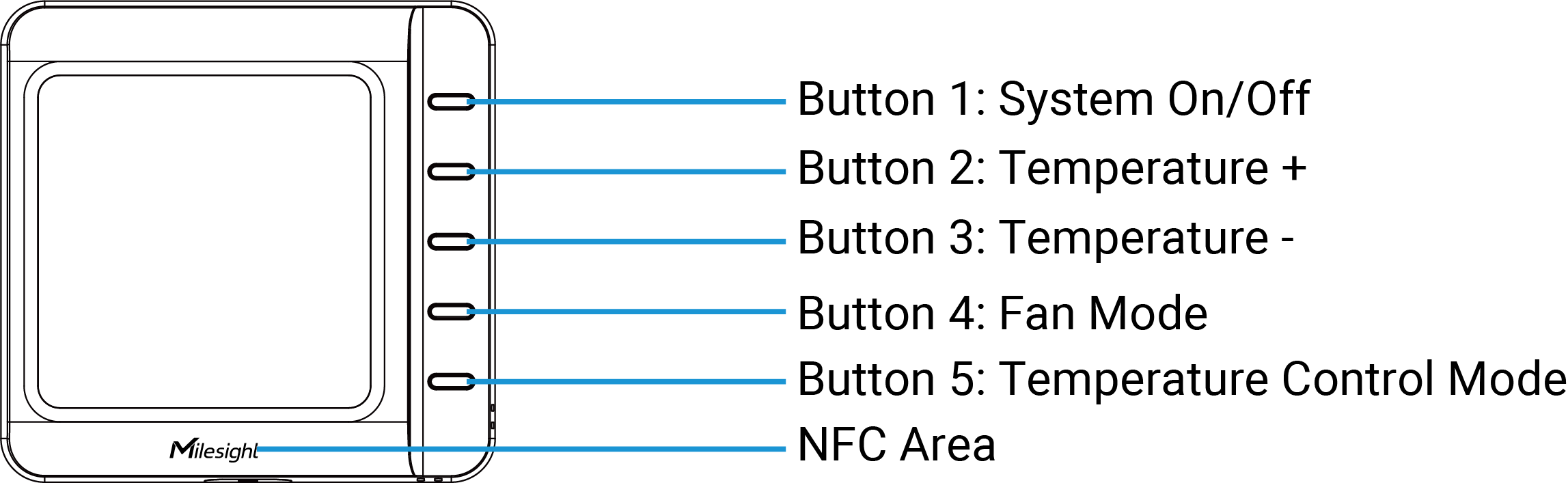
Part Description NFC Area Enables wireless configuration via Milesight ToolBox App. Button 1 Turn on/off the temperature control system. Button 2 When control permission is Thermostat, each press adds the target temperature by 0.5 or 1 (depends on the Target Temperature Resolution). Button 3 When control permission is Thermostat, each press reduces the target temperature by 0.5 or 1 (depends on the Target Temperature Resolution). Button 4 When control permission is Thermostat, switch the fan mode. Button 5 When control permission is Thermostat, switch the temperature control mode.
- Back View
-
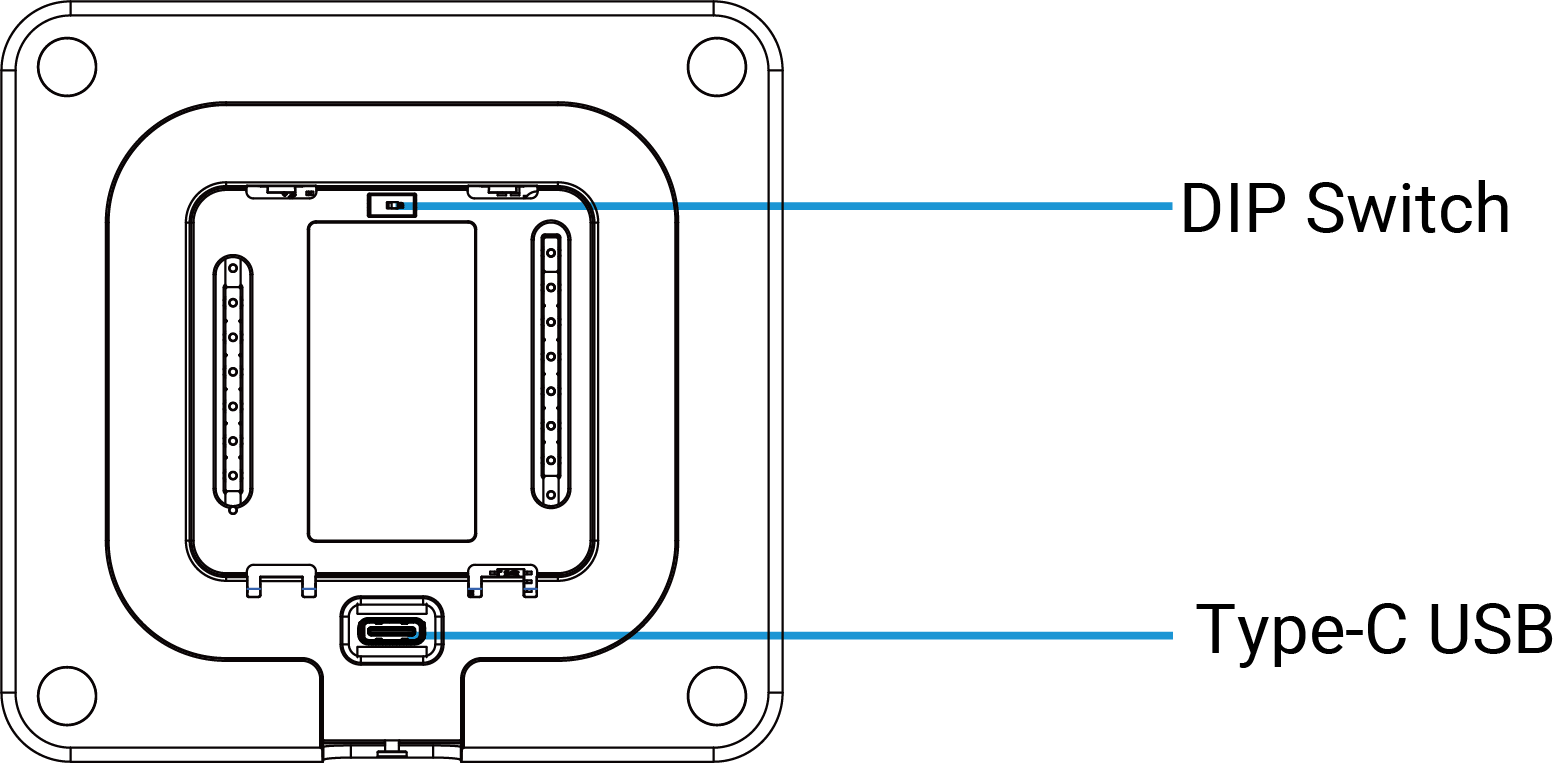
Part Description DIP Switch (WT201 Only) Switch between RC&RH and Only RC according to the wiring system. USB Type-C Used for power supply during configuration or device console.
- Screen Display
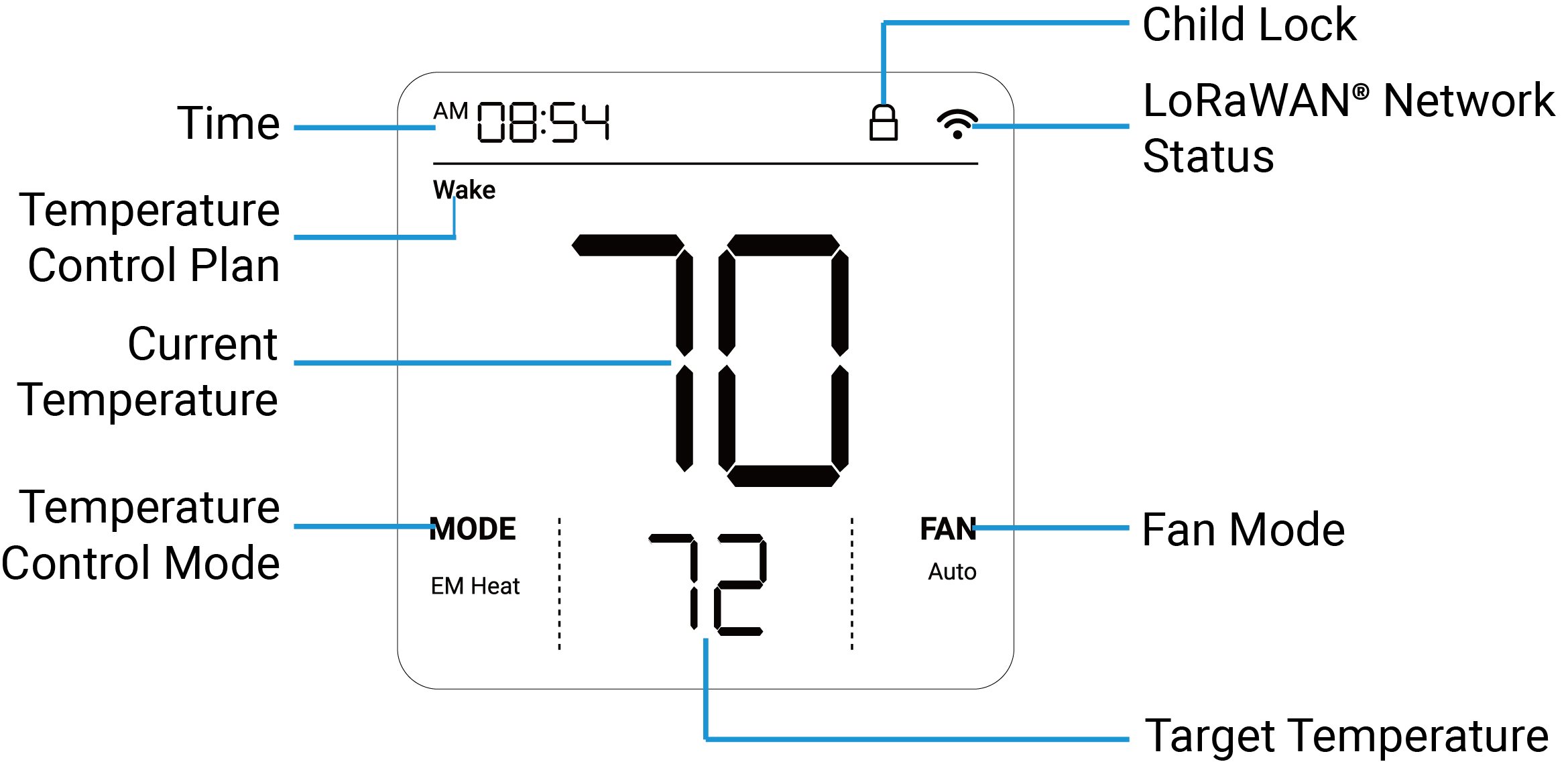
- System On-Thermostat Mode:
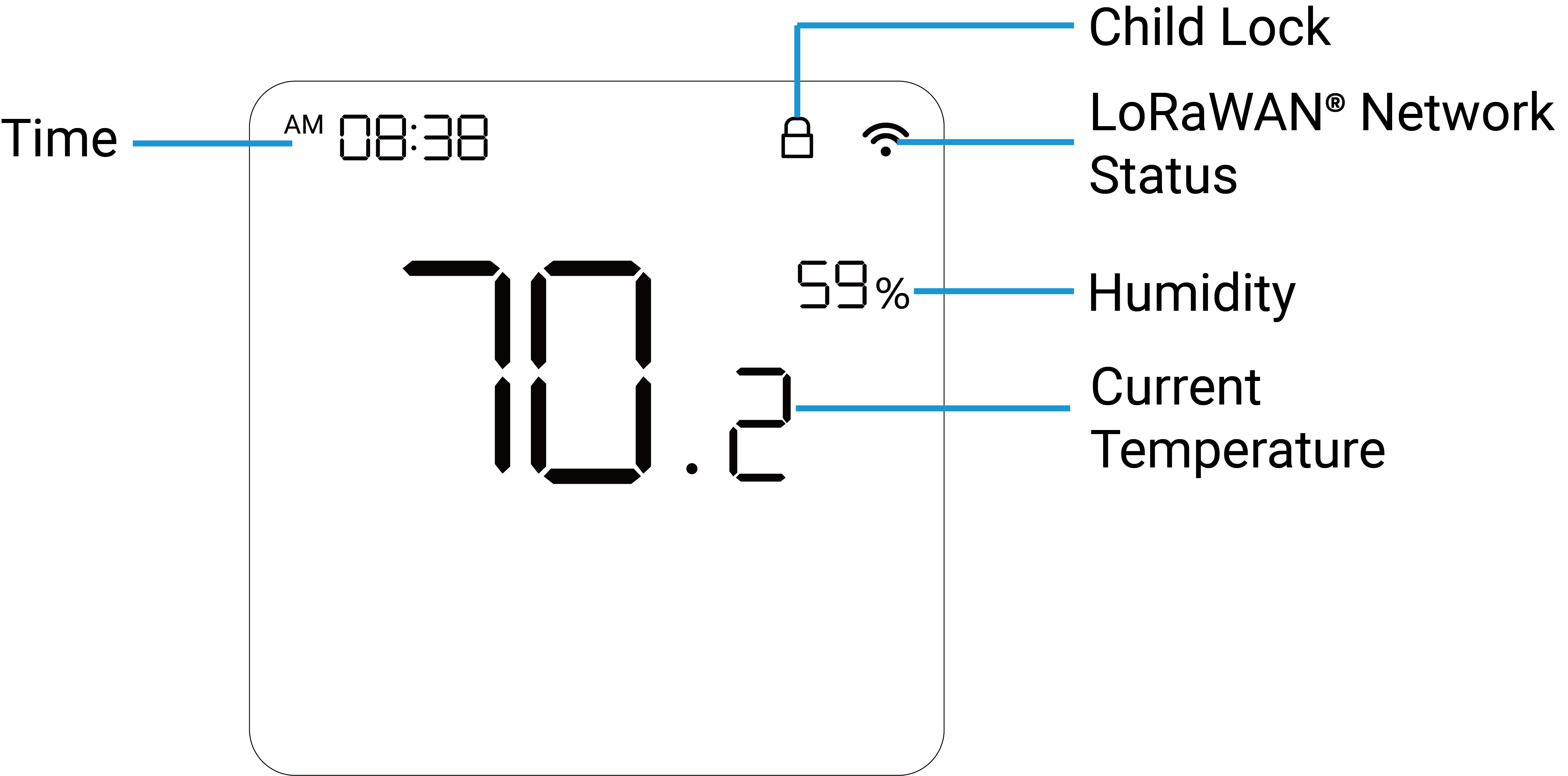
 System On-Remote Control Mode:
 System Off: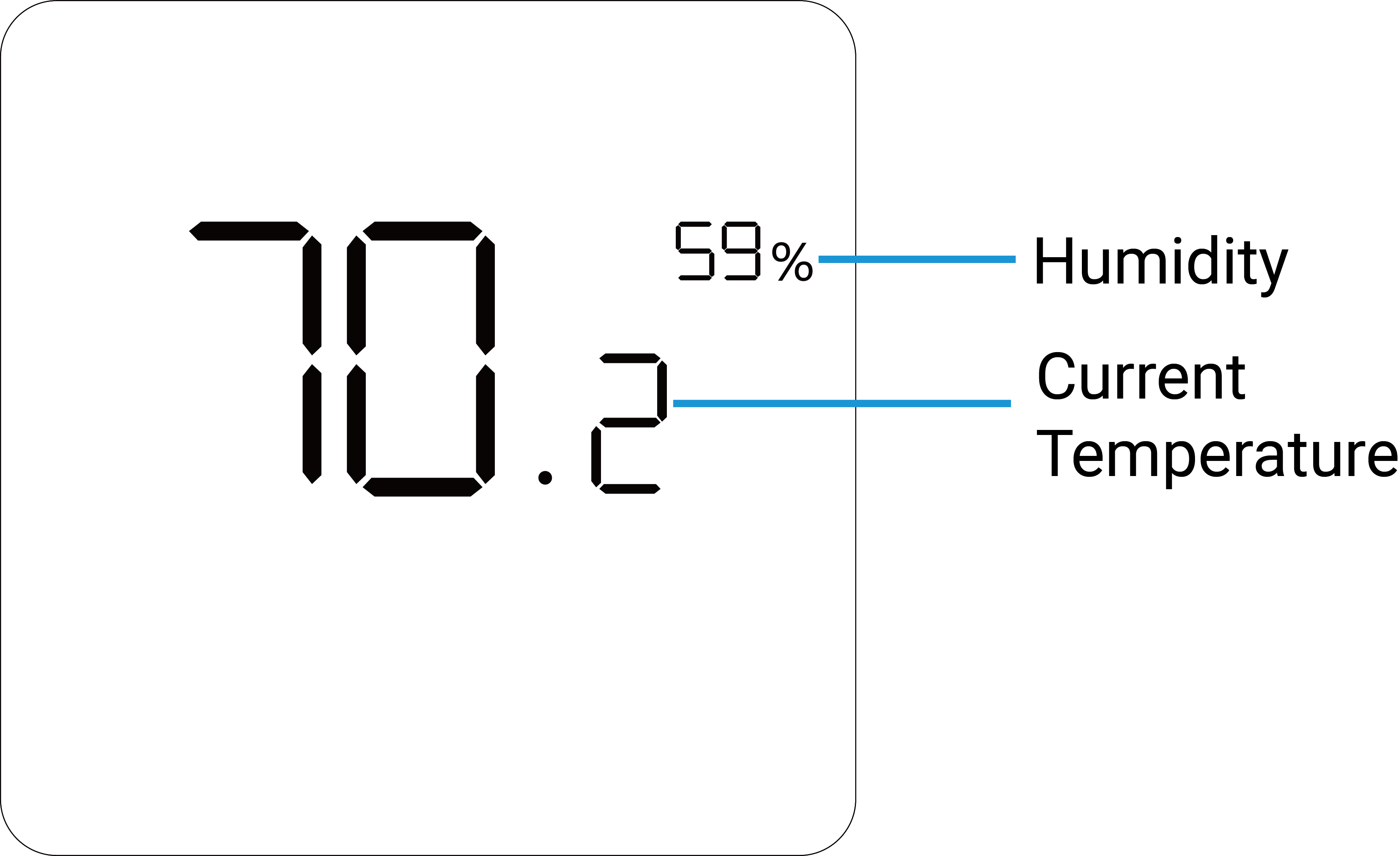
Icon Description Time Display the current time. Child Lock All buttons locked: Normal display. Partial locked: Display only when the locked button is pressed.
LoRaWAN® Network Status Display network status. Blinks: The network is de-activated.
Static On: The network is activated.
Blinks Twice: Send a LoRaWAN® uplink packet.Humidity Display the ambient humidity. Temperature Display the ambient temperature. Temperature Control Plan Display current executed schedule name. Temperature Control Mode Display current temperature control mode. Target Temperature Display the target temperature. Fan Mode Display current fan mode.
Reboot and Reset Descriptions
| Function | Operation | Screen |
|---|---|---|
| Reboot | Press and hold the button 1 and button 5 for more than 3s. | Slowly Blinks |
| Reset to Factory Default | Press and hold the button 1 and button 5 for more than 10s. | Quickly Blinks |
Dimensions
The following figures show the device dimensions (unit: mm).


The following figures show the decorative cover plate dimensions (unit: mm).