Configure General Settings
Fall Alarm
The device provides fall detection with alarm reporting capability. In multi-person environments, an alarm is triggered only when one person falls and the others remain incapacitated.
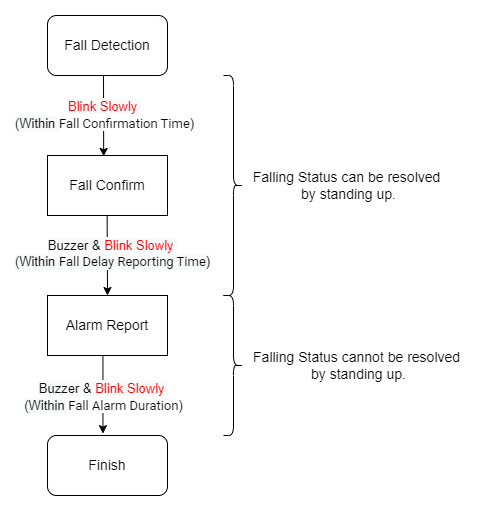
- Stage 1:
-
Someone has entered the room and walked around for over 20 seconds. Suddenly, a fall occurs. A change in target altitude is detected. The red light blinks slowly for the duration set by Fall Confirmation Time. The alarm can be canceled at this stage if the person stands up.
- Stage 2:
-
The fall event is confirmed. The LED will blink red quickly and the buzzer start sounding for a duration that depends on the Fall Delay Reporting Time. The alarm can be canceled at this stage by standing. Alarm data is not reported at this stage but will appear on the <Information> page.
- Stage 3:
-
An alarm message will be reported. The LED will still blink red quickly and the buzzer will sound for a duration that depends on the Fall Alarm Duration. The alarm cannot be canceled by standing up but can be resolved by clicking the Handle button on the <Information> page.
Steps to configure the fall alarm:
Step 1: Ensure that you have completed room setting.
| Parameters | Description |
|---|---|
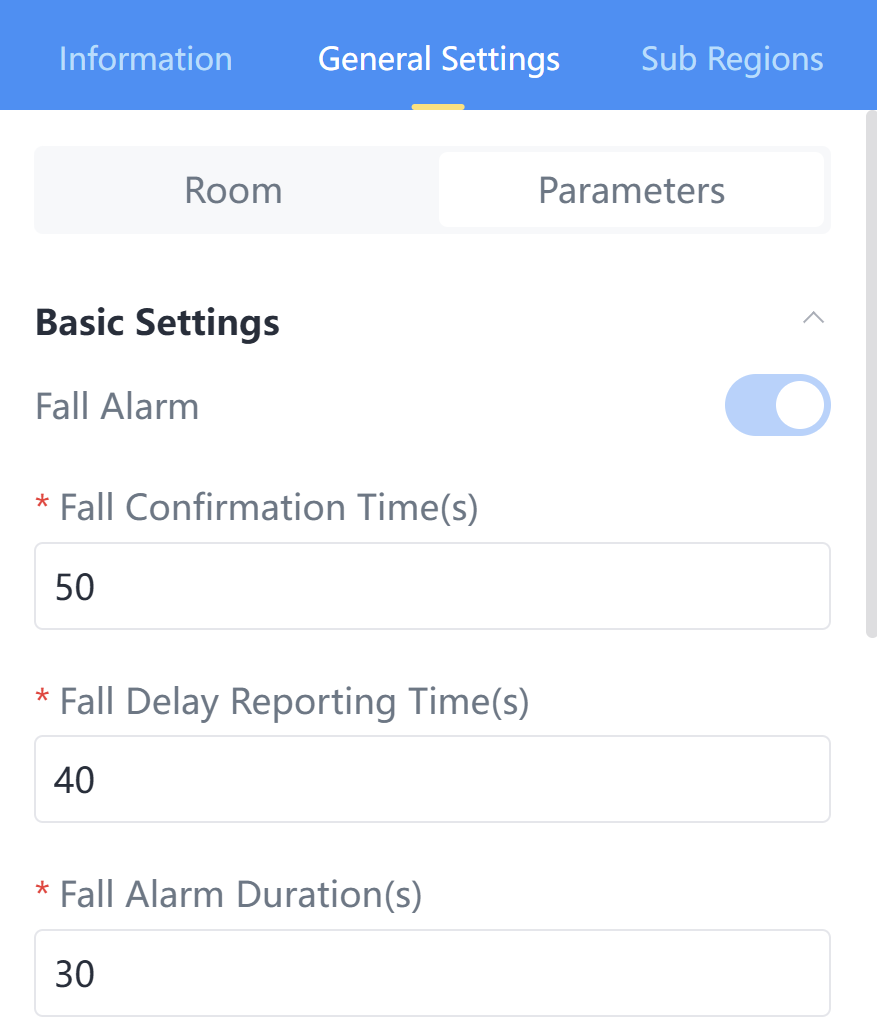
| Fall Confirmation Time | When the device detects the target falling and
this condition persists for the specified duration, it will judge this to be a
fall event. Default: 50s, Range: 0~300s. Note: It is
recommended to set the confirmation time between 30s~60s, as setting it below
the time may reduce detection accuracy. |
| Fall Delay Reporting Time | When the duration of the fall event reaches this value, an alarm will be reported. Default: 40s, Range: 0~300s. |
| Fall Alarm Duration | The duration for which the alarm and buzzer will sound. Default: 30s, Range: 0~1800s. |
| Parameters | Description |
|---|---|
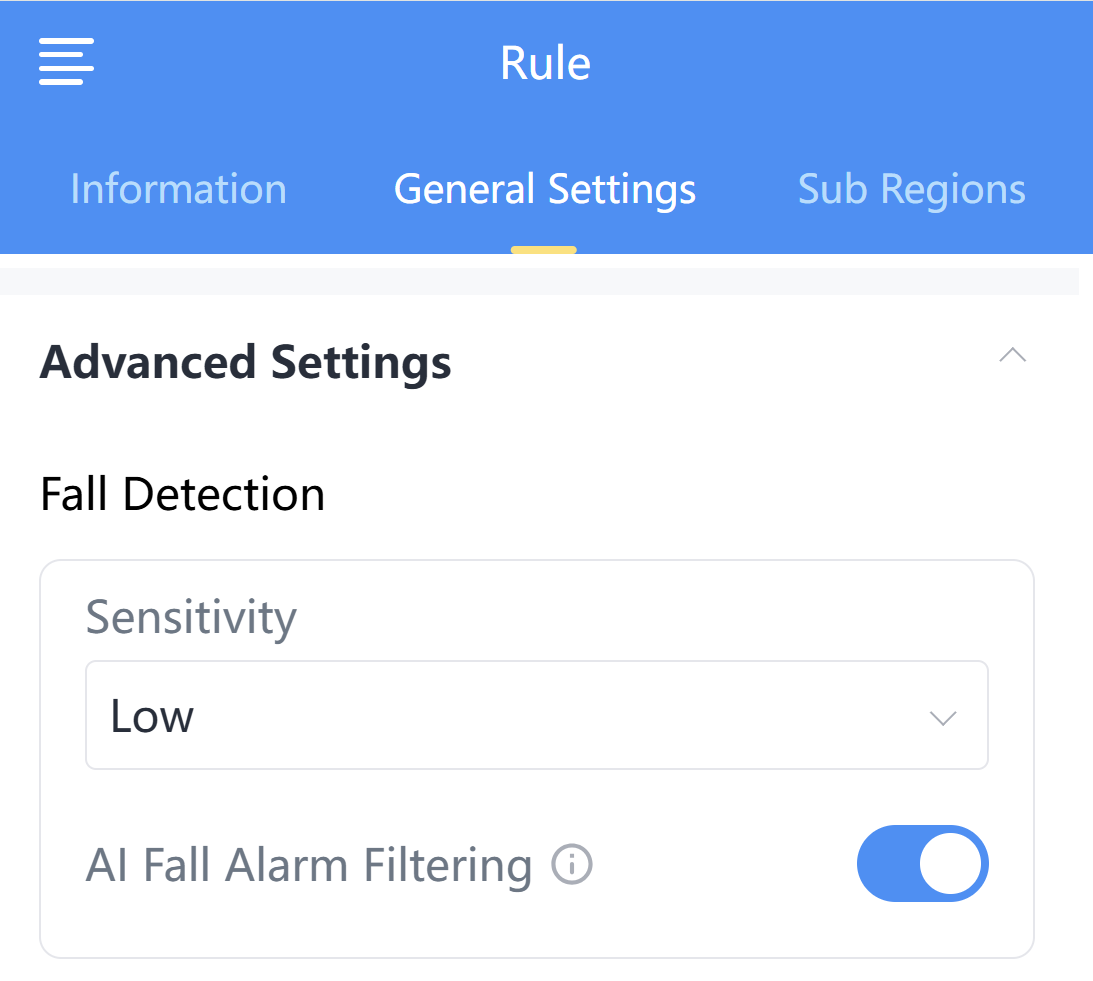
| Sensitivity | The radar's ability to detect and identify targets. Low: Select to reduce false alarms when there are more interfering objects in the detection space or when the environment is more complex. High: Select when there are fewer interfering objects in the detection space and accurate detection of smaller or more distant targets is required. Medium: Select between the two options above according to your environment. Note: If you are unsure how to make a
selection, please contact Milesight sales representative for
assistance. |
| AI Fall Alarm Filtering | When enabled, this feature performs secondary fall detection, reducing false
alarms but possibly increasing missed detections. Note: It is
recommended to use this function only in complex environments with frequent false
fall alarms (such as bathrooms and washrooms). For regular open areas like
bedrooms, it is not recommended to enable this feature, as it may affect the
detection and reporting of actual fall events. |
Step 4: After complete configuration, click Apply to save the settings.
Please wait 1~2 minutes; the device will automatically restart and apply the new settings.
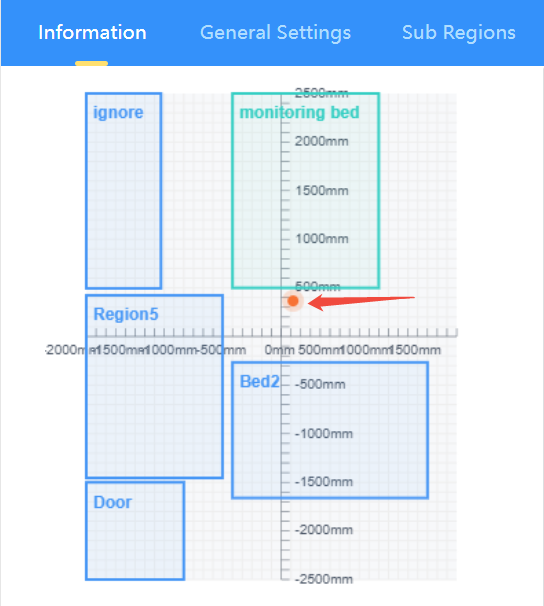
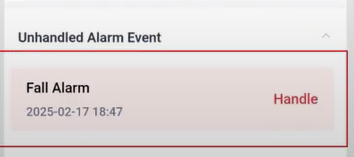
Step 5: When a fall occurs, no one can assist the fallen individual in getting up until the fall alarm has been reported. Navigate to <Information>, you can see the target's point displayed on the coordinate axis, and the Fall Alarm.
Lying Alarm
This feature detects specific fall scenarios: if a person falls within 20 seconds of being detected and remains on the ground for 5 minutes, a lying alarm is triggered.

- If a fall alarm has been triggered and not resolved, a lying alarm will not be triggered again.
- This feature is not recommended for bathrooms, restrooms, or cluttered areas.
- If the default lying alarm duration (5 minutes) does not meet your needs, please contact a Milesight sales representative for customization.
Steps to configure the lying alarm:
Step 1: Ensure that you have completed room setting.
Step 2: Switch to <General Settings>, enable Lying Alarm, then click Apply to save the settings.
Please wait 1~2 minutes; the device will automatically restart and apply the new settings.
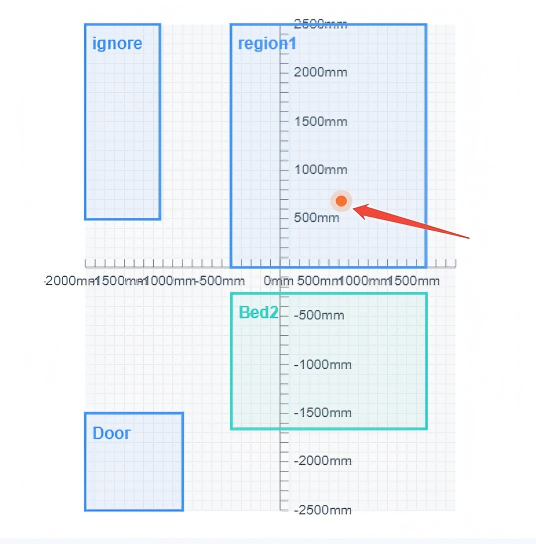
When the target enters the detection space and remains lying for 5 minutes, the device will report an alarm.
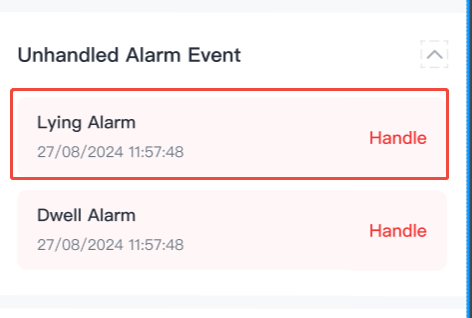
The alarm will be resolved when the target stands out or manually clicking Handle button.
Dwell Alarm
This function detects when a target stays in a specified area beyond the set duration threshold and reports the event automatically.
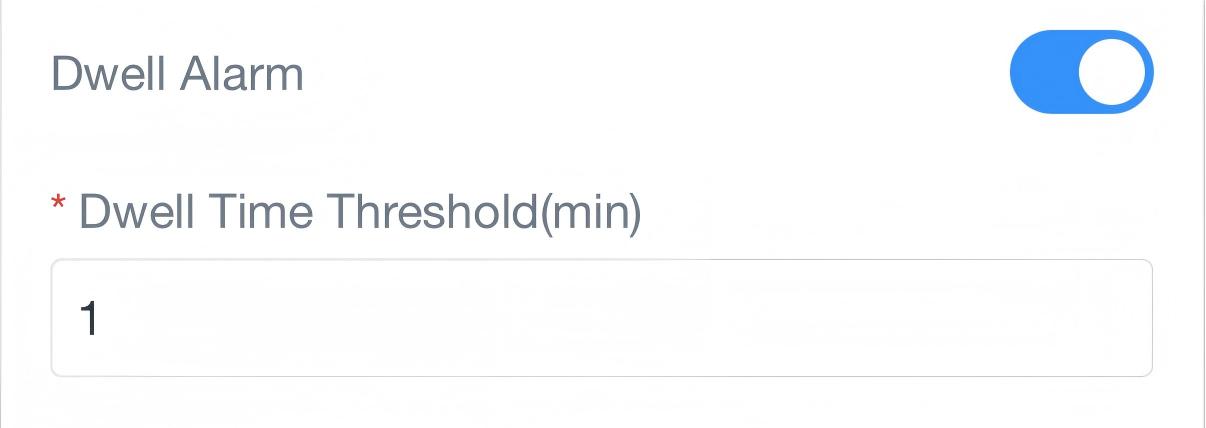
Steps to configure the dwell alarm:
Step 1: Ensure that you have completed room setting.
A door sub region is required because the radar cannot detect static or departing targets. Instead, a target's presence is inferred from its entry and exit events.
Step 2: Switch to <General Settings>, enable Dwell Alarm, set Dwell Time Threshold, then click Apply to save the settings.
Please wait 1~2 minutes; the device will automatically restart and apply the new settings.
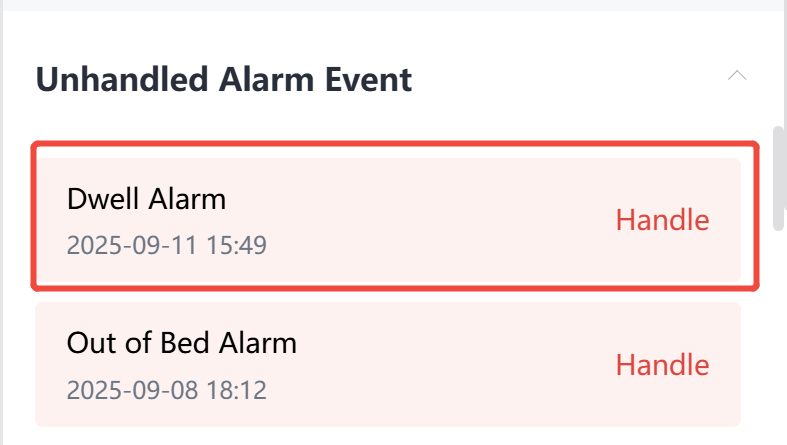
The alarm will be resolved when the target leaves the detection space or manually clicking Handle button.
Motionless Alarm
The motionless alarm is triggered when a target’s coordinates remain unchanged for a long period, indicating a possible abnormal condition. This function is suitable for environments with expected frequent movement (e.g., hospital wards, corridors), enabling prompt detection of emergencies or unusual behavior.
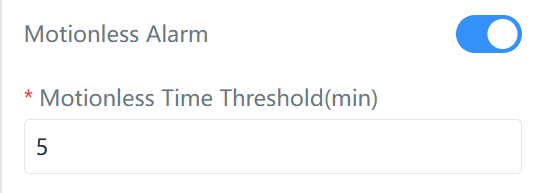
Steps to configure the motionless alarm:
Step 1: Ensure that you have completed room setting.
A door sub region is required because the radar cannot detect static or departing targets. Instead, a target's presence is inferred from its entry and exit events.
Step 2: Switch to <General Settings>, enable Motionless Alarm, set Motionless Time Threshold, then click Apply to save the settings.
Please wait 1~2 minutes; the device will automatically restart and apply the new settings.
When the target remains stationary at a specific location and the no-movement duration reaches the configured value, the target's point on the coordinate axis turns yellow, and the target status will be displayed as "Motionless".
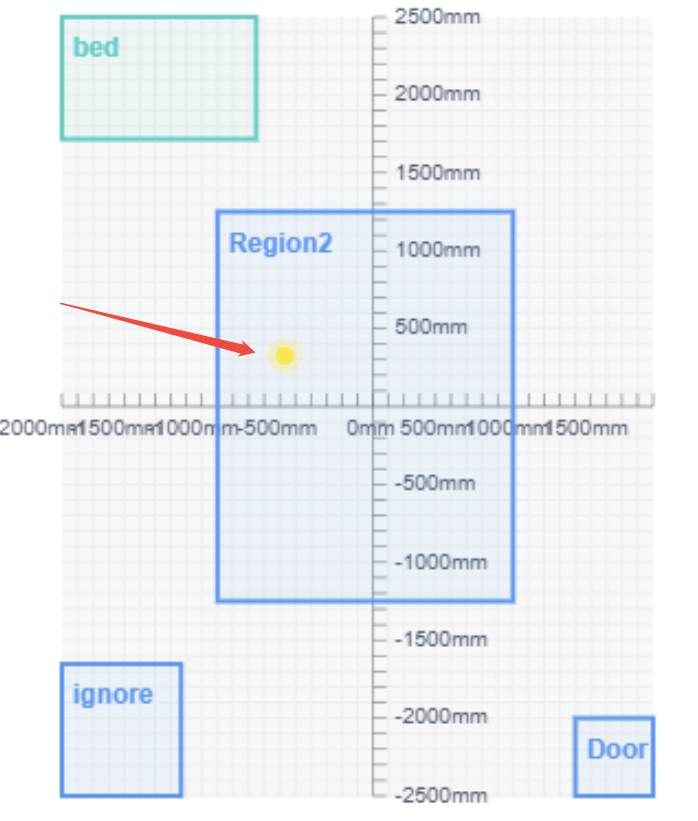
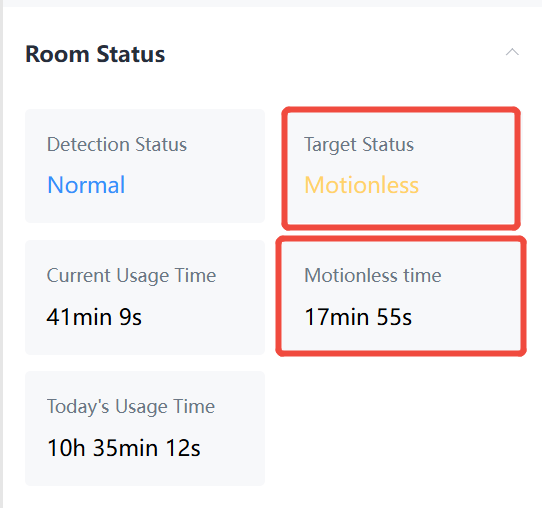
The target status returns to "Normal" when the person resumes walking.
Sleep Detection
The sleep detection function requires configuration of the "Bed Sub-Region". Please click Bed Sub-Region to view detailed setup instructions.
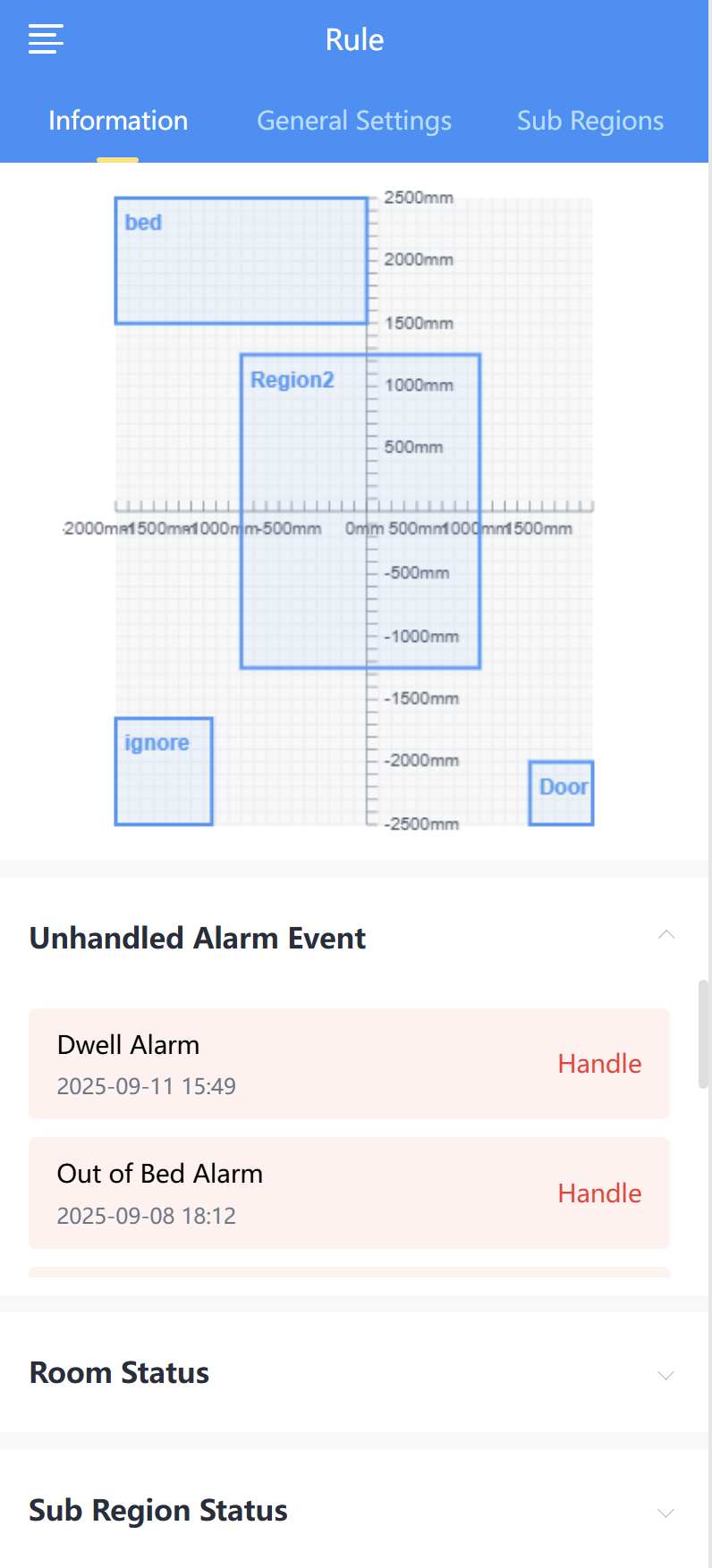
Information
| Parameters | Description | |
|---|---|---|
| Coordinate Axis | Displays all the sub regions and the location of target. | |
| Unhandled Alarm Event | Displays all unresolved alarm messages. | |
| Room Status | Detection Status | Displays the current detection space
status. Possible states: "Normal", "Vacant", "Out of Bed", "Fall". |
| Target Status | Displays the current status of target: "Normal", "Motionless","Lying". | |
| Motionless time | Displays the motionless time when target status is "Motionless". | |
| Current Usage Time | Duration the detection space has been occupied. | |
| Today's Usage Time | Cumulative occupancy duration for the day (resets daily at 00:00) | |
| Sub Region Status | Displays the current status of every sub-region, including "Occupied", "Vacant", "In Bed", "Out of Bed". | |