Configure a Template for Configuration Backup
This device supports configuration backup, which enables quick and easy batch configuration. This section describes how to back up the device configuration and write it to other devices.
Note: This feature is available only through ToolBox. Before
configuring a template, access the device through NFC or Bluetooth. For the navigation
path and write operation conventions used in this guide, see Configure the
Device in ToolBox.
Prerequisites: The backup device and the device importing the backup are exactly the same model.
Step 1. Set a Template
- Access the device via ToolBox App.
- On the homepage of ToolBox, click Setting to enter the Setting page.
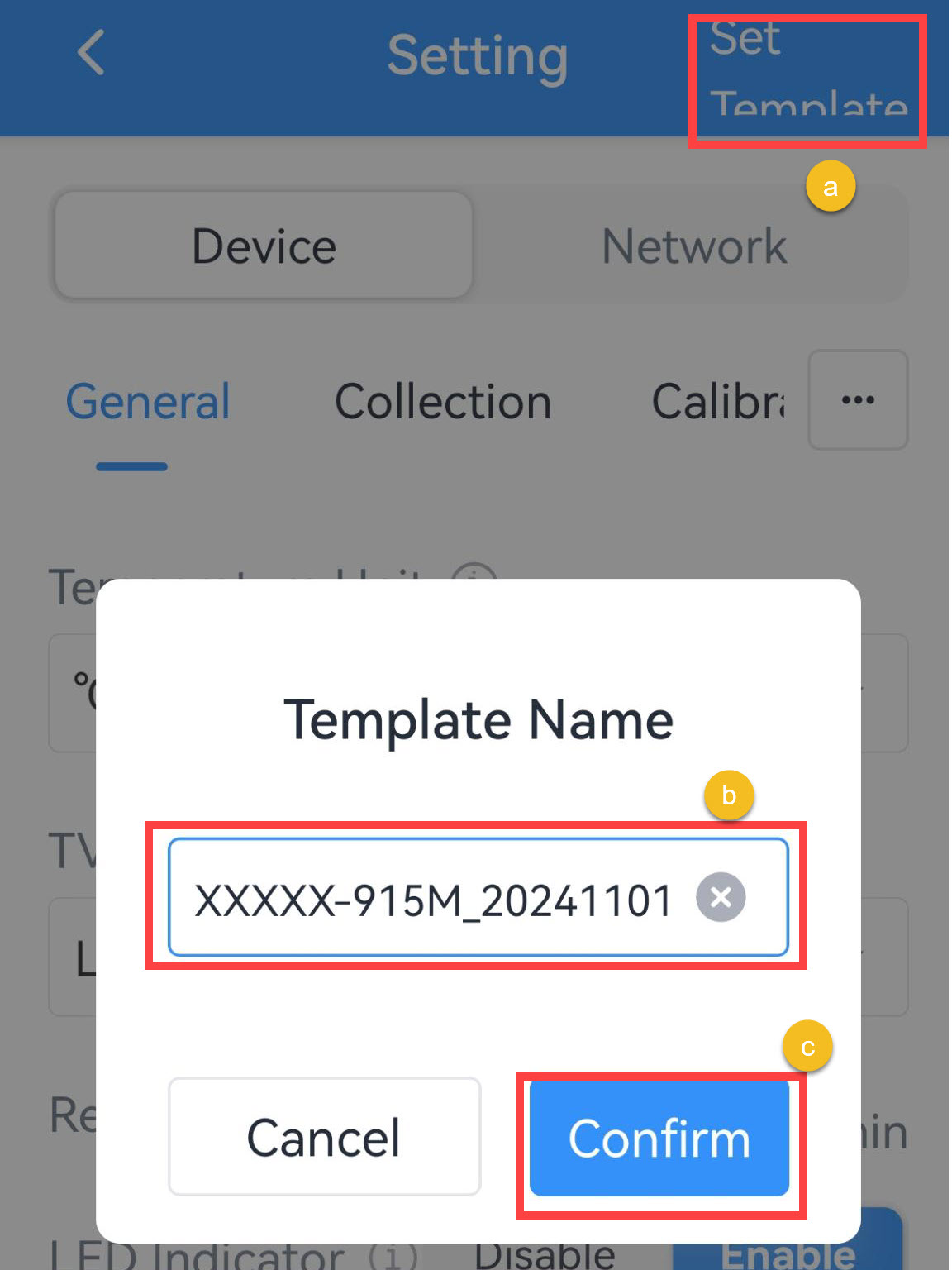
- Edit the device parameters as required, click Set Template in the top right corner.
- Customize a template name, click Confirm to save the current
configuration as a template.
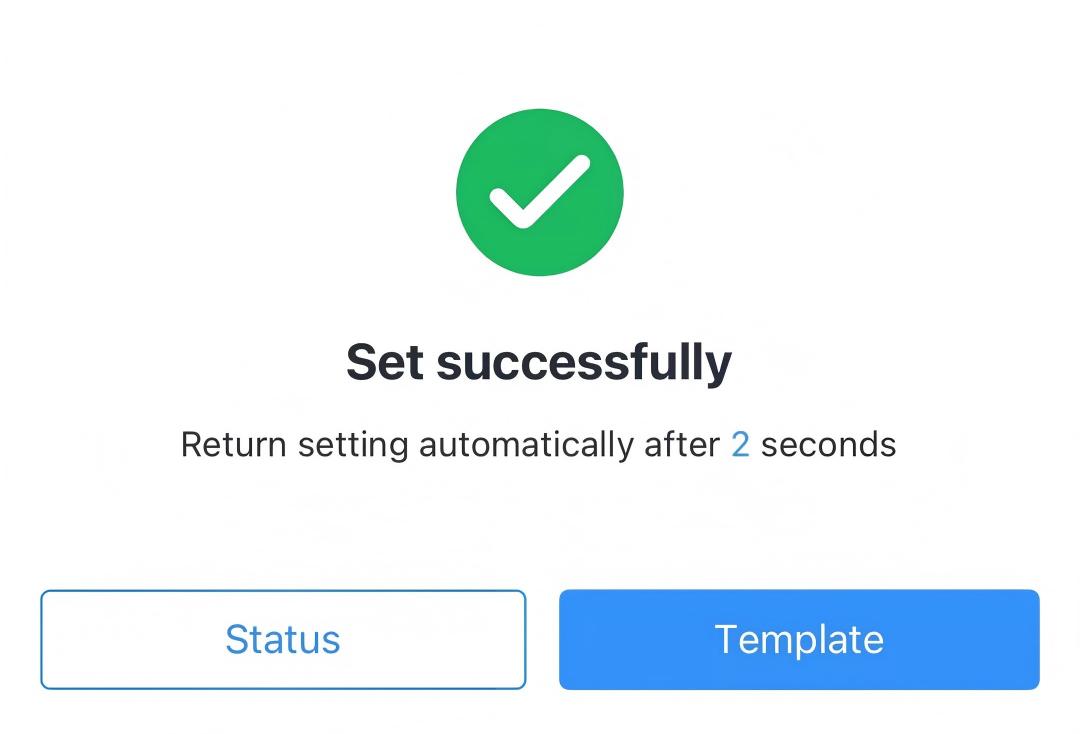
- If the template is saved successfully, the following page is displayed. The
template will be saved to the ToolBox App.
Step 2. Write Template Configuration to the Target Device
- Click Template icon in the top right corner to go to Template page.
.jpg)
- Click the saved template. Do not select the template.
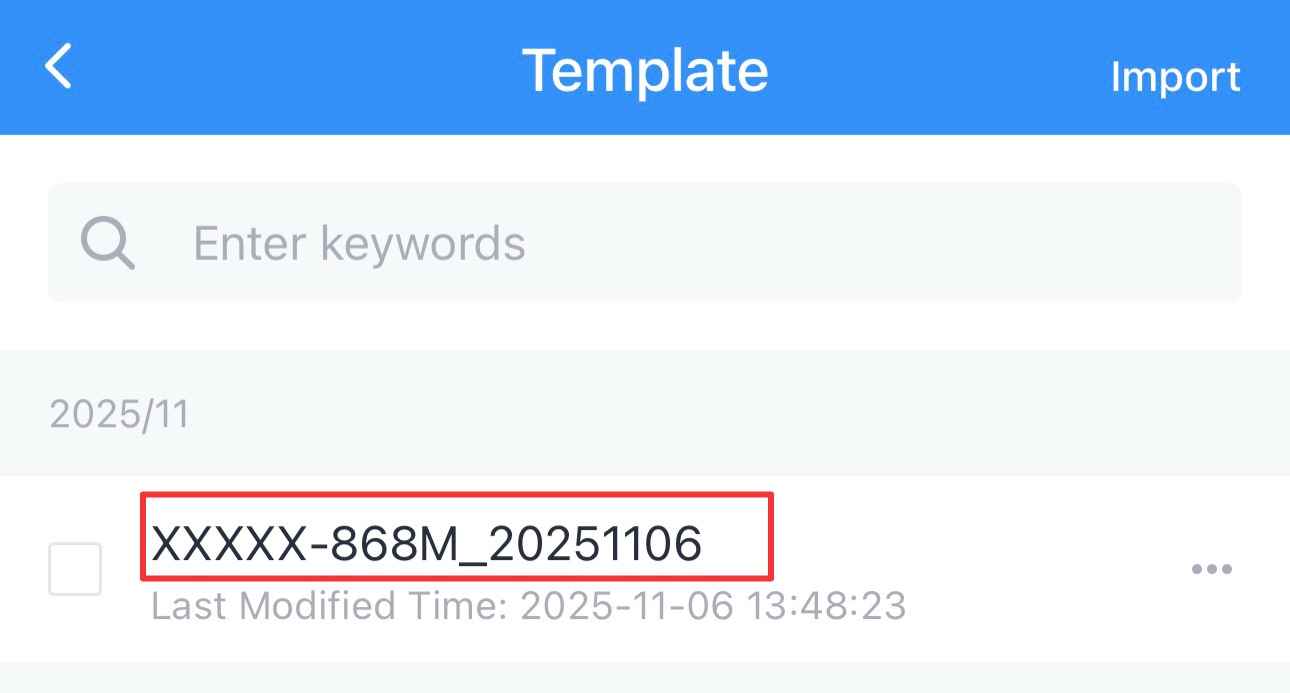
- Tap Write to apply the template configuration to the target device.
Step 3. Export or Delete a Template (Optional)
- Select the checkbox of the target template as shown in the following
figure.
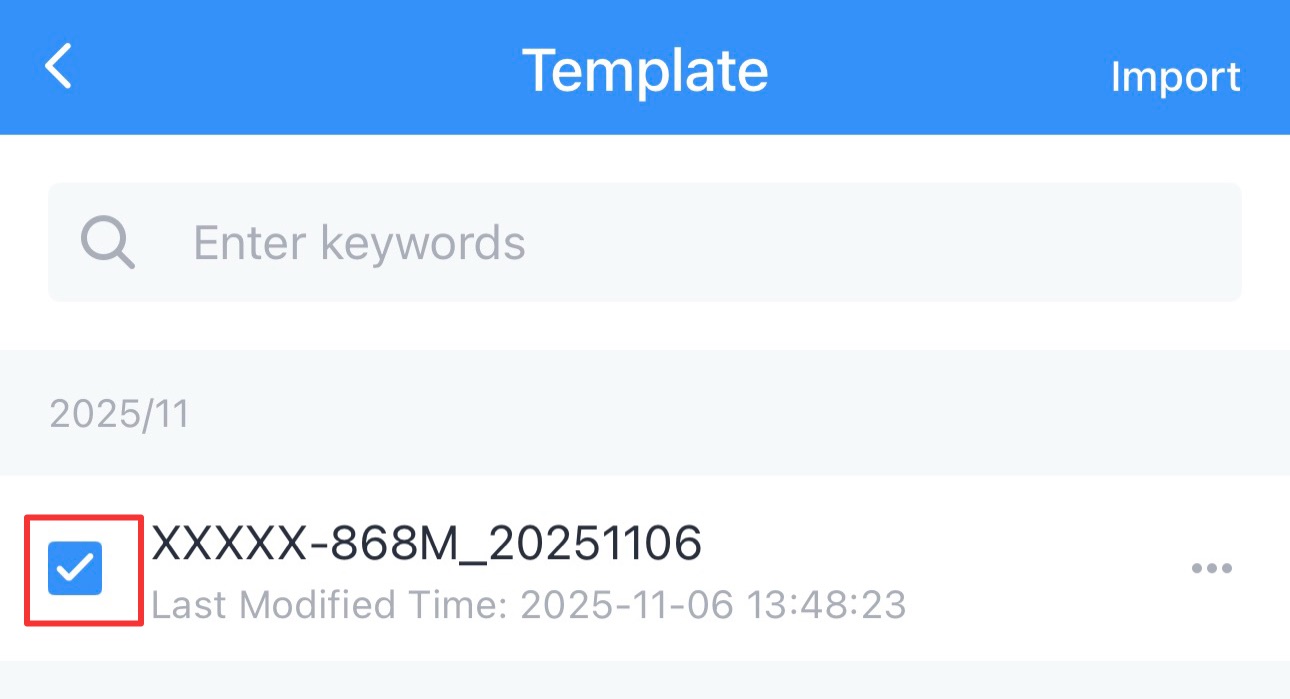
- Click Export in the lower left corner to export this template as a JSON format file and save it to the smart phone.
- Click Delete in the lower right corner, then click Confirm to delete this template from ToolBox.