Batch Join Devices to Gateway
Introduction
Milesight ToolBox App supports the Batch Join feature to simplify the process of adding devices to gateways. Users can quickly add Milesight devices (with parameters) to Milesight ToolBox App, then send them in bulk to a Milesight LoRaWAN® gateway with an embedded network server over Wi-Fi. In addition, the app can also receive the feedback from the gateway to confirm the device network join status, greatly improving deployment and replacement efficiency.
Prerequisites
- Supported model: UG56 with firmware v56.0.0.9 or later; UG65/UG67 with firmware v60.0.0.49 or later.
- WLAN is enabled and the work mode is AP.
- Embedded NS is enabled.
- Milesight LoRaWAN® end devices.
- The Supported Frequency setting must be the same as the gateway's.
- Supported version: v2.1.5 or later.
- Under guest mode for v3.0.0 or later.
Add Devices to Gateway in Bulk
Step 1. Add Devices to Batch Join List
- Navigate to Batch Join page.Method 1: After launching ToolBox, click Join Network under guest mode.
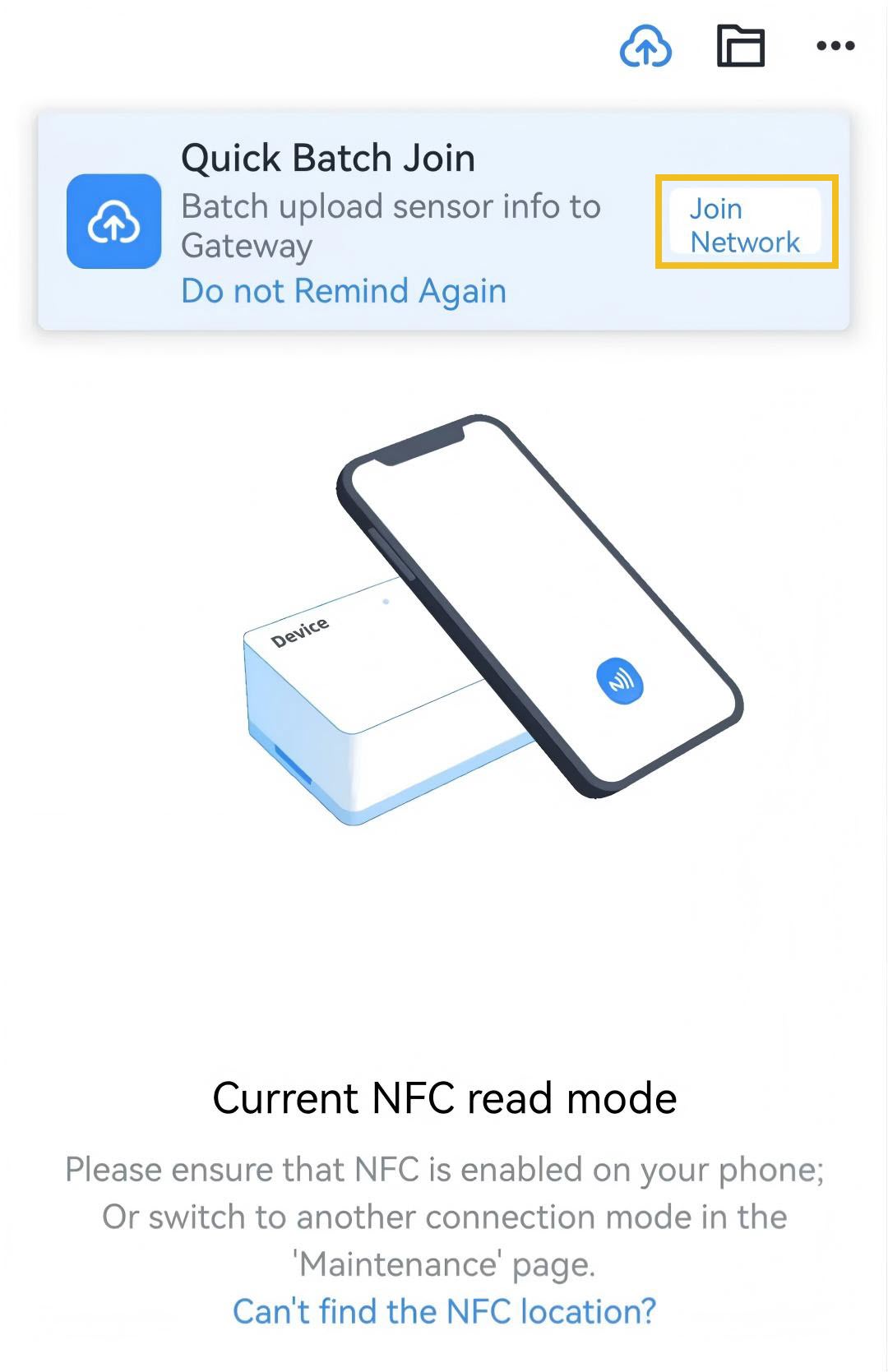 Method 2: Navigate to Device page, tap
 in the upper right corner.

- Click Add and select the adding method according to the device
type.
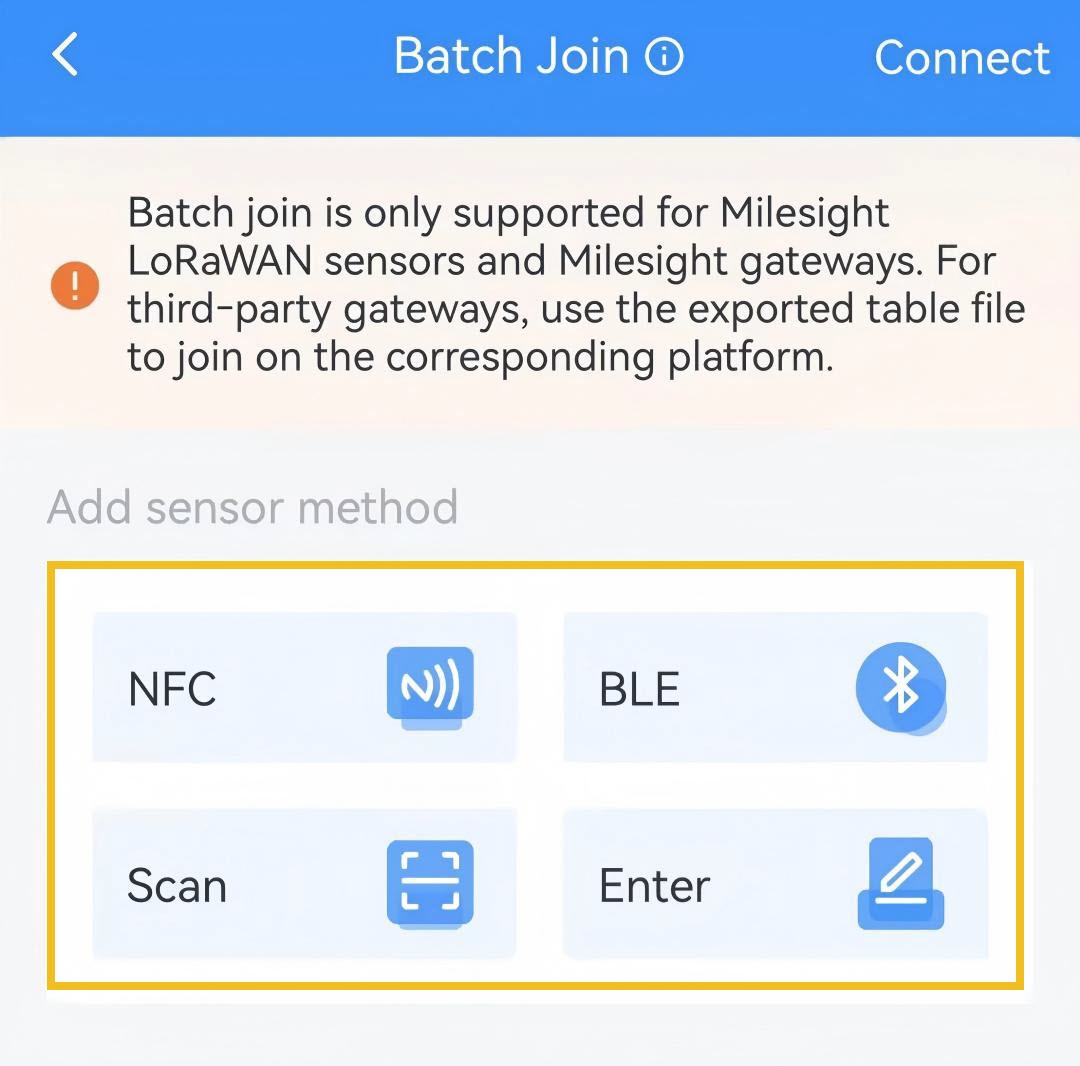
Method Step NFC - Enable NFC function on the smartphone.
- Put the NFC detection area of the phone close to the NFC antenna of device.
- Confirm the reading result and configure the parameters as required.
BLE - Enable the Bluetooth and location functions on the smart phone.
- Scan the devices around and select the target device to add.
- Confirm the scan result and configure the parameters as required.
Scan - Scan the label on the device or device box.
- Confirm the scan result and configure the parameters as required.
Enter - Enter the device parameters directly. Join Type,
Device Name and Device EUI are required. Tip: After saving, Join Type and Device EUI cannot be modified.
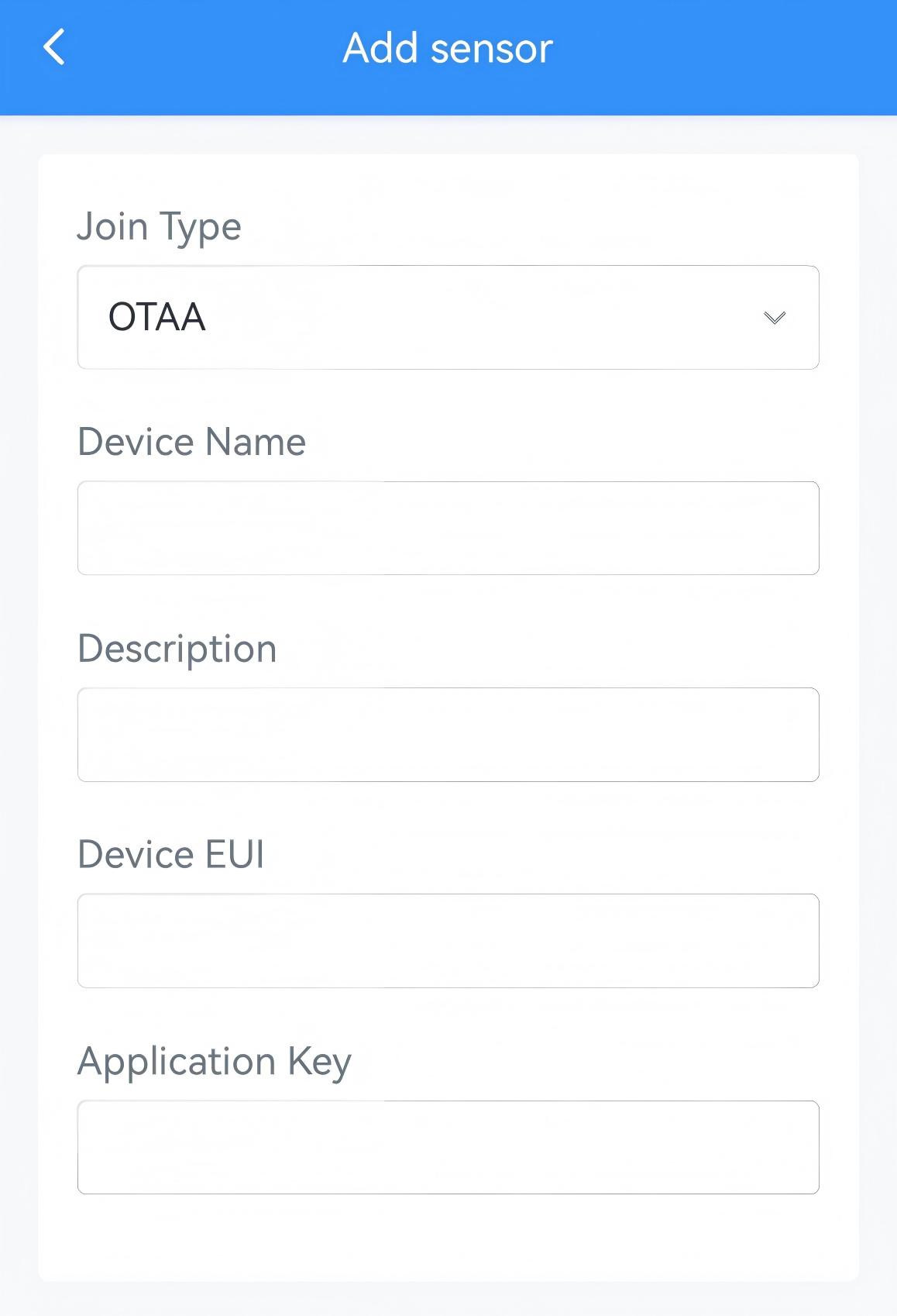
- Click Add Next to save the device parameters and scan the next one.Tip: Leaving the Application Key blank means using the default value.
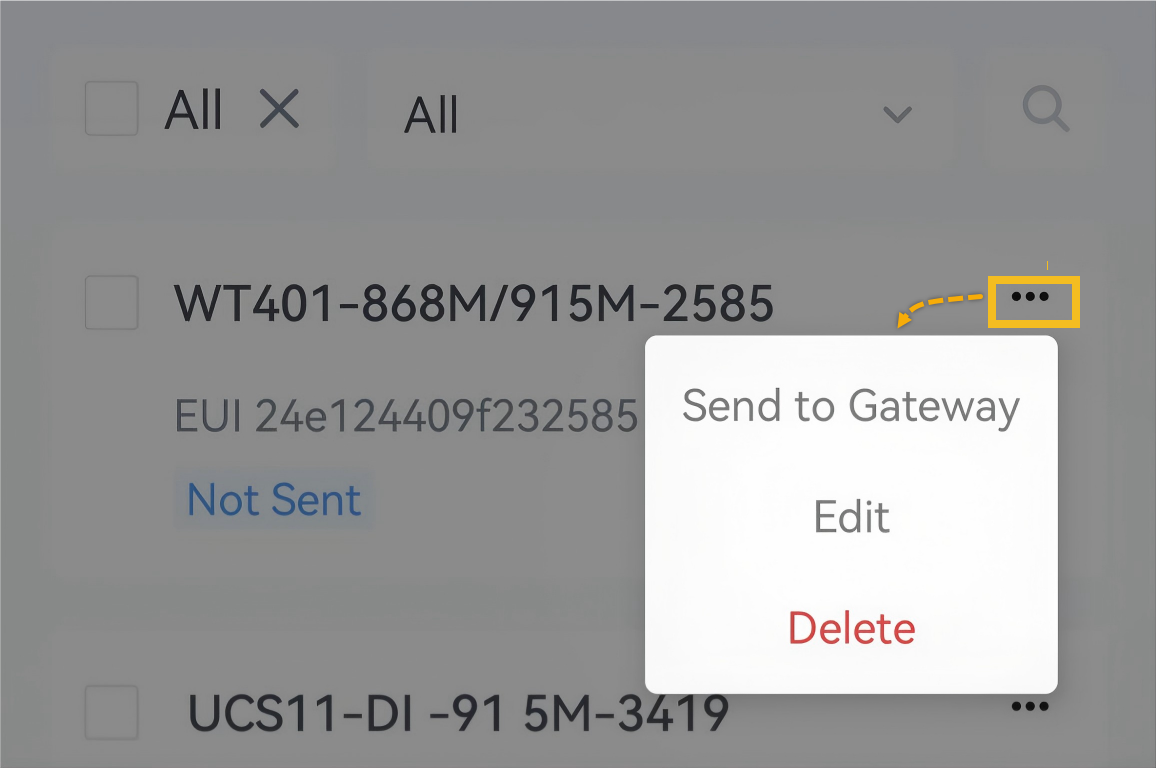
- In the Batch Join list, click the three dots of the desire device, click
Edit to modify the device parameters, or click Delete to
delete this device as required.
- Click Connect in the top right corner of Batch Join page. If
the App is already connected to a gateway, click Switch to change a
gateway as required.

- Switch to the smartphone WLAN page to connect it to the gateway's Wi-Fi access point.
- Switch back to the ToolBox App page, enter the gateway Wi-Fi password.
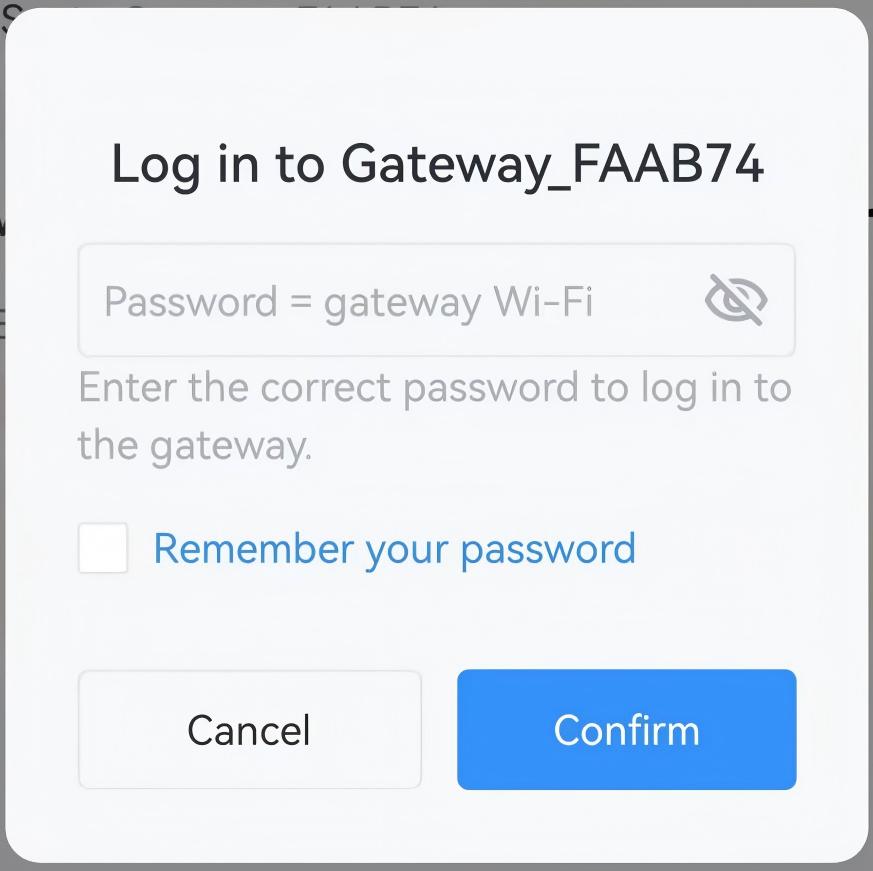
- Click Confirm. Then the App will connect to the gateway.
- Select the devices to send to gateway.Send multiple devices: Click Select in the top left corner, then check the boxes of desired devices, and click Send to Gateway.
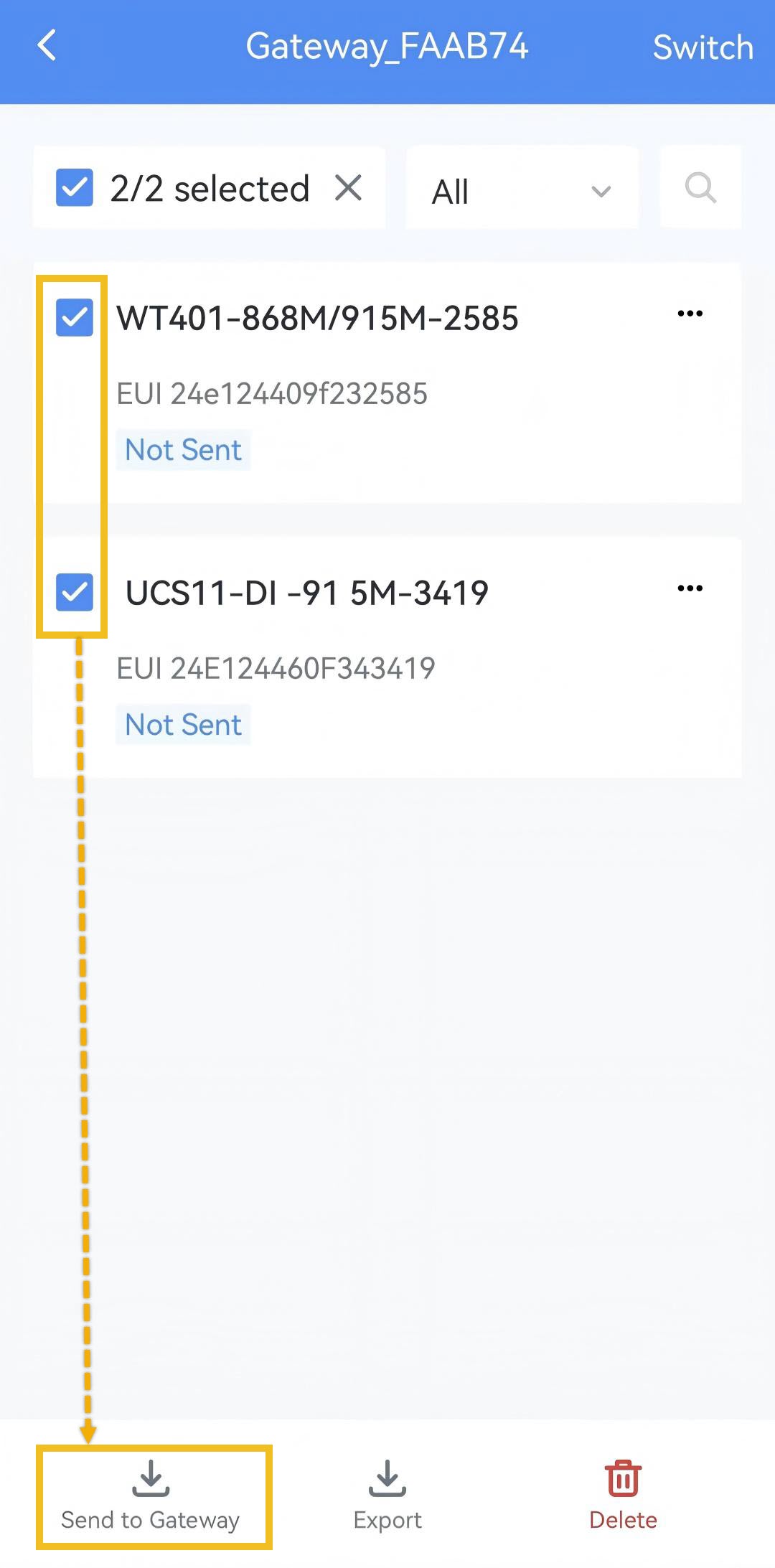 Send a device: Click the three dots of the desired device, click Send to Gateway.
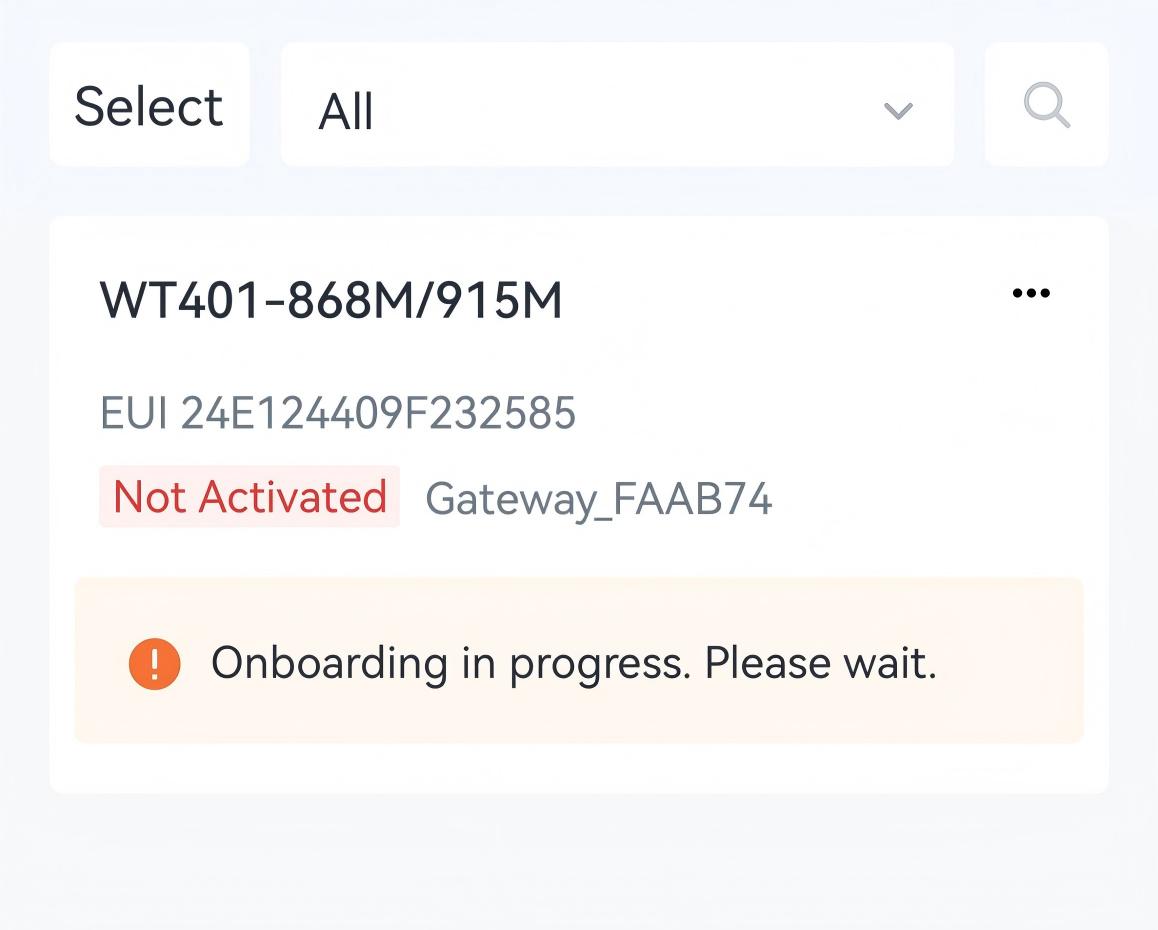
- Click Join Status to read device network join status. If the join
fails, the failure reason will be displayed.
Add a Device to Gateway
Limitation: The device supports NFC or Bluetooth configuration.
- Read the device via NFC or Bluetooth.
- Navigate to Device page, tap in the upper right corner.
- If the App is disconnected from the gateway, click Connect, then follow
the above
steps. If the App is already connected to a gateway, click
Switch to switch to another gateway as required.
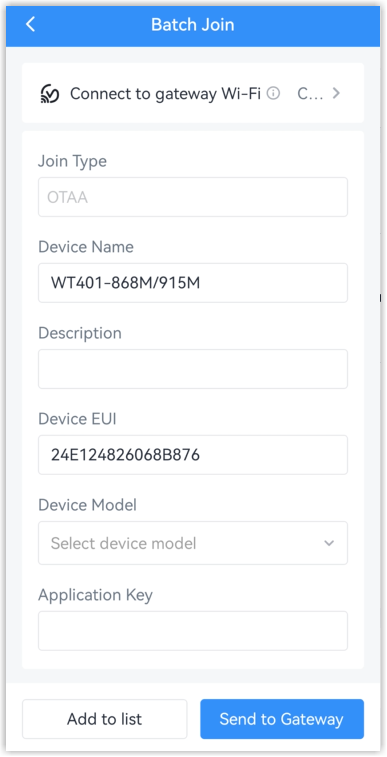
- Configure the Device Name, Description, Device Model and Application Key as
required.Tip: Leaving the Application Key blank means using the default value.
- Send this device to gateway.
Method 1: Click Send to Gateway in the lower right corner. The device will be sent to the gateway directly and added to the Batch Join list.
Method 2: Click Add to list in the lower left to add to Batch Join list. Then follow Step 3. Send Device to Gateway to send devices in bulk.
- Navigate to Batch Join page to check the device send status. If sending failed, the failure reason will be displayed.
- Click Join Status to read device network join status. If the join fails,
the failure reason will be displayed.
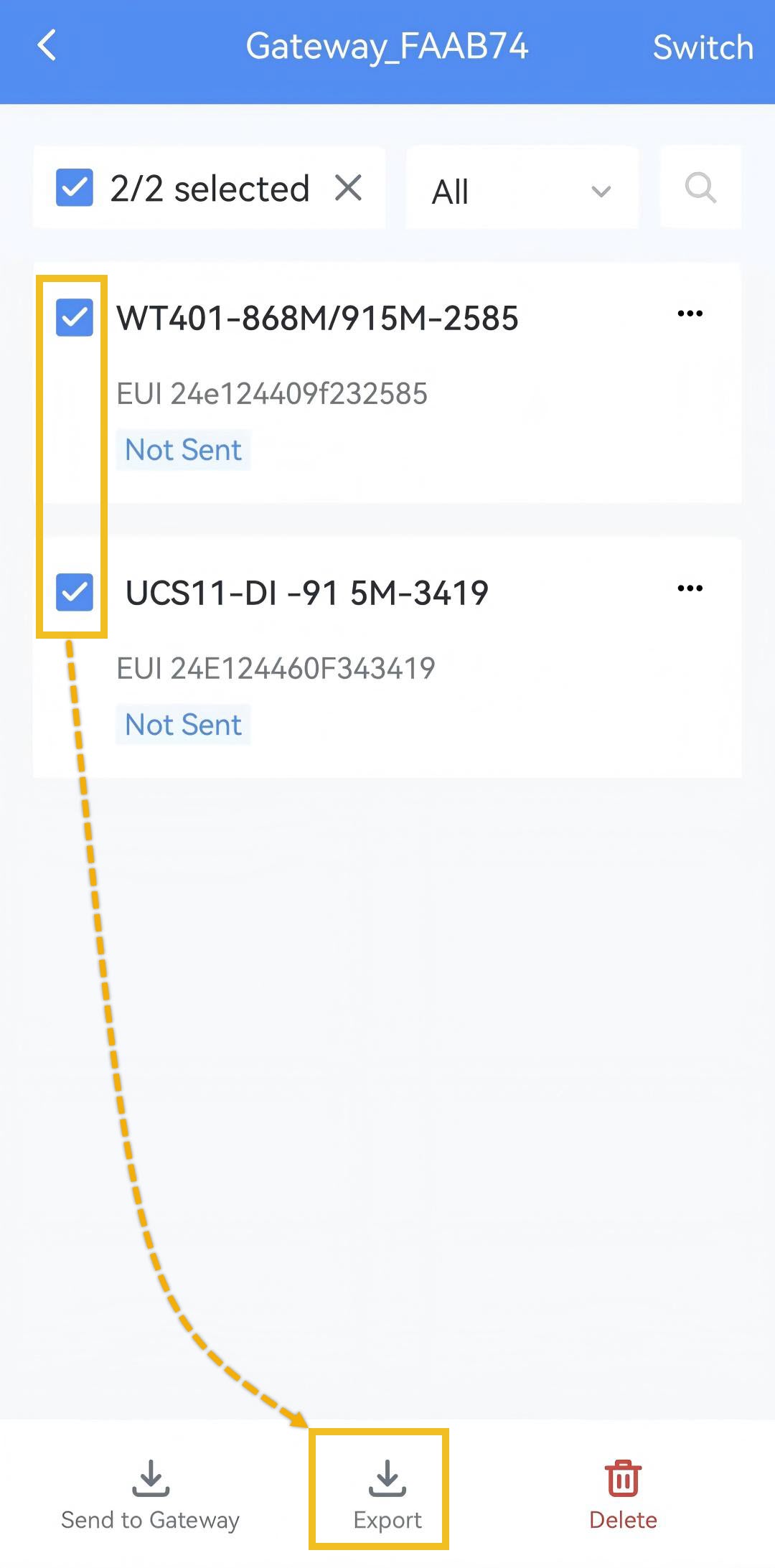
Export Batch Join Device List
- Follow Step 1. Add Devices to Batch Join List to add devices.
- In the Batch Join list, click Select in the top left.
- Check the boxes of desired devices.
- Click Export to save a CSV file containing device parameters to the
smartphone.