Device Template Management
Milesight ToolBox App can back up the device configurations as template files and restore them to other devices for quick and easy configuration. After logging in to the Milesight Development Platform, the templates can also be synced to the platform. This chapter describes how to generate and manage the device template files.
Prerequisites
The backup device and the device importing the backup are exactly the same model.
Set a Template
- Access a device referring to Read and Write Device.
- Click the Setting button to go to the device configuration page.
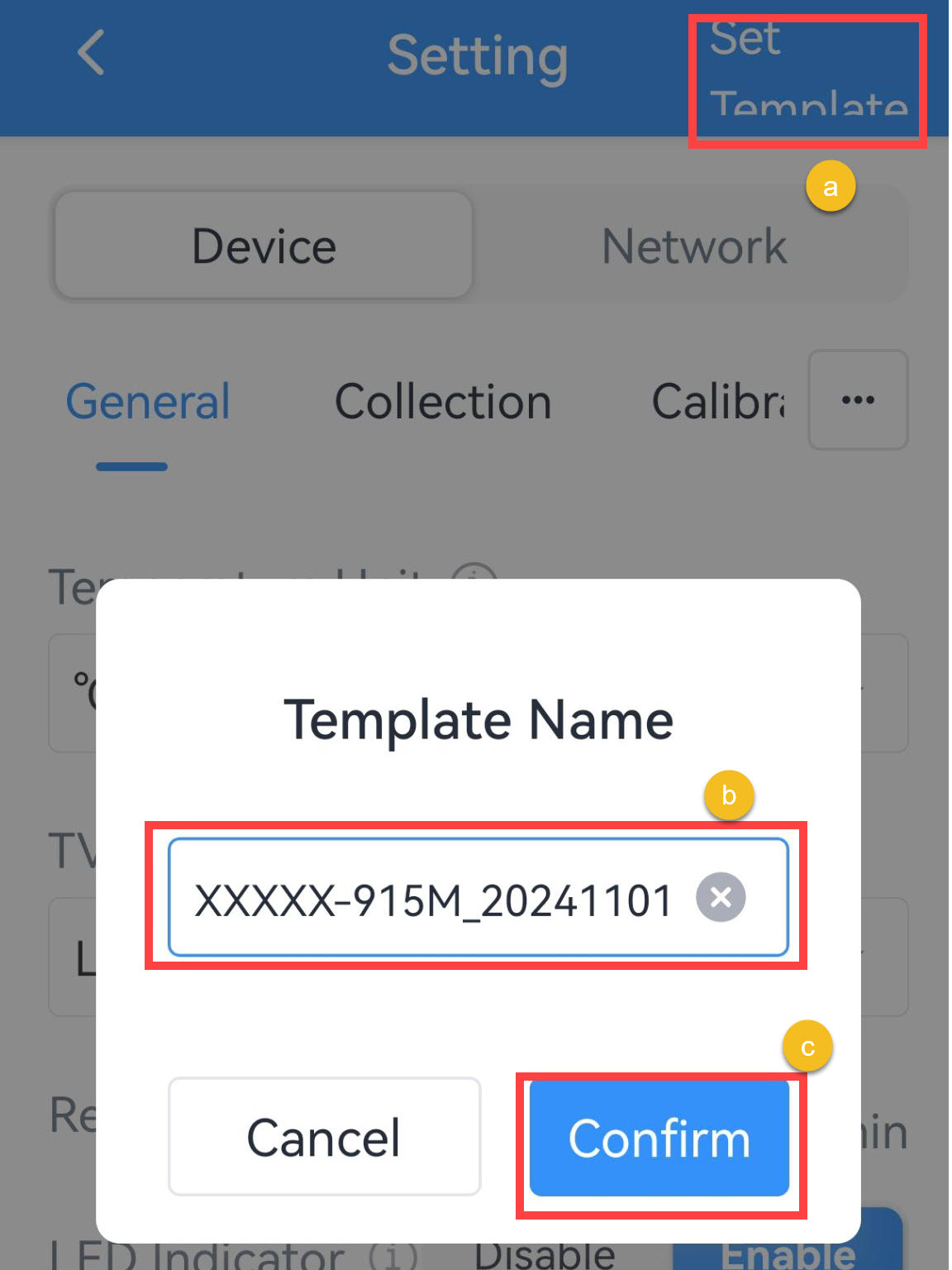
- Edit the device parameters as required, click Set Template in the top right corner.
- Customize a template name, click Confirm to save the
current configuration as a template.
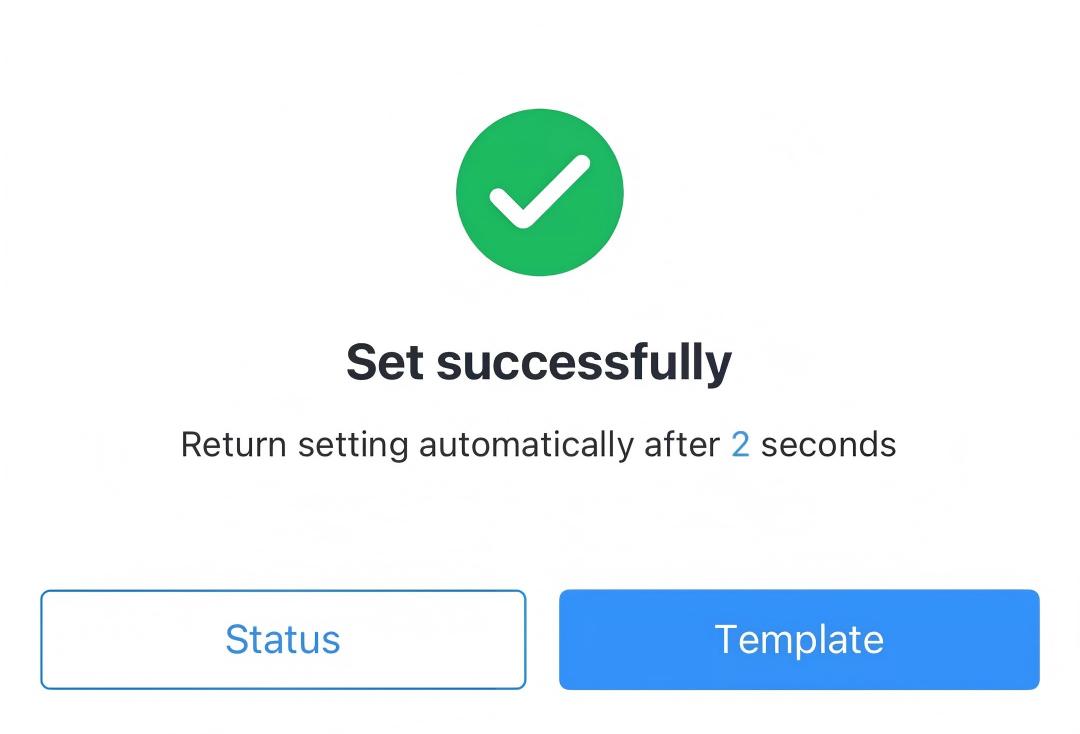
- If the save is successful, the following page is displayed.
The template will be saved to the ToolBox App.
Write Template Configuration to Target Device
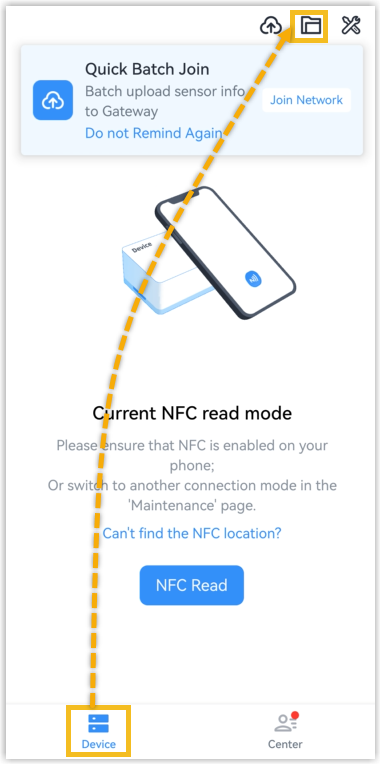
- Navigate to the template management page.
Guest mode: Navigate to Device page, tap
 in the upper right corner.
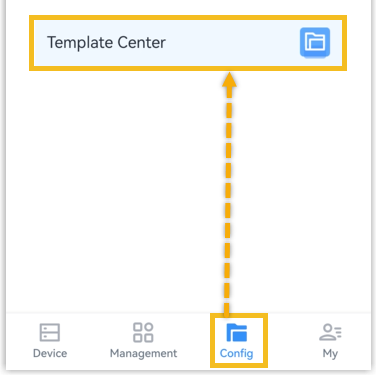
 Cloud mode: Navigate to Config page, tap Template Center.
- Click the target template name. Note: Do not select the template's checkbox.
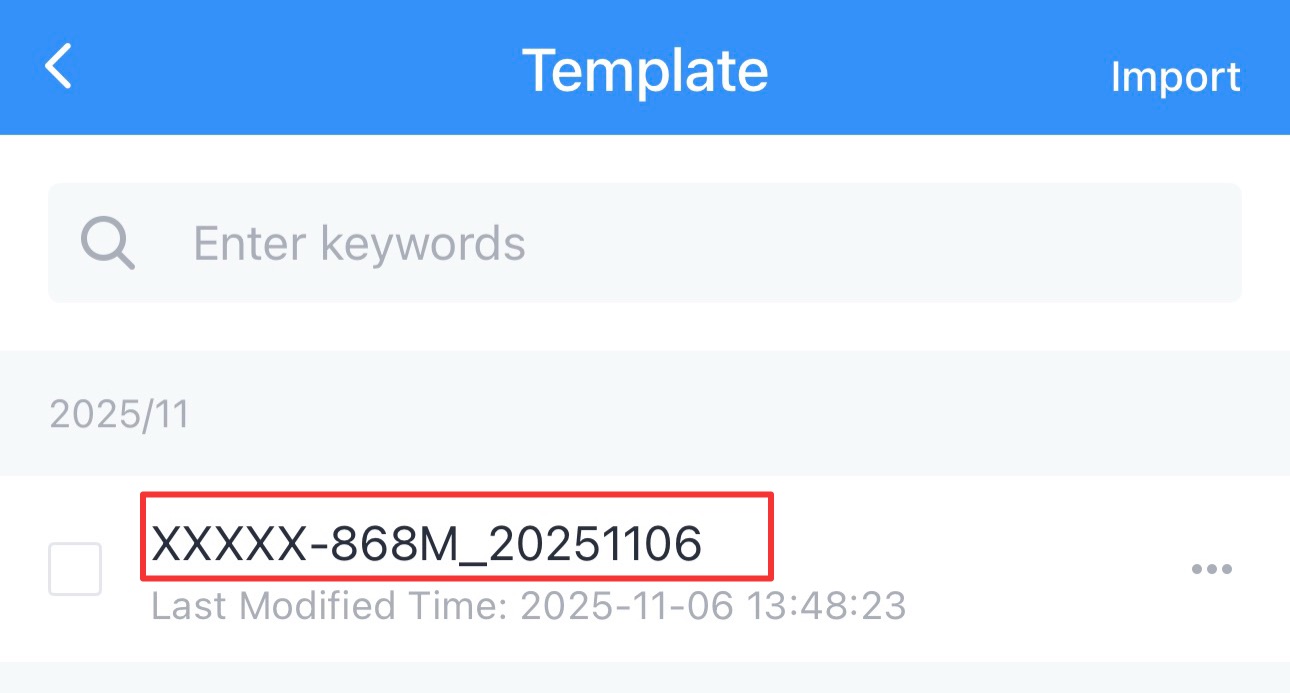
- In the displayed page, click Write in the bottom to write the device.
- Refer to Read and Write Device to connect and write the target device.
- If the configuration is written to the target device, a write success prompt will display.
Export or Delete a Template File
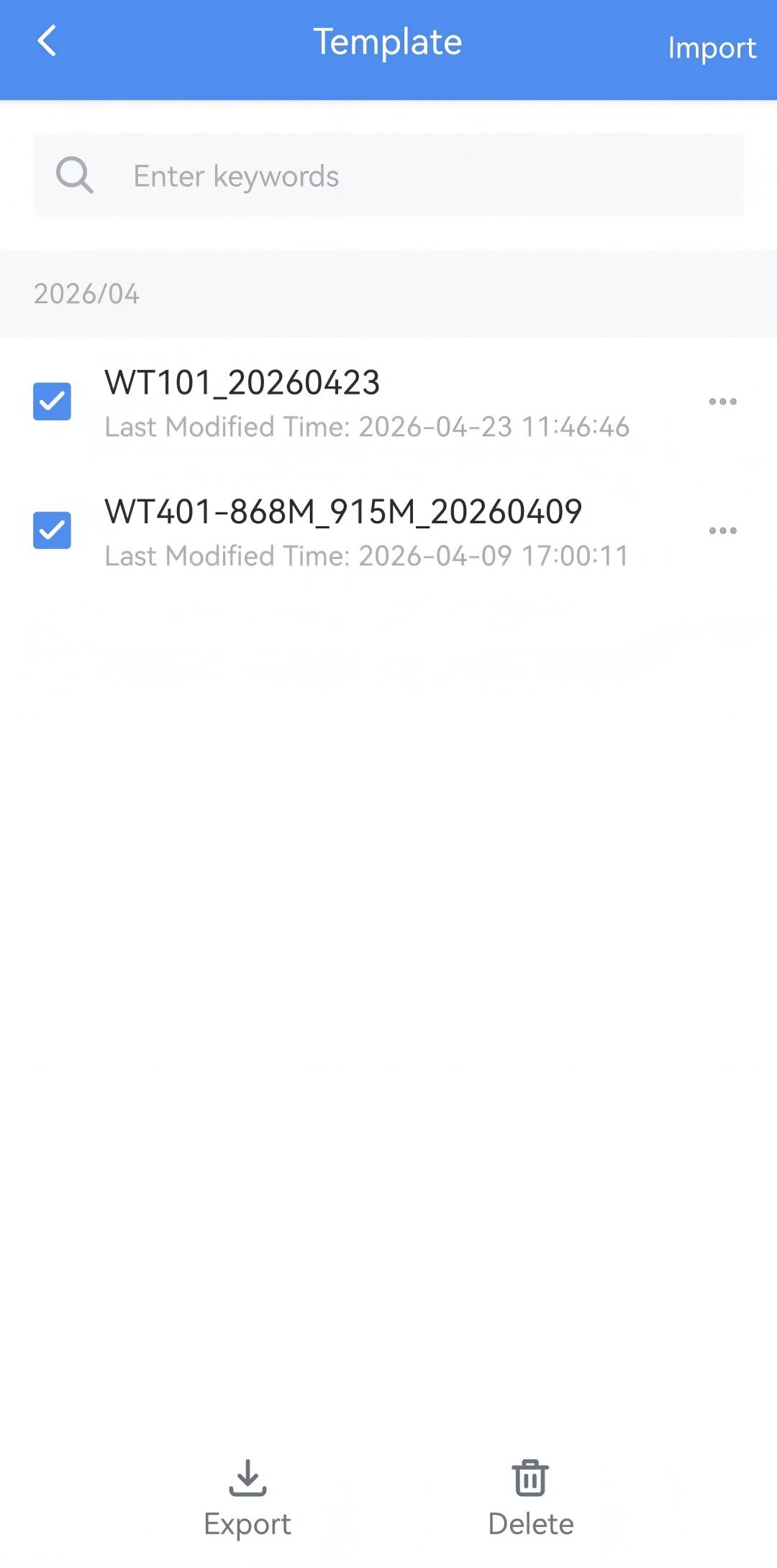
Export or Delete Templates in Bulk
- Select the checkbox of the target templates.
- Click Export in the lower left corner to export these templates as JSON files and save them to the smart phone.
- Click Delete in the lower right corner, then click Confirm to delete these templates from ToolBox or Milesight Development Platform.
Export or Delete a Template
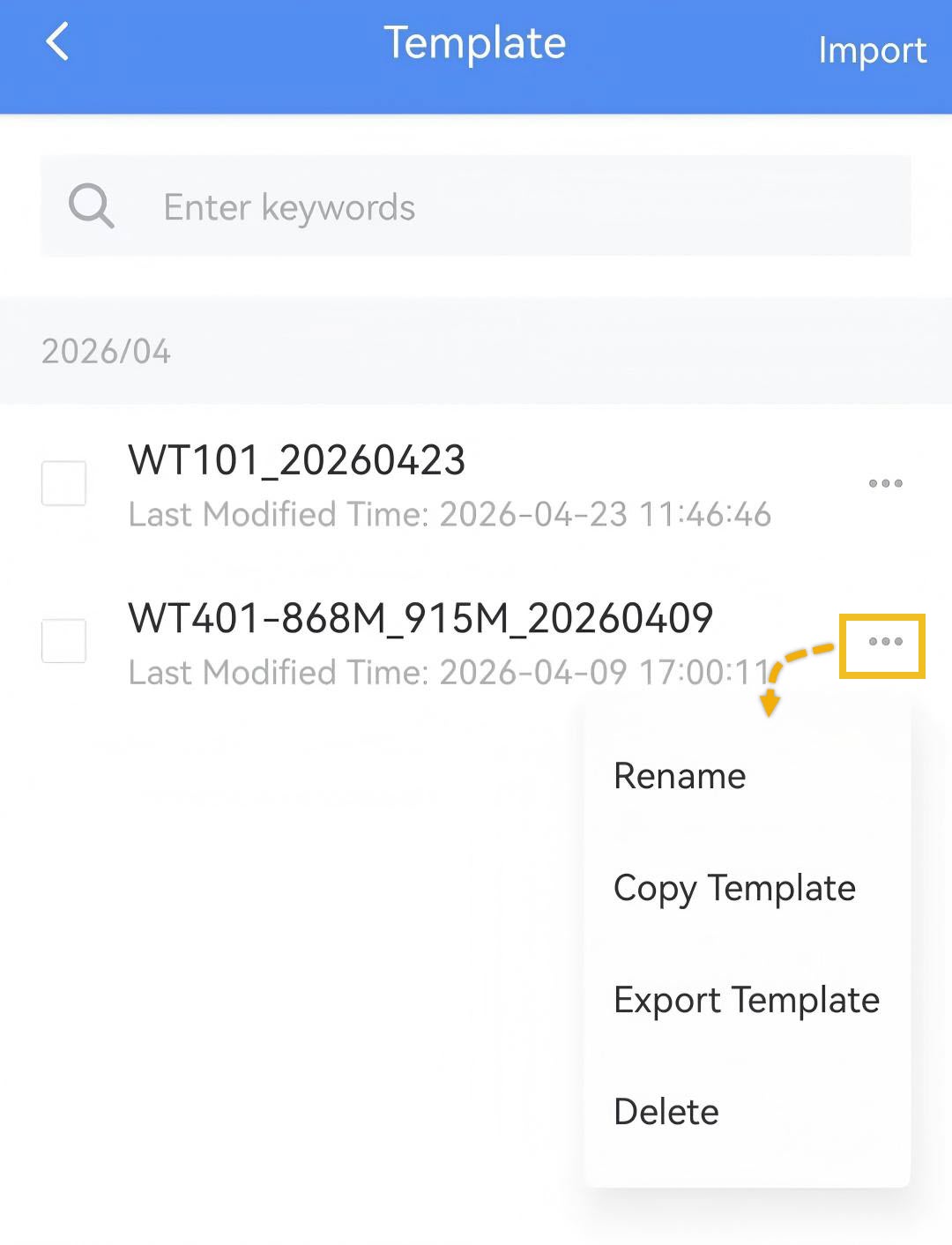
- Click the three dots of the desired template.
- Click Export Template to export this template as a JSON format file and save it to the smart phone.
- Click Delete, then click Confirm to delete this template from ToolBox.
Sync Templates to the Cloud
Template sync provides two-way data sharing between the app and the Milesight
Development Platform, enabling remote device configuration management. This only
works in cloud mode. Make sure the mobile phone network connection is normal.
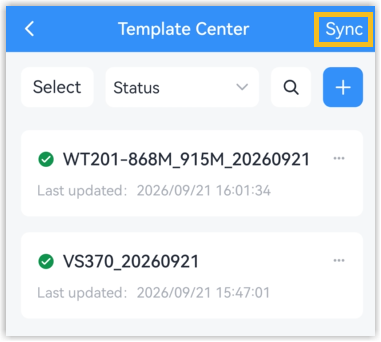
- Navigate to Config page, tap Template Center.
- Tap Sync in the upper right corner of the Template
Center.
- On the first sync, a confirmation dialog is displayed. Tap Confirm to
start, or Cancel to return.Tip: After the first sync, the App will sync the templates to the platform automatically.
- A progress bar is displayed during synchronization. Tap Cancel synchronization to stop it.