Cloud Account Login and Management
Milesight ToolBox App can log in to the Milesight Development Platform to support the batch device management, configuration file synchronization, etc.
Prerequisites
You have signed up for a Milesight Development Platform account.
Log in to Milesight Development Platform
- Launch ToolBox.
- Navigate to Center page, tap Sign In.
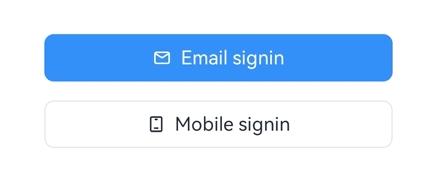
- Select Email signin or Mobile signin.Note: Mobile signin only works with the account supporting CN data center.
- Sign in with your account password or verification code.
Sign in with password Sign in with verification code 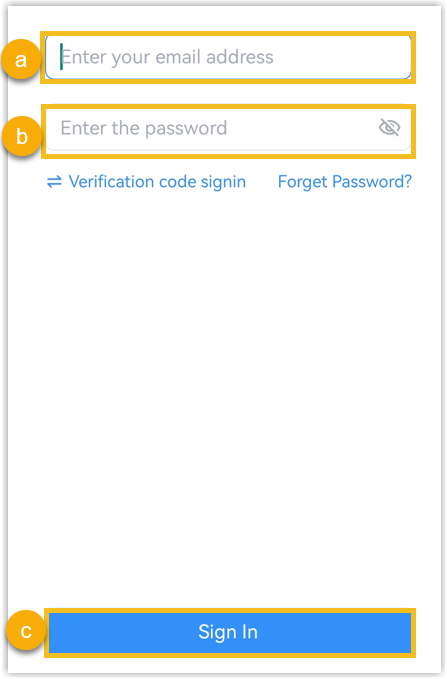
- Enter your email address or phone number.
- Enter the account password. If you forget the login password, click Forget Password? to reset the password by email or SMS.
- Click Sign In.
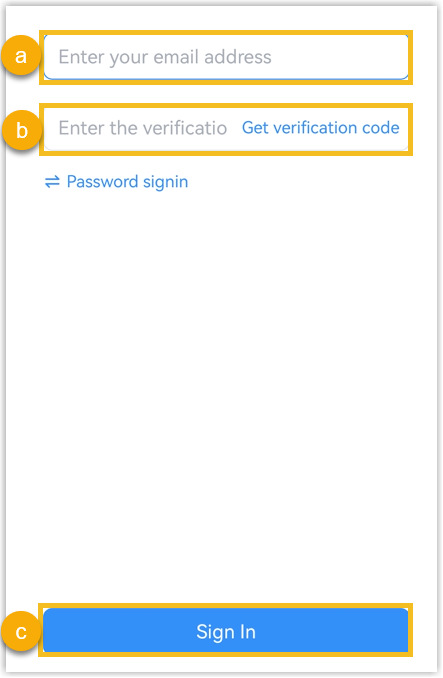
- Enter your email address or phone number.
- Click Get verification code to receive verification code from your email address or mobile phone, and fill in this code.
- Click Sign In.
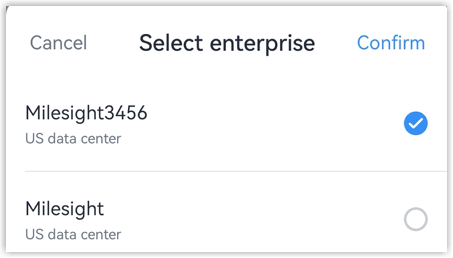
- Select the enterprise if this account has joined multiple enterprises, and click
Confirm. Tip: One account supports joining up to 10 enterprises.
Update Account Information
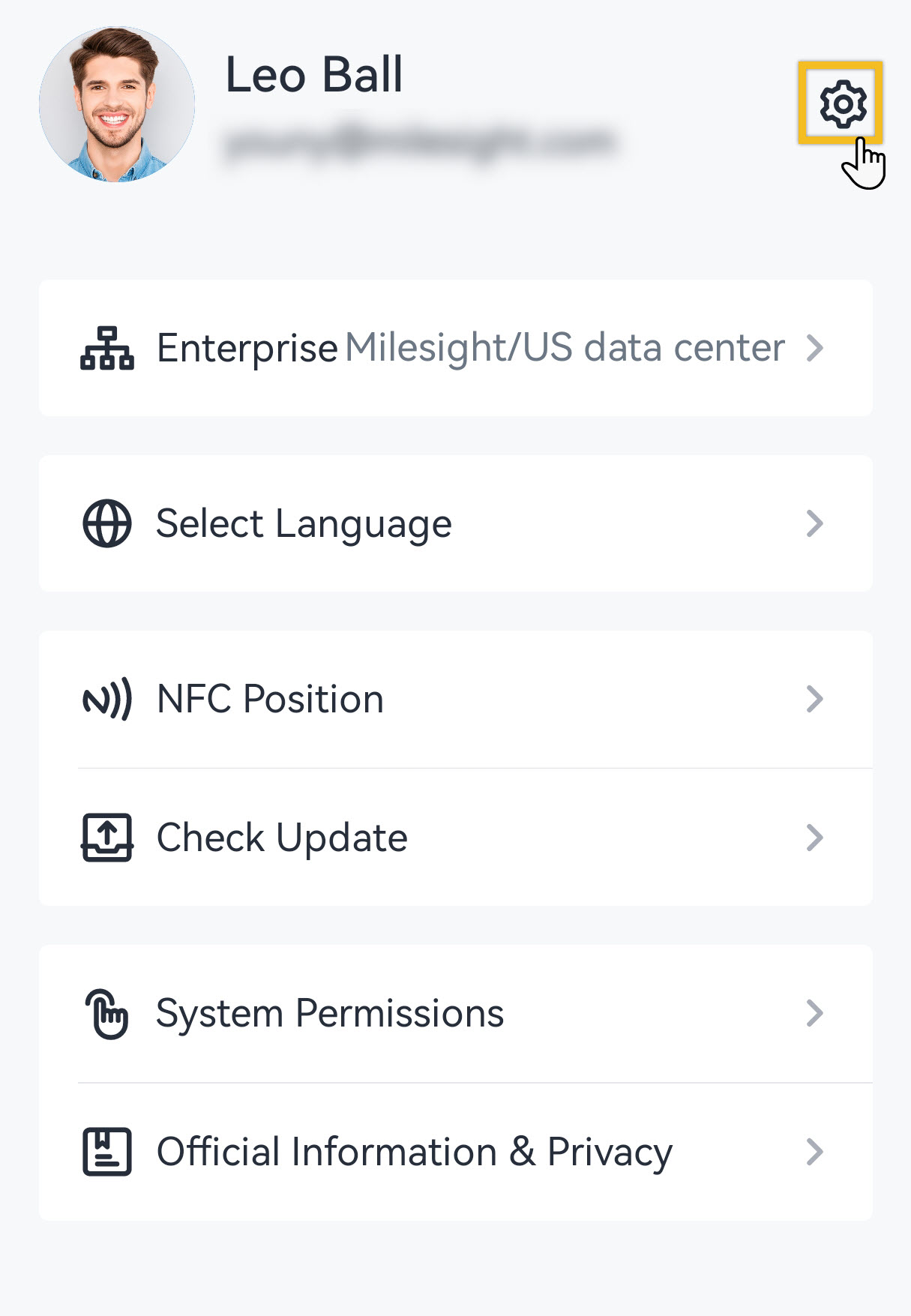
- Navigate to My page, tap
 .
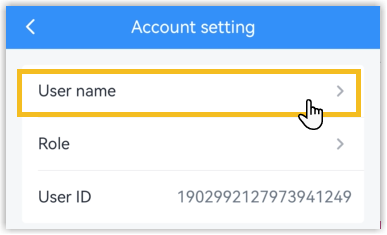
- Tap the User name to change the account user name.
Change Account Password
- Navigate to My page, tap .
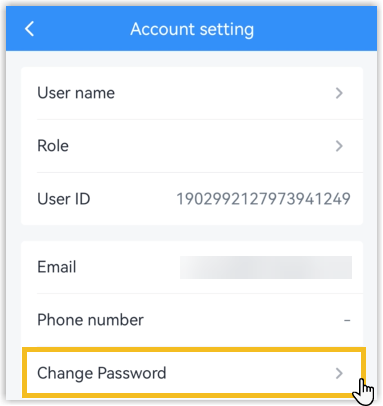
- Tap the Change Password to change the account password.
Switch Account Enterprise
- Navigate to My page, tap Enterprise.
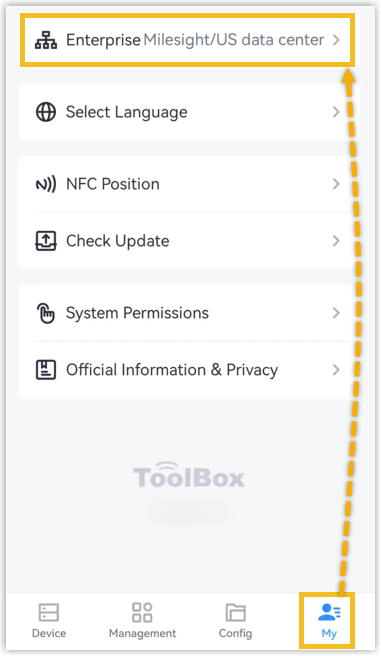
- Select the enterprise if this account has joined multiple enterprises, click
Confirm.
Log out of Milesight Development Platform
- Navigate to My page, tap .
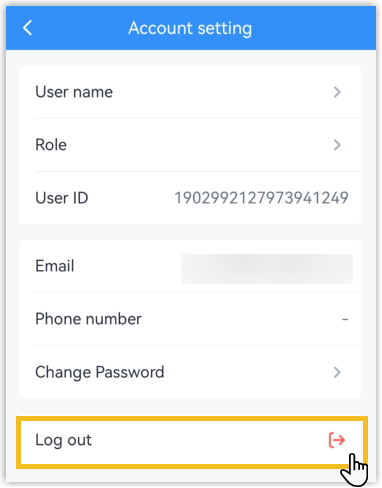
- Tap Log out to log out of the Milesight Development Platform.