Access the Device Using Bluetooth
This section describes how to access the device using Bluetooth. Bluetooth is enabled by default on this device.
Access the Device using Bluetooth
- Download Milesight ToolBox app from Google Play or Apple Store.
- Enable the Bluetooth and location functions on the smart phone.
- Launch ToolBox.
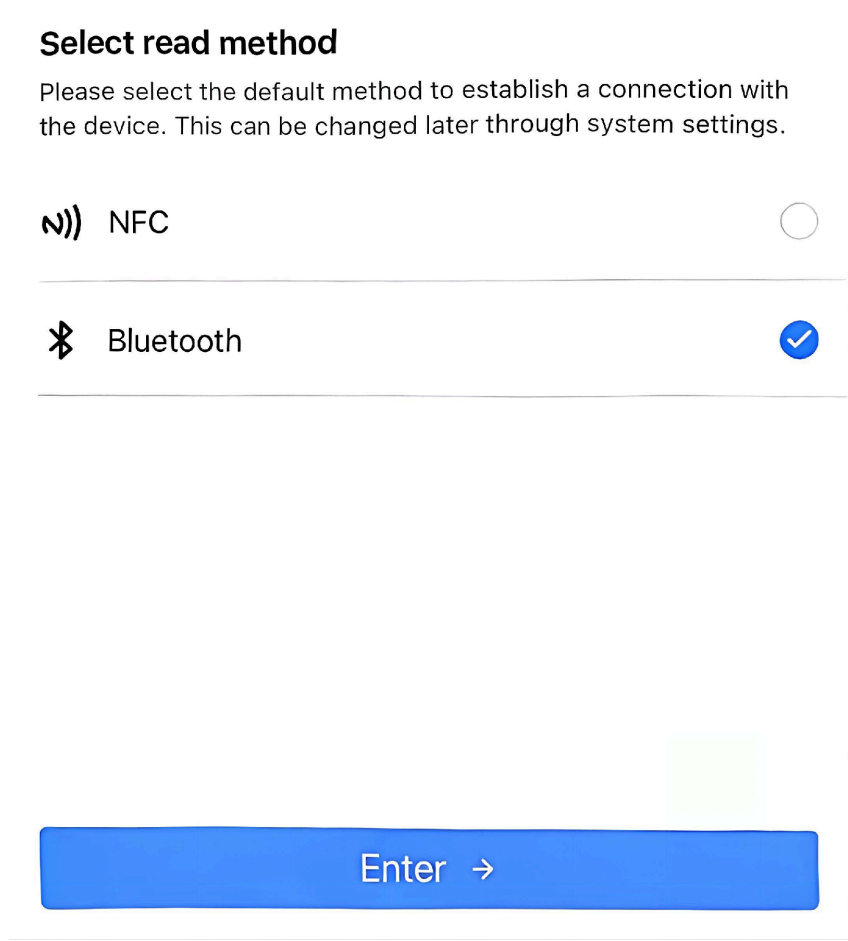
- Upon initial launch, the following page will appear. Select Bluetooth
and click Enter.
- Upon subsequent launches, Click Maintenance on the home page, and
then select Bluetooth.

- Upon initial launch, the following page will appear. Select Bluetooth
and click Enter.
- Click
 to connect the target device by selecting one of
the following methods.Manually Add: Tap the target device in the searching list. The default device Bluetooth name is
uc701-xxxxxxx, wherexxxxxxxrepresents digits 5 through 11 of the device serial number.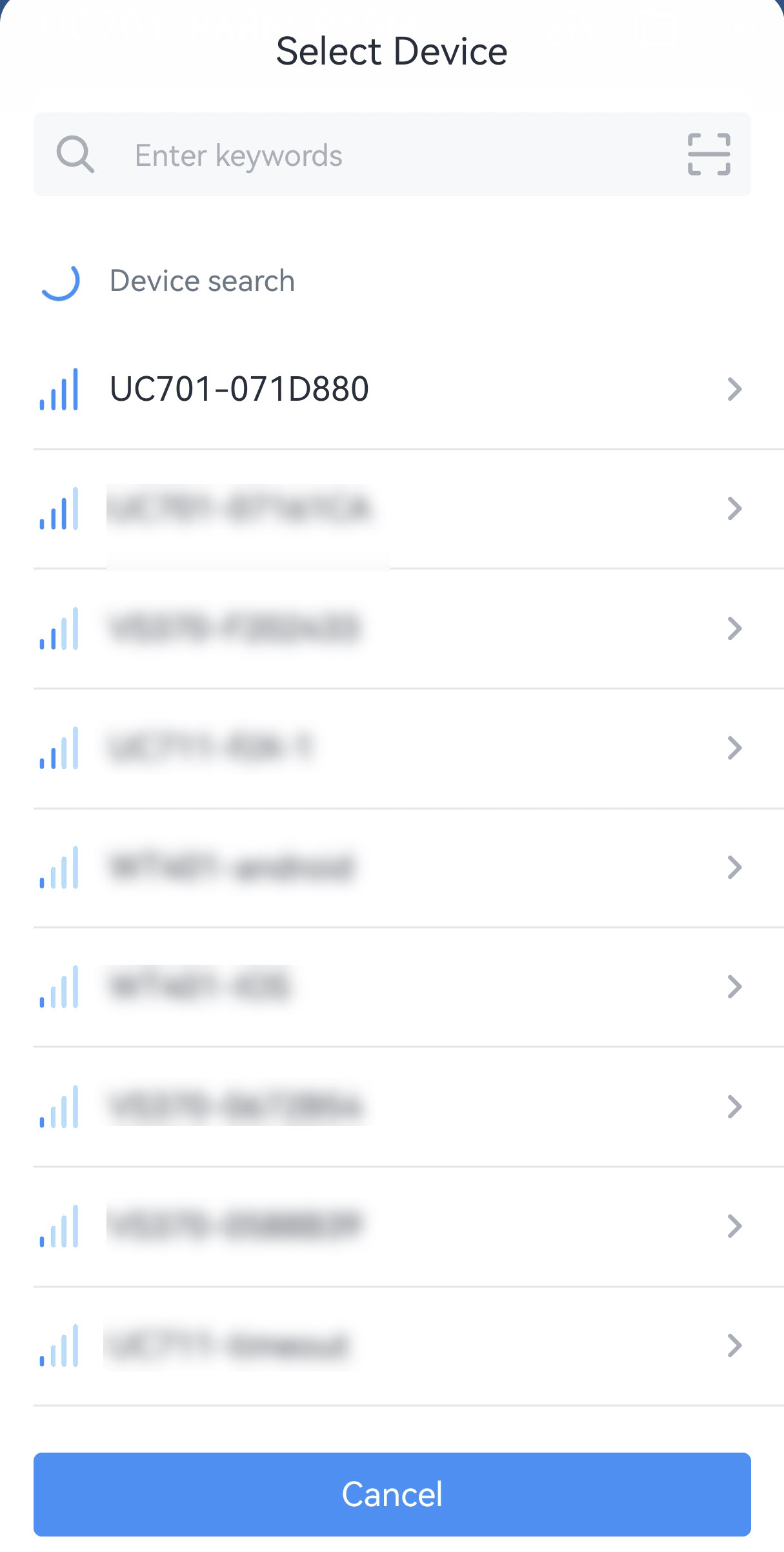 Scan Add: Tap the scan icon to scan the QR code on the device.
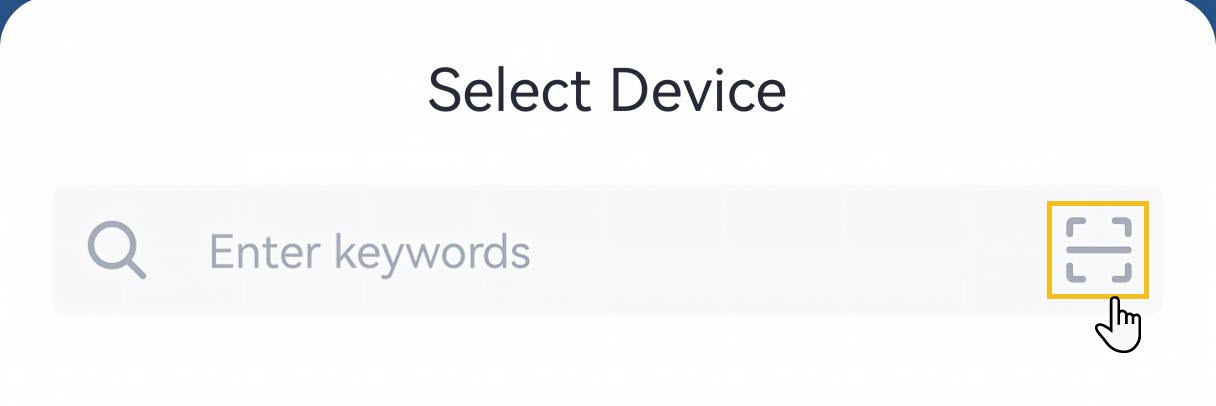 Note: One device can only connect to one smartphone via Bluetooth. If you select a device already connected to another phone, it will disconnect the current connection and connect to your phone.
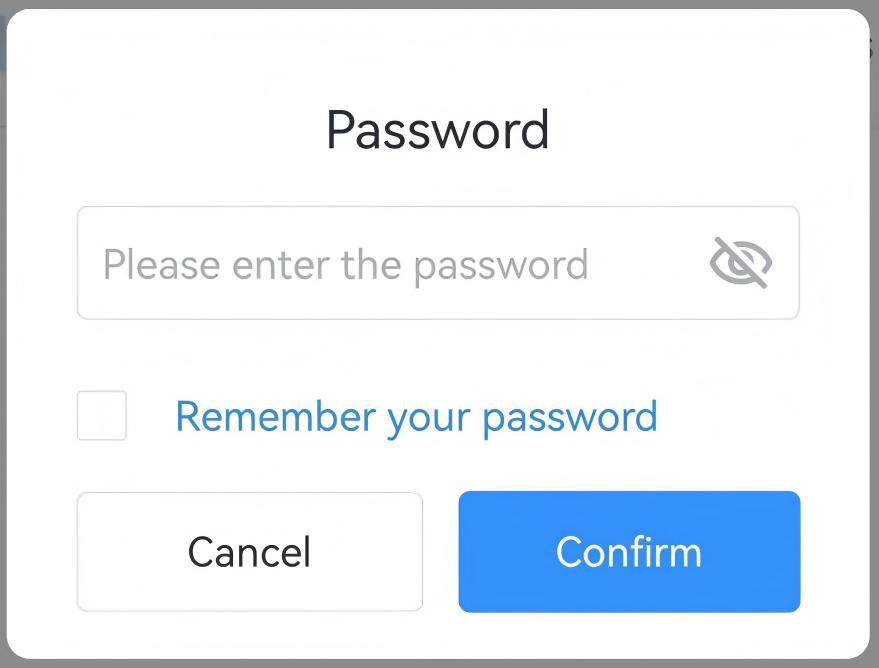
- Enter the device password, then click Confirm. The
default password is 123456.
- After the connection is established, the
ToolBox homepage is displayed.Tip: The Bluetooth connection is terminated if no data is exchanged for three minutes.
ToolBox Homepage
The following table describes the common homepage options.
| Item | Description |
|---|---|
| Basic Information | Shows basic device information and synchronizes the device time. |
| Setting | Configures device and network parameters. |
| Send to Gateway | Add the device to Milesight gateway. For details, refer to Milesight Toolbox App User Guide. |
 |
Imports, adds, exports, or deletes configuration templates. |
 |
Selects the app language, displays NFC positions, and shows the ToolBox version and other app information. |
Configure the Devices in ToolBox
After accessing the device through Bluetooth, use the following common procedure to
view and configure the device parameters.
Note: Unless otherwise specified, the configuration
procedures in the following sections assume that the device has already been
accessed through ToolBox.
- On the ToolBox home page, tap Setting.
- Follow the ToolBox path shown in the relevant feature section.
- Configure the required parameters.
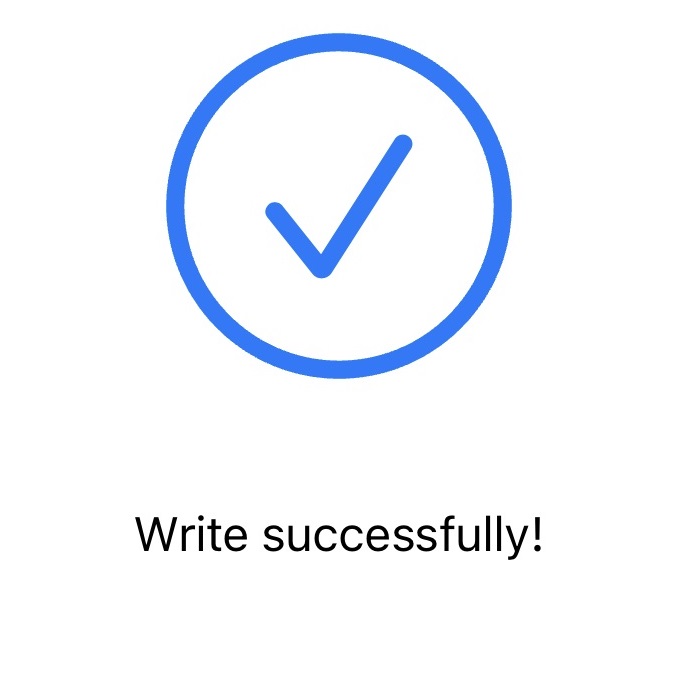
- Tap Write in the lower-right corner to apply the configuration. Then keep the Bluetooth connection active until the write operation is completed.
- Confirm that the write-success page is displayed.
- Read the device again to check if the parameters are written well.Important: For security purposes,
- Change the default device password after first access, see Change the Device Password.
- Disable Keep Bluetooth Advertising, see Configure Bluetooth Advertising Mode.