Troubleshoot an Abnormal Preview after Installation
This section describes how to troubleshoot an abnormal dashboard preview after the device is installed.
Steps:
- Verify that the lens protective film has been removed.
- Verify that the device is installed horizontally (within ±10°).
- Identify and remove any objects (such as pendant lights, downlights) that are too close to the device or obstructing its field of view.
- Adjust the installation height through the web GUI. For how to log in to the
web, refer to Access the Device.
- On the Rule page of the web GUI, click Detect to use the
automatically detected height value.
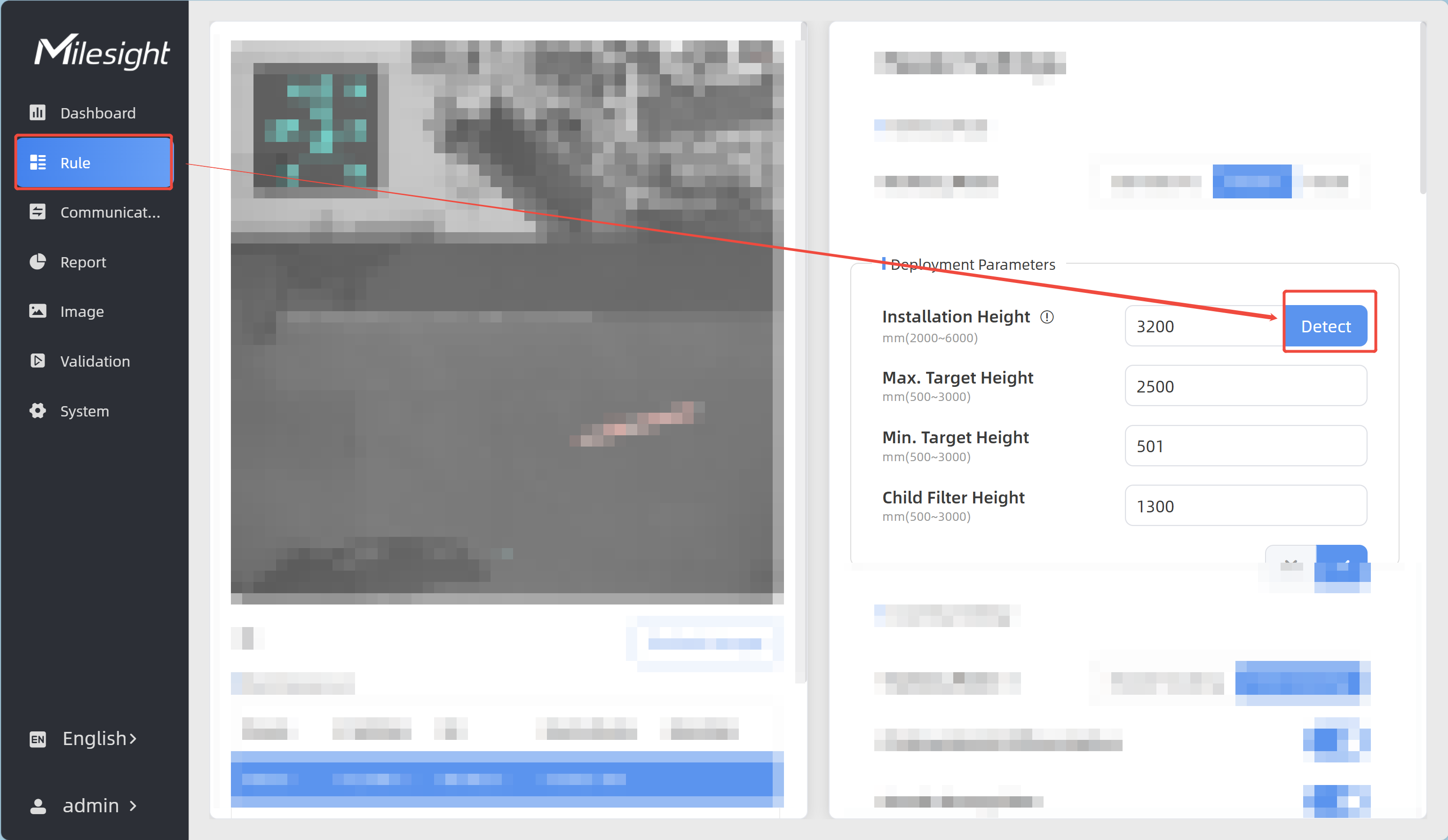
- Switch to the Dashboard page to check the preview and make the
following adjustments if necessary:
- If the depth map is predominantly blue → switch to the Rule page → increase the installation height by 50 mm increments (recommended).
- If the depth map is predominantly red → switch to the Rule page → decrease the installation height by 50 mm increments (recommended).
- On the Rule page of the web GUI, click Detect to use the
automatically detected height value.
- Verify that the lens is secure and the housing is not deformed, even if no external damage is visible.
- If the problem persists, contact your Milesight sales representative.