Access the Device
This section describes how to access the device using NFC or Bluetooth. NFC and Bluetooth are enabled by default.
Access the Device Using NFC
Prerequisite: Ensure that the device is powered.
- Download Milesight ToolBox app from Google Play or Apple Store.
- Enable the NFC function on the smart phone.
- Launch ToolBox.
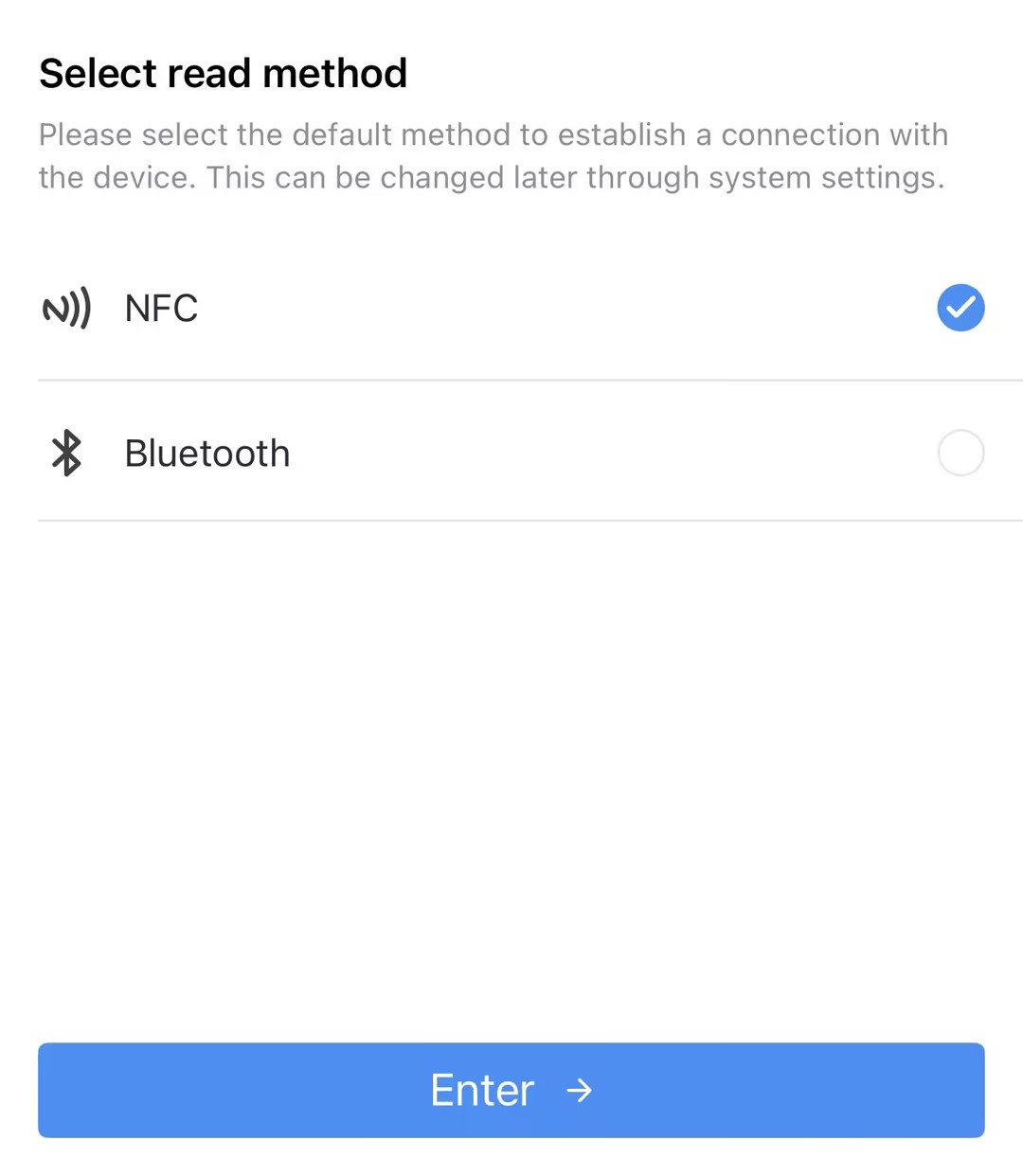
- Upon initial launch, the following page will appear. Select NFC
and click Enter.
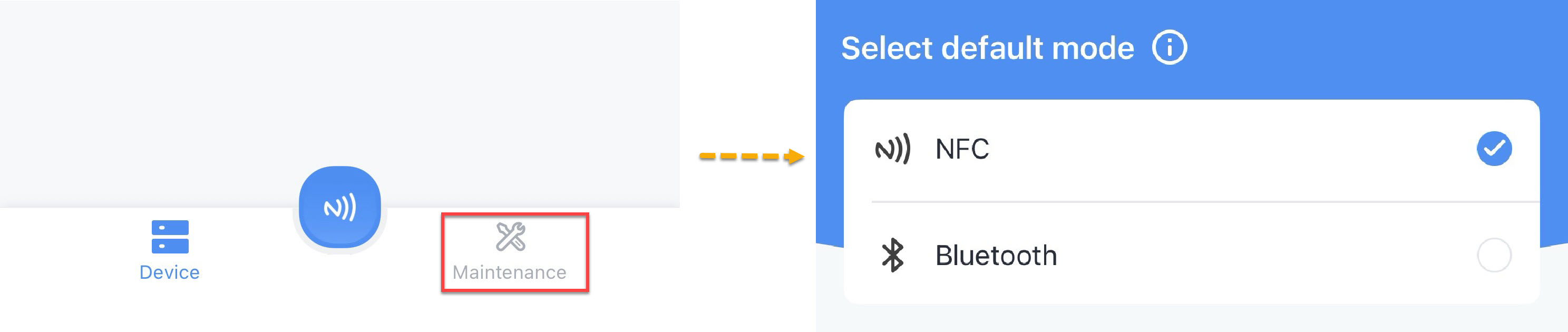
- Upon subsequent launches, Click Maintenance on the home page, and
then select NFC.
- Upon initial launch, the following page will appear. Select NFC
and click Enter.
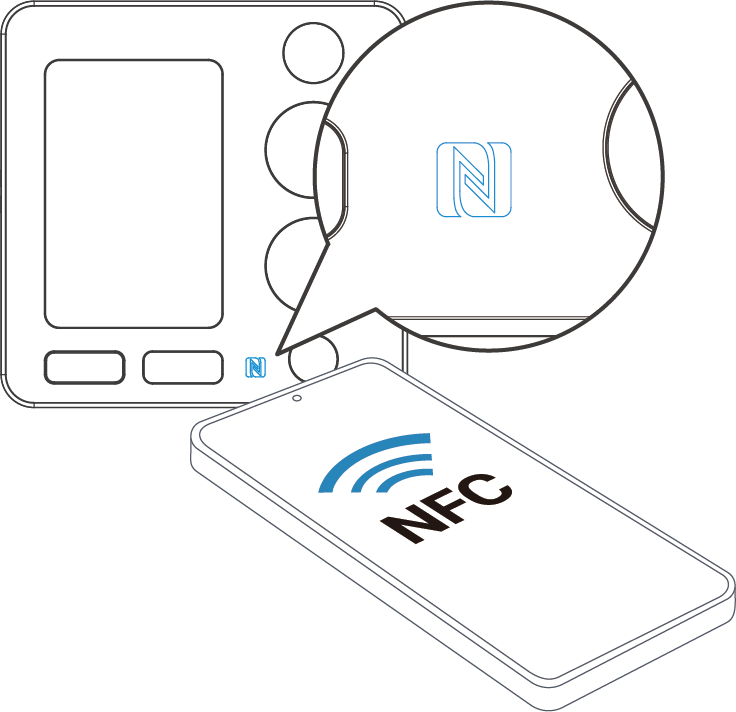
- (Optional) To locate the NFC detection areas of the phone and the device, click Can't find the NFC location.
- Place the NFC detection area of the smartphone near the NFC antenna of the
device.Tip: It is recommended to remove the phone case.
- Tap
 in ToolBox. If the device is recognized successfully, the
ToolBox homepage is displayed.Troubleshooting: If the NFC read fails, move the smartphone away from the device, reposition it near the device's NFC antenna, and try again.
in ToolBox. If the device is recognized successfully, the
ToolBox homepage is displayed.Troubleshooting: If the NFC read fails, move the smartphone away from the device, reposition it near the device's NFC antenna, and try again.
Access the Device Using Bluetooth
- Press button 3 once to turn on the device. The device can also be turned on using NFC.
- Press buttons 4 and 5 together once to turn on
Bluetooth for one minute.Note: If the smartphone does not connect to the device within one minute, Bluetooth turns off automatically. Press buttons 4 and 5 together again to reactivate it.
- Download Milesight ToolBox app from Google Play or Apple Store.
- Enable the Bluetooth and location functions on the smart phone.
- Launch ToolBox.
- Upon initial launch, the following page will appear. Select Bluetooth
and click Enter.
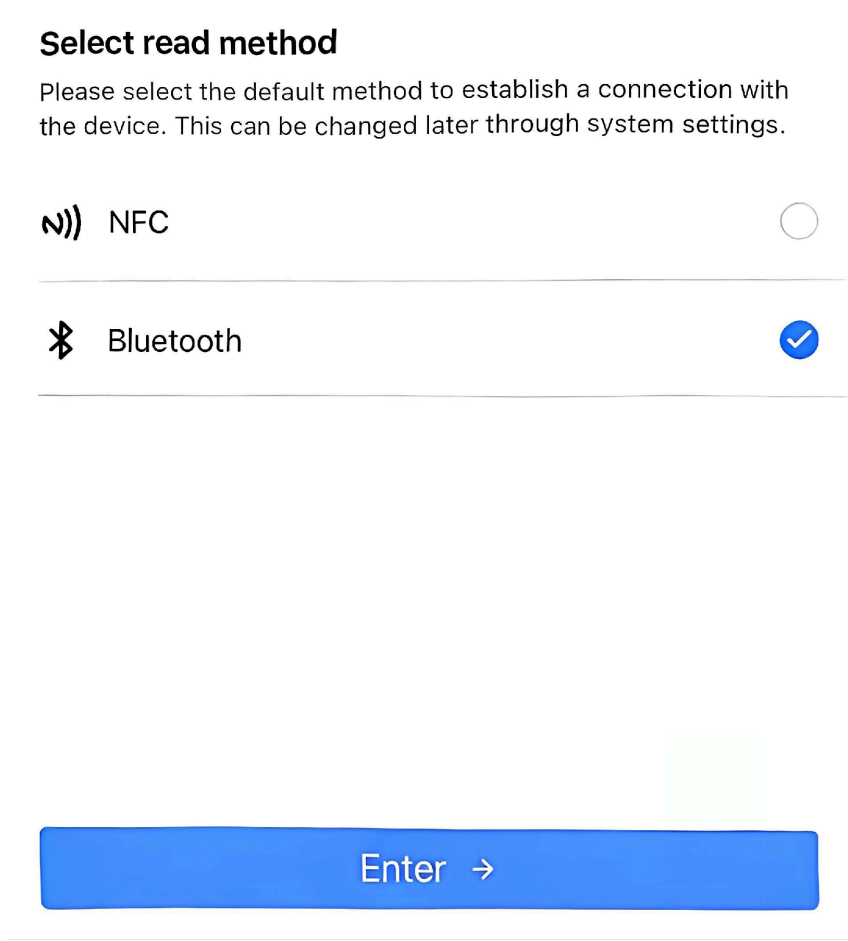
- Upon subsequent launches, Click Maintenance on the home page, and
then select Bluetooth.

- Upon initial launch, the following page will appear. Select Bluetooth
and click Enter.
- Tap
 to scan for nearby devices, and then select the
target device. The default Bluetooth name is
to scan for nearby devices, and then select the
target device. The default Bluetooth name is
wt401-xxxxxxx, wherexxxxxxxrepresents digits 5 through 11 of the device serial number.Note: One device can only connect to one smartphone via Bluetooth. If you select a device already connected to another phone, it will disconnect the current connection and connect to your phone.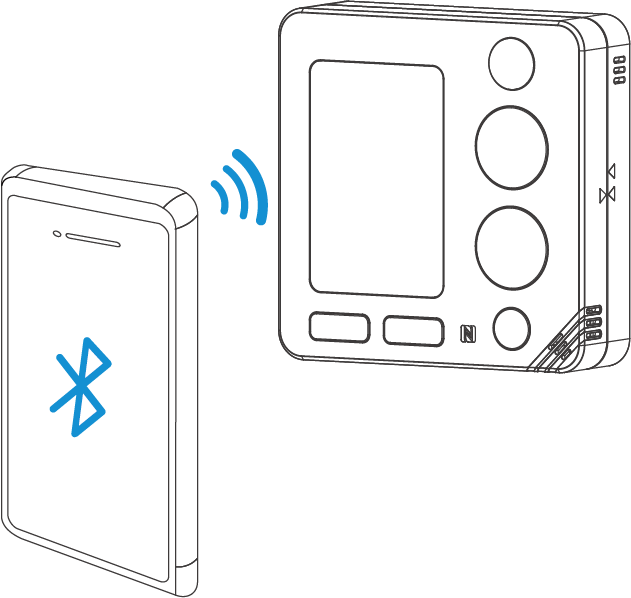
- Enter the device password, then click Confirm. The
default password is 123456.
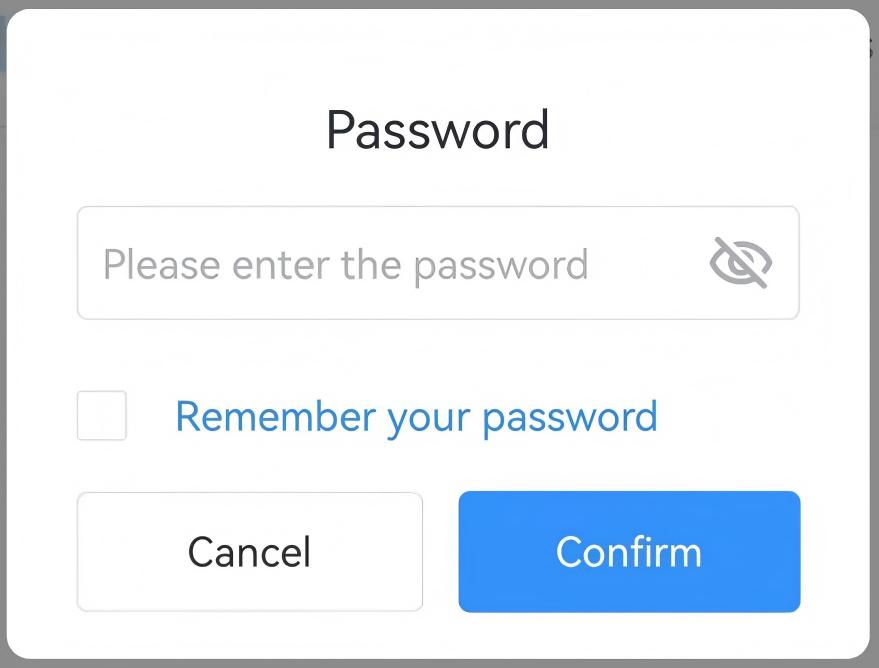
- After the connection is established, the
ToolBox homepage is displayed.Tip: The Bluetooth connection is terminated if no data is exchanged for three minutes.
ToolBox Homepage
The same ToolBox homepage is displayed after a successful NFC read or Bluetooth connection. The following table describes the common homepage options.
| Item | Description |
|---|---|
| Basic Information | Shows basic device information and synchronizes the device time. |
| Setting | Configures device and network parameters. |
| Send to Gateway | Add the device to Milesight gateway. For details, refer to Milesight Toolbox App User Guide. |
 |
Imports, adds, exports, or deletes configuration templates. |
 |
Selects the app language, displays NFC positions, and shows the ToolBox version and other app information. |
Configure the Device in ToolBox
After accessing the device through NFC or Bluetooth, use the following common procedure to view and configure the device parameters.
Note: Unless otherwise specified, the configuration
procedures in the following sections assume that the device has already been
accessed through ToolBox.
- On the ToolBox home page, tap Setting.
- Follow the ToolBox path shown in the relevant feature section.
- Configure the required parameters.
- Tap Write in the lower-right corner to apply the configuration. Complete
the write operation according to the access method.
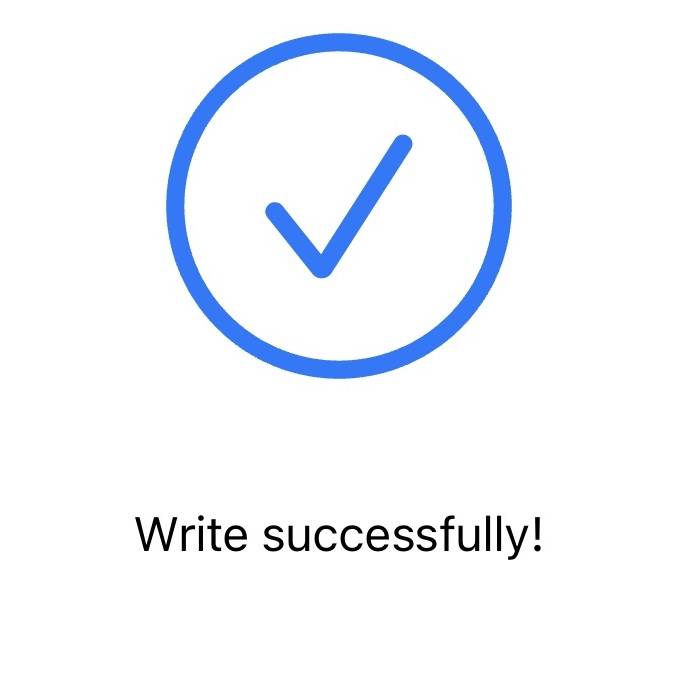
Access Method Write Operation NFC After tapping Write, place the NFC detection area of the smartphone near the device's NFC antenna and keep it in position until the write operation is completed. Bluetooth After tapping Write, keep the Bluetooth connection active until the write operation is completed. - Confirm that the write-success page is displayed.
- Read the device again to check if the parameters are written well.
Important: For security, change the default
device password after accessing the device for the first time. see Change the Device Password.