Screen Display Introduction
Display Screen Icons
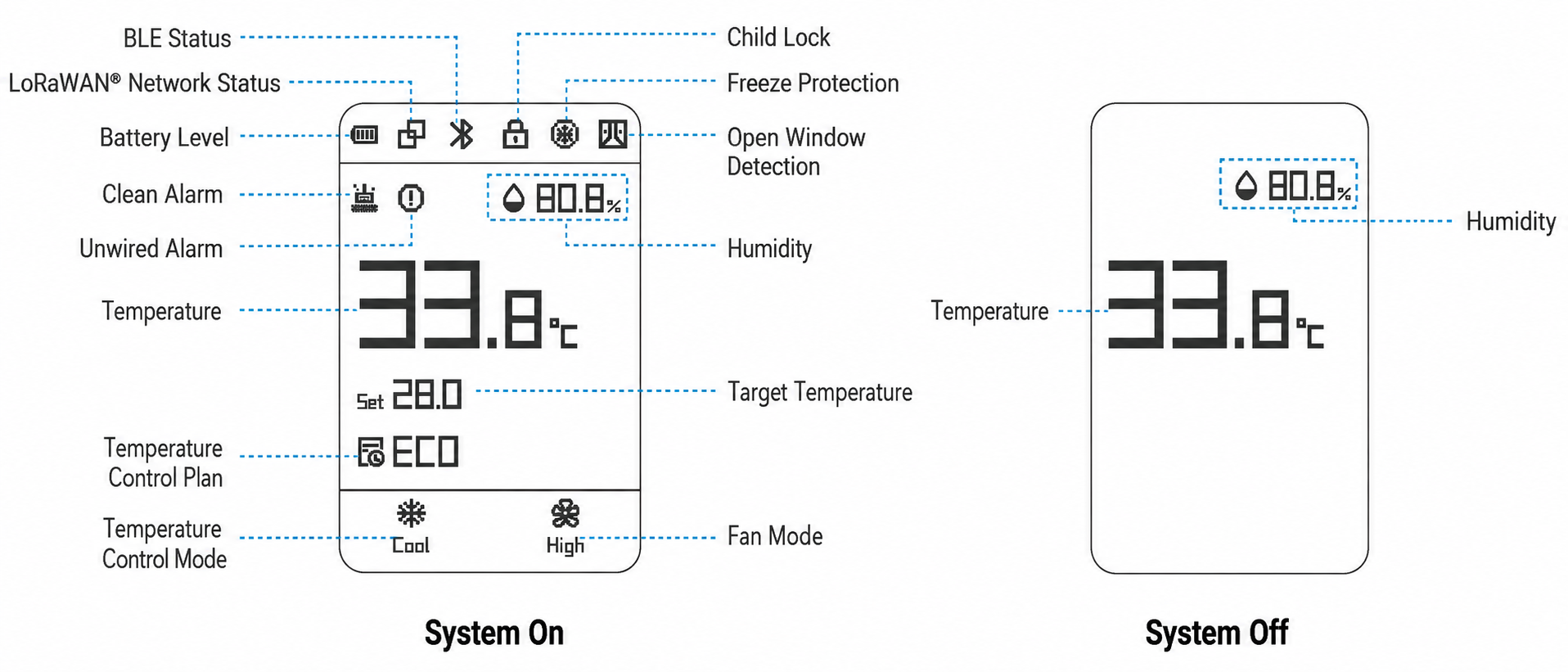
| Icon | Description |
|---|---|
| Battery Level | Display battery level only when the device is powered by batteries. |
| LoRaWAN® Network Status | Display network status when the communication mode includes LoRa.  : Joins the network. : Joins the network.
|
| BLE Status | Display BLE pairing status when the
communication mode includes BLE.
|
| Child Lock | All buttons locked: normal
display Partial locked: display only when the locked button is pressed |
| Freeze Protection | Display when freeze protection alarm is triggered from Milesight HVAC controller. |
| Open Window Detection (Under Development) |
Display when Open Window Alarm is triggered. |
| Clean Alarm (Under Development) |
Display when the filter cleaning is required. |
| Unwired Alarm | Display when the wiring settings of the connected Milesight HVAC controller are not configured. |
| Humidity | Display the ambient humidity. |
| Temperature | Display the ambient
temperature. Note: If ambient temperature
display is disabled, this location will display the target
temperature. |
| Target Temperature | Display the target temperature when temperature control mode is Cool/Heat/EM Heat/Auto. |
| Temperature Control Plan | Display current executed plan name. |
| Temperature Control Mode | Display current temperature control mode. |
| Fan Mode | Display current fan mode. |
 : Fails to join the
network.
: Fails to join the
network. : Paired with a
controller.
: Paired with a
controller. : Not pairing with any
device.
: Not pairing with any
device. : Disconnected or transfer
failure.
: Disconnected or transfer
failure.Enable/Disable the Screen Display
By default, the screen display is enabled and all icons are displayed only when their corresponding conditions are met. Some icons can be disabled via downlink commands.
For WT401-Flat-FL model, pressing any button will activate the screen backlight for 10s after the device is turned on, making it easier to use the buttons at night. This can also be disabled via the downlink command to save power.
Over-temperature Protection
When the device detects the ambient temperature outside the 0-40 °C range for 6 consecutive times (the default collecting interval is 60s and can be changed via a downlink command), the device will turn off the screen to protect it, and all buttons will be locked. During this period, other features remain unaffected; the device can still be checked and configured via ToolBox or uplink/downlink messages. Over-temperature protection only uses embedded sensors as its data source.
To restore the screen, the device must detect the ambient temperature within the operating range (0–40 °C) for 6 consecutive times.