5.1 Access the Thermostat
This chapter describes the steps to access and configure the thermostat.
Configure the Thermostat using NFC
The thermostat can be accessed and configured locally using NFC.
Prerequisites: The thermostat is powered by the USB port or HVAC system.
Steps:
- Download Milesight ToolBox app from Google Play or Apple Store.
- Enable the NFC function on the smart phone.
- Launch ToolBox.
- Upon initial launch, the following page will appear. Select NFC
and click Enter.
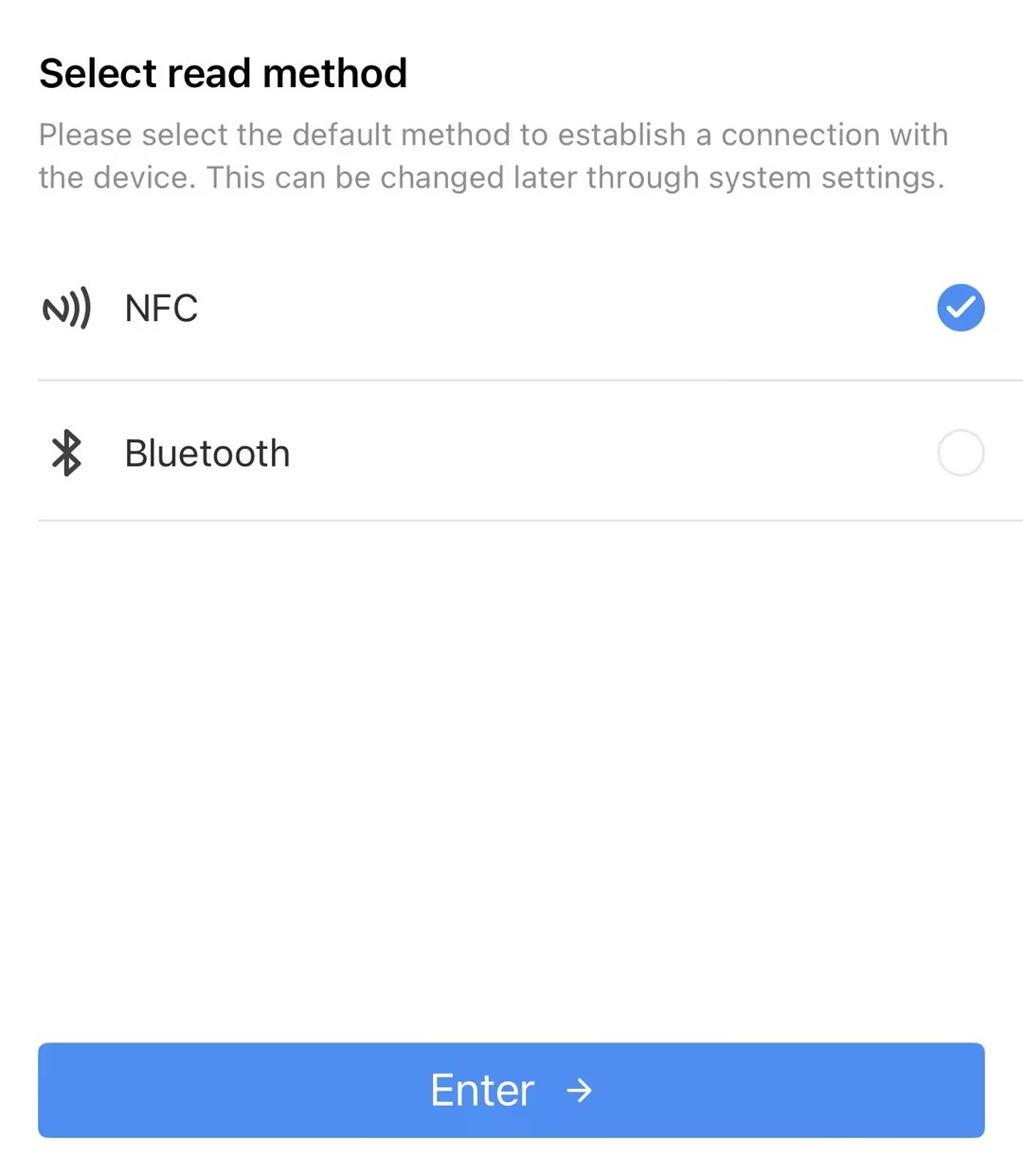
- Upon subsequent launches, Click Maintenance on the home page, and
then select NFC.
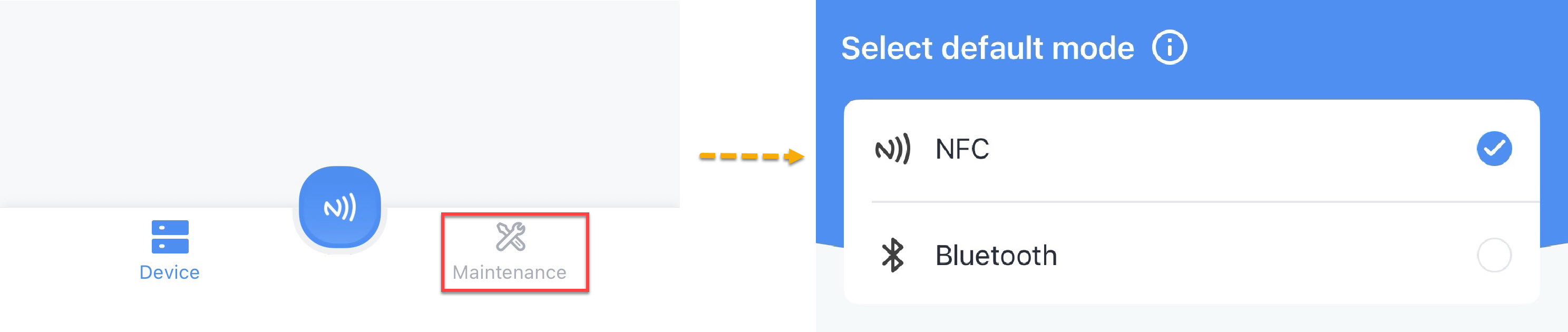
- Upon initial launch, the following page will appear. Select NFC
and click Enter.
- (Optional) To locate the NFC detection areas of the phone and the device, click Can't find the NFC location.
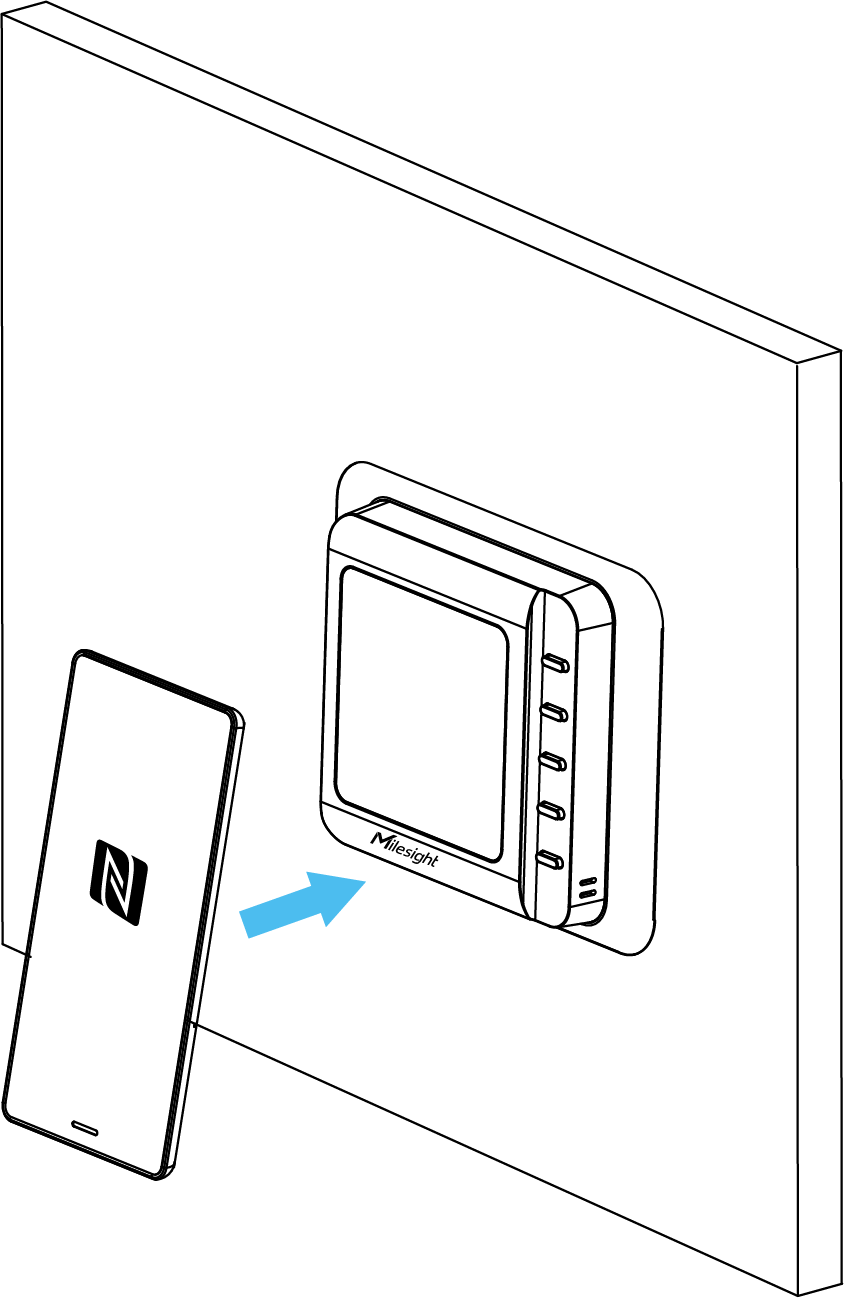
- Put the NFC detection area of the phone close to the NFC antenna of the
device.Tip: It is recommended to remove the phone case.
- Click
 . If the device is recognized successfully, the homepage is
displayed. Troubleshooting: If read fails, move the phone away and reposition it close to the sensor to try again.For a description of the homepage, refer to the following table.
. If the device is recognized successfully, the homepage is
displayed. Troubleshooting: If read fails, move the phone away and reposition it close to the sensor to try again.For a description of the homepage, refer to the following table.Item Description Basic Information Show basic device information and sync the device time. Setting Set the device and network parameters. 
Import, add, export or delete a template. 
Select language, show NFC positions, check App version, etc.. - (Optional) Change the device password for security purposes.
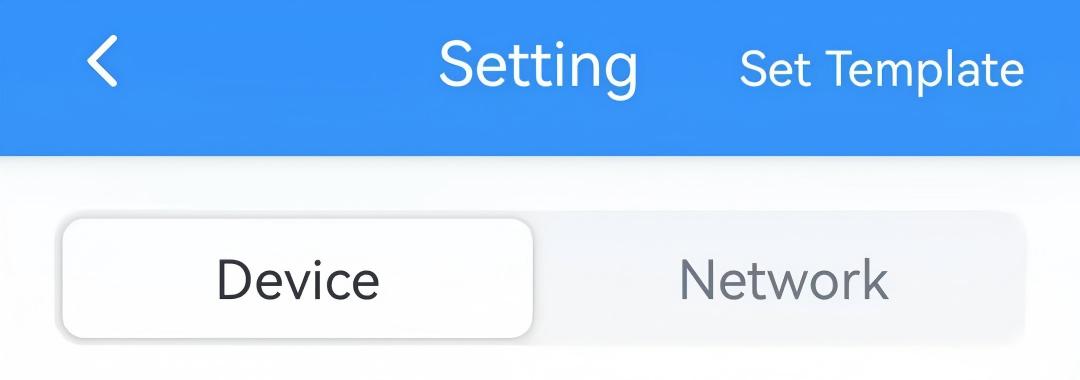
- On the homepage of ToolBox, click Setting to enter the Setting page.
- On the top bar, select Device tab.
- In the General page, enable Change Password and
enter the new password.
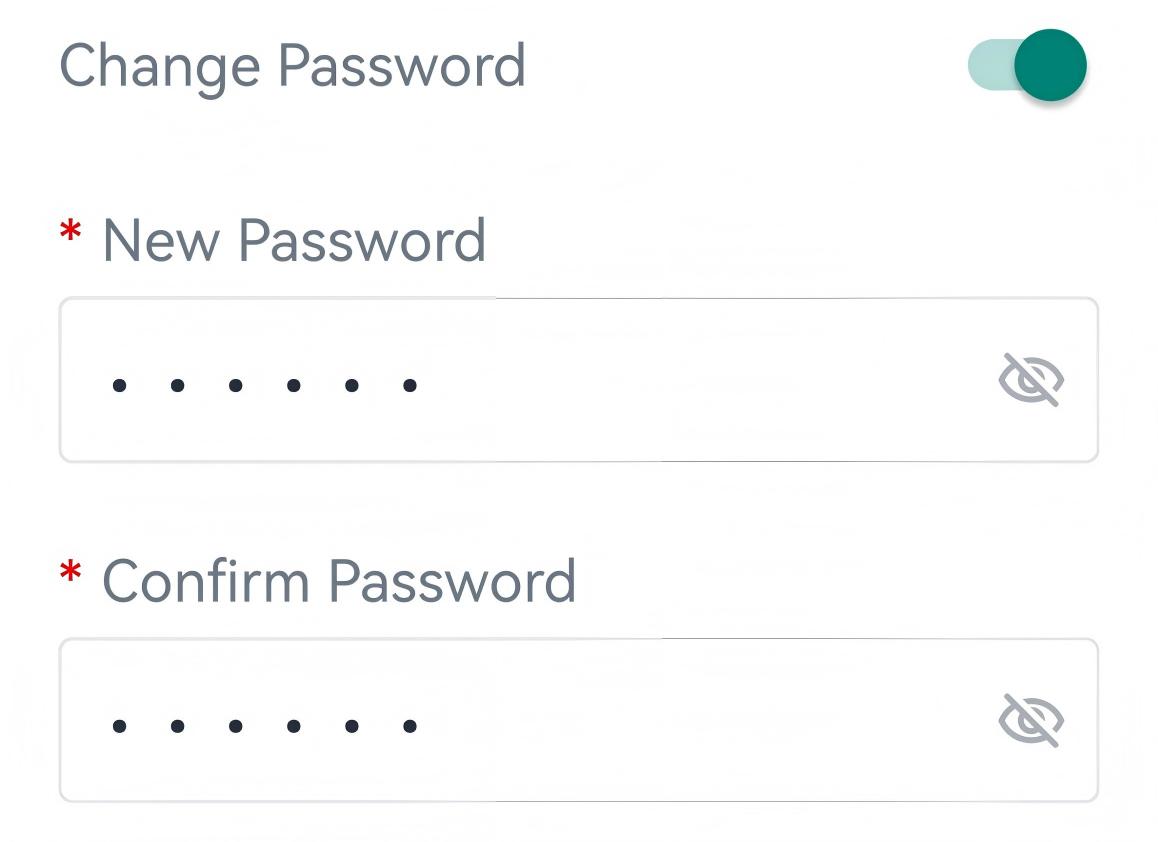
Parameter Description New Password Enter a new password of 6 characters. Only letters, digits, and underscores are allowed. Confirm Password Enter the password again. - Click Write in the lower right corner, and put the NFC detection area of the
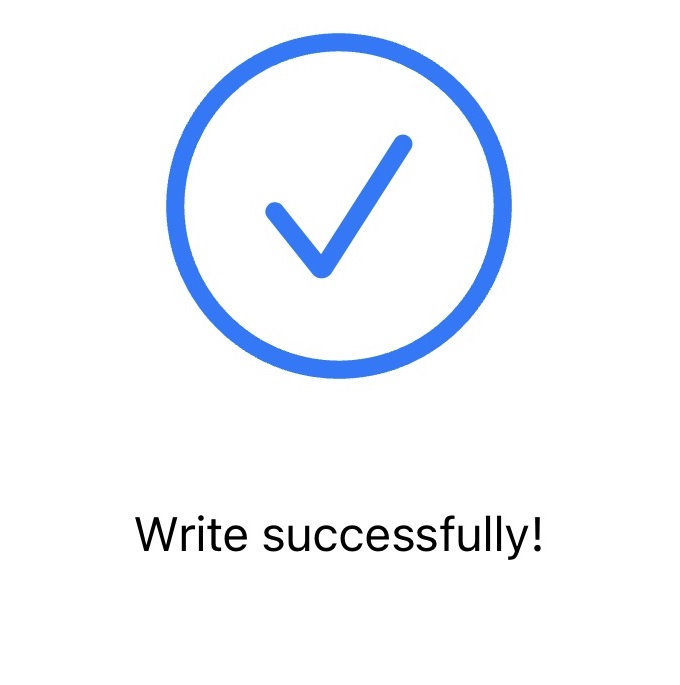
phone close to the NFC antenna of device. If the password was changed successfully,
the following page is displayed.
Configure the Thermostat Remotely
The thermostat can be configured remotely when it connects to a LoRaWAN® network server.
Prerequisites:
- The thermostat is powered on.
- A LoRaWAN® network server (or a LoRaWAN® gateway with a built-in network server).
- If you require BACnet configuration, it is necessary to use a Milesight LoRaWAN® gateway with the BACnet feature.
Steps:
- Add the thermostat to the LoRaWAN® network server. The required device parameters can be found here.
- Check if the device network status is Activated using the screen icon, ToolBox or the server.
- Select one of the following methods to configure the device.Tip: Please search for the configuration command/object details in Communication Protocol document using the keywords provided in this guide.
Configuration Method Step BACnet - Select the payload codec when adding the device to the gateway.
- Enable BACnet feature to integrate with your BMS system.
- Add the device BACnet objects to this gateway.
- Read or write the objects by your system.
JSON Command - Copy the device codec.
- Paste the device codec to one network server.
- Send JSON strings commands to check if it works.
Raw Command - Select the downlink format as HEX and send the commands directly.