Check the Dashboard
The dashboard visualizes critical data in a centralized real-time layout for at-a-glance monitoring. The master device dashboard is used as an example for description is this section.
Steps:
- In the main page, click Dashboard from the left navigation tree. The Dashboard page is displayed.
-
Check the data or perform the operations as needed. For Dashboard page description, refer to the following table.
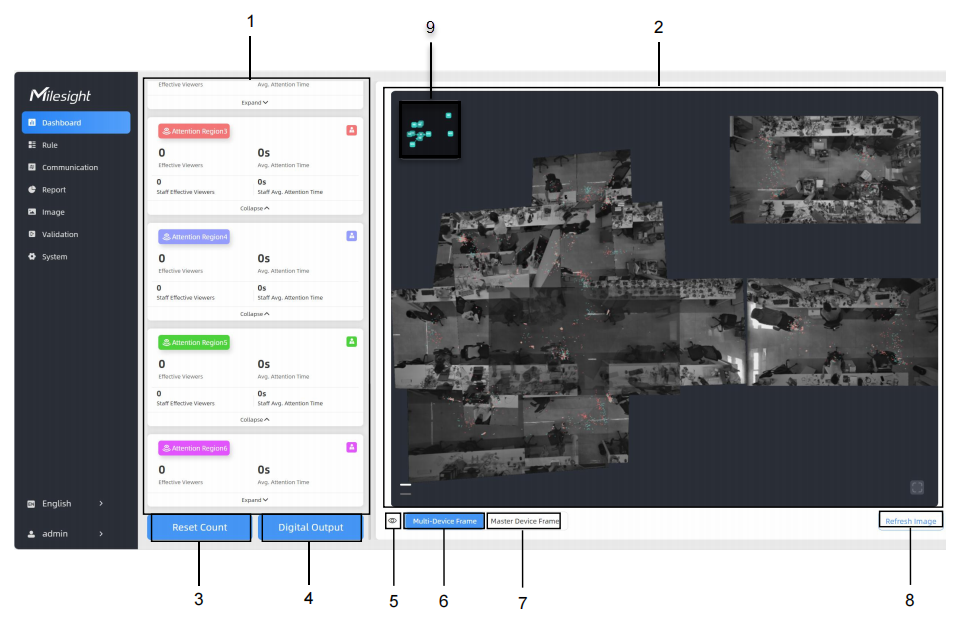
NO. Item Description 1 Line, Region, Attention Region, Device Info data display area After functions Line Cross Counting, Region Monitoring and View Direction Detection are configured, the corresponding line, region and attention region data is displayed in this area.  Hide/Show
Capacity: Hides/shows the total data counting
capacity.
Hide/Show
Capacity: Hides/shows the total data counting
capacity. Children Included/Excluded:
Includes/Excludes children data from statistical
data.
Children Included/Excluded:
Includes/Excludes children data from statistical
data. Staff
Included/Excluded: Includes/Excludes staff data
from statistical data.
Staff
Included/Excluded: Includes/Excludes staff data
from statistical data.
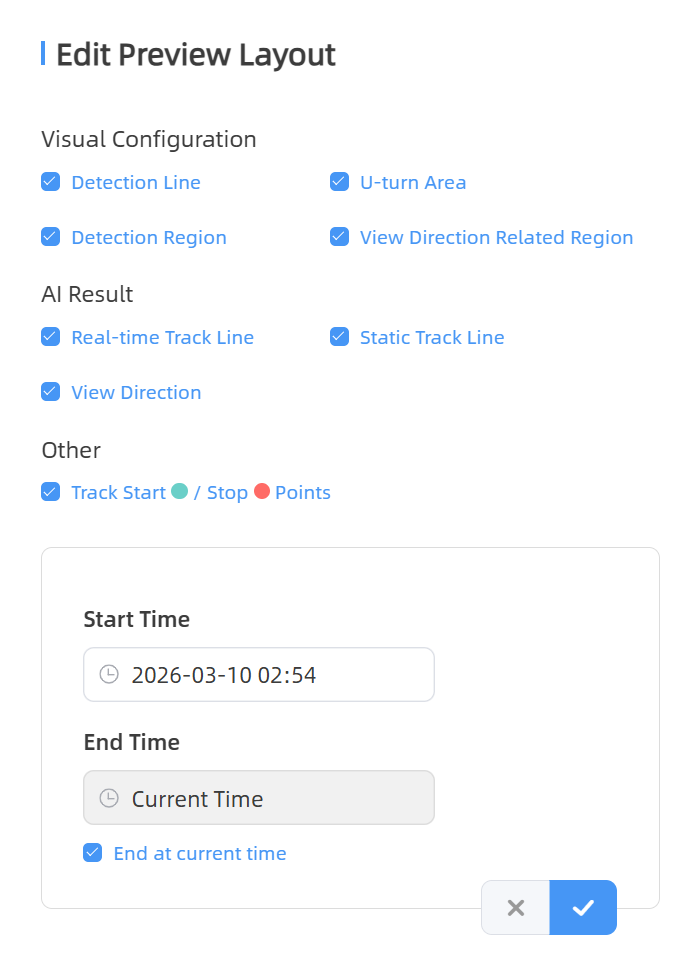
Device Info: Display the current running information. 2 Preview Real-time video display area. 3 Reset Count Clears all accumulated people counting values. 4 Digital Output Click it to output high level signals through the multi-interface when Manual DO is enabled. 5 Edit Preview Layout Click  . The Edit Preview
Layout dialog box is displayed.
. The Edit Preview
Layout dialog box is displayed. - Visual Configuration: Select the items to be displayed in the preview as needed. The items displayed here are dependent on the functions enabled.
- AI Result: Show track line.
- Real-time Track Line: Show or hide the target's track line in the preview.
- Static Track Line: Show or hide the history of the target's track line in the preview. Up to 1000 historical track records are supported. They are cleared upon page refresh.
- View Direction: Show or hide the target's gaze direction.
- Others: Show or hide the start and end points of the target trajectory and the time period.
6 Multi-Device Frame Switches to the multi-device preview. It will only be shown when the device's working mode is Master. 7 Master Device Frame Switches to the master device preview. It will only be shown when the device's working mode is Master. 8 Refresh Image Click it to refresh image. It will only be shown when the device's working mode is Master. 9 Stitched Devices Preview Shows the positions of all the stitched devices. It will only be shown when the device's working mode is Master.