Access the Sensor
The device provides a user-friendly web GUI for configuration access via Wi-Fi. The default settings are as below:
Wi-Fi SSID: Fall Detection_xxxxxx (can be found on the device label)
Wi-Fi IP: 192.168.1.1
Check the device LED indicator: A steady green light or steady blue light indicates Wi-Fi is enabled. If the LED indicator blink green slowly, press and hold the multi-function button for 2~5 seconds to turn on Wi-Fi.
Step 1: Enable the Wireless Network Connection on your computer, search for the corresponding for Wi-Fi SSID to connect it, then enter 192.168.1.1 to access the web GUI.
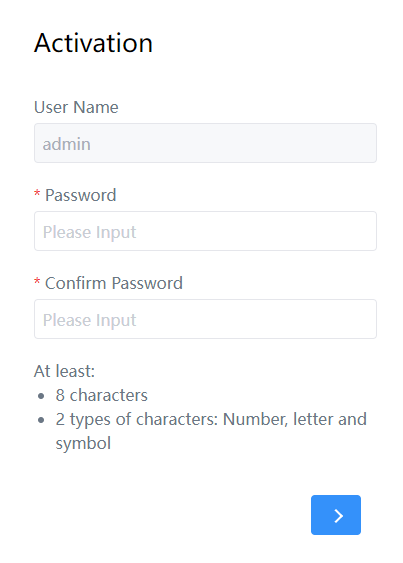
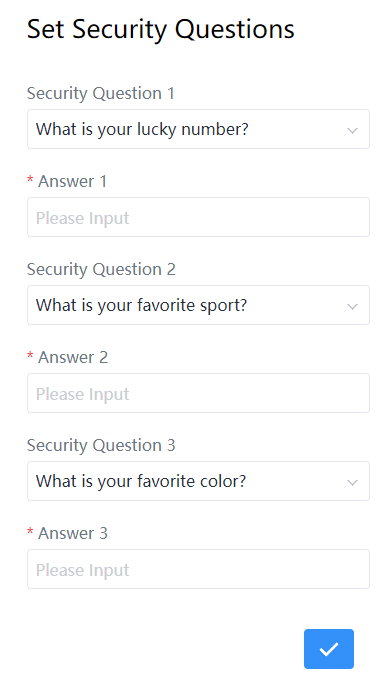
Step 2: Users need to set a password and three security questions when using the sensor for the first time.
Step 3: After configuration, log in with the username (admin) and the newly set password.
- Password must be 8 to 16 characters long and contain at least two of the following: numbers, lowercase letters, uppercase letters and special characters.
- It is recommended that users regularly update their passwords to enhance device security and prevent unauthorized access.
- You can click “forgot password” in login page to reset the password by answering the three security questions when you forget the password if you set the security questions in advance.