Configure Occupancy Detection
The thermostat uses a PIR sensor to provide motion-based occupancy detection in the room. This section describes the occupancy detection and energy-saving settings.
Prerequisites
- Install the thermostat in a suitable location for occupancy detection.
- Before assigning plans to an occupancy status, create or edit the required plans. See Configure Plan Parameters.
Configure by ToolBox
Note: Before configuring the device through ToolBox,
access it through NFC or Bluetooth. For the navigation path and write operation
conventions used in this guide, see Configure the Device in ToolBox.
- Navigate to Device > General.
- Enable Occupancy Detection feature and configure the related parameters.
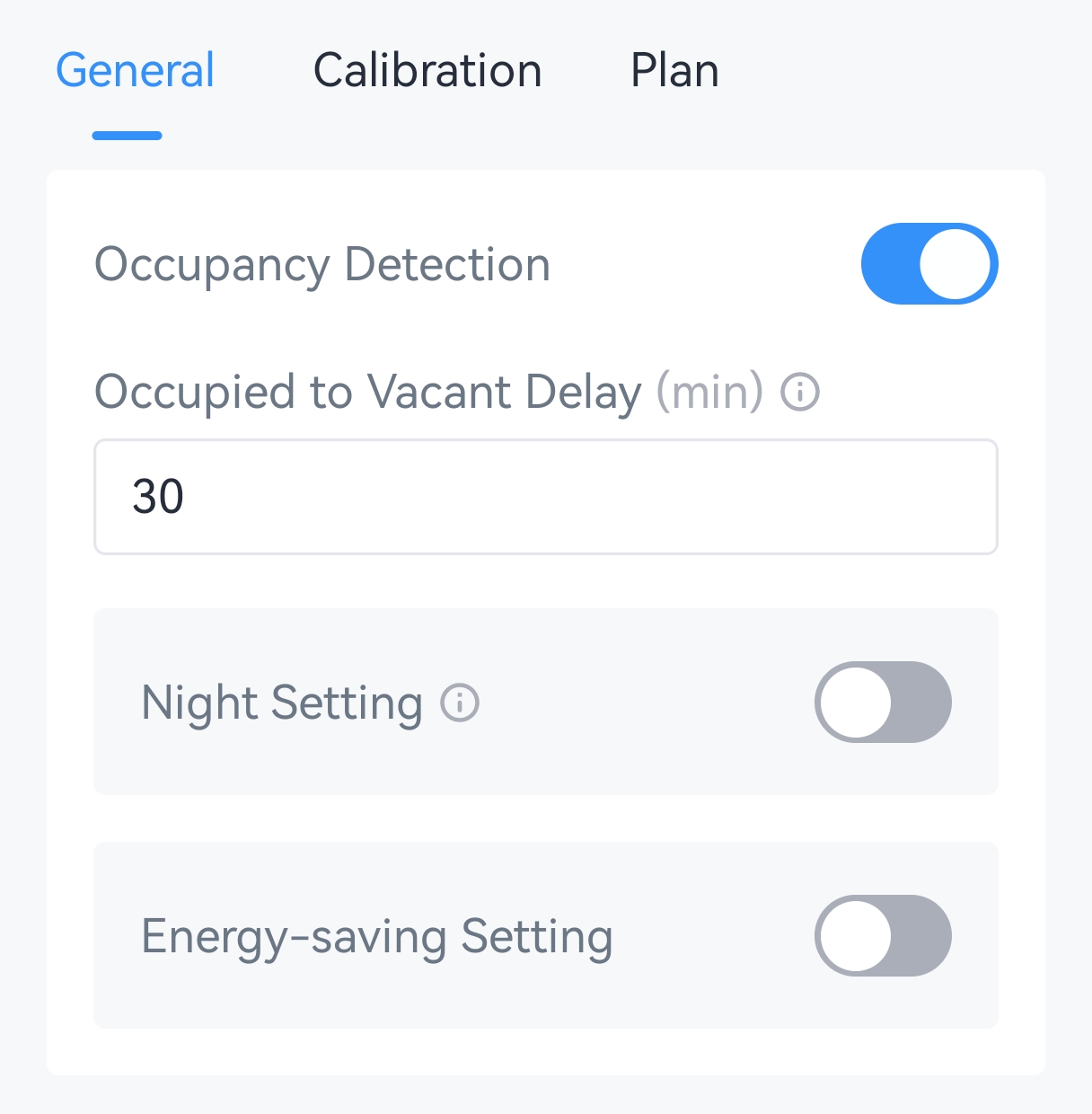
Parameter Description Occupancy Detection Enable or disable PIR occupancy detection and occupancy status reporting. Occupied to Vacant Delay After the device enters the Occupied status, it changes to Vacant only when no motion is detected during the configured delay. Range: 1-360 min. Default: 30 min. - Enable the Night Setting as required and configure the start time and end
time for the nighttime period.
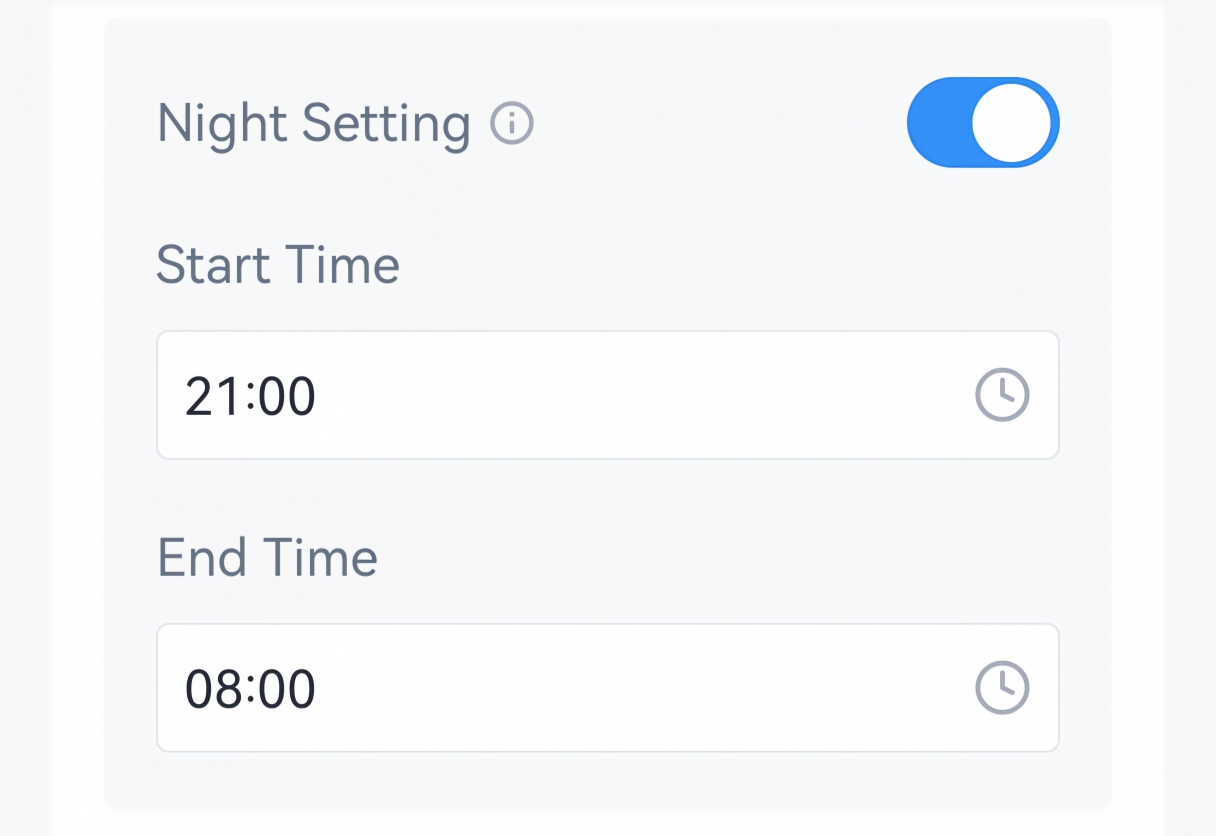
When this setting is enabled, an Occupied event detected after the start time keeps the device in the Night Occupied status until the configured end time.
- Enable Energy-saving Setting as required, and configure the related
parameters.
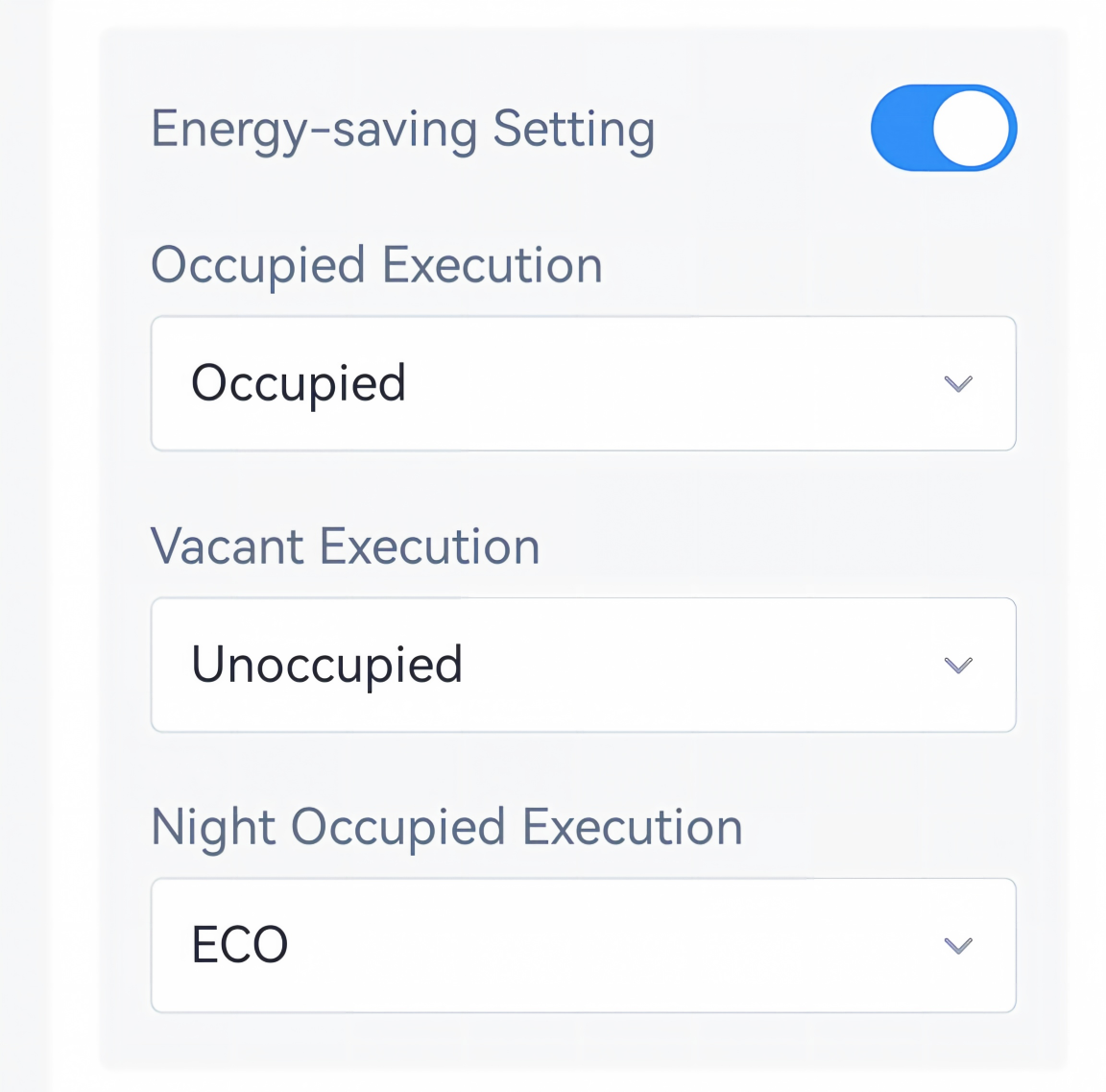
Parameter Description Occupied Execution Select the plan to execute when occupancy status changes to Occupied. Vacant Execution Select the plan to execute when occupancy status changes to Vacant. This plan must differ from the Occupied Execution plan. Night Occupied Execution Select the plan to execute when occupancy status changes to Night Occupied. This parameter applies only when Night Setting is enabled. - Tap Write to apply the configuration.