Quick Start
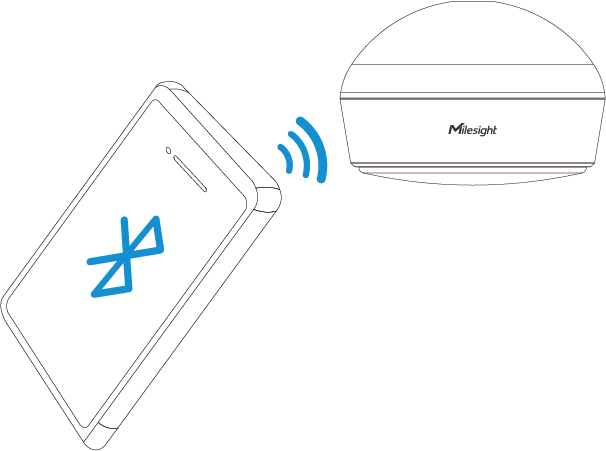
After the device is powered on, it can be configured via Bluetooth or NFC. Bluetooth is recommended for the first time installation.
Access the Sensor via Bluetooth
- Download and install “Milesight ToolBox” App from Google Play or Apple Store on an Bluetooth-supported smartphone.
- Enable Bluetooth and location functions on the smartphone.
- Launch Milesight ToolBox, and select the default mode as Bluetooth.
- Click
 to scan the devices around and select the
target device to connect. The default Bluetooth name is model -XXXXXX
(5th to 11st of device SN) and the default device
password is 123456.
to scan the devices around and select the
target device to connect. The default Bluetooth name is model -XXXXXX
(5th to 11st of device SN) and the default device
password is 123456. - After connected, the basic information, data, and settings of the device will be shown on the Milesight ToolBox App if it’s recognized successfully.
- Adjust the settings on the App, then click Write to write the settings. After writing, reread the device to check if the configuration is written well.
-
The Bluetooth connection will be terminated if there’s no data interaction within 3 minutes. Please connect again.
-
The device can connect to only one phone via Bluetooth. For example, if the device is connected to smart phone A via Bluetooth, the connection will be terminated after it is connected to smartphone B.
- The default device password is 123456. Please change a new password for security.
Access the Sensor via NFC
- Download and install “Milesight ToolBox” App from Google Play or Apple Store on an NFC-supported smartphone.
- Enable NFC function on the smartphone.
- Launch Milesight ToolBox, and select the default mode as NFC.
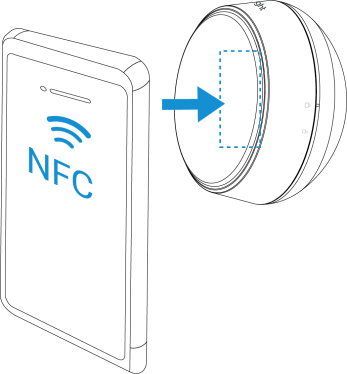
- Attach the smart phone with NFC area to the device and click
 to read device information. Basic information,
data, and settings of the device will be shown on the Milesight ToolBox App
if it’s recognized successfully.
to read device information. Basic information,
data, and settings of the device will be shown on the Milesight ToolBox App
if it’s recognized successfully. - Adjust the settings on the App, then attach the smartphone with NFC area to the device and click Write to write the settings. After writing, reread the device to check if the configuration is written well.
-
Ensure the location of smartphone NFC area and it’s recommended to take off phone case.
-
If the smart phone fails to read/write configurations via NFC, keep the phone away and back to try again.
- The default device password is 123456. Please change a new password for security.
Configure the Network Setting
1. Go to Network settings page, select the join type as OTAA or ABP as required.
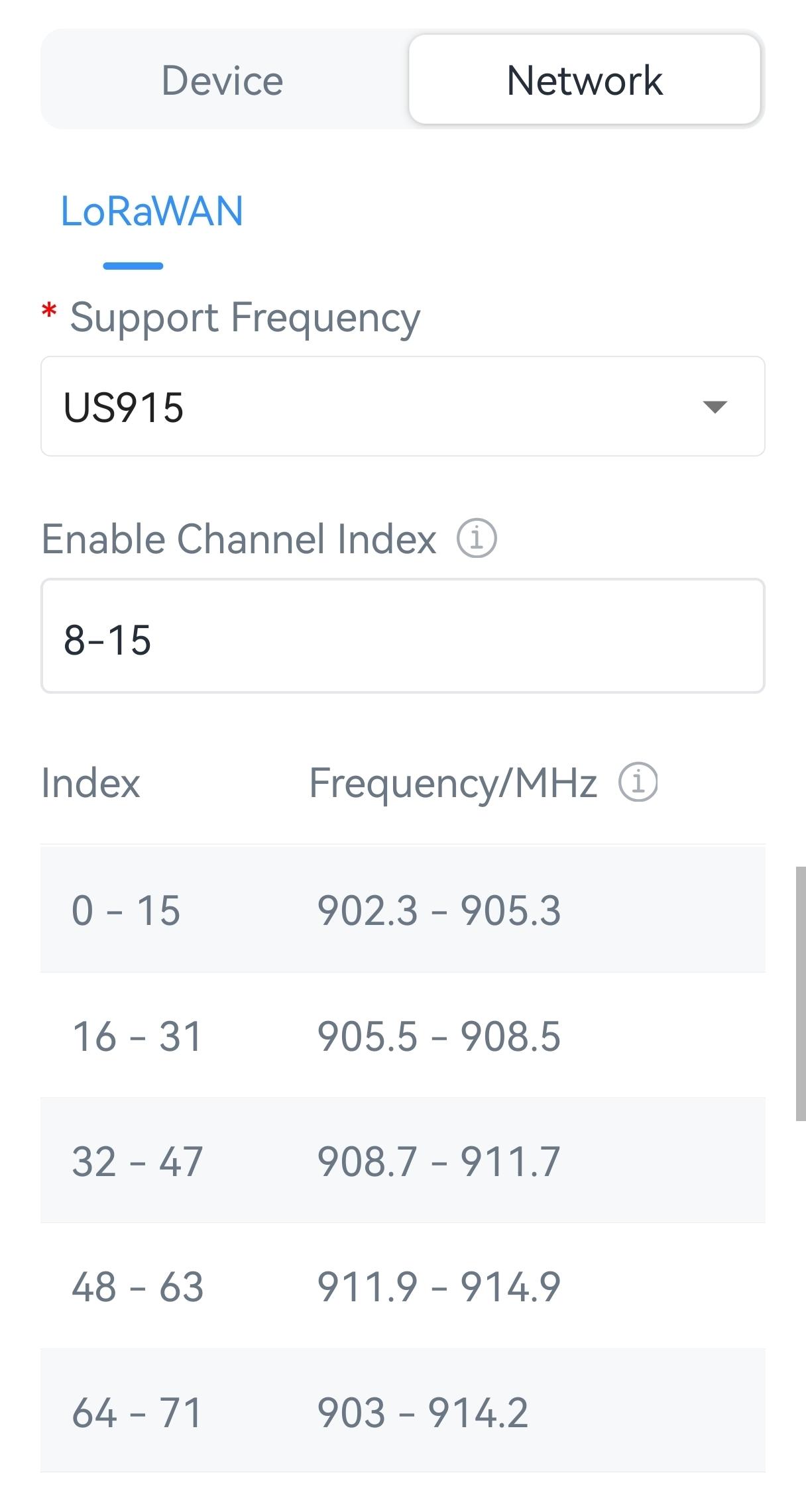
3. Keep other settings by default and click Write to save the settings.