5.4.3 Export
The Export allows user to customize some basic or advanced settings for selected files which will be exported. The page is as below:
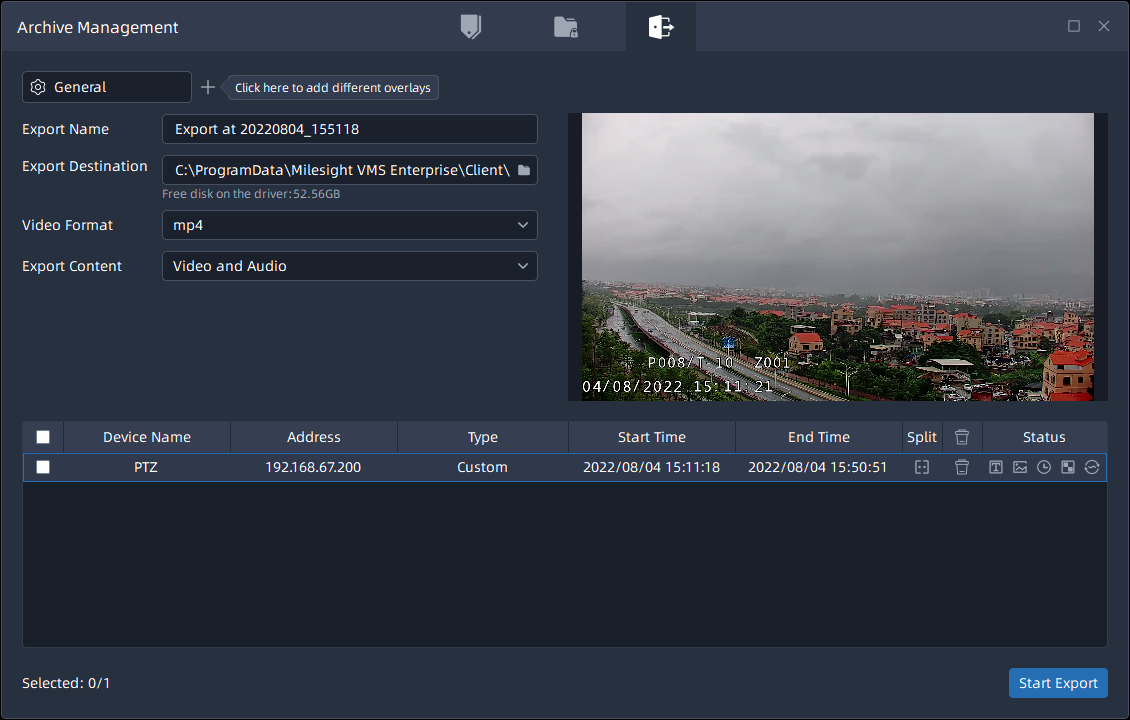
Export steps are listed as below:
Step1: Select video which will be exported. You can select video through two ways:
(1) Select the files in the Tags or Locked Files page of the Archive Management window
and click  button.
(2) Select a period of time on the timeline and select the Export Video option. Then the selected video files will be listed in the bottom of Export Setting page as above.
Step2: Click  button to directly export selected files, and
you can click
button to directly export selected files, and
you can click  button to check task exporting situation as below. For more
details about Client Files Management, you can see the table of User Interface Introduction.
button to check task exporting situation as below. For more
details about Client Files Management, you can see the table of User Interface Introduction.

In addition, before starting exporting, you can also click  button to half
split the time of video file, or click
button to half
split the time of video file, or click  button in the Archive Management window to set the exported
file. Export settings include General, Text OSD, Image OSD, Timestamp, Transcoding and
Privacy Mask. Each setting page is as below:
button in the Archive Management window to set the exported
file. Export settings include General, Text OSD, Image OSD, Timestamp, Transcoding and
Privacy Mask. Each setting page is as below:
- General
The page is as below:
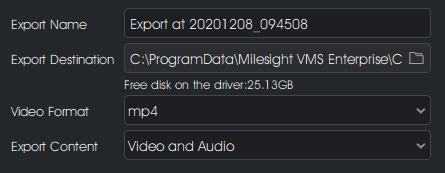
The meanings of the items can be referred to the table below:
|
Item |
Function Introduction |
|---|---|
|
Export Name |
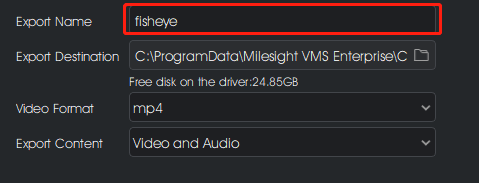
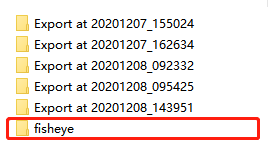
Name the exported file name as shown below:
After setting the items and finishing the export of video file, you can see the customized exported files name as shown below in the local storage.
|
|
Export Destination |
Click |
|
Video Format |
The avi, mp4, exe, mkv, and asf formats are supported. |
|
Password |
Set password for exported video. Note: This option is available just for exe format.
After setting, you need to enter the password when playing the exported video.
|
|
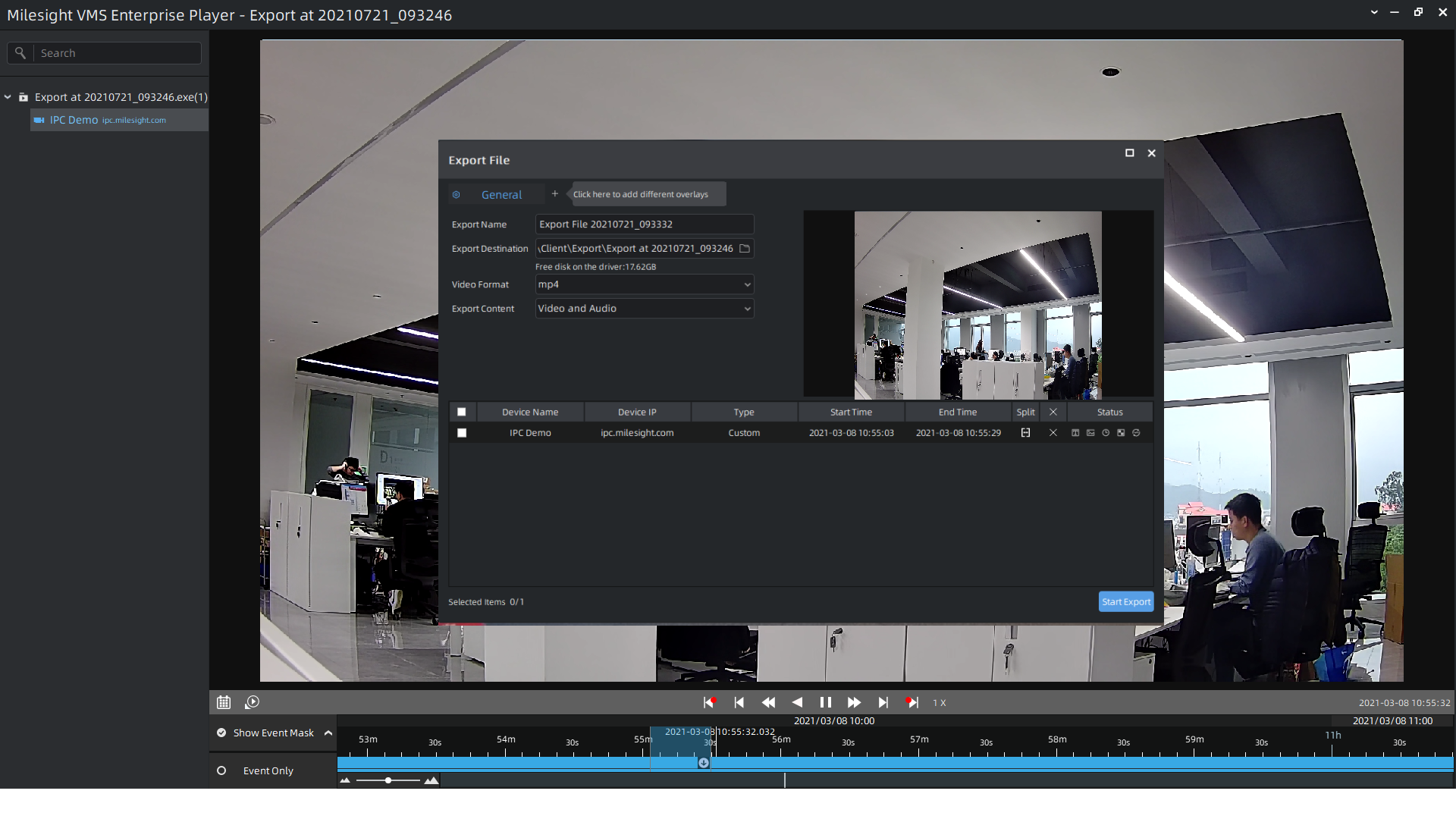
Re-export |
Set whether the exported video can be exported again. Note: This option is available just for exe format.
 |
|
Export Content |
The video, Audio, Video and Audio are supported. |
 button to select storage path of
exported files.
button to select storage path of
exported files.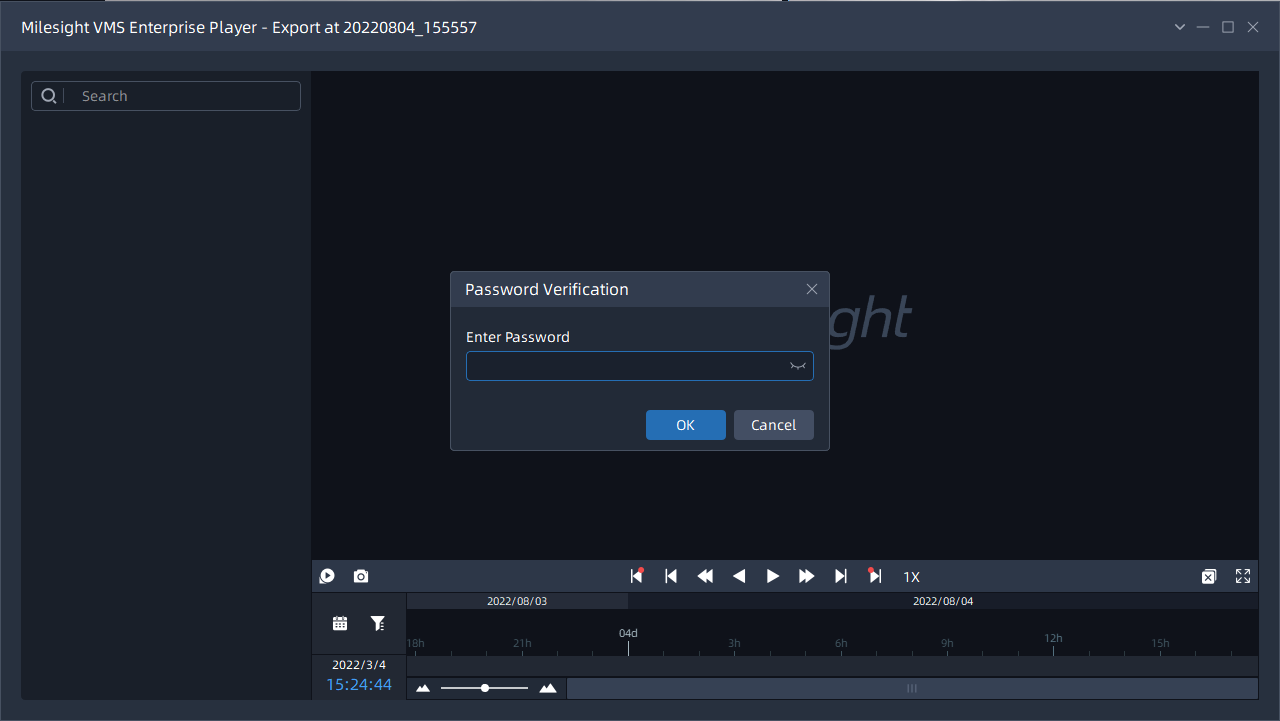
- Text OSD
|
Item |
Function Introduction |
|---|---|
|
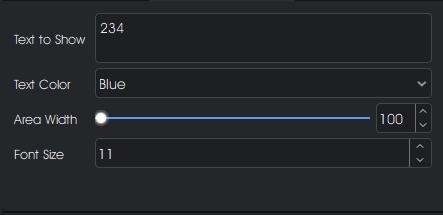
Text to Show |
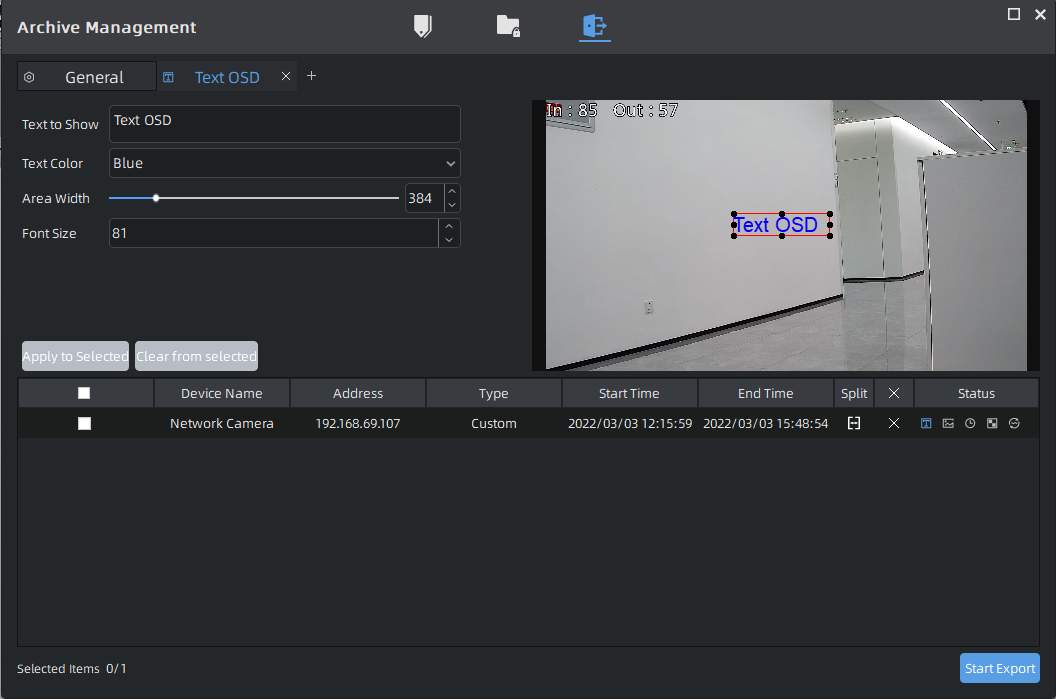
After setting the items, you can see the real-time added text information showed on the thumbnail window as below:
|
|
Text Color |
Select color for added text, including White, Black, Blue, Yellow, Green and Brown. |
|
Area Width |
Adjust area width of text show from 100 to 1920 |
|
Front Size |
Adjust Front Size from 40 to 400 |
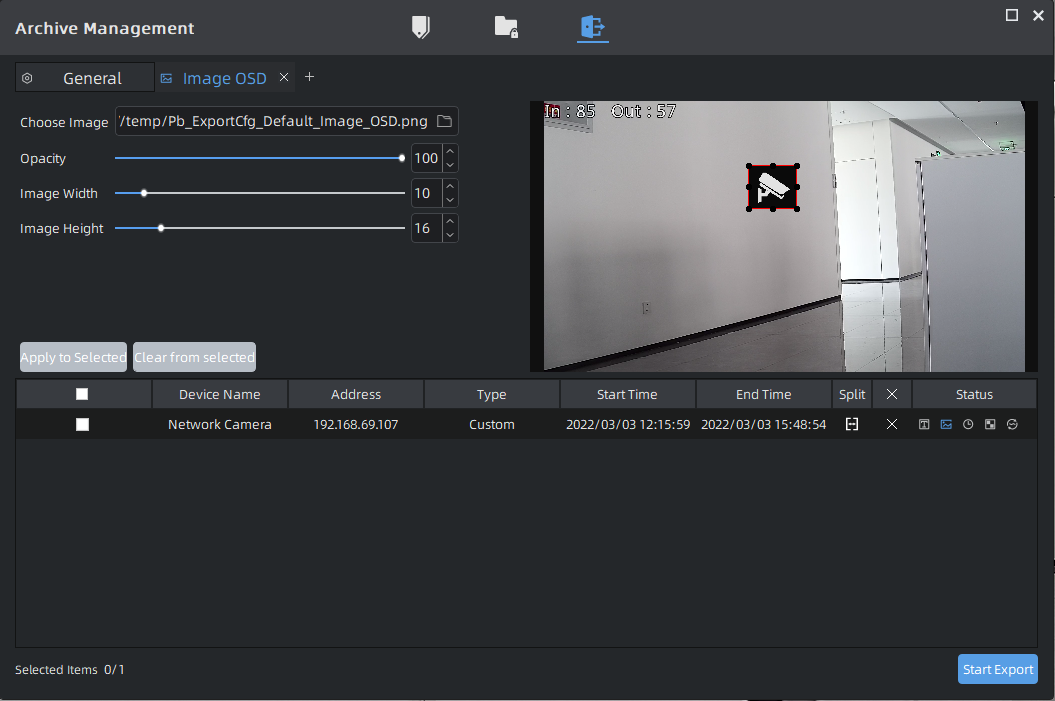
- Image OSD
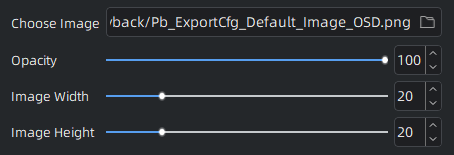
The meanings of the items can be referred to the table below:
|
Item |
Function Introduction |
|---|---|
|
Choose Image |
You can choose image saved in local storage to be added to the video file. After setting the items, you can see the customized image as shown below on the thumbnail.
|
|
Opacity |
Choose opacity of image added in the video from 100 to 1920. |
|
Image Width |
Adjust width of image added in the video from 0-100. |
|
Image Height |
Adjust height of image added in the video from 0-100. |
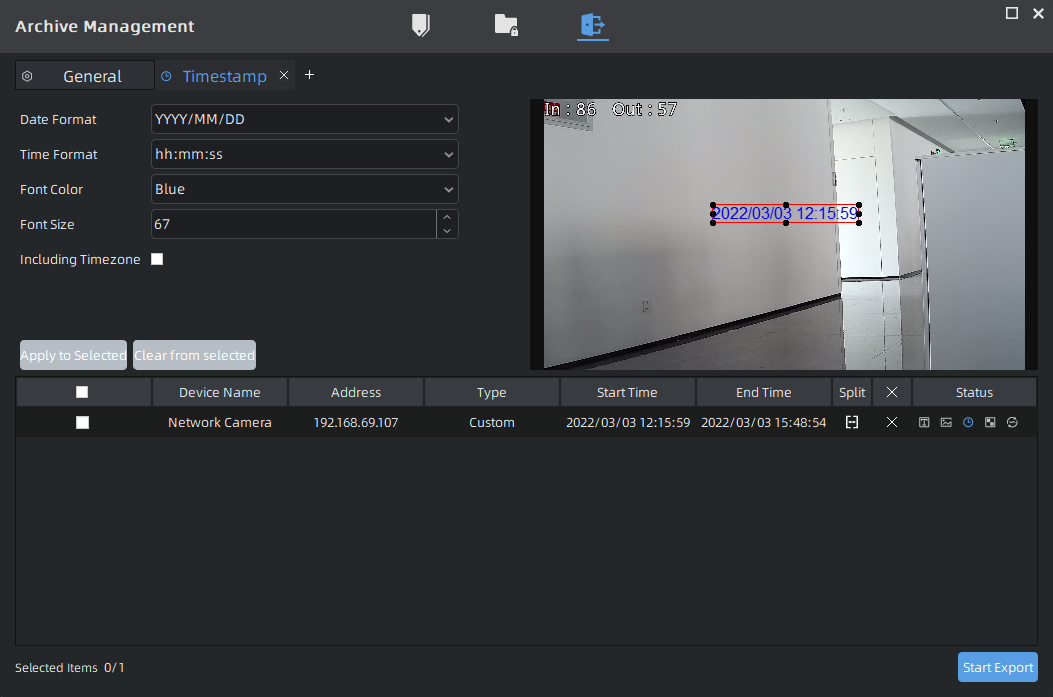
- Timestamp
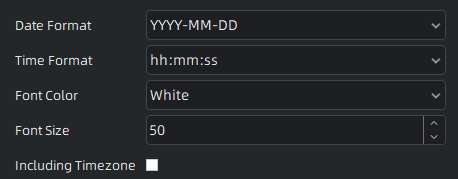
The meanings of the items can be referred to the table below:
|
Item |
Function Introduction |
|---|---|
|
Date Format |
Date format, including YYYY-MM-DD, MM/DD/YYYY and DD/MM/YYYY. After setting the items, you can see the customized timestamp as shown below on the thumbnail.
|
|
Time Format |
Time format, including hh:mm:ss and hh:mm:ss AP. |
|
Font Color |
The White, Black, Blue, Yellow, Green and Brown are available. |
|
Font Size |
Adjust size of font from 10-400. |
|
Including Timezone |
Check the checkbox to make the display information include timezone. |
- Transcoding
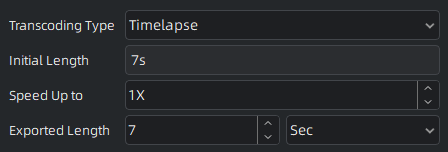
Timelapse page:
Reduce Data Size page:
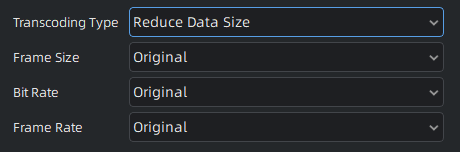
The meanings of the items can be referred to the table below:
|
Item |
Function Introduction |
|---|---|
|
Transcoding Type |
Timelapse and Reduce Data Size are available. |
|
Initial Length |
Initial time length of the exported video. This option is available when choosing Timelapse as Transcoding type. |
|
Speed Up to |
Set play speed of the exported video. |
|
Exported Length |
The Exported Length varies with the Speed Up to of the exported video, and the unit of Exported Length includes second and minute. |
|
Frame Size |
Frame size of the exported video, including Original, 704*576, 352*288 and 320*176. This option is available when choosing Reduce Data Size as Transcoding type. |
|
Bit Rate |
Bit Rate of the exported video, including Original, 16kbps, 32kbps, 64kbps, 128kbps, 256kbps, 512kbps, 1024kbps and 2048kbps. |
|
Frame Rate |
Frame Rate of the exported video, including Original and these options from 1-25fps. |
- Privacy Mask
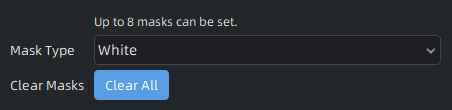
The meanings of the items can be referred to the table below:
|
Item |
Function Introduction |
|---|---|
|
Mask Type |
Set colors of privacy masks, including White, Black, Blue, Yellow, Green and Brown. After choosing the mask type, you can drag left key of mouse to draw the mask area on the thumbnail as below: 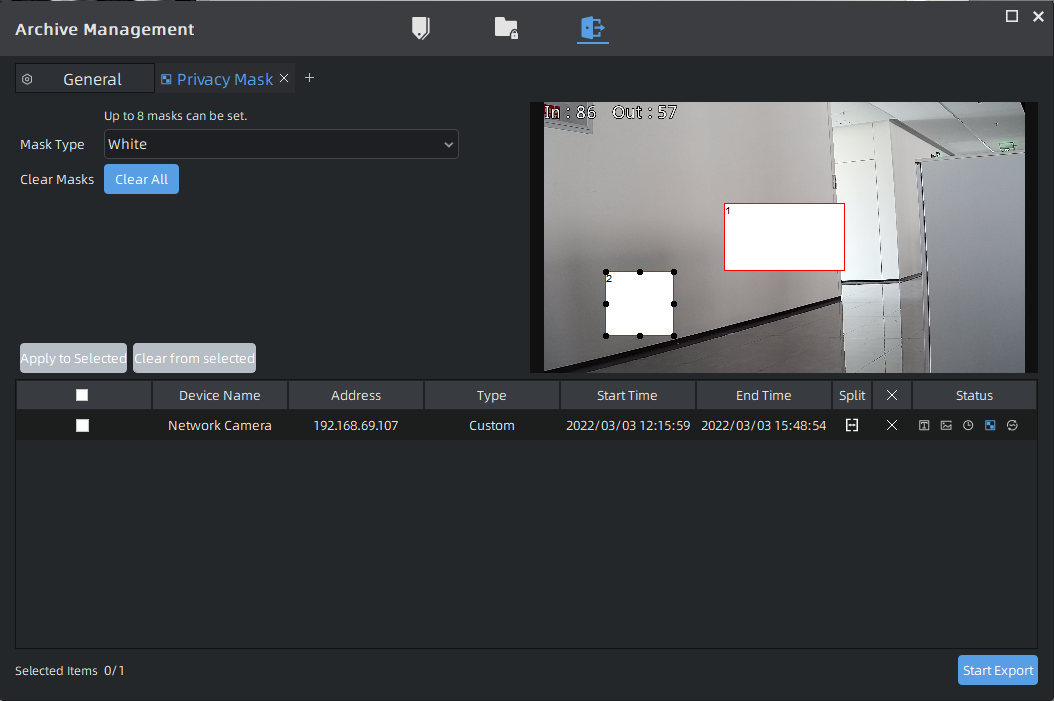 Note: Up to 8 masks can be
set. |
|
Clear Masks |
Click the |