Disable or Enable an Application
This topic describes how to disable or enable an application.
Restrictions
- Confirm with your enterprise administrator whether current account role permits access to this feature.
- The selected application is not Banned. If the pro plan of this enterprise expires, the applications beyond free plan will be forced to disable.
Disable an application
When you need to temporarily restrict an application from making API requests to Milesight, you can disable it.
- Procedure
-
- Log in to Milesight Development Platform.
- On the left bar, select the
Application
tab.
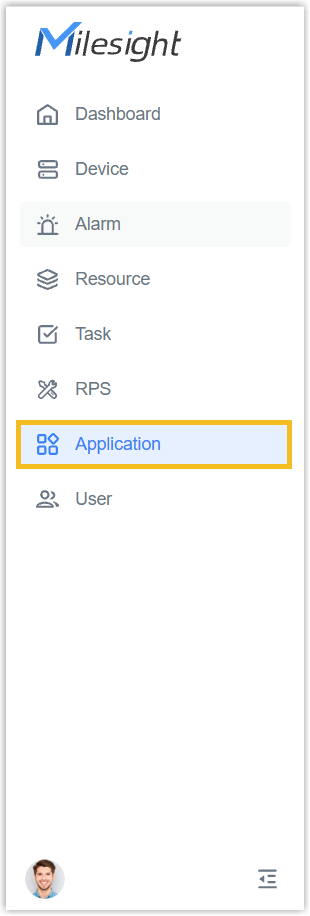
- Select the desired application from the
group
list.
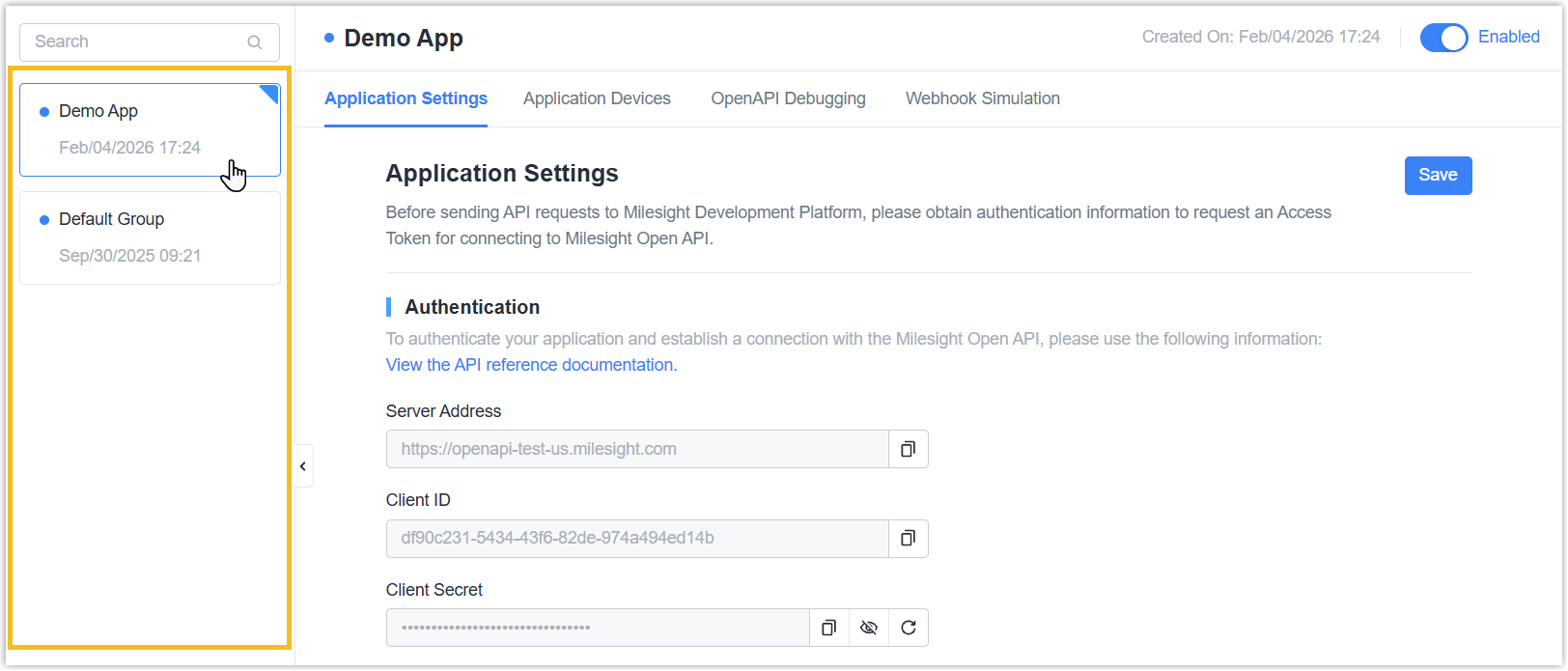
- Click the button to disable the
application.

- Result
- This application is disabled, and the followings are achieved.
- You can no longer use the authentication information to request an Access Token for connecting with Milesight Open API.
- Webhook event notification no longer takes effect.
Enable an application
- Procedure
-
- Log in to Milesight Development Platform.
- On the left bar, select the
Application
tab.
- Select the desired application from the
group
list.
- Click the button to enable the
application.

- Result
- This application is enabled, and the followings are achieved.
- You can now use the authentication information to request an Access Token for connecting with Milesight Open API.
- Associated settings (Webhook and Request Restrictions) take effect immediately.