Manage Devices
This topic describes how to view device details, edit devices, remove devices and export device information via the Milesight ToolBox App.
Restrictions
Confirm with your enterprise administrator whether current account role permits access to these features.
View Device Details
- Navigate to Management page.
- (Optional) Select the target group from the drop-down list in the upper
area.
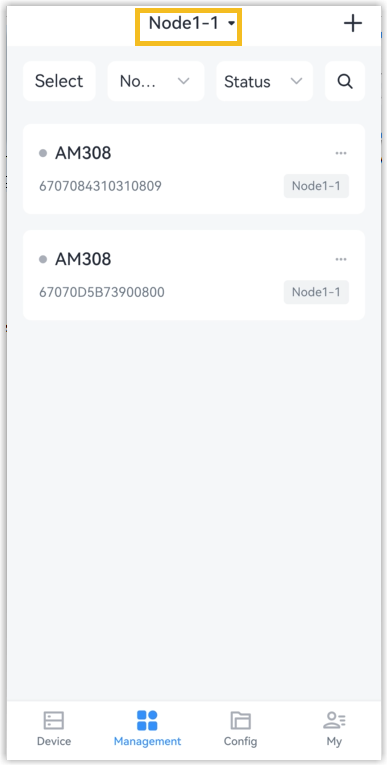
- (Optional) Filter the device list.
Method 1: Click the search icon and enter the device name or status as the keyword. The App supports fuzzy search and updates the results in real time.
Method 2: Filter the devices by Group and Status.
- Click a device from the device list to enter its Details page. The
following information is displayed.
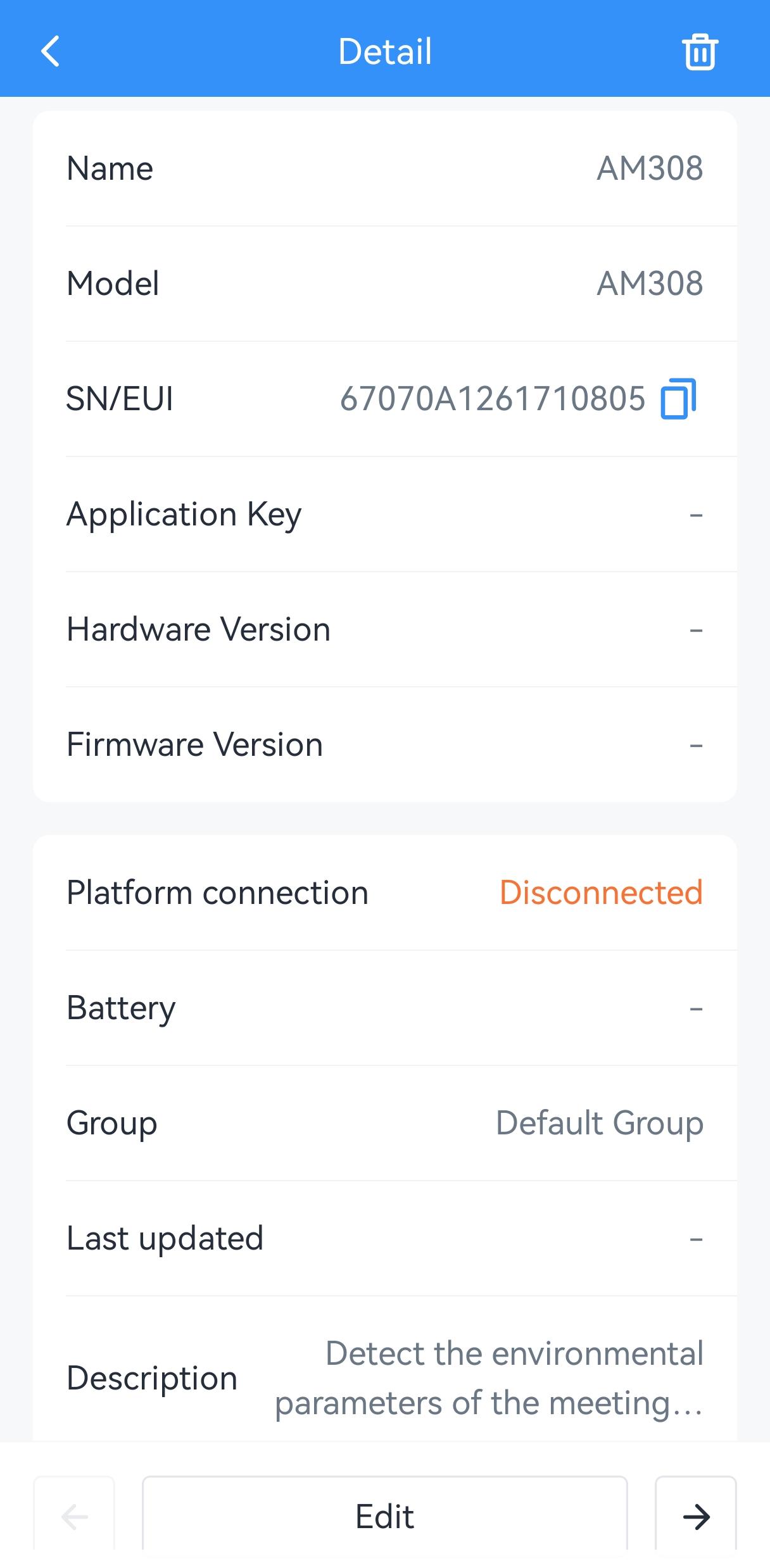 Tip: On the Details page, tap the left and right arrows at the bottom to quickly switch to the previous or next device.
Edit a Device
- Navigate to Management page.
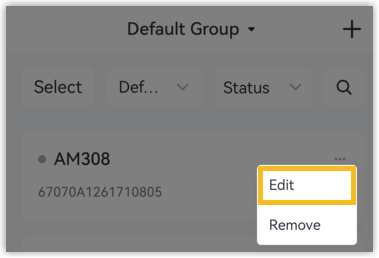
- Click the three dots of the device in the list and click Edit. You can
also enter the Details page of the target device and click Edit.
- Edit the device as required.
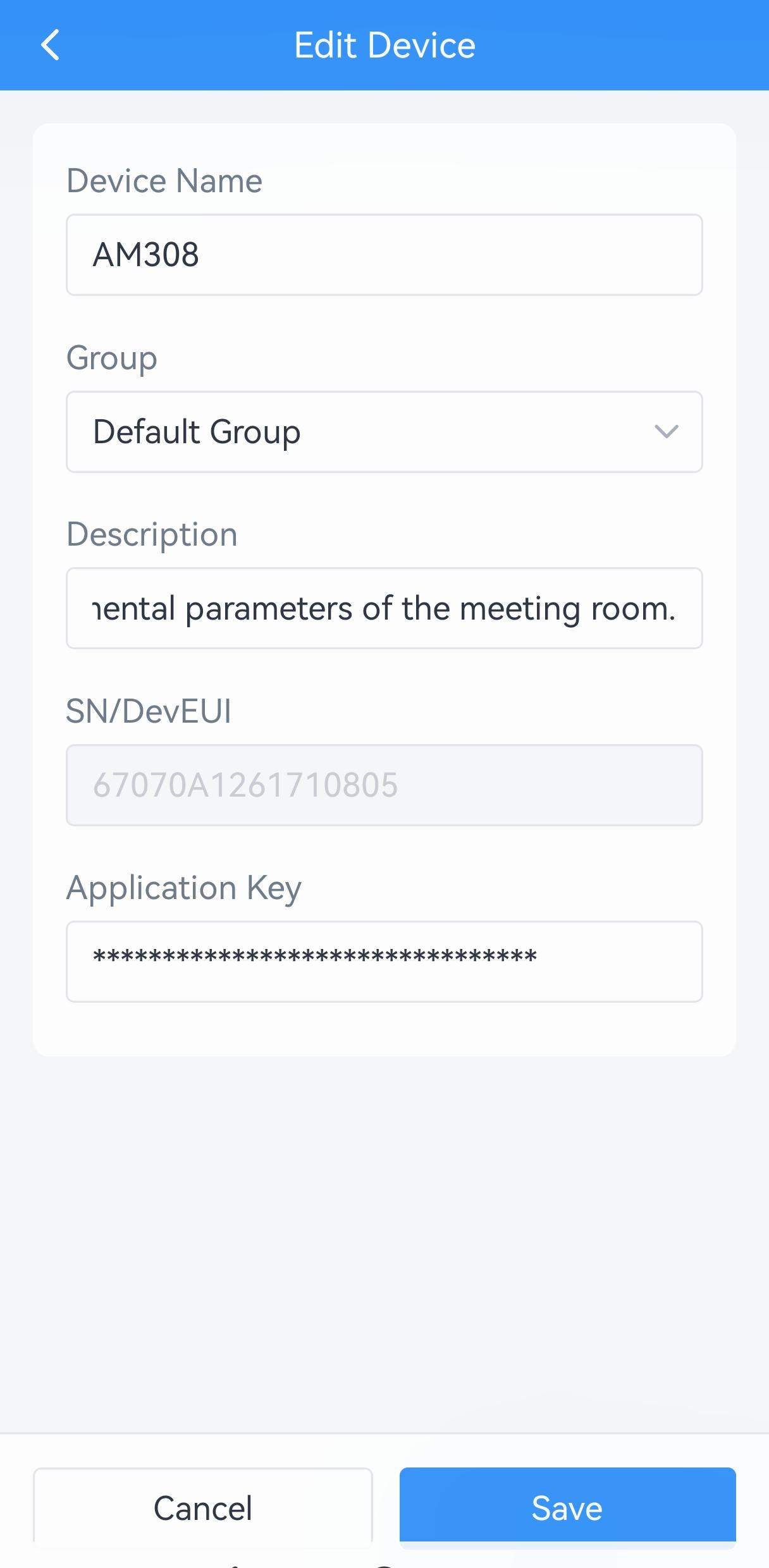
- Click Save to submit the modification and synchronize it to the platform, or click Cancel to discard the modification.
Remove Devices
Remove a Device Individually
- Navigate to Management page.
- Click the delete icon in the top right corner of the Details page, or
click the three dots of the device in the list and click
Remove.
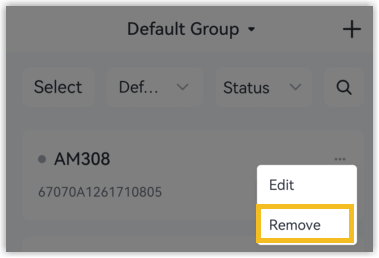
- In the pop-up window, click Remove to remove it from the platform.
Remove Devices in Bulk
- Navigate to Management page.
- Click Select at the top to enter the selection mode.
- Check the boxes of the target devices.
- Click Delete in the bottom operation bar.
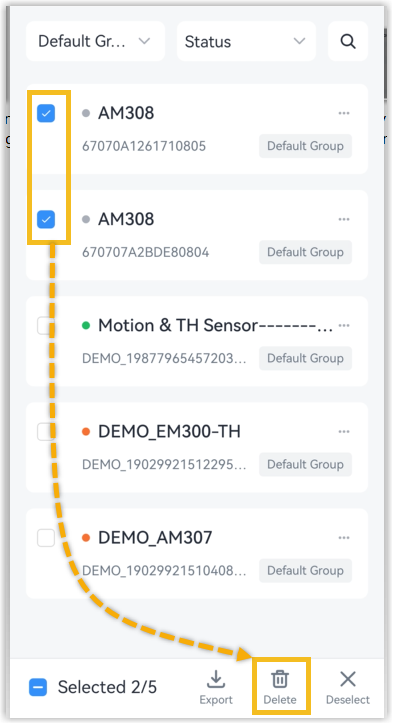
- In the pop-up window, click Delete to confirm, or click Cancel to return.
Export Device Information
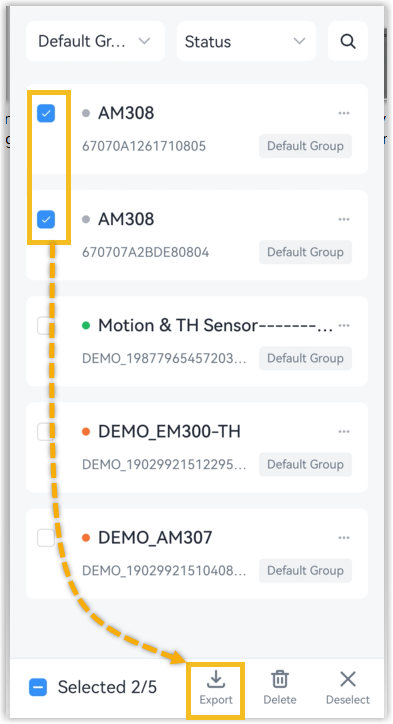
- Navigate to Management page.
- Click Select at the top to enter the selection mode.
- Check the boxes of the target devices.
- Click Export in the bottom operation bar. The App exports the selected
devices as a
csvfile and saves it to the smartphone.