Configure a Template for Configuration Backup
This device supports configuration backup, which enables quick and easy batch configuration. This section describes how to backup the device configuration and write to other devices.
Prerequisites: The backup device and the device importing the backup are exactly the same model.
Step 1. Set a Template
- Access the device via ToolBox App.
- On the homepage of ToolBox, click Setting to enter the Setting page.
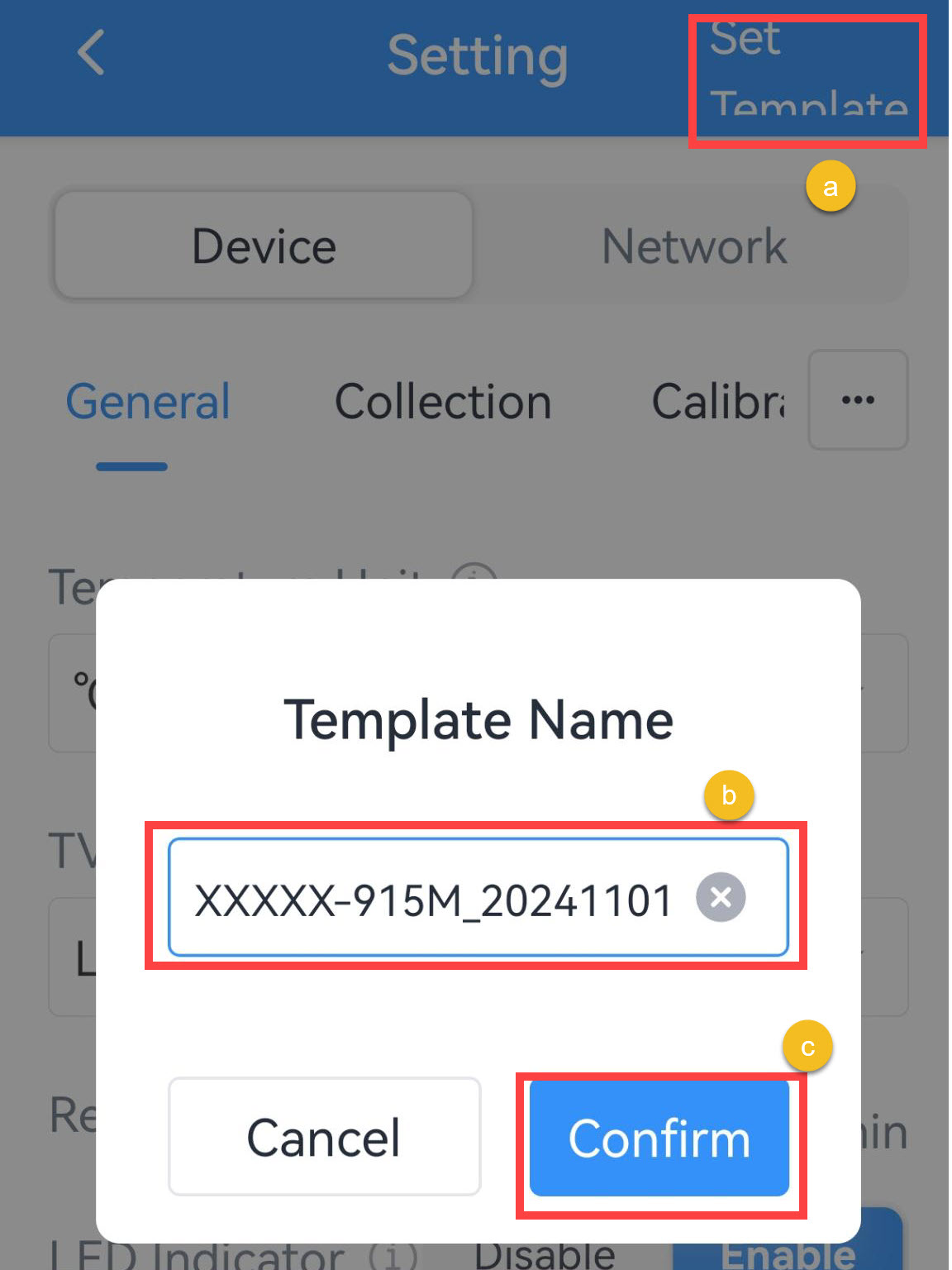
- Edit the device parameters as required, click Set Template in the top right corner.
- Customize a template name, click Confirm to save the current
configuration as a template.
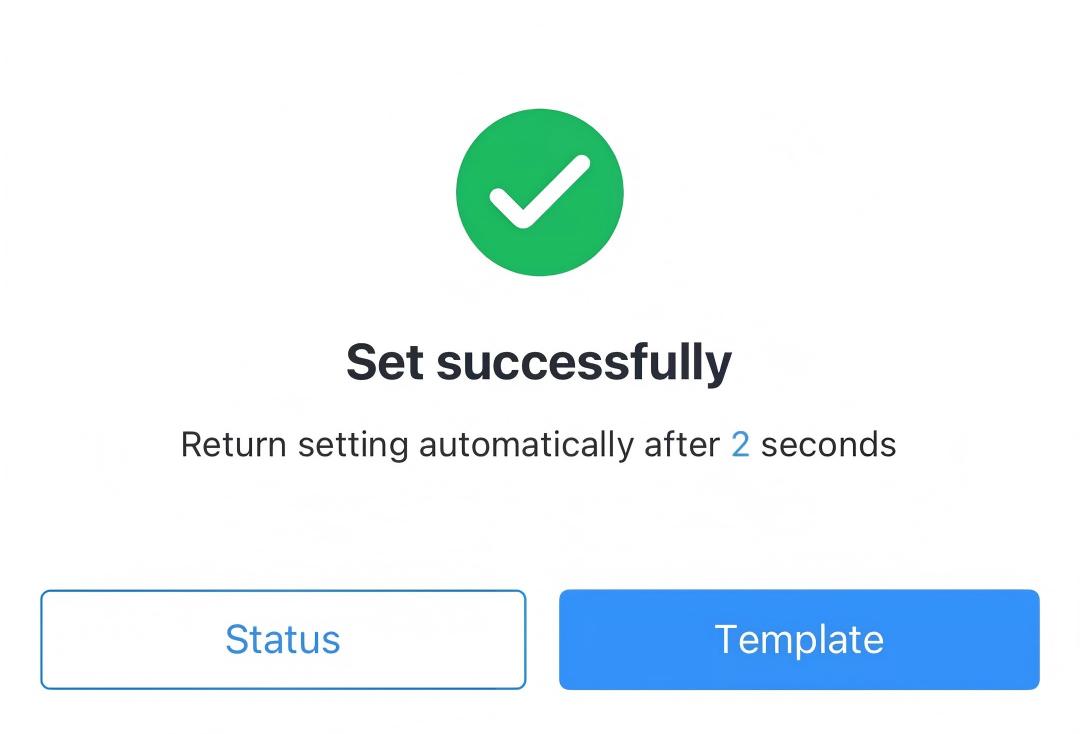
- If the save is successfully, the following page is displayed. The template will
be saved to the ToolBox App.
Step 2. Write Template Configuration to the Target Device
- On the homepage of ToolBox, click Device in the lower left corner.
- Click Template icon in the top right corner to go to Template page.
.jpg)
- Click the saved template. Do not select the template.

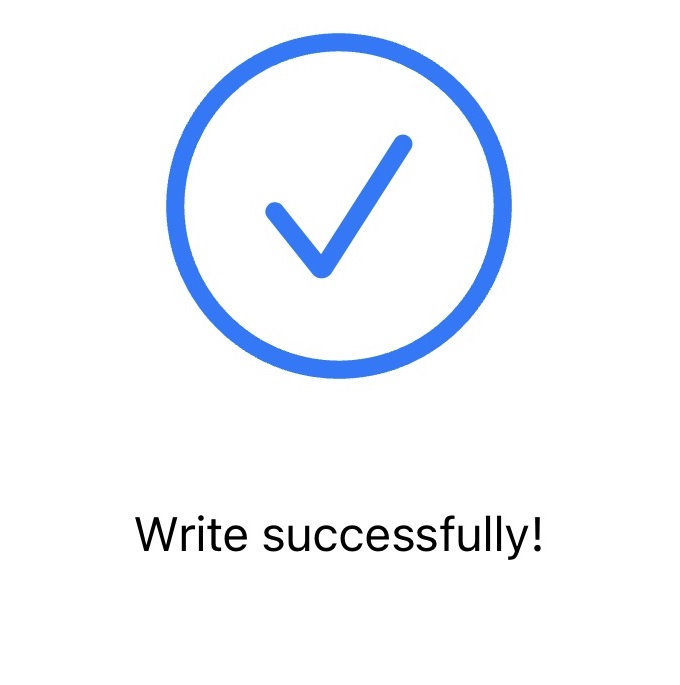
- In the displayed page, click Write in the bottom and put the NFC
detection area of the phone close to the NFC antenna of the target device. If
the configuration is written to the target device, the following page is
displayed.
Step 3. Export or Delete a Template (Optional)
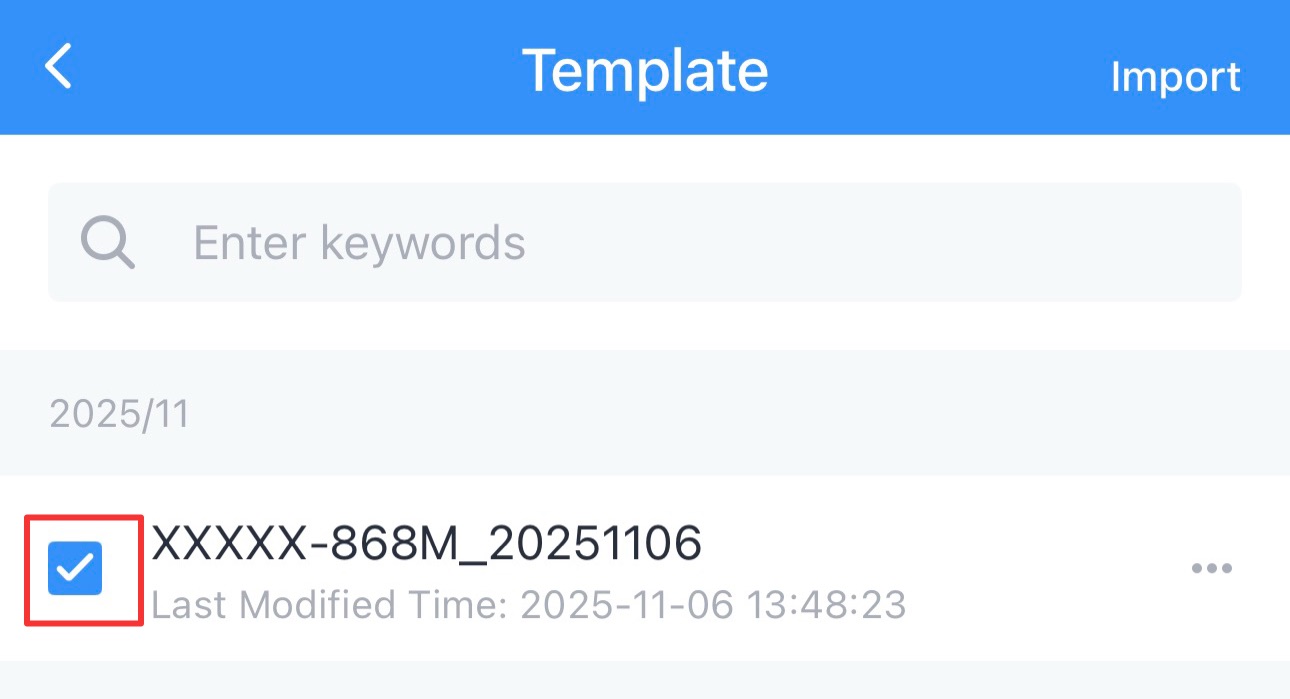
- Select the checkbox of the target template as shown in the following
figure.
- Click Export in the lower left cornet to export this template as a JSON format file and save it to the smart phone.
- Click Delete in the lower right corner, then click Confirm to delete this template from ToolBox.