Network Settings
LoRaWAN® Settings
| Parameters | Description |
|---|---|
| Device EUI | Unique ID of the device which can be found on the
device. Note: please contact sales for device
EUI list if you have many units. |
| App EUI | The default App EUI (join EUI) is 24E124C0002A0001. |
| Application Port | The port used for sending and receiving data, the default port is 85. |
| LoRaWAN® Version | V1.0.2 and V1.0.3 are available. |
| Work Mode | It's fixed as Class A. |
| Confirmed Mode |
If the device does not receive ACK packet from network server, it will resend data once. |
| Join Type | OTAA and ABP mode are available. Note: it's necessary to
select OTAA mode if connecting device to Milesight Development
Platform. |
| Application Key | Appkey for OTAA mode, default value: "Device EUI" + "Device EUI"
(since Q4 of 2025). Example: 24e124123456789024e1241234567890 Note:
|
| Rejoin Mode |
Reporting interval≤35 mins: the device will send a specific number of LinkCheckReq MAC packets to the network server every reporting interval or every double reporting interval to validate connectivity; If there is no response, the device will re-join the network. Reporting interval > 35 mins: the device will send a specific number
of LinkCheckReq MAC packets to the network server every reporting
interval to validate connectivity; If there is no response, the
device will re-join the network.
Note:
|
| Device Address | DevAddr for ABP mode, default is the 5th to 12th digits of SN. |
| Network Session Key | Nwkskey for ABP mode, the default is 5572404C696E6B4C6F52613230313823. |
| Application Session Key | Appskey for ABP mode, the default is 5572404C696E6B4C6F52613230313823. |
| Supported Frequency | Enable or disable the frequency to send uplinks. If frequency is one
of CN470/AU915/US915, enter the index of the channel to enable in
the input box, making them separated by commas.
Examples: 1, 40: Enabling Channel 1 and Channel 40 1-40: Enabling Channel 1 to Channel 40 1-40, 60: Enabling Channel 1 to Channel 40 and Channel 60 All: Enabling all channels Null: Indicate that all channels are disabled |
| ADR Mode | Enable or disable network server to adjust Spreading Factor, Bandwidth an Tx Power to optimize data rates, airtime and energy consumption in the network. |
| Spreading Factor | If ADR mode is disabled, the device will send uplink data following this SF parameter. The higher the spreading factor, the longer the transmission distance, the slower the transmission speed and the more the consumption. |
| Tx Power | Tx power (transmit power) refers to the strength of the outgoing signal transmitted by the device. This is defined by LoRa alliance. |
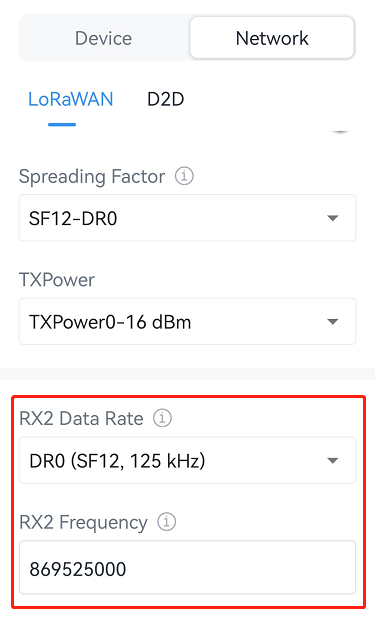
| RX2 Data Rate | RX2 data rate to receive downlinks or send D2D commands.. |
| RX2 Frequency | RX2 frequency to receive downlinks or send D2D commands. Unit: Hz |
Milesight D2D Settings
Milesight D2D protocol is developed by Milesight and used for setting up transmission among Milesight devices without gateway. When the Milesight D2D settings is enabled, the device can work as a D2D controller to send control commands to trigger Milesight D2D agent devices.
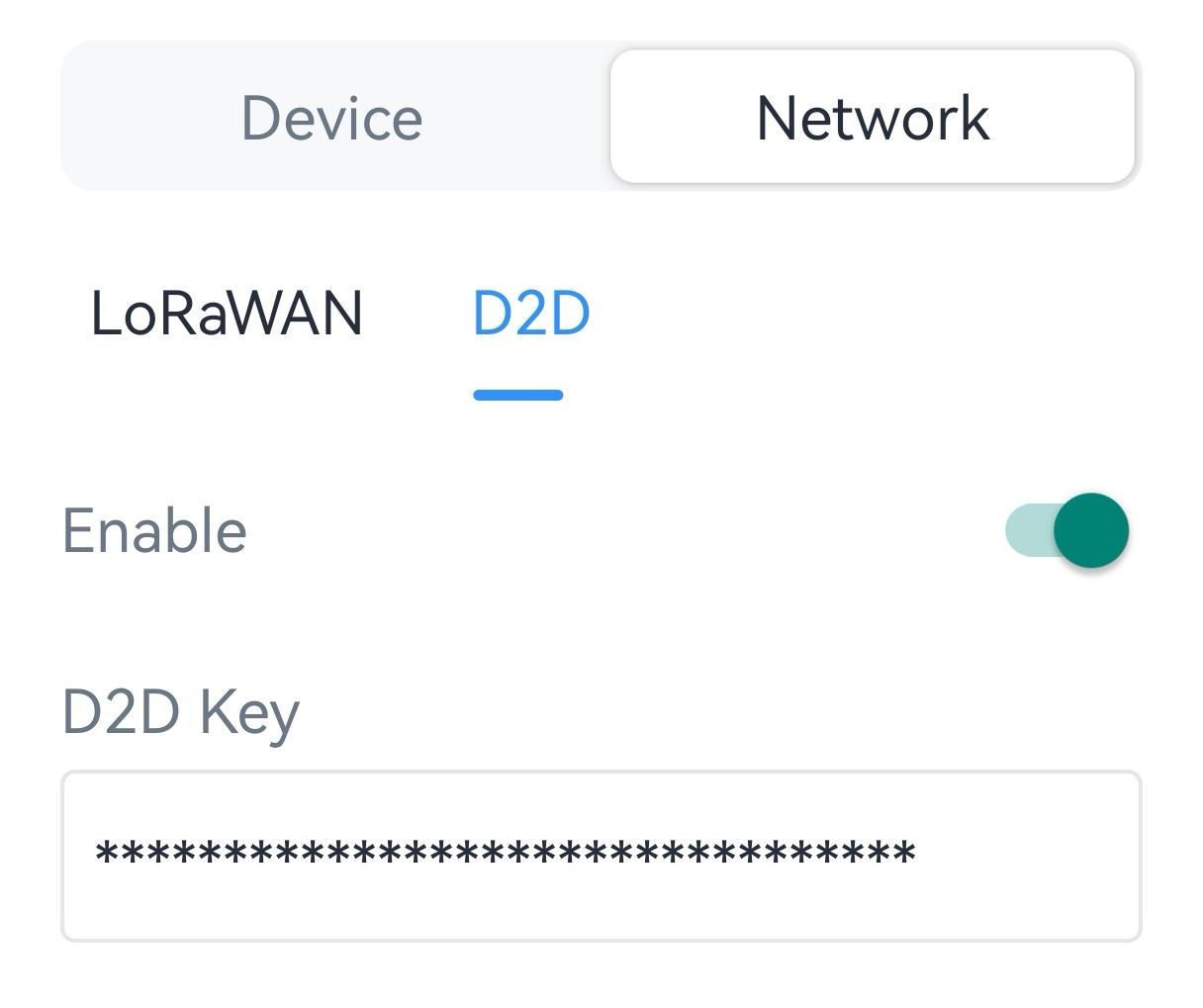
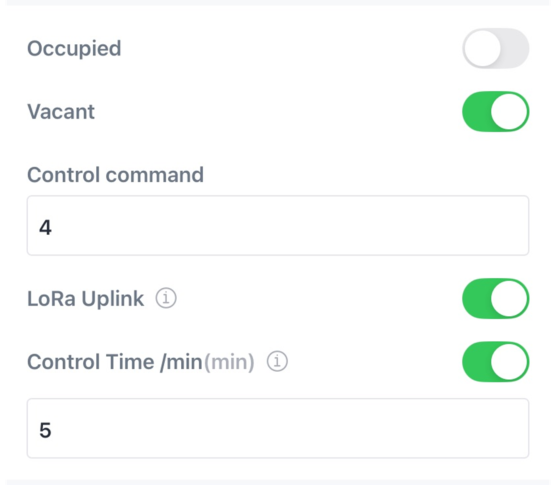
3. Enable one of statuses and configure 2-byte hexadecimal Milesight D2D command.
- If you enable LoRa Uplink, a LoRaWAN® uplink packet that contains corresponding alarm status will be sent to gateway after the Milesight D2D command packet. Otherwise, the alarm packet will not send to LoRaWAN® gateway.
- If you enable the control time setting, Milesight D2D agent devices will take corresponding actions within this duration after receiving commands from Milesight D2D controller. This feature is currently under development for Milesight D2D agent devices.
- Example
- When Occupied is triggered, VS321 will send D2D command 0004 to Milesight D2D agent
devices, which perform the corresponding action for 5 minutes.