View Task Status and Recreate Failed Tasks
This topic describe how to view task status and recreate failed tasks.
View Task Status
- Log in to Milesight Development Platform.
- On
the
left bar, click Task, then select the
OTA Task
tab.
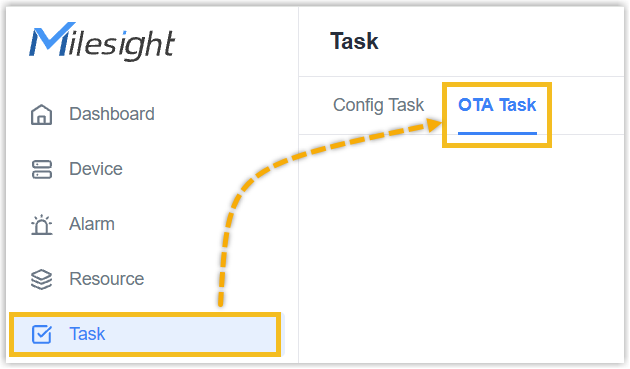
- Check the status of the total OTA task.
Task Status Description Waiting Wait the scheduled time or device online to process the task. Dispatched Assign upgrade message to at least one device. Processing At least one device is processing the firmware upgrade task. Completed All devices reply the upgrade results including success and failed status. Stopped The firmware upgrade of all devices in this OTA task is stopped. -
In the Action column of the desired OTA task, click
 .
.
- Check the task status of every device.
Task Status Description Waiting Wait to start the task of this device, Preparing Wait the scheduled time or device online to process the task. Dispatched Assign upgrade message to the device. Processing The device is processing the firmware upgrade task. Completed The device succeed to upgrade the firmware. Failed The device fails to upgrade the firmware. Stopped The firmware upgrade of this device is stopped.
Recreate Failed Tasks
Milesight Development Platform supports to recreate the tasks if there are upgrade
failed devices in this task.
Note: LoRaWAN devices do not
support this feature.
- Log in to Milesight Development Platform.
- On
the
left bar, click Task, then select the
OTA Task
tab.
- In the Action
column of the desired OTA task, click .
- Click Recreate OTA Task button, the platform will
provide the option to create a new task for all failed devices.
