Create an OTA Task
Milesight Development Platform supports to create OTA task to upgrade devices remotely.
Prerequisites
- Confirm with your enterprise administrator whether current account role permits access to this feature.
- You have upgrade the firmware version of device model to a supported version.
- Device connectivity status is not Not Activated or Banned.
- Device firmware version is not the latest version.
- Device is not in other OTA task.
- Not demo devices.
Procedure
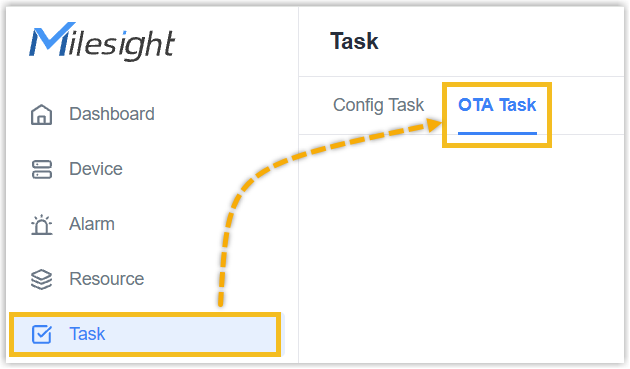
- Log in to Milesight Development Platform.
- On
the
left bar, click Task, then select the
OTA Task
tab.
- Click Add.
- In the OTA Task Basic Info section, configure the
basic information:

- In the OTA Task Name field, specify a name to help you identify this task.
- In the OTA Task Type drop-down list, select
Scheduled Execution and select the time point to execute
the task, or select Execute Immediately.Note: Execute Immediately is not supported for LoRaWAN® devices.
- In the Device Task Timeout Setting field, select the timeout value. If the task status is not executed or executed failure during this time, the task status will be set as failure.
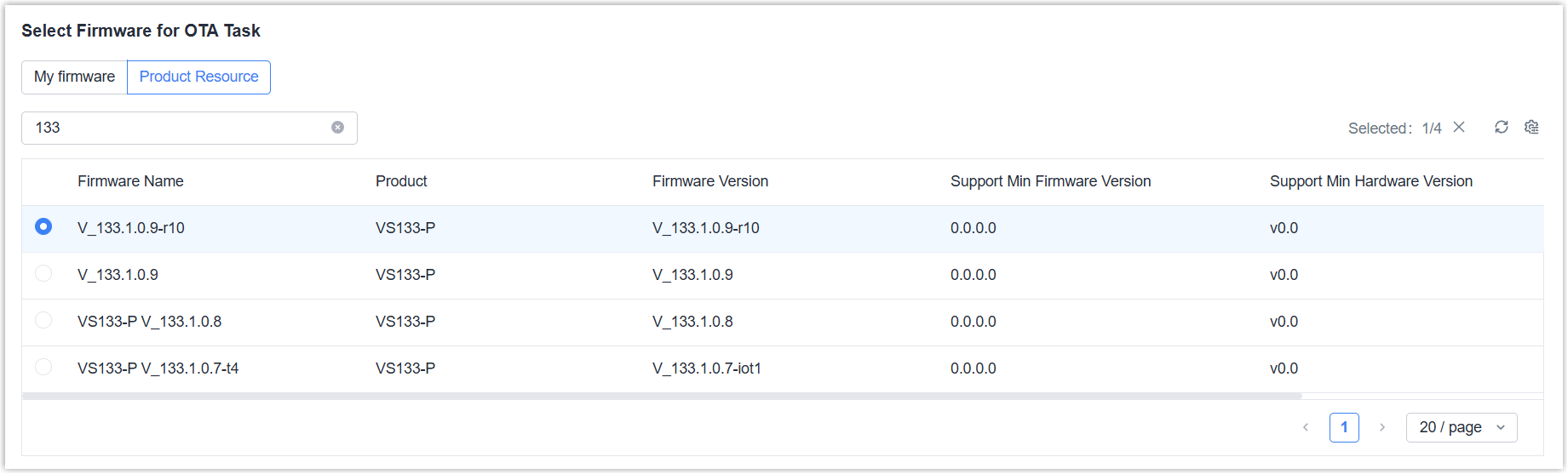
- Select the firmware from My Firmware list or default
Product Resource list for OTA task.
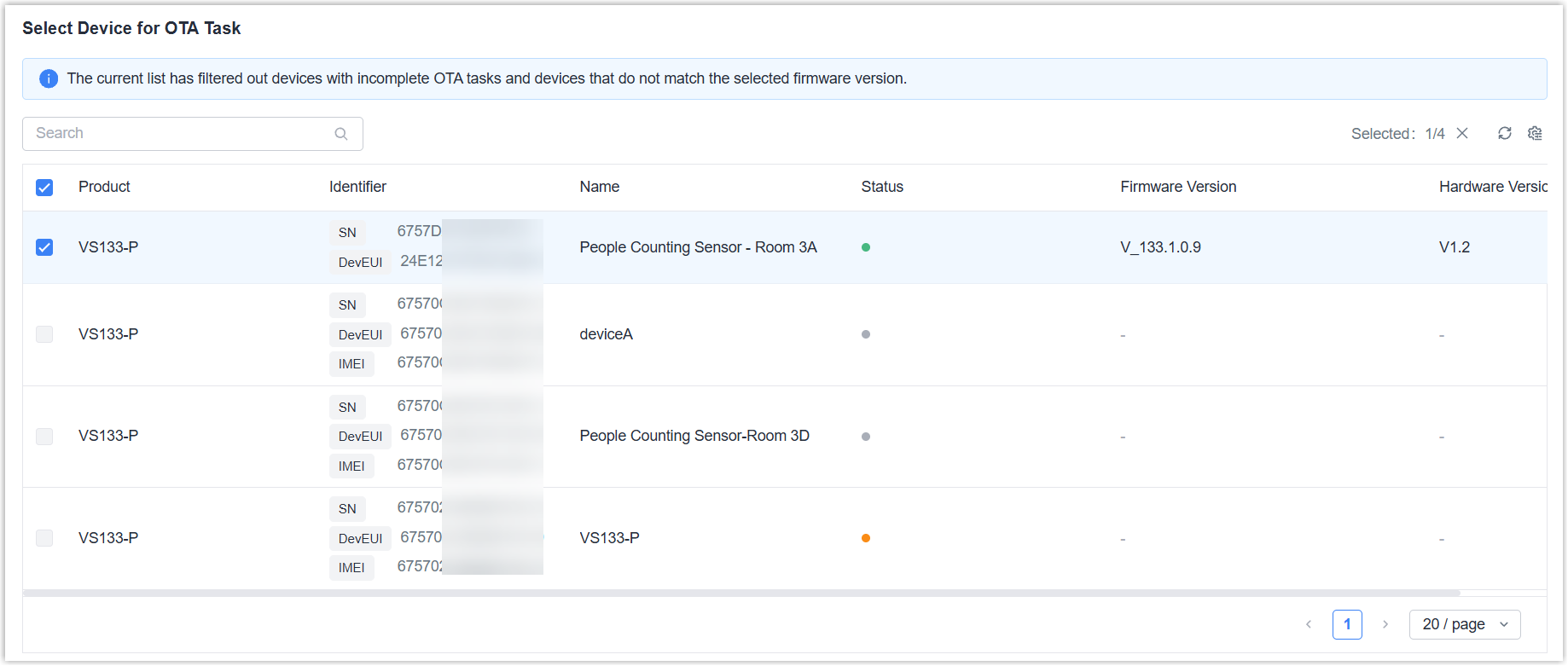
- Select the devices which need to execute the OTA
task.
- Click Save.
Result
You have created an OTA task.
