Packet Forward
The gateway can work as a packet forwarder to set up communication between LoRaWAN® end devices and a LoRaWAN® network server. This chapter describes how to configure and monitor the packet forwarder.
General
This section is used to configure the packet forwarding destination and the connection parameters for the selected network server type.
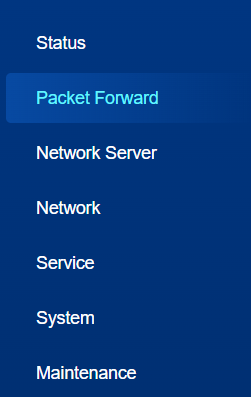
- On the left bar, select Packet Forward
page.
- On the top bar, select General tab.
- Configure the packet forward parameters as required.
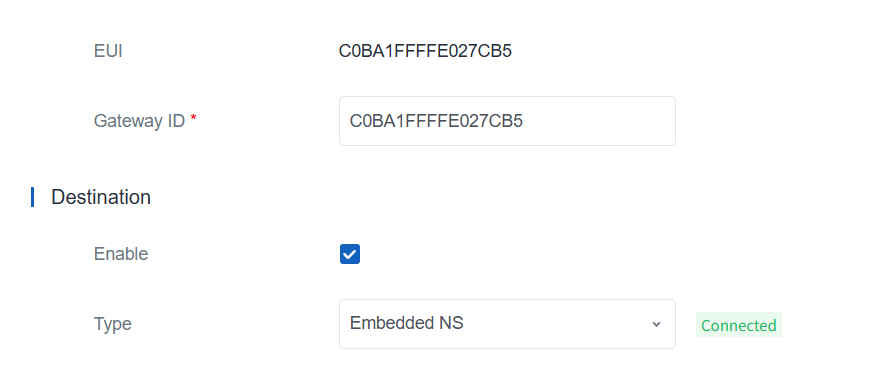
Parameter Description EUI The unique identifier of the gateway. This value is not editable. Gateway ID The customizable ID used to register the gateway to a network server, such as The Things Network. By default, it is the same as the gateway EUI. Destination Enable Enable or disable the packet forward feature. Type Select the packet forward type. Semtech: Connect to a network server through the Semtech UDP protocol. It supports most mainstream network servers.
ChirpStack-Generic: Connect to ChirpStack v3 through a generic MQTT gateway bridge.
ChirpStack-v4: Connect to ChirpStack v4 through an MQTT forwarder.
Basic Station: Connect to a network server through TCP. LNS and CUPS do not both need to be configured.
Remote Embedded NS: Connect to the embedded network server of a Milesight controller gateway like UG65.
Embedded NS: Connect to the embedded network server of this gateway.
DeviceHub LNS: Connect to Milesight DeviceHub LNS. Enable DeviceHub 2.0 on the Service > Device Management page first.
Milesight Development Platform LNS: Connect to Milesight Development Platform LNS. Enable Milesight Development Platform on the Service > Device Management page.Semtech Server Address The IP address or domain name of the LoRaWAN® network server. Port Up The UDP port used to forward uplinks from end devices to the network server. Port Down The UDP port used to forward downlinks from the network server to end devices. Data Retransmission When the network is disconnected, the gateway can store up to 500 uplink packets and retransmit them to the network server after the network recovers. Pending Data: Display the number of packets to be retransmitted.
Note: The gateway does not save Join Request packets.Basic Station URI The URL of the LoRaWAN® network server. Use the following format and replace the server address and port with the actual values. LNS URI:
wss://<server-address>:<port>orws://<server-address>:<port>
CUPS URI:https://<server-address>:<port>CA File The CA certificate used to secure the server domain. Note: Change the certificate file format to .trust before importing it.Client Certificate File The client certificate used to verify the identity of the gateway. Client Key File The private key used to verify the identity of the gateway. GPS When connecting through LNS, enable or disable forwarding the gateway GPS data to the network server. Data Retransmission When the network is disconnected, the gateway can store up to 500 uplink packets and retransmit them to the network server after the network recovers. Pending Data: Display the number of packets to be retransmitted.
Note: The gateway does not save Join Request packets.ChirpStack-Generic/ChirpStack-v4 Server Address The IP address or domain name of the LoRaWAN® network server. MQTT Port The network server port used for the MQTT connection. Region ID The region ID for a ChirpStack-v4 server. This value is entered automatically when Supported Freq is changed on the Packet Forward > Radios page. User Credentials When enabled, enter the username and password used for authentication. TLS Authentication Enable or disable TLS authentication. Mode: Select the certificate mode as CA Signed Server Certificate to use preloaded certificates, or Self Signed Certificates to import the custom CA certificate, client Certificate and client key for verification.
SSL Security: After enabled, the gateway will verify the certificate’s validity.Data Retransmission When the network is disconnected, the gateway can store up to 500 uplink packets and retransmit them to the network server after the network recovers. Pending Data: Display the number of packets to be retransmitted.
Note: The gateway does not save Join Request packets.Remote Embedded NS Server Address The IP address or domain name of the Milesight controller gateway. MQTT Port The communication port of the Milesight controller gateway. Data Retransmission When the network is disconnected, the gateway can store up to 500 uplink packets and retransmit them to the network server after the network recovers. Pending Data: Display the number of packets to be retransmitted.
Note: The gateway does not save Join Request packets. - Click Save & Apply to save the settings.
- Check if both the gateway and the network server show the status is Connected.
Radios
- Basic Settings
-
- On the left bar, select Packet Forward
page.
- On the top bar, select Radios tab.
- Configure the radio channel parameters as required.
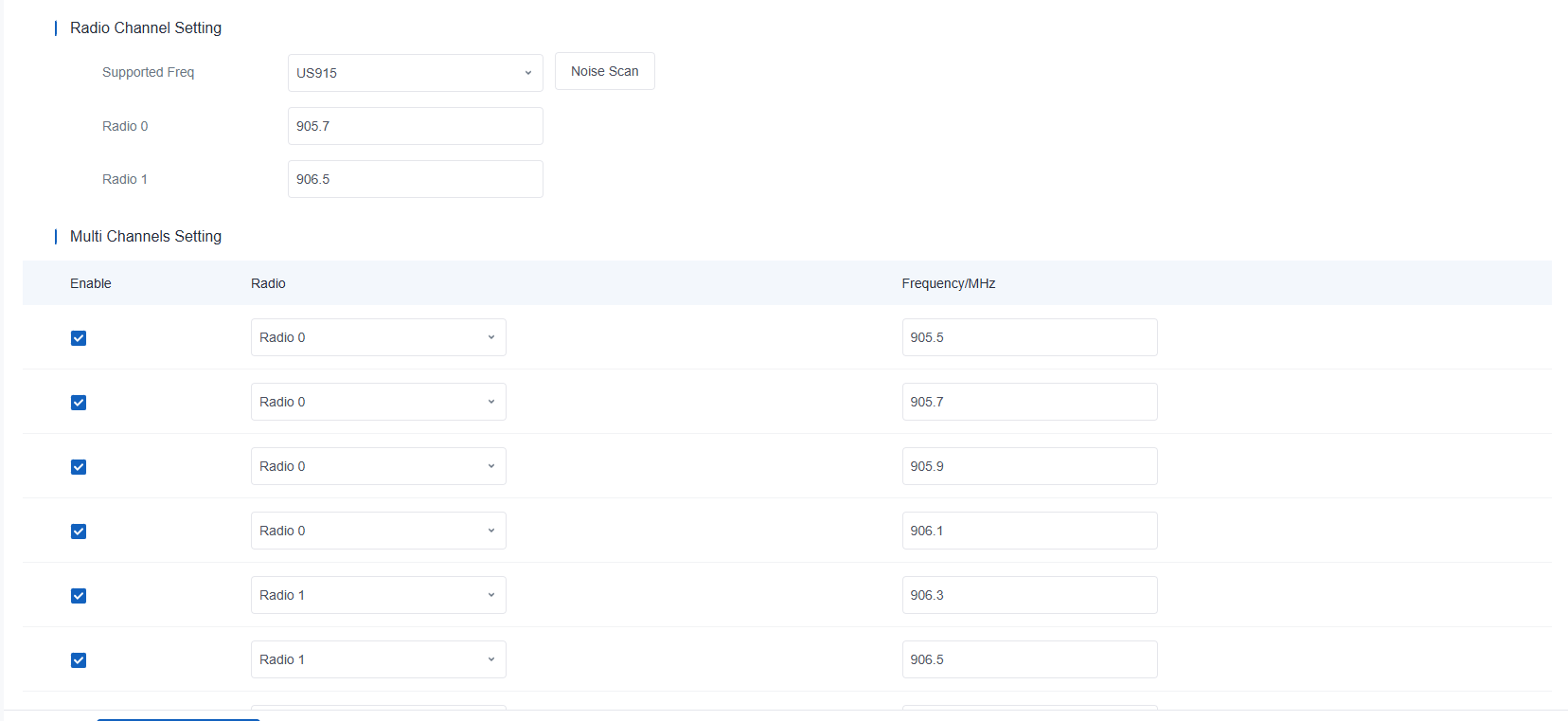
Parameter Description Radio Channel Setting Supported Freq The LoRaWAN® frequency plan used for uplink and downlink frequencies and data rates. The available options depend on the gateway model. -470M: CN470
-868M: EU868, RU864, IN865
-915M: US915, AU915, KR920, AS923-1&2&3&4Radio 0/Radio 1 The center frequencies used to receive packets from LoRaWAN® end devices. Noise Scan Sweep the noise of specific frequency change and give a diagram for users to analyze the environmental interference condition and select the best deployment. See here for details. Multi Channels Setting Enable Enable or disable this channel to receive packets. Radio Select Radio 0 or Radio 1 as the center frequency. Frequency/MHz Set the frequency of this channel. Range: center frequency ± 0.4625. - (Optional) Configure the LoRa/FSK channel settings if you
require the private communication.
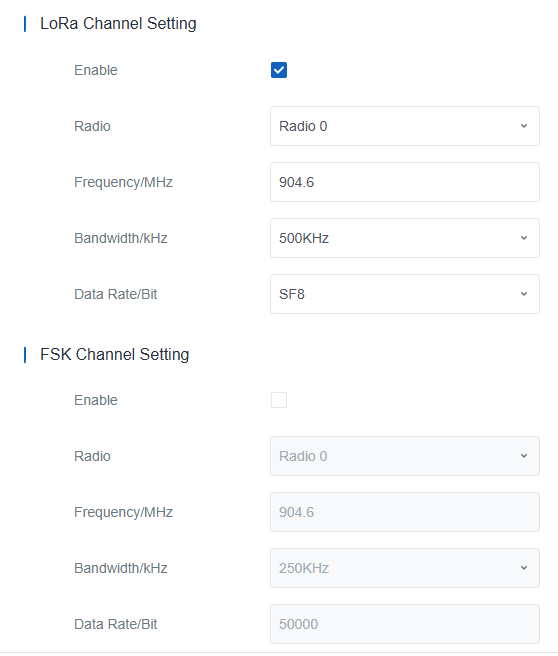
Parameter Description Enable Enable or disable this channel to transmit packets. Radio Select Radio 0 or Radio 1 as the center frequency. Frequency/MHz Set the frequency of this channel. Bandwidth/kHz Set the bandwidth of this channel. Data Rate/Bit Set the data rate. - Click Save & Apply to save the settings.
- On the left bar, select Packet Forward
page.
- Noise Scan
- Prerequisites
- The device is placed to the target location. If the installation location is changed, reproduce the noise scan.
- This feature will impact LoRaWAN® downlink transmission, so do not send downlink commands to devices during sweeping.
Steps- Click Noise Scan.
- In the pop-up window, configure the scan conditions.
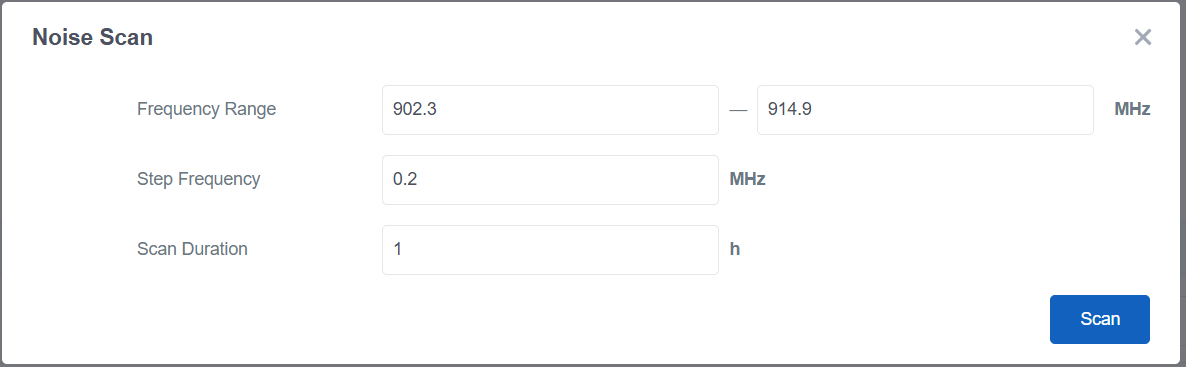
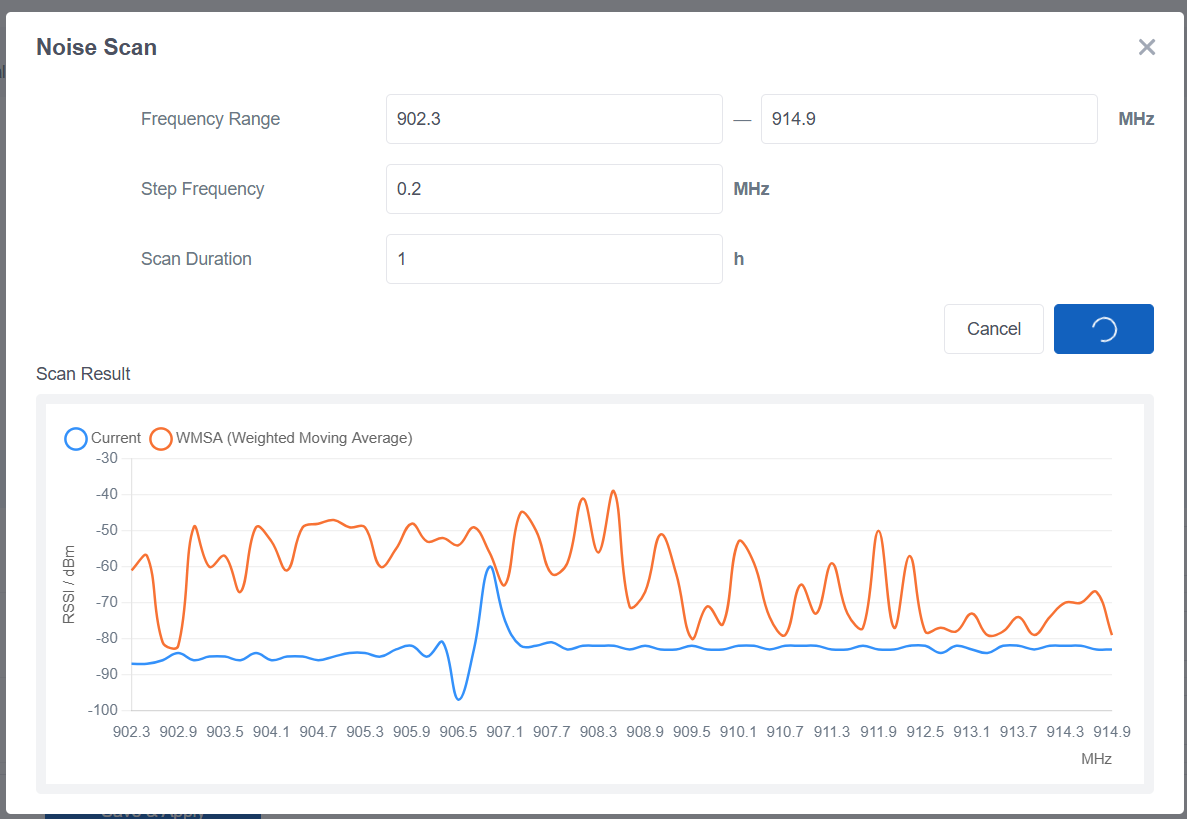
Parameter Description Frequency Range The frequency range to scan. Step Frequency The step for each frequency channel to be scanned. Scan Duration Custom the time to sweep the frequencies. Tip: To ensure the accurate result, it is recommended to set the sweep time as 24h. - Click Scan. The gateway will scan until the scan duration reaches. To stop scanning in advance, click Cancel.
- Check the scan result. The lower the RSSI value, the better the
signal.
Packet Filters
This section is used to filter uplink packets by different conditions to reduce network congestion, save network traffic, and help ensure safe operation.
- On the left bar, select Packet Forward
page.
- On the top bar, select Packet Filters tab.
- Configure the packet filter parameters as required.
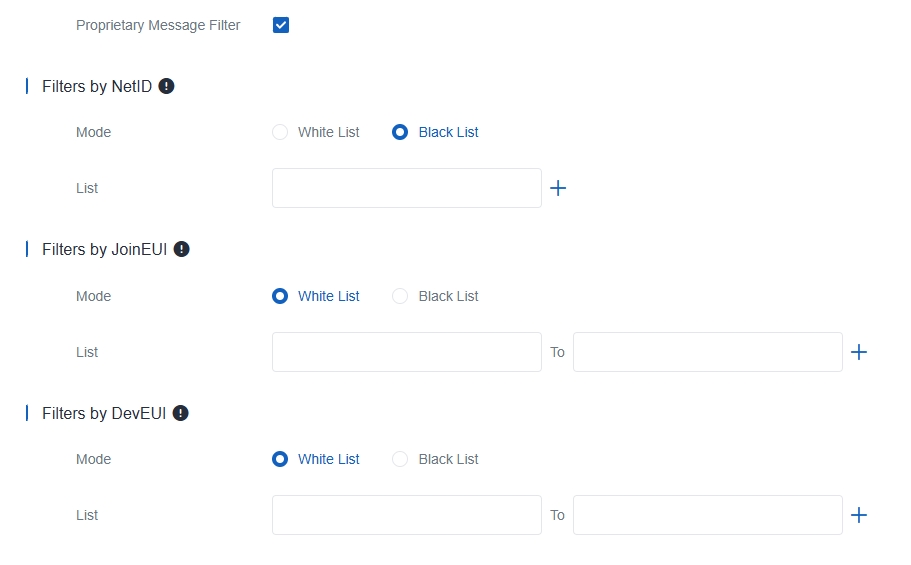
Parameter Description Proprietary Message Filter Enable to prevent proprietary message packets (Mtype=111) from being forwarded. Filters by NetID Forward or do not forward uplink packets that match the NetID. Filters by JoinEUI Forward or do not forward Join Request packets that match the JoinEUI range. Filters by DevEUI Forward or do not forward Join Request packets that match the DevEUI range. Mode Select the filter mode as black list or white list. White List: Only forward packets included in the list to the network server.
Black List: Forward packets other than those included in the list to the network server.List Set the specific filtering value or range. Each condition supports up to five lists. - Click Save & Apply to save the settings.
- When JoinEUI and DevEUI are both configured, only packets that meet both conditions are forwarded.
- When a third-party network server assigns filter conditions to the gateway, the gateway prioritizes to the network server settings.
Advanced
This section is used to configure beacon, keepalive, LBT, and expert packet forwarder settings.
- On the left bar, select Packet Forward
page.
- On the top bar, select Advanced tab.
- Configure the advanced parameters as required.
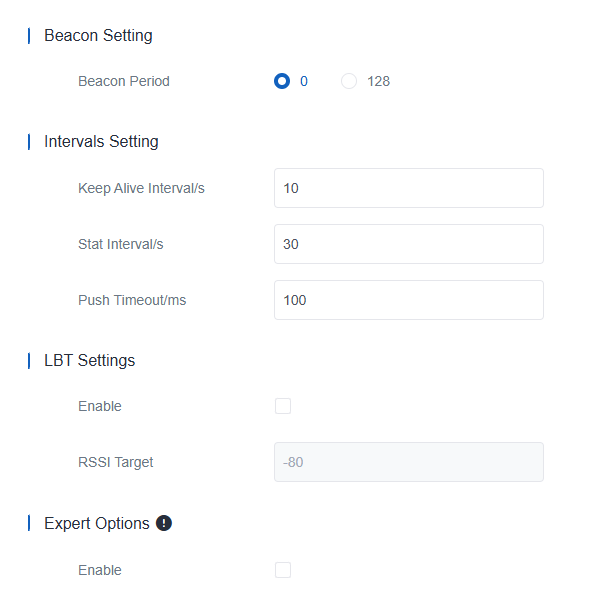
Parameter Description Beacon Setting Beacon Period The interval at which the gateway sends beacons for Class B device time synchronization. A value of 0 means that the gateway does not send beacons. Select 128 when the end device type is Class B. Intervals Setting Keep Alive Interval The interval at which the gateway sends keepalive packets to the network server to keep the connection active. Start Interval The interval at which the gateway updates the network server with gateway statistics. Push Timeout The timeout for waiting for a response from the server after the gateway sends data. LBT Setting Enable Enable or disable LBT. Listen before talk (LBT) detects whether the downlink channel is idle to help avoid channel access conflicts. Note: AU915 and US915 do not support LBT.RSSI Target The criterion for determining an idle channel. If the actual RSSI of a channel is lower than the target, the channel is considered idle. Expert Options Enable When enabled, the gateway supports a customized configuration file for the packet forwarder. The customized configuration overrides the packet forward settings in the web GUI. Click Example to open the reference page for the correct configuration file format. - Click Save & Apply to save the settings.
Traffic
This section is used to view the latest traffic received from end devices or the network server. The gateway displays up to 30 traffic records.
- On the left bar, select Packet Forward
page.
- On the top bar, select Traffic tab.
- View the traffic records.
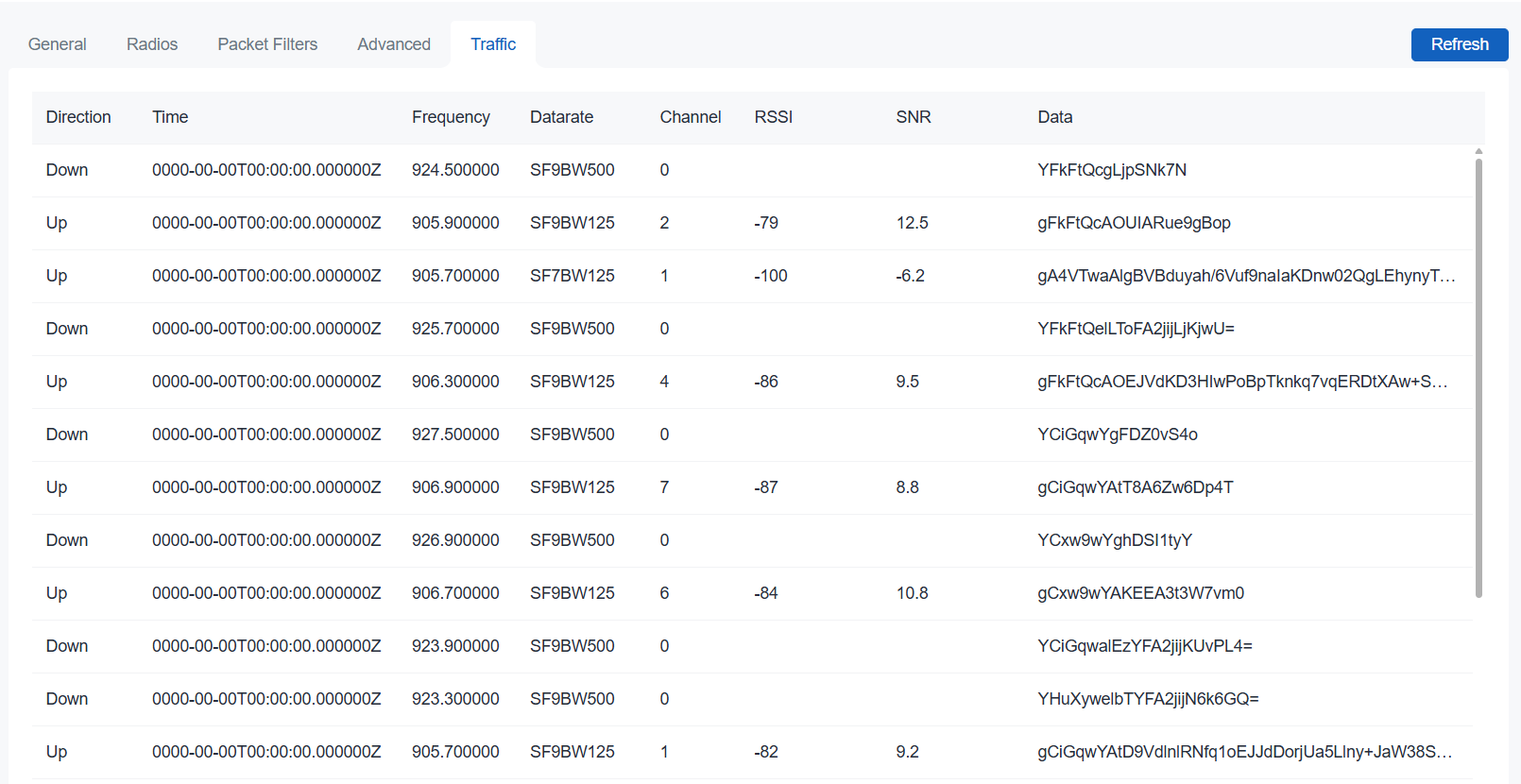
Parameter Description Refresh/Stop Refresh: Click to refresh the page and update the latest data automatically.
Stop: Click to stop automatic page updates.Direction The transmission direction of the packet. Time The time when the packet is received. Frequency The frequency used to receive or send the packet. Datarate The data rate of the packet. Channel The frequency channel used to receive or send the packet. RSSI The received signal strength of the packet. SNR The signal-to-noise ratio of the packet. Data The encrypted data of the packet.