Configure Depth Sensing Calibration
The device's performance may degrade due to installation stress or physical impact, affecting depth map quality and people counting accuracy. If the depth map is displayed abnormally or the counting accuracy decreases after proper installation, the user can check and restore the device's depth sensing capability.
Prerequisite: Install the device in an environment with sufficient lighting.
Steps:
- In the main page, click Image from the left navigation tree.
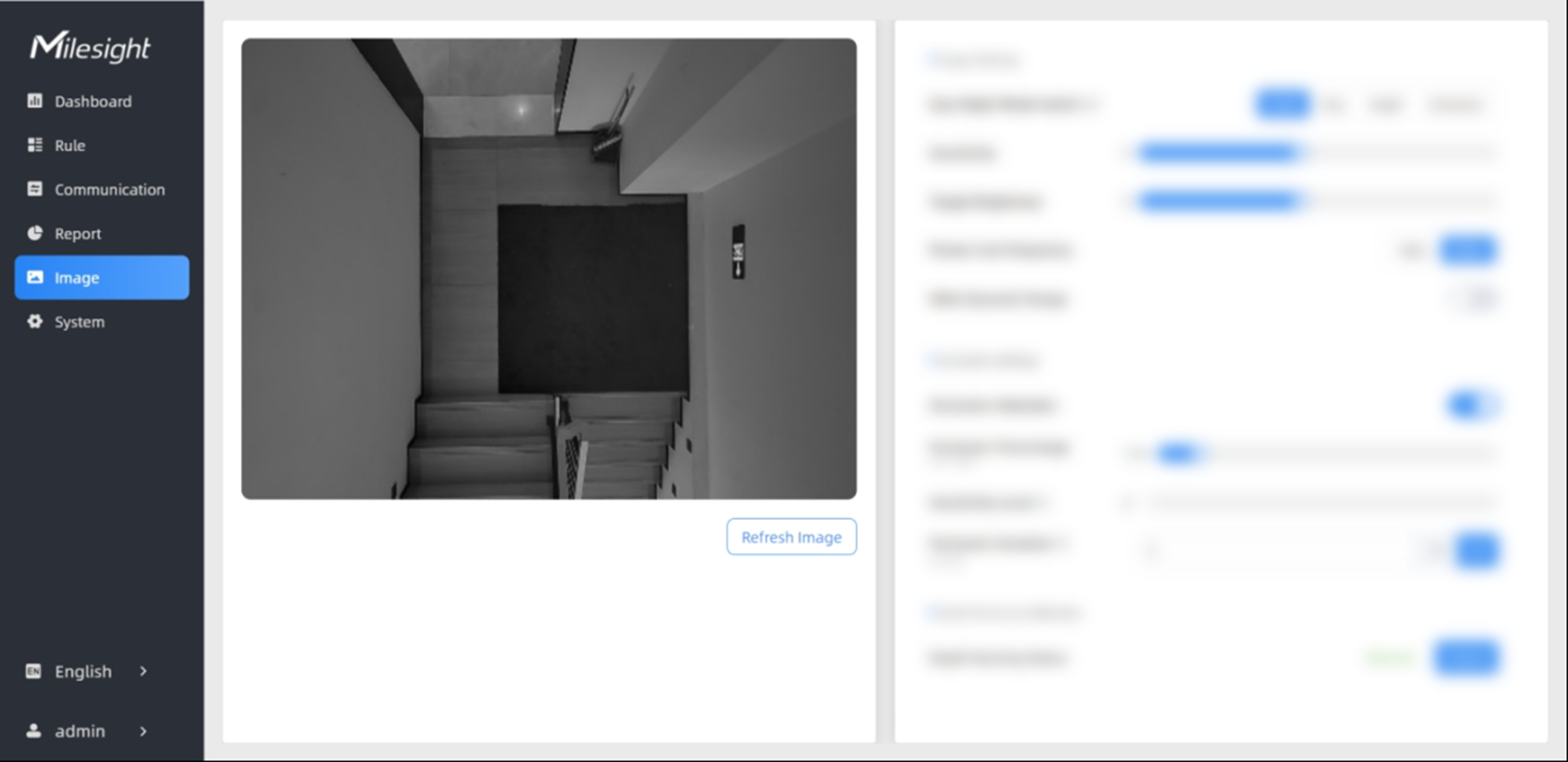
- In the Depth Sensing Calibration area on the right, click Check to
check the current depth sensing capability.
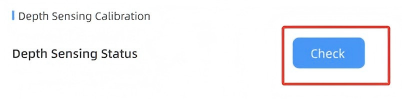
- "Normal" indicates that depth sensing is functioning properly.

"Abnormal" means depth sensing is not working correctly. If "Abnormal" appears after two consecutive checks, click Repair.
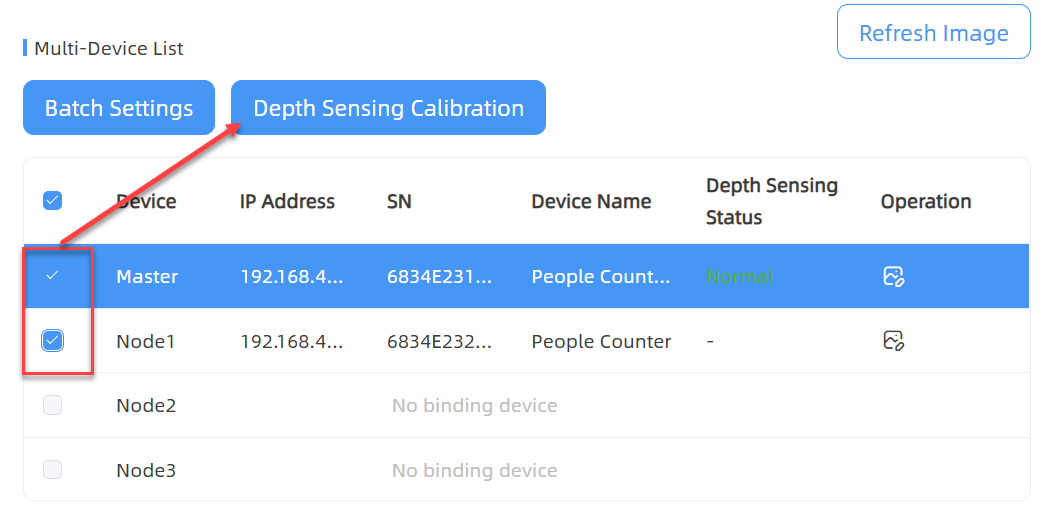
If the issue persists, follow the provided instructions to place multiple stationary objects, or contact technical support. - (Optional) If multiple devices are stitched, you can select the devices to be
detected in the depth sensing interface of the master device and perform batch
detection.
"Normal" indicates that depth sensing is functioning properly.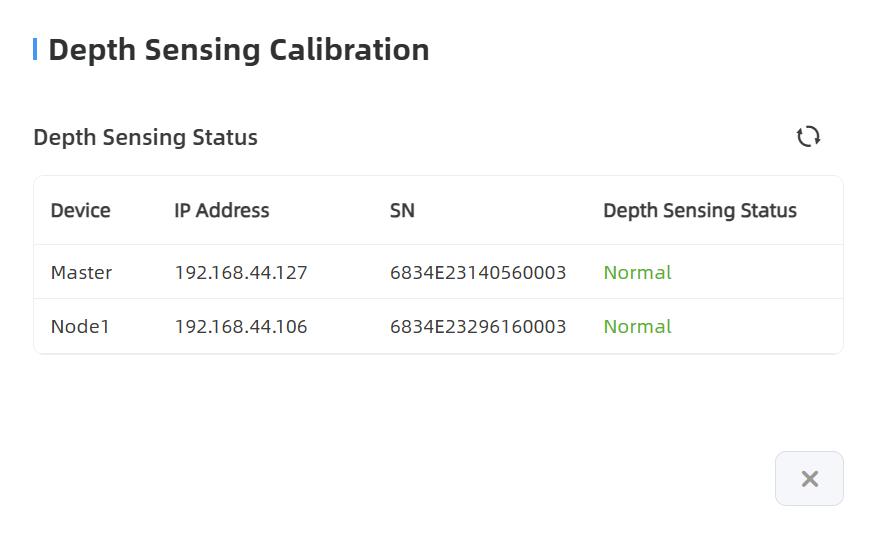
"Abnormal" means depth sensing is not working correctly. If "Abnormal" appears after two consecutive checks, click Repair.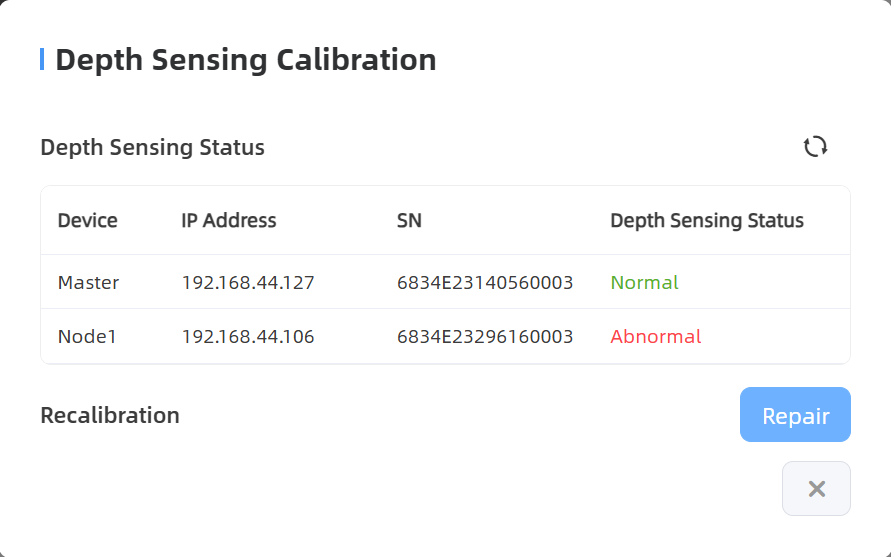
If the issue persists, follow the provided instructions to place multiple stationary objects, or contact technical support.