Desk Occupancy
Desk Occupancy mode can detect every region’s occupancy status.
Step 1: Choose Detection Function as Desk Occupancy. Set up detection-related parameters.
Step 2: Click Edit to draw Detection Regions. Up to 10 detection regions can be added, with at least one required.
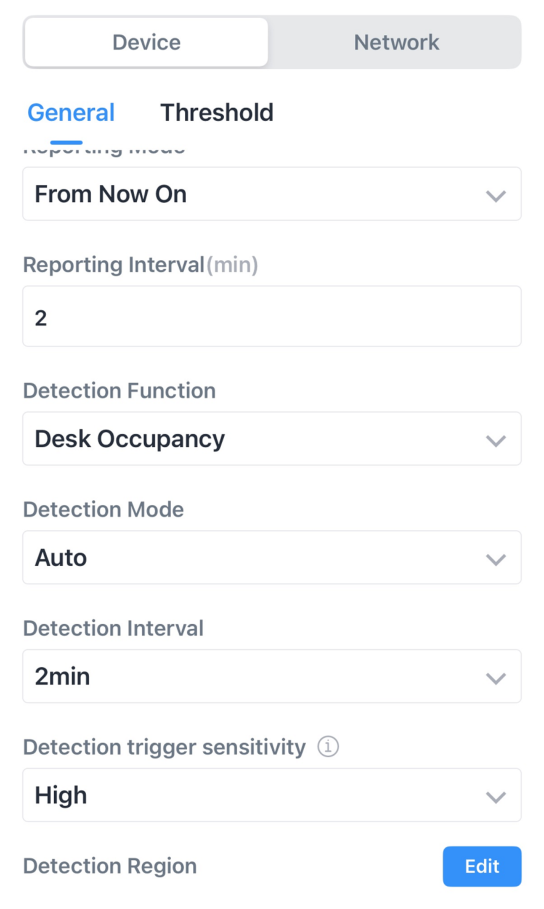
Step 3: Click Add+ to add a region, then drag and drop region vertices to adjust the shape; add region vertices via the plus sign between two points, up to 8 vertices per region. Region overlap is not permitted.
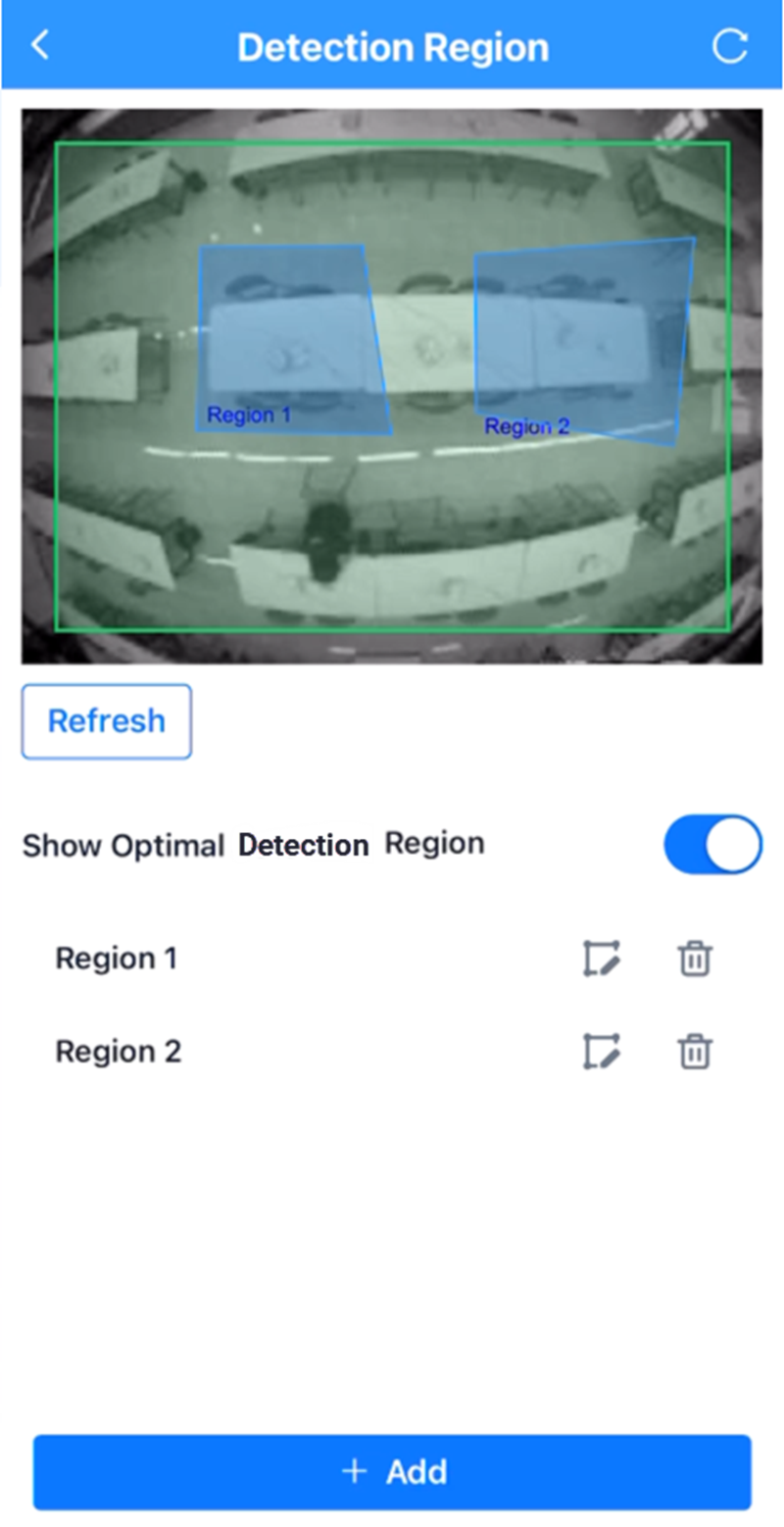
After adding the regions, click on the upper left corner to save the settings.

Step 4: Configure Other Setting and Threshold Setting as need, or leave them as defaults. After all configuration, click Write to save the settings.
 to read current device, and click Refresh to get the detection status, Detection Status
shows the related information.
to read current device, and click Refresh to get the detection status, Detection Status
shows the related information.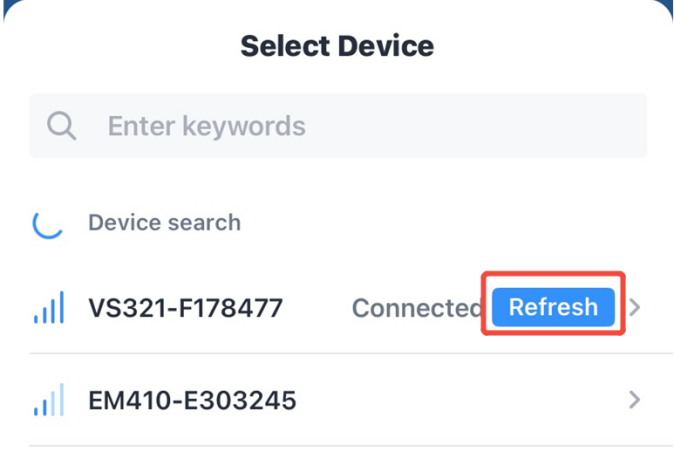
When arrive reporting interval, click Refresh again, can see the status value change.
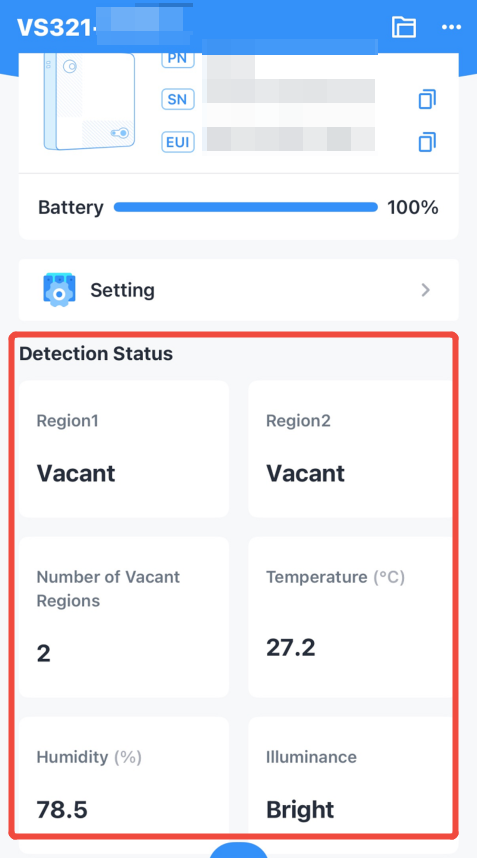
Once the detection interval ends, display the number of vacant regions and the status of each region.