3.2.4.1.1 Maintenance
Click  , the setting window will show as below.
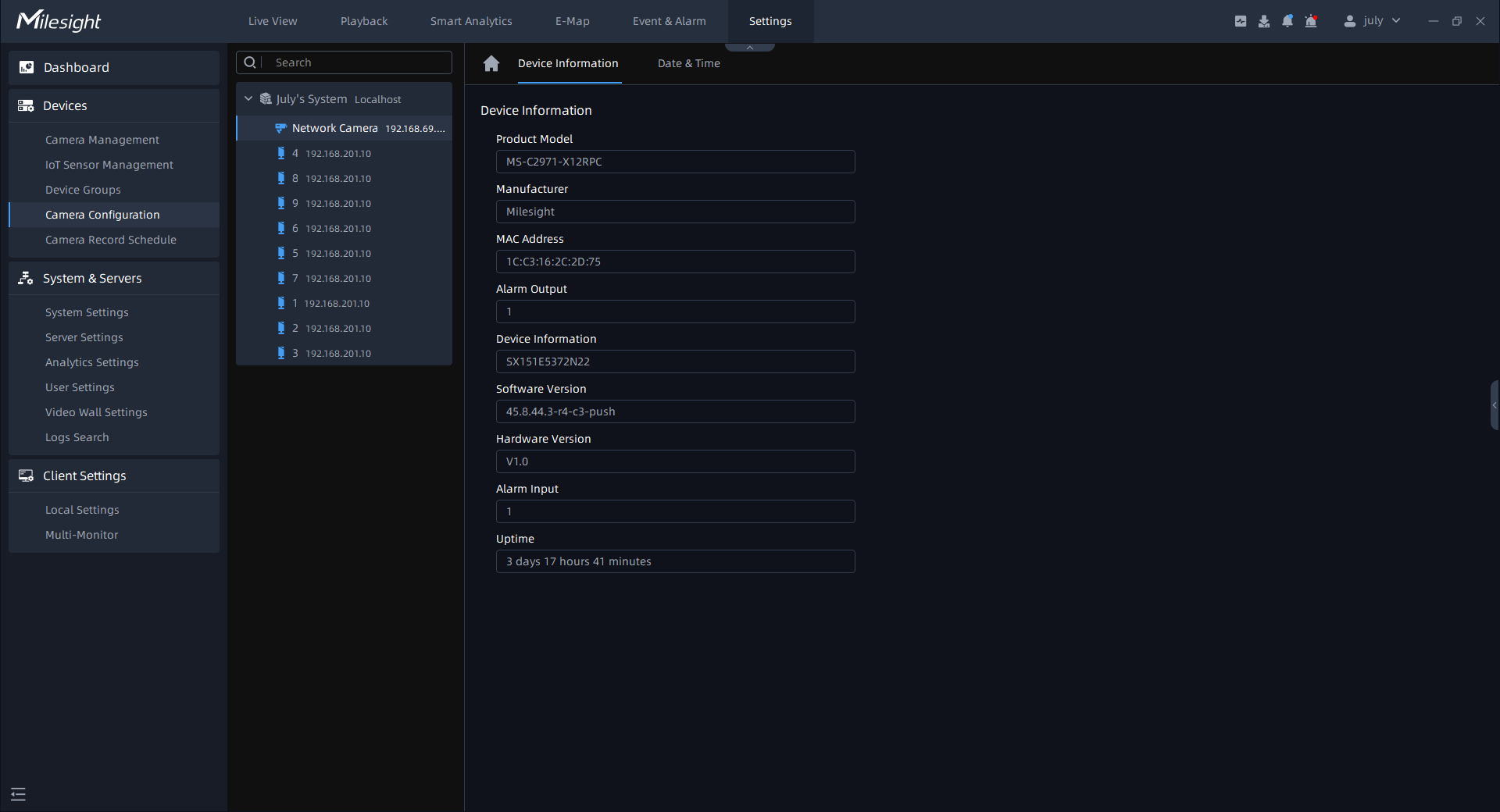
- Device Information
In this page, you can view the device's read-only firmware parameters as shown above, which are allowed to be selected and copied.
- Date & Time
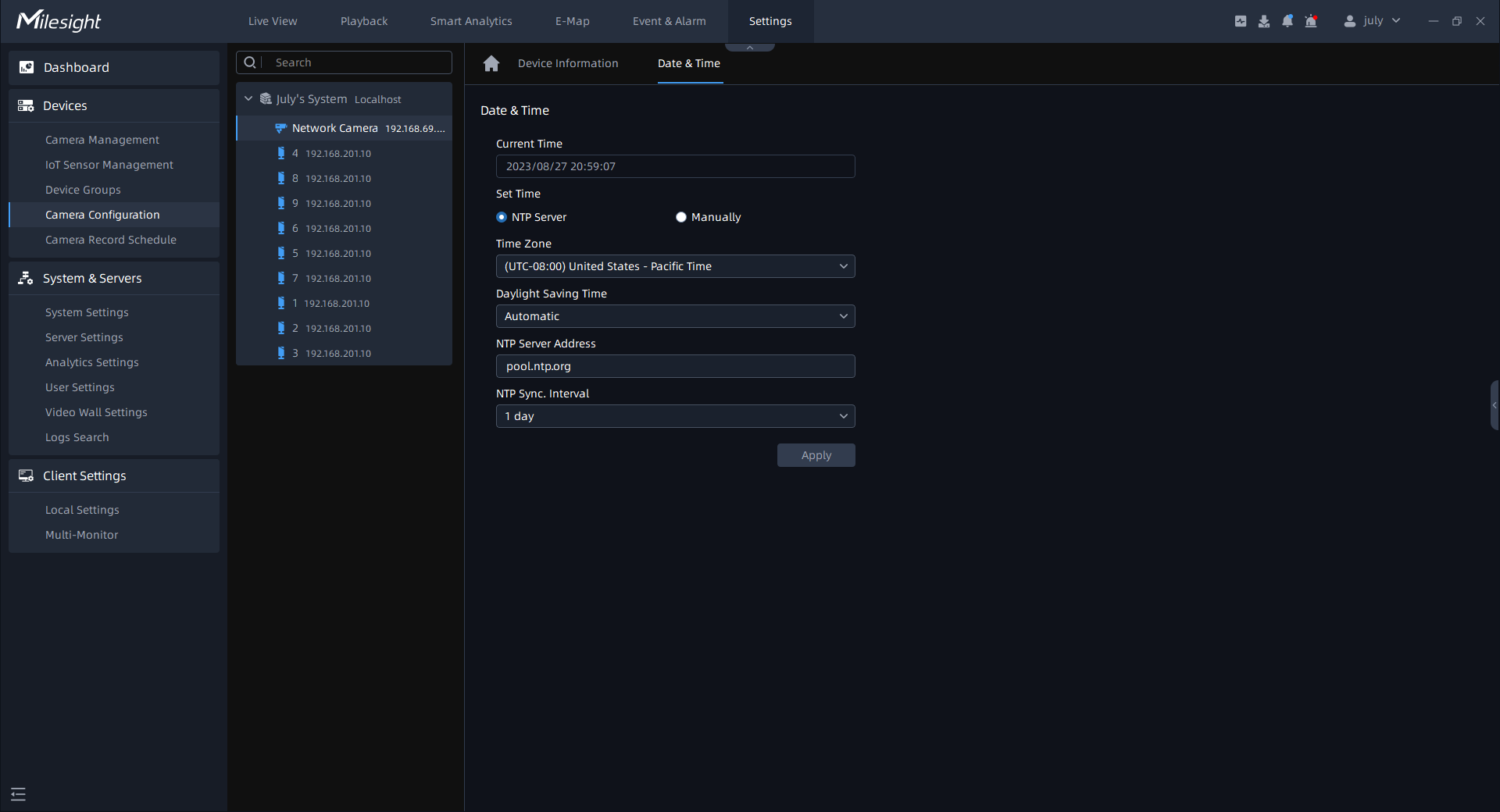
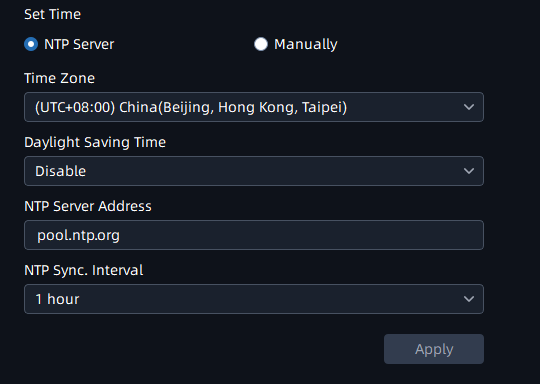
Click “Date & Time” button, the setting page will show as below.
NTP Server page:
Manually page:
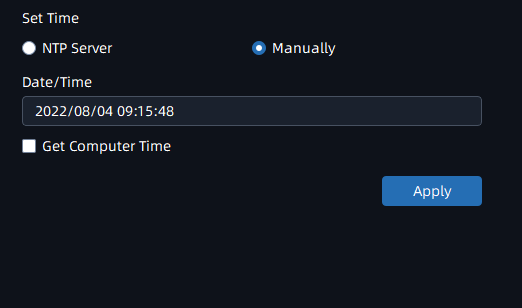
The meanings of the parameters on the Date & Time page can be referred to the table as below:
|
Parameters |
Function Introduction |
|---|---|
|
Current Time |
Current date & time of the device. |
|
Set Time |
There are two options to set time, NTP server and Manually. |
|
Time Zone |
Choose a time zone for your location. |
|
Daylight Saving Time |
Enable the daylight saving time. |
|
NTP Server Address |
The address of NTP server. |
|
NTP Sync. Interval |
Regularly update your time according to the interval time. |
|
Manually |
Set date and time of device manually. |
|
Get computer time |
Synchronize the time with your computer. |
After finishing the settings, you can click the “Apply” button to apply your settings to
the the selected camera. If you also want to set other parameters, you can click the
 button to go back the Device
Configuration home page.
button to go back the Device
Configuration home page.
- Update
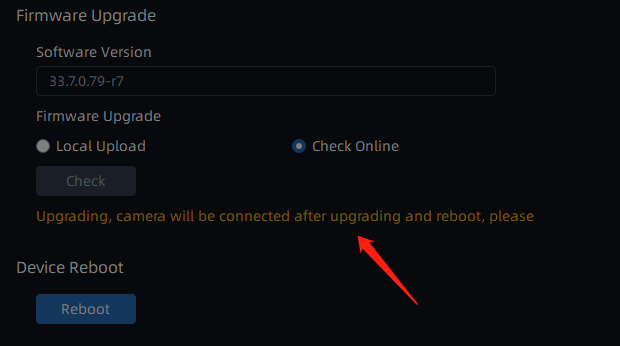
Here you can view and upgrade firmware of camera. Click  button, the Update page will show as below:
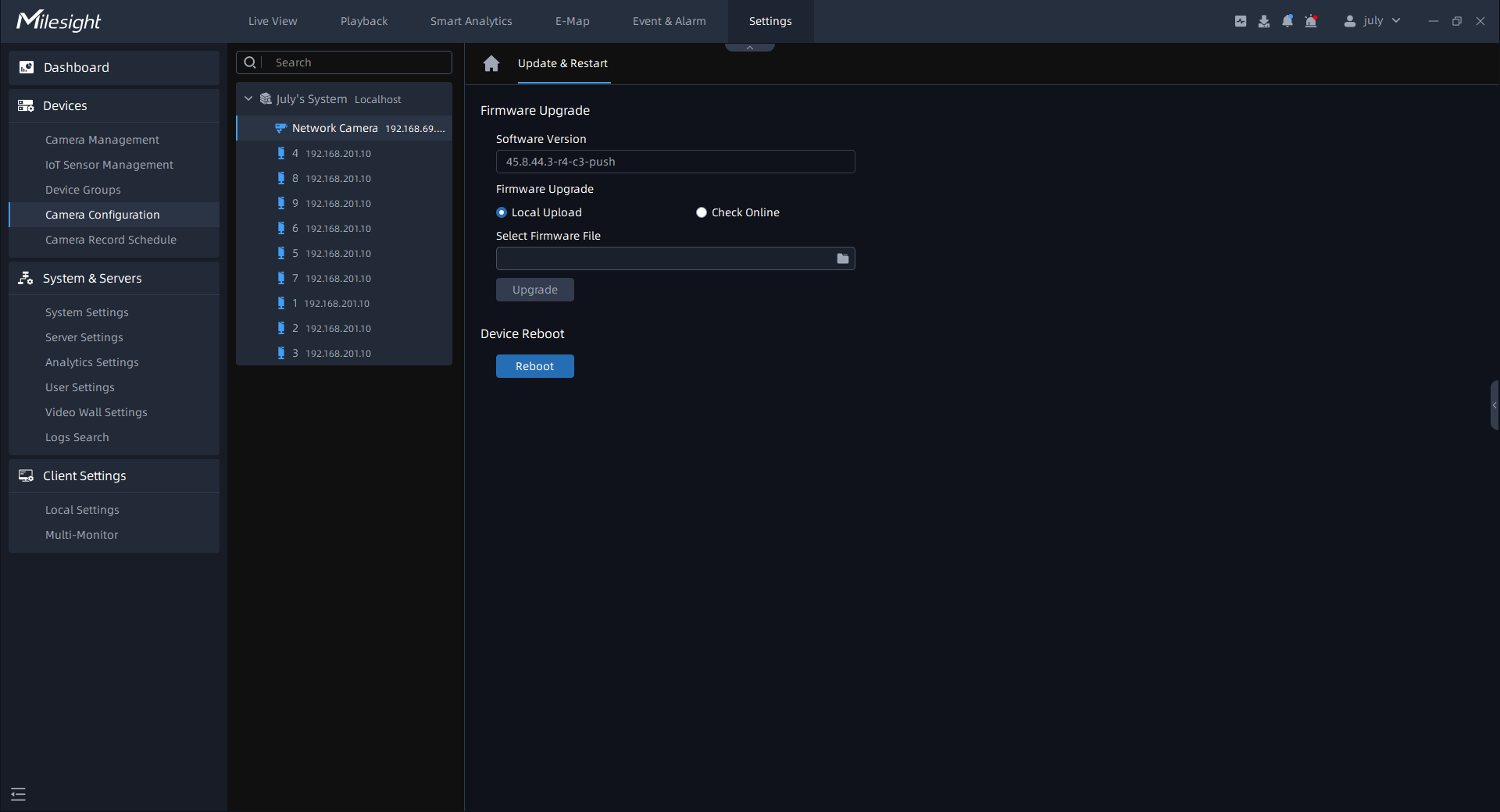
The meanings of the parameters on the Update page can be referred to the table as below:
|
Parameters |
Function Introduction |
|---|---|
|
System Upgrade |
Software Version: The software version of the camera. There are two ways to upgrade firmware, including Local Upgrade and Check Online. Local Upgrade: Check the “Local Upgrade”
checkbox and click Check Online: Check the "Check Online" button and then
click |
| System Upgrade | If the current firmware file of device
is not latest version, a pop-up window will inform you whether to
upgrade to the latest version as below: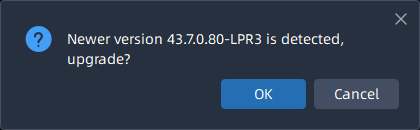 When you click the “OK”
button to upgrade, the upgrade process is as shown below: When you click the “OK”
button to upgrade, the upgrade process is as shown below:
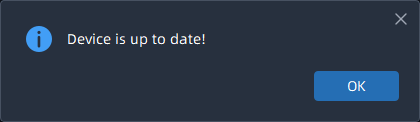
If the current firmware file of device is the latest version, a pop-up window will inform you that the current version is latest version as below:
|
|
Reboot |
Click “Reboot” button to restart the device immediately |
 button to select firmware file, then
click the “Upgrade” button to upgrade. After the system reboots
successfully, the update is done.
button to select firmware file, then
click the “Upgrade” button to upgrade. After the system reboots
successfully, the update is done. .
.