Video
- Primary Stream
The Primary Stream page is as below:
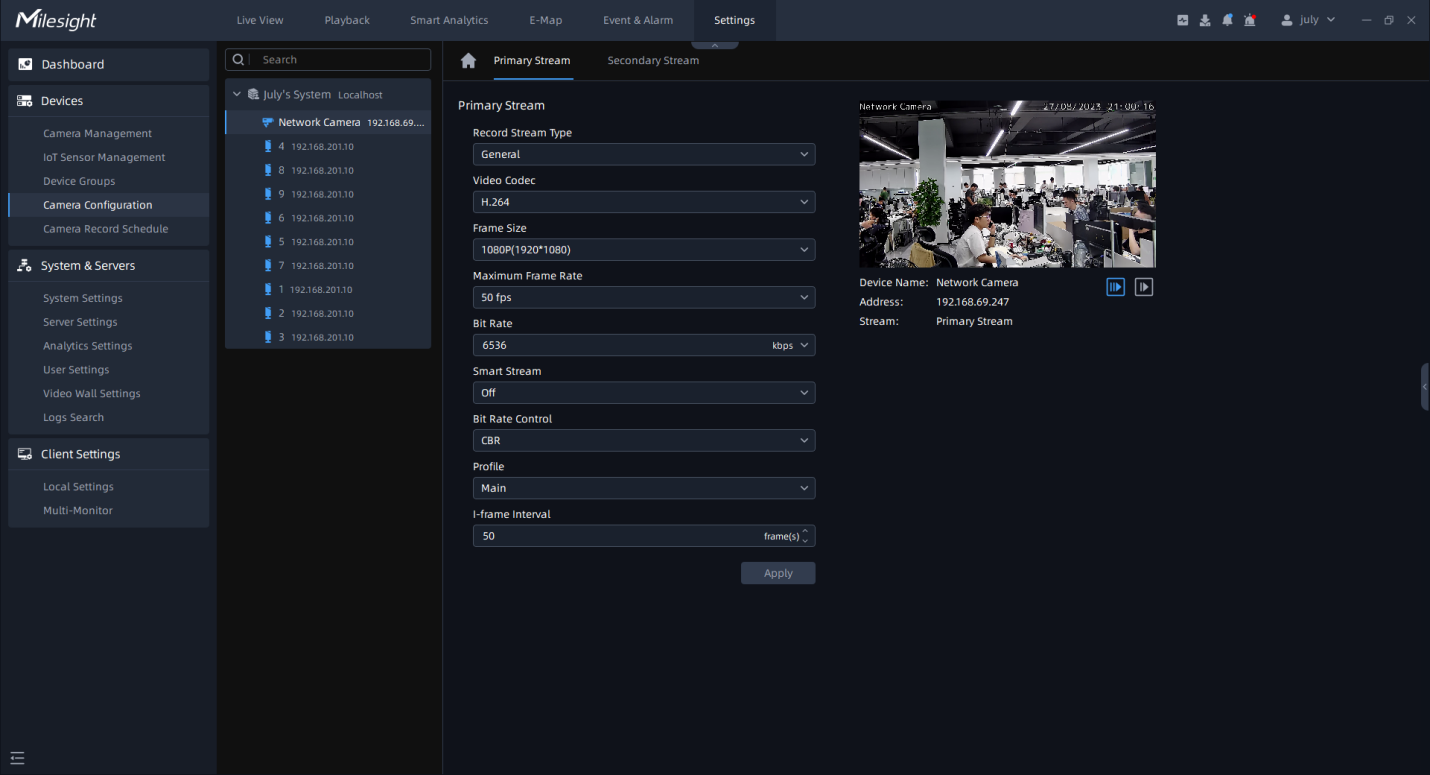
The meanings of the parameters on the page can be referred to the Table
Secondary Stream
Click the “Secondary Stream” button, the Secondary Stream page will show as below:
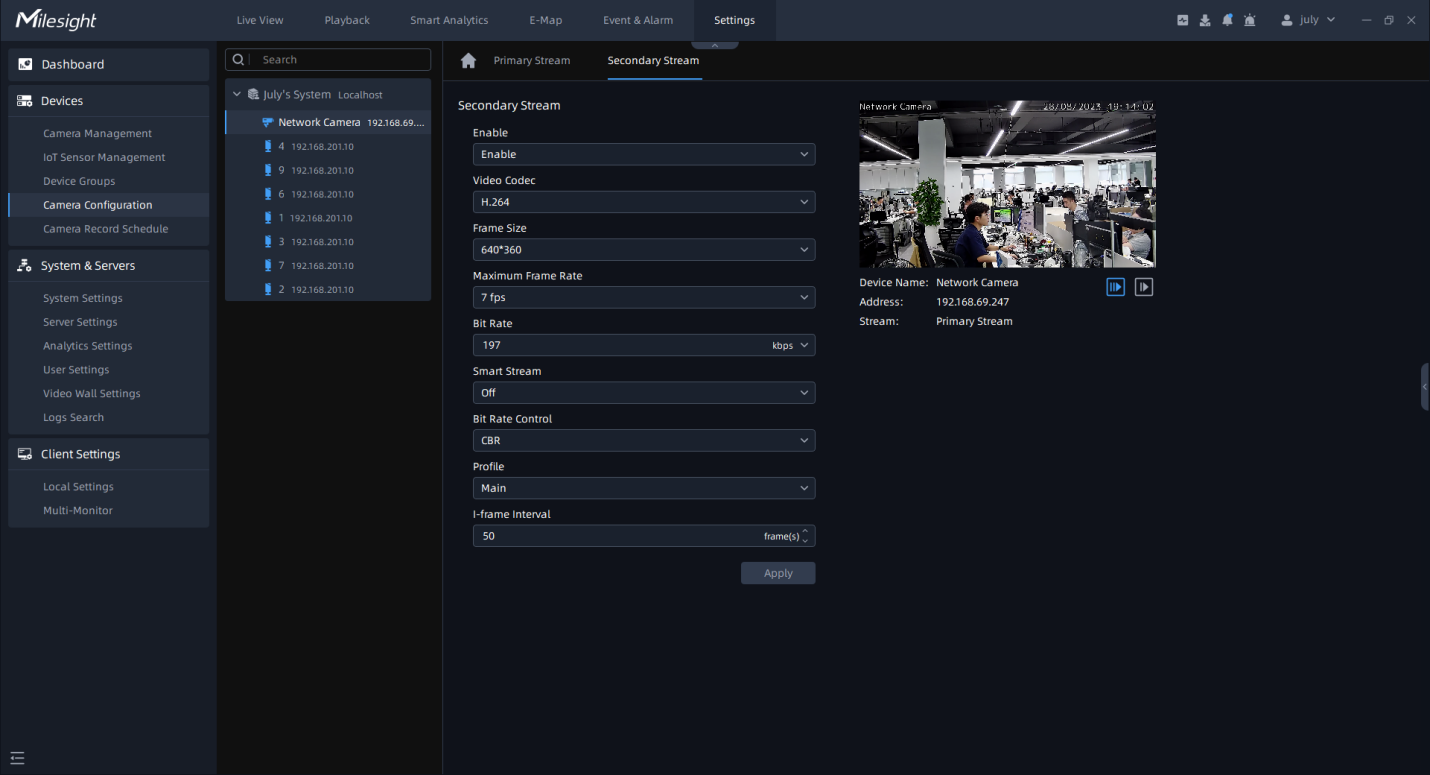
The meanings of the parameters on Video page can be referred to the table below:
|
Parameters |
Function Introduction |
|---|---|
| Enable |
This item is available only if you set set Secondary Stream for the device. |
| Record Stream Type |
General & Event are available only for Primary Stream. General refers to continuous record video, while Event includes events that can trigger alarms, such as Motion, Exception, LPR and so on. This item can separately set different bit rate and frame rate for different Recording Stream Types. If user chooses Event, video will be recorded according to the configuration of video stream type when an event happens, thereby greatly reducing the recording storage space. |
| Video Codec |
H.265/H.264/MJPEG available. |
| Frame Size |
For Primary Stream, it includes 1080P (1920*1080), 1.3M (1280*960), 720P (1280*720), D1 (704*576). For Secondary Stream, it includes D1 (704*576), 640*480, 640*360, 352*288, 320*240, 320*192, 320*180. |
| Maximum Frame Rate |
Maximum refresh frame rate per second up to 25fps. |
| Bit Rate |
Transmitting bits of data per second, this item is optional only if you select the H.264 and H.265. |
| Smart Stream |
Smart Stream mode remarkably reduces the bandwidth and the data storage requirements for network cameras while ensuring the high quality of images, and it is a 10-level adjustable codec. It is optional to turn On/Off Smart Stream mode. Level: Level 1~10 are available to meet your need. |
| Bit Rate Control |
CBR: Constant Bit Rate. The rate of CBR output is constant. VBR: Variable Bit Rate. The rate of VBR output will be variable according to the occupation of bandwidth. |
| Image Quality |
Low/Medium/High are available. This item is optional only if you select VBR. |
| JPEG Quality |
Low/Medium/High/Higher are available. This item is optional only if you selected the MJPEG. |
| Profile |
The option is for H.264. Base/Main/High can be selected according to your needs. |
| I-frame Interval |
Set the I-frame interval to 1~120. This item is optional only if you selected the H.264 and H.265. |
After finishing the settings, please click the “Apply” button.
- Stream Settings
Video parameters of each channel of Fisheye camera can be configured separately under
Multi-Channel mode. You can also focus on image position through control PTZ panel.
Select fisheye channel and click , the page will show as below:
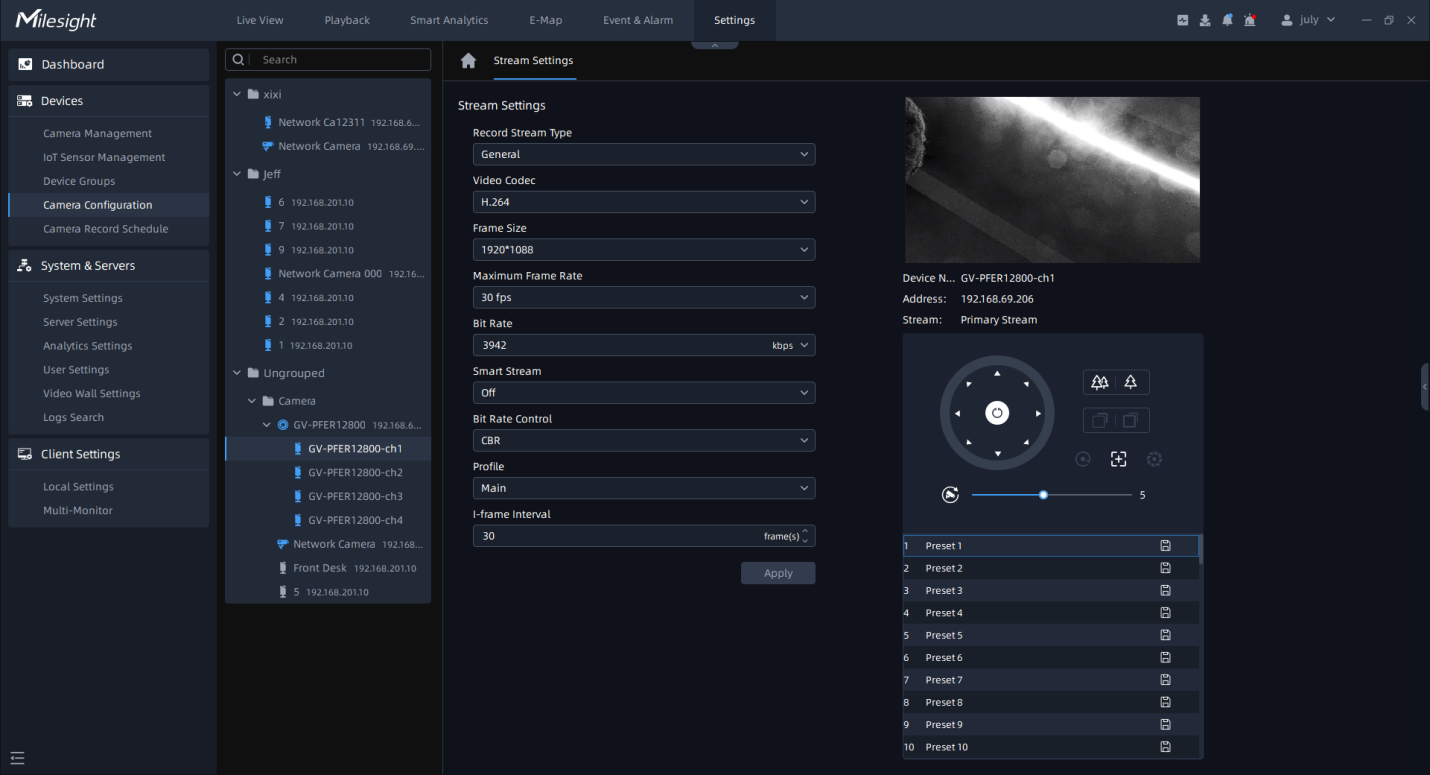
The meanings of the parameters on Video page can be referred to the table below:
|
Parameters |
Function Introduction |
|---|---|
|
Record Stream Type |
General & Event are available only for Primary Stream. General refers to continuous record video, while Event includes events that can trigger alarms, such as Motion, Exception, LPR and so on. This item can separately set different bit rate and frame rate for different Recording Stream Types. If user chooses Event, video will be recorded according to the configuration of video stream type when an event happens, thereby greatly reducing the recording storage space. |
|
Video Codec |
H.264/H.265 available. |
|
Frame Size |
There are five options available, including 4000*3000, 3000*3000, 2560*2560, 1920*1920, 1280*1280. |
|
Maximum Frame Rate |
Maximum refresh frame rate per second up to 25fps. |
|
Bit Rate |
Transmitting bits of data per second, up to 16384 kbps. |
|
Smart Stream |
Smart Stream mode remarkably reduces the bandwidth and the data storage requirements for network cameras while ensuring the high quality of images, and it is a 10-level adjustable codec. It is optional to turn On/Off Smart Stream mode. Level: Level 1~10 are available to meet your need. |
|
Bit Rate Control |
CBR: Constant Bit Rate. The rate of CBR output is constant. Note: The default option is CBR and can’t be changed to H.264 or
H.265.
|
|
Profile |
The option is for H.264. Base/Main/High can be selected according to your needs. |
|
I-frame Interval |
Set the I-frame interval to 1~120. |