Share Devices
This topic describes how to share operation permissions of devices to other accounts.
Share Devices
You can share the operation permission of specific devices to other accounts.
- Prerequisites
-
- Confirm with your enterprise administrator whether the current account role permits access to this feature.
- The sharing account and the recipient are under the same platform.
- Not the device shared by other accounts.
- Not demo devices.
-
- Log in to Milesight Development Platform.
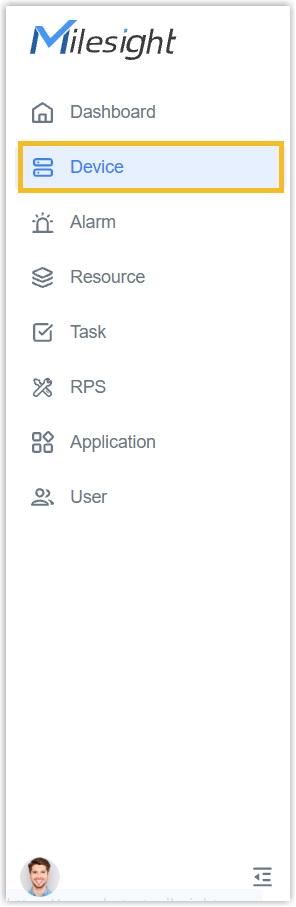
- On the left bar, select the Device
tab.
- Select the desired group or sub-node from the list on the left.
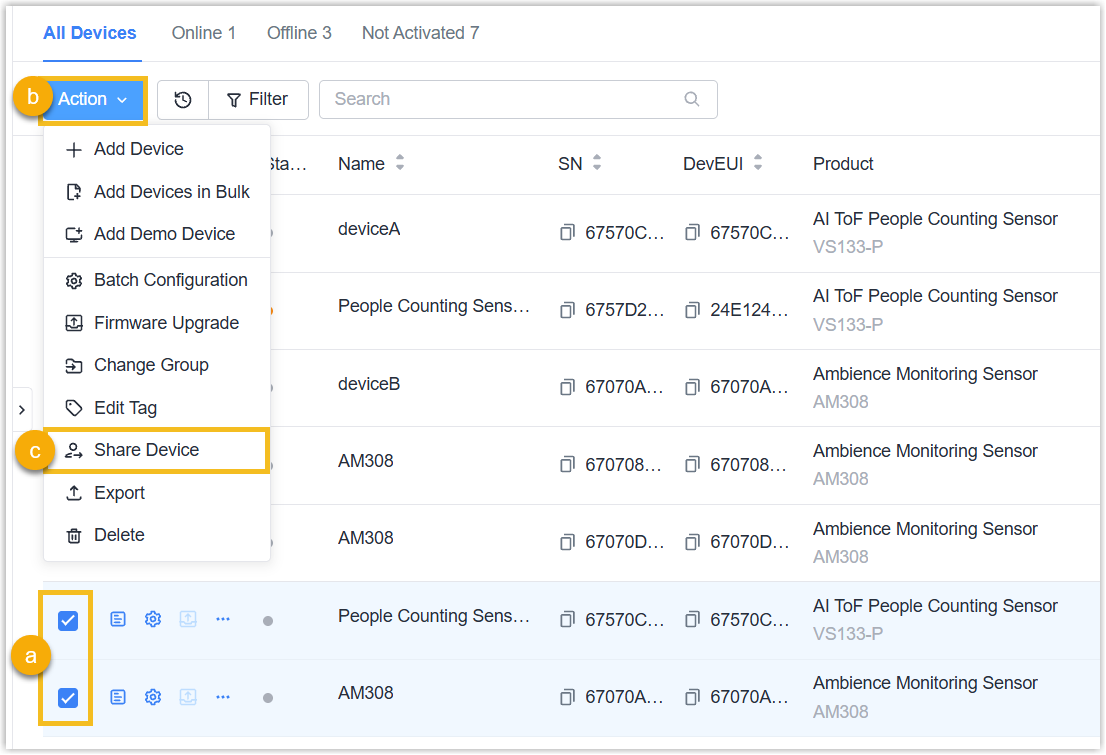
- Click Share Device.
- Share devices in bulks: Select the desired devices and
click Share Devices.
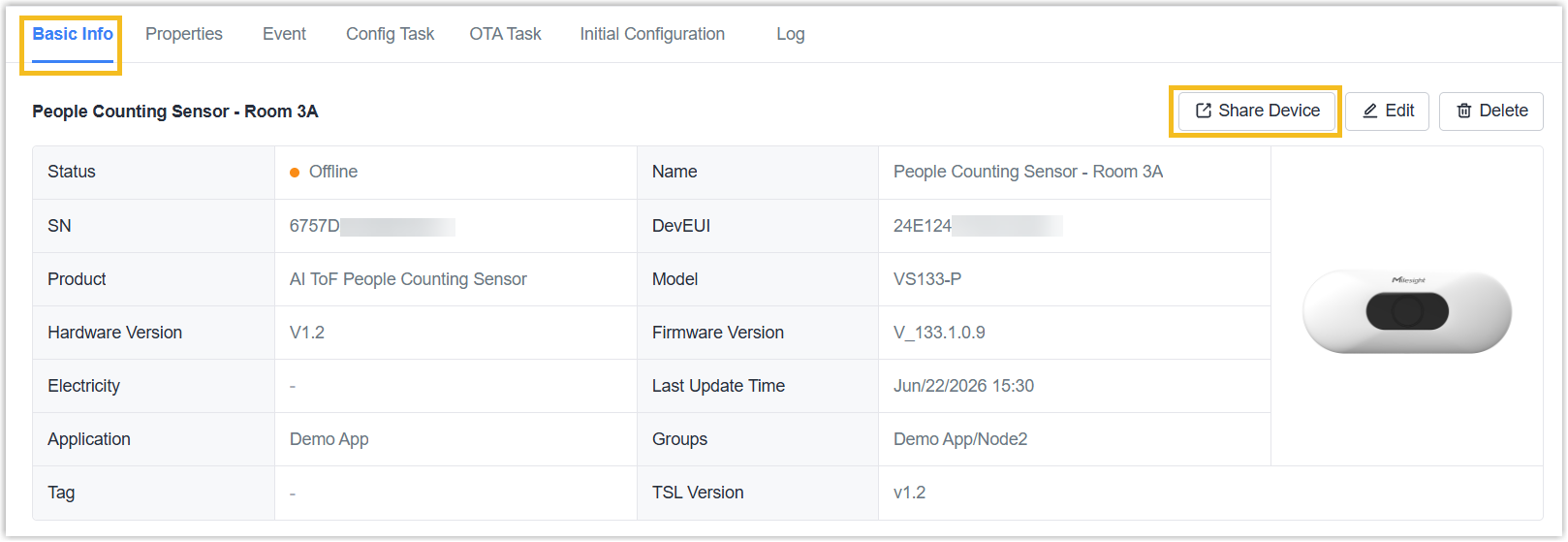
- Share a device: double-click the desired device, click
Share Device.
- Share devices in bulks: Select the desired devices and
click Share Devices.
- Fill in the sharing parameters.
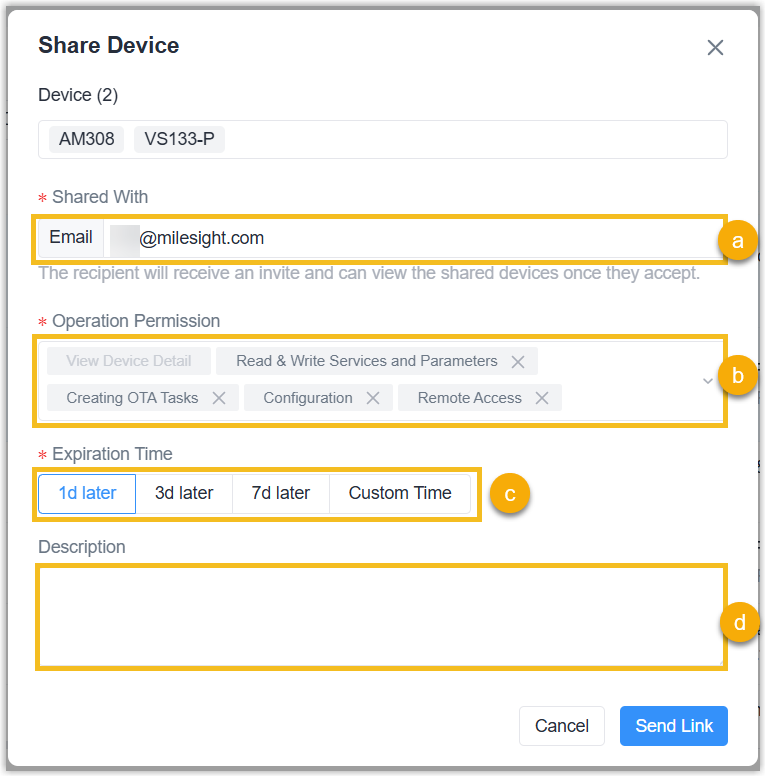
- Click Send Link.
- Optional: To add more sharing devices to a recipient, follow the
below steps.
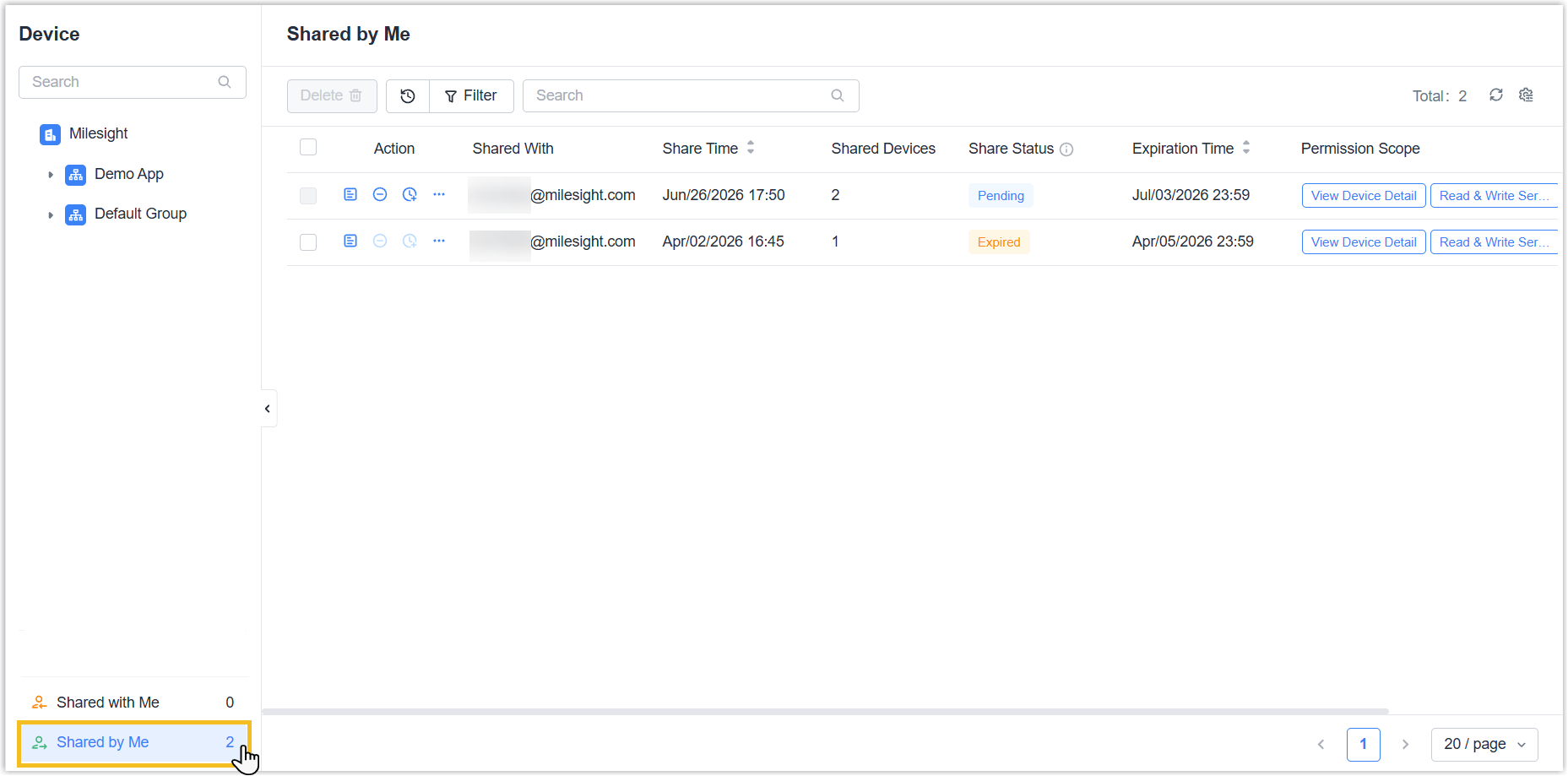
- In the Shared by Me section, double-click the
desired recipient.
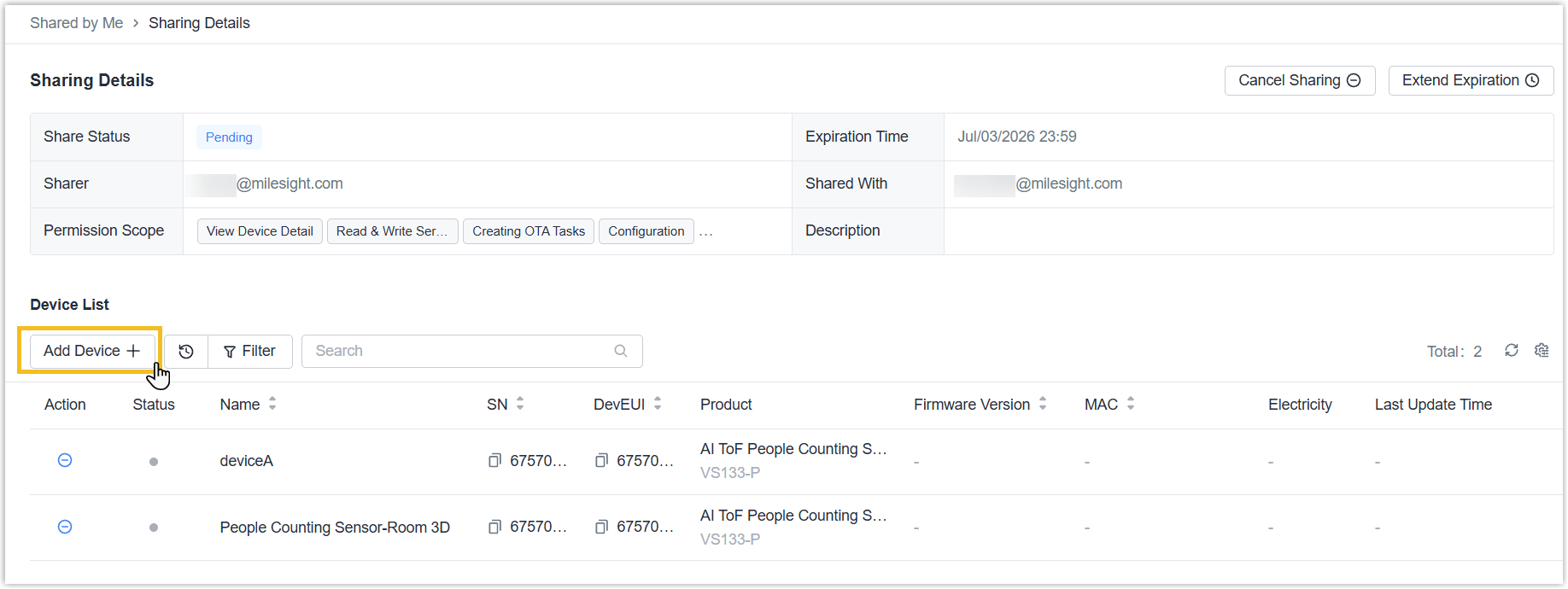
- In the Device List, click Add
Device+.
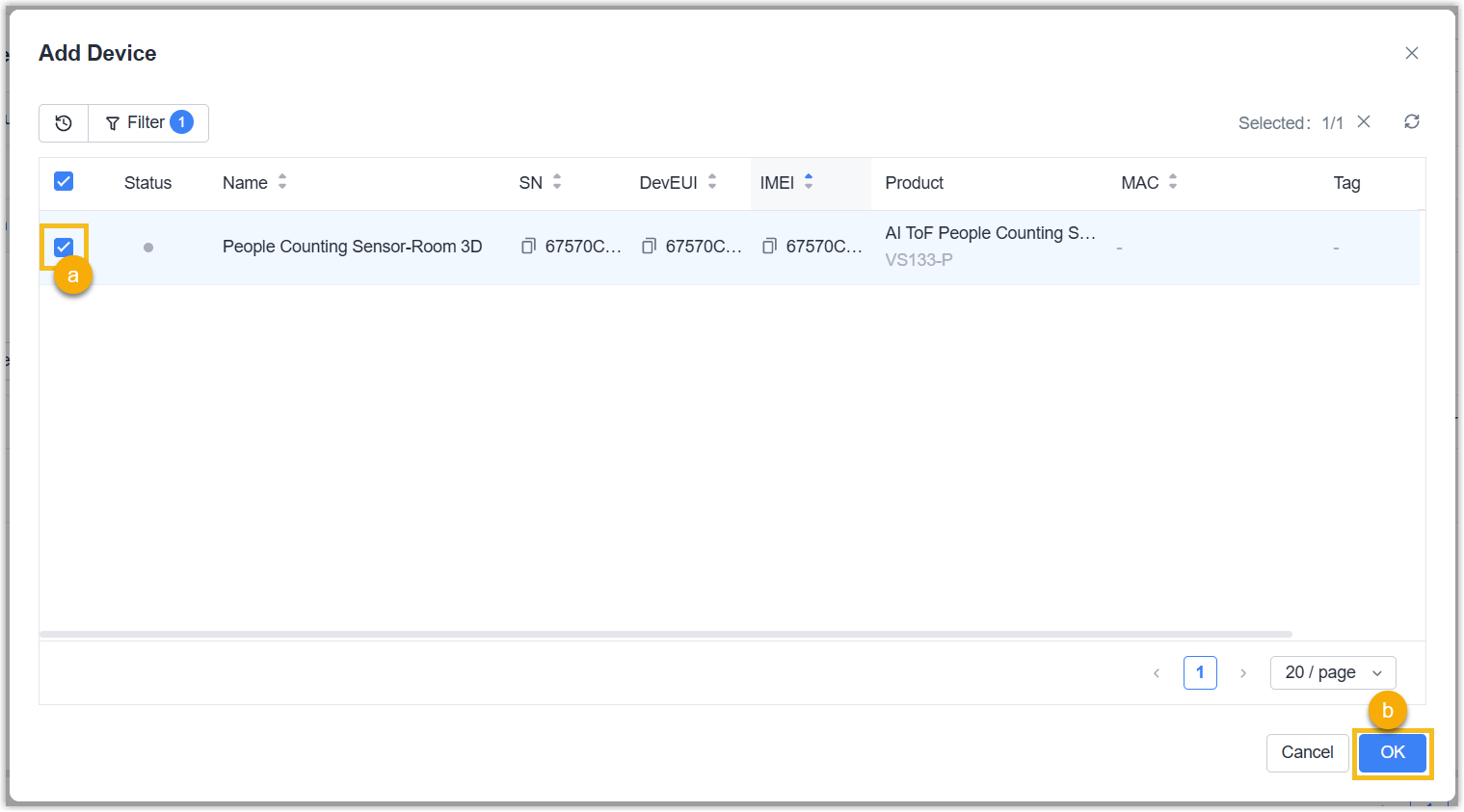
- Select the devices to share, click OK.
- In the Shared by Me section, double-click the
desired recipient.
- Result
- If the recipient already registered an account, a notification email
including a sharing link will be sent. If the recipient does not have any account, follow the below steps:
- Click the icon beside the sharing device.
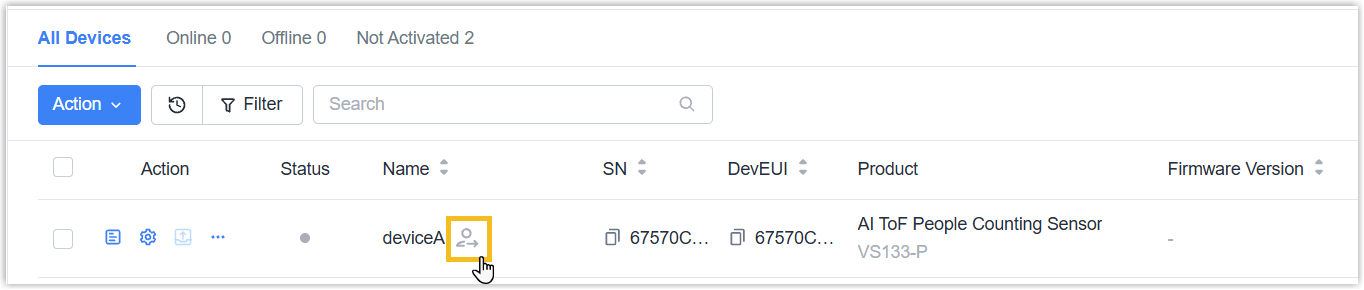
You can also select Shared by Me in the lower-left corner.
- Click Copy Sharing Link.
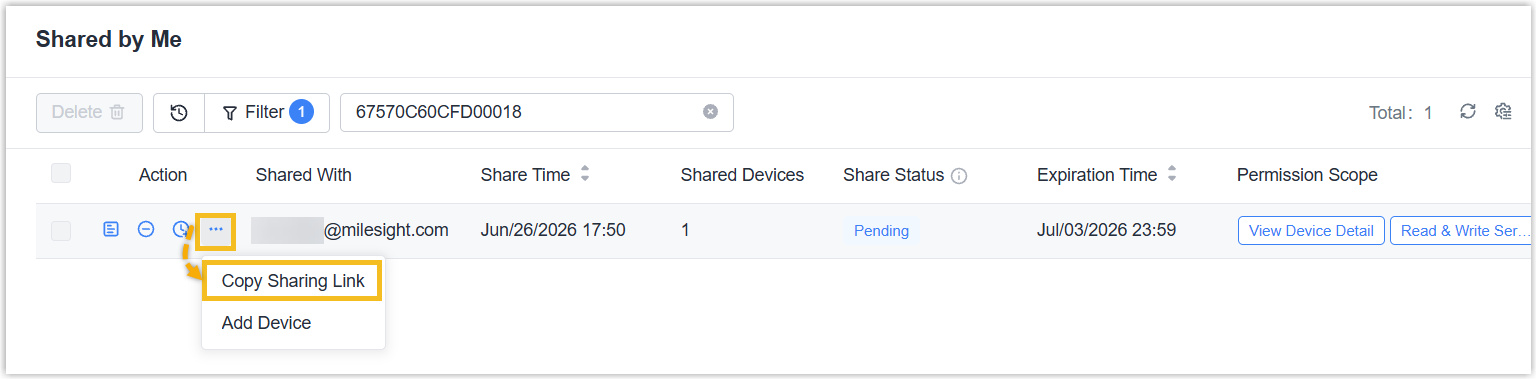
- Send this link to the recipient.
- Click the icon beside the sharing device.
Receive Sharing Devices
You can receive the operation permission of specific devices from other accounts.
- Procedure
-
- Open the valid sharing link received from the sharer.
- Log in to Milesight Development Platform. If not account, refer Become a Milesight Developer to sign up an account.
- On the left bar, select the Device
tab.
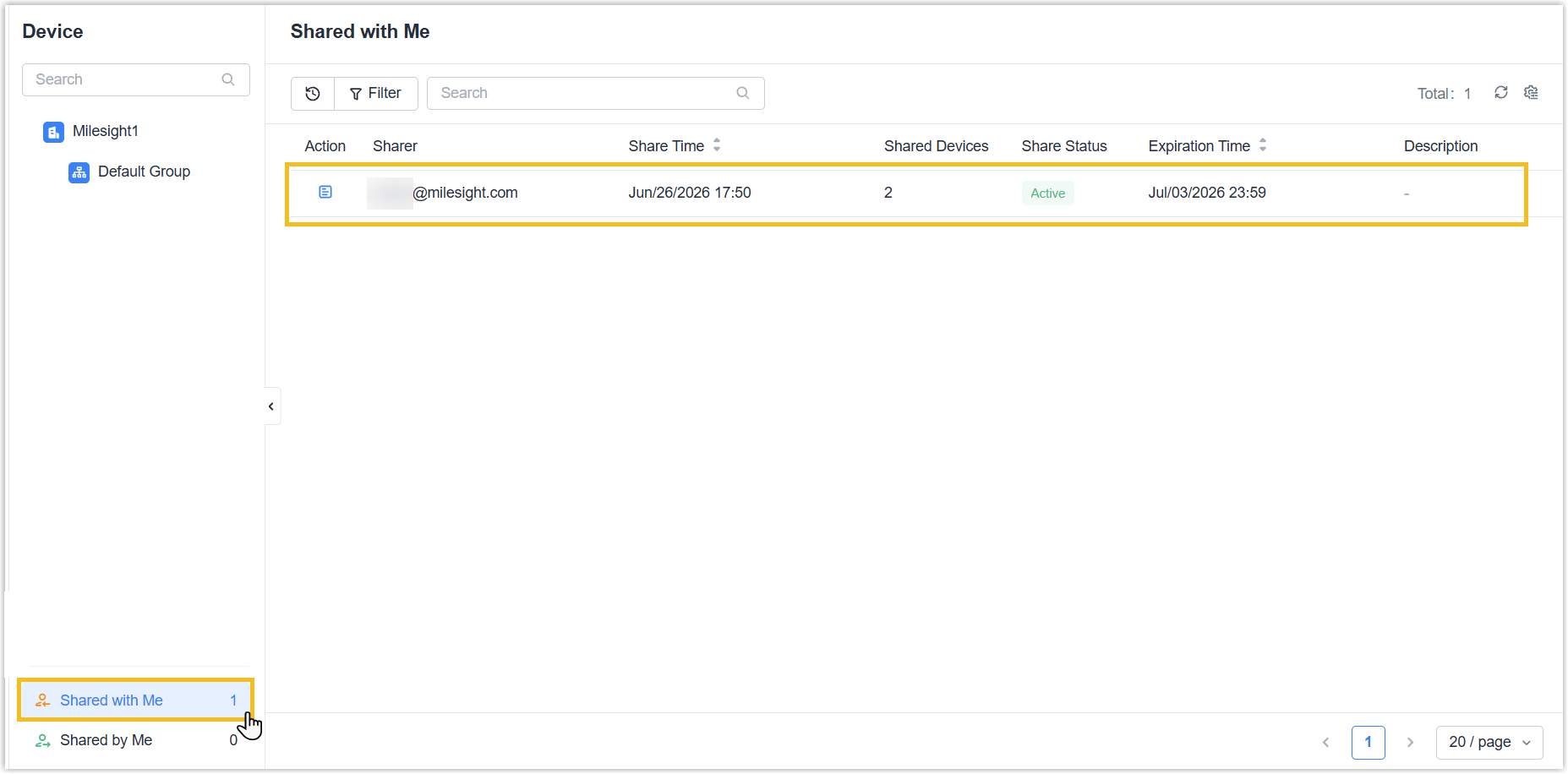
- In Shared with Me section, double-click the desired
sharer to view the sharing device details.
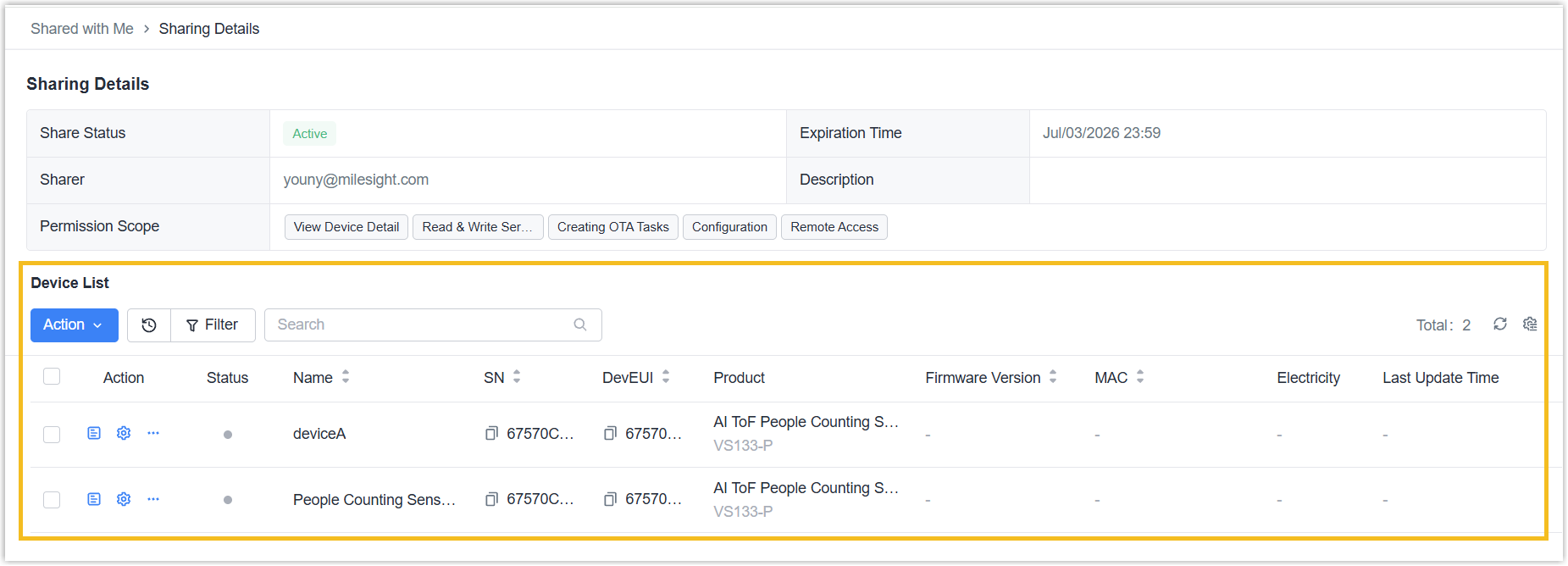
- In the Device List, select the desired device to check
the details and operate as required.
Extend Sharing Time
You can extend the sharing time.
- Procedure
-
- Log in to Milesight Development Platform.
- On the left bar, select the Device
tab.
- In Shared by Me section, select the desired recipient,
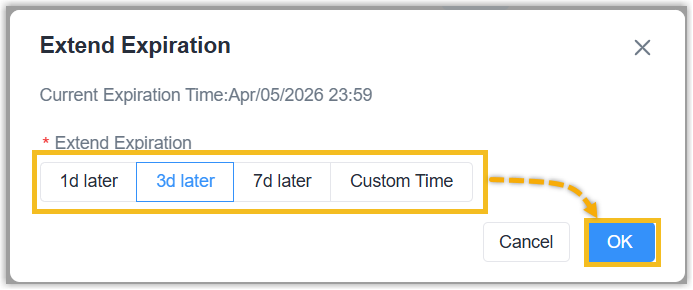
click Extend Expiration.

- Select the extend expiration, click OK.
Cancel Device Sharing
You can cancel the device sharing in advanced.
- Procedure
-
- Log in to Milesight Development Platform.
- On the left bar, select the Device
tab.
- In Shared by Me section, click Cancel Sharing.
- Cancel sharing for all devices: Select the desired
recipient, and click Cancel Sharing.

- Cancel sharing for some devices: double-click the
desired recipient, select the desired device to click
Cancel Device Sharing.
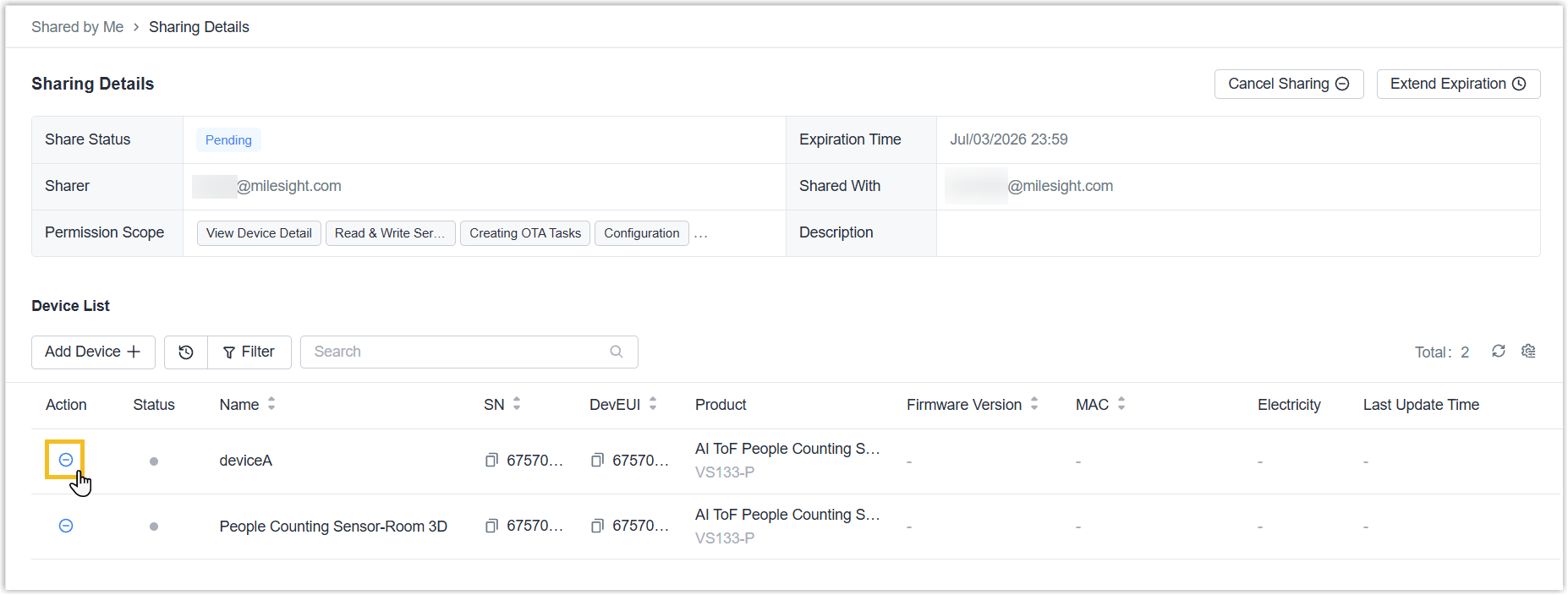
- Cancel sharing for all devices: Select the desired
recipient, and click Cancel Sharing.