Configure Devices in Bulk
For devices that support auto provision, you can configure all settings within the Config templates. This topic describes how to configure devices in bulk through Milesight Development Platform.
Restrictions
ONLY devices that meet the following requirements can be bulk configured on Milesight
Development Platform:
- Confirm with your enterprise administrator whether current account role permits access to this feature.
-
Find the Supported Devices before you start creating Config tasks.
- Connectivity status is NOT Banned
- Devices of the same product model and the same frequency plan
Procedure
- Log in to Milesight Development Platform.
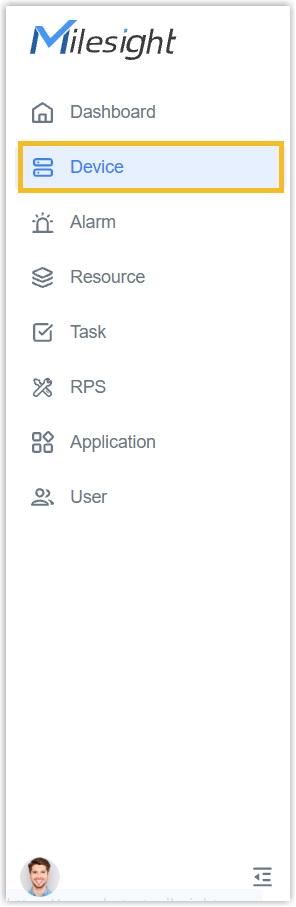
- On the left bar, select the Device
tab.
- Select the desired group or sub-node from the list on the left.
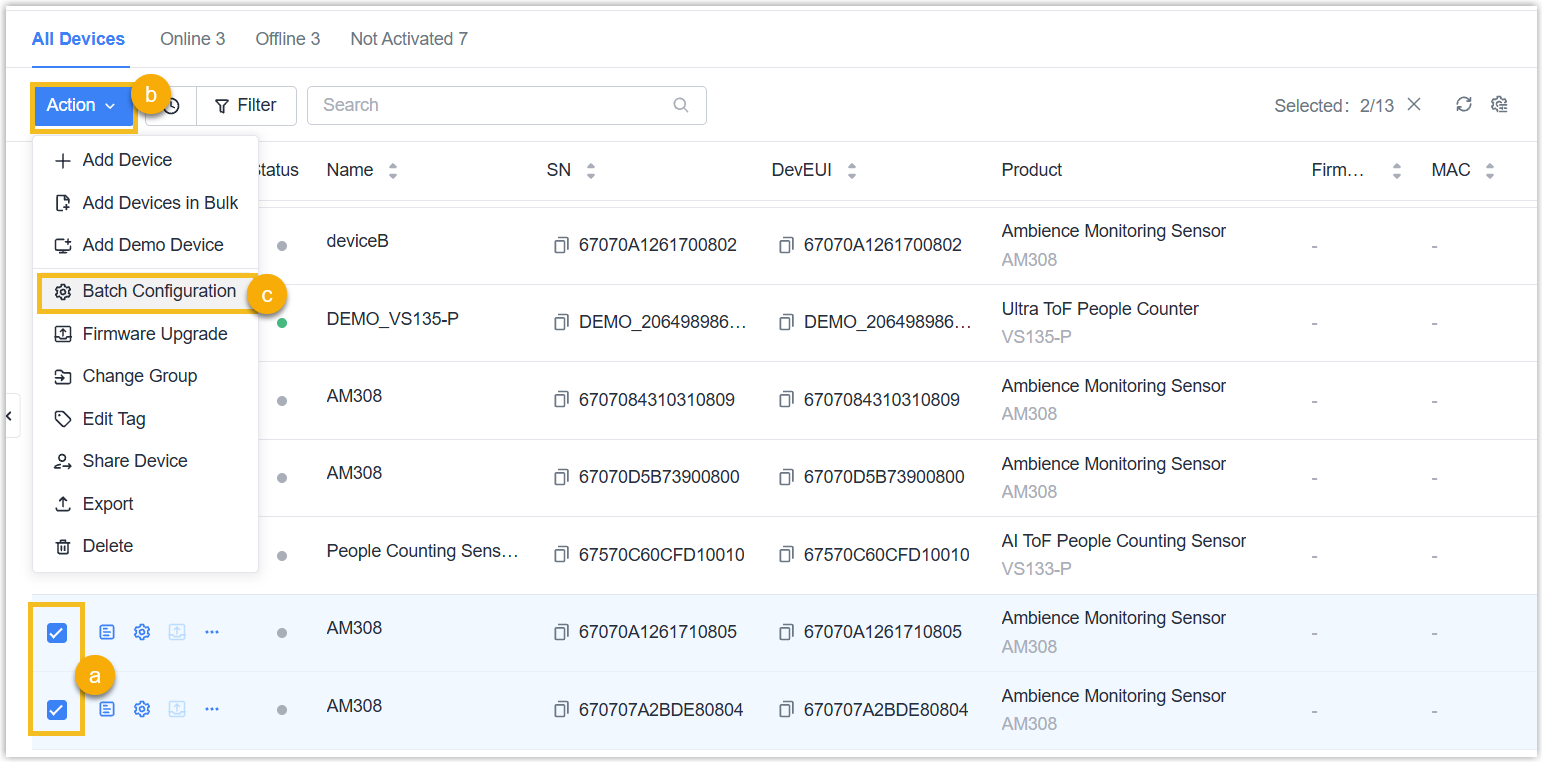
- Select the devices of the same product model and the same frequency plan,
then click Batch
Configuration.
- For some models, select the configuration mode as Form
Configuration or Configuration File.
 If Configuration File is selected,
- Download the backup file of a device to the local path.
- Drag the file to the blank or click Select File to select the file from local path.
- For some models, enable or disable Configuration Persistence to allow the devices to restore to the current persisted configuration after a reset.
- Click Save.
If Form Configuration is selected, continue the following steps below.
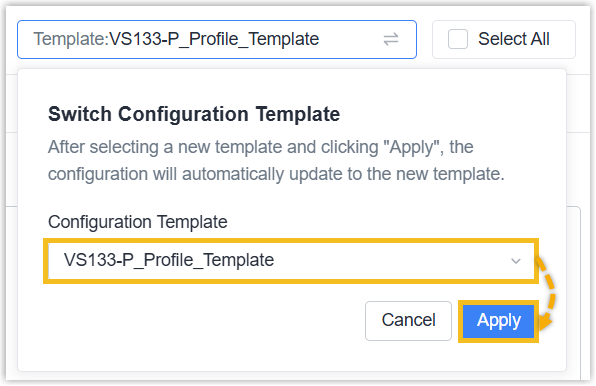
- On
the upper-right corner, switch to an existing template as required, and
click Apply.
- For Internet accessible devices:
- In the Generic Configuration tab, decide
whether to connect the device to Milesight platform for remote
management and configuration.
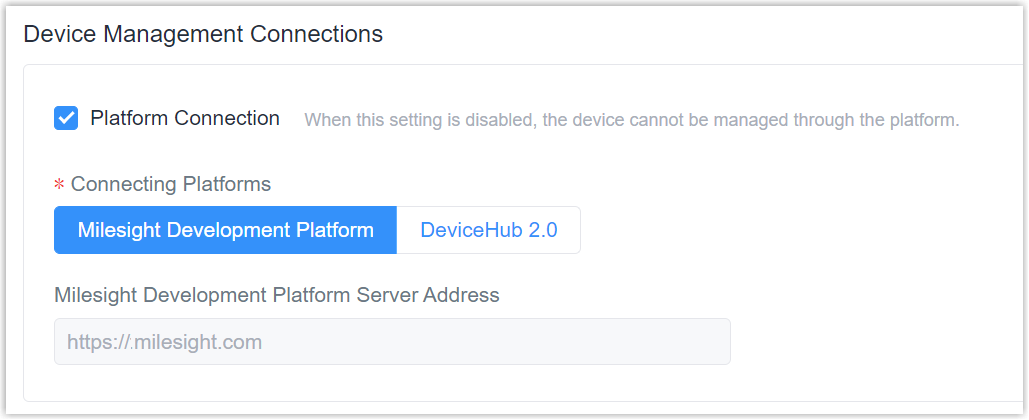
- Connect the device to Milesight Development Platform
- Retain the default settings.
- Connect the device to Milesight DeviceHub
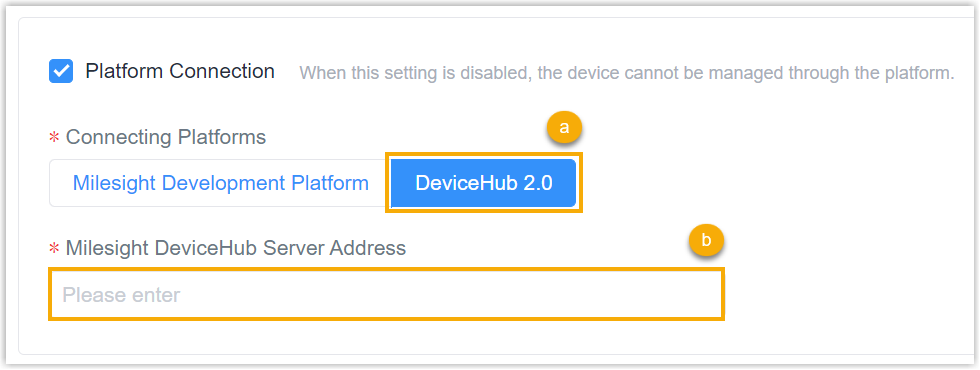
- In the Connecting Platforms field, select DeviceHub 2.0.
- In the Milesight DeviceHub Server Address field, enter the server address of the Milesight DeviceHub.
- In the Basic Configuration tab, configure the device settings as needed.
- In the Generic Configuration tab, decide
whether to connect the device to Milesight platform for remote
management and configuration.
- For Internet inaccessible devices (For example LoRaWAN® sensors), configure the device settings as needed.
- Click Save, and in the pop-up window click OK.
Result
A Config task will be generated in task center and you can check the execute status of the task.
Note: for some devices with sleep mode(Example:
LoRaWAN® class A type sensors), the configurations will only
updated when they are waken up.
