View Device Details and Invoke Services
This topic describes how to view the device details, modify parameters, and invoke services.
Restrictions
- Click here to check the maximum display time of data and logs under different plans.
- Device status is not Banned (pro plan of this account expires).
Procedure
- Log in to Milesight Development Platform.
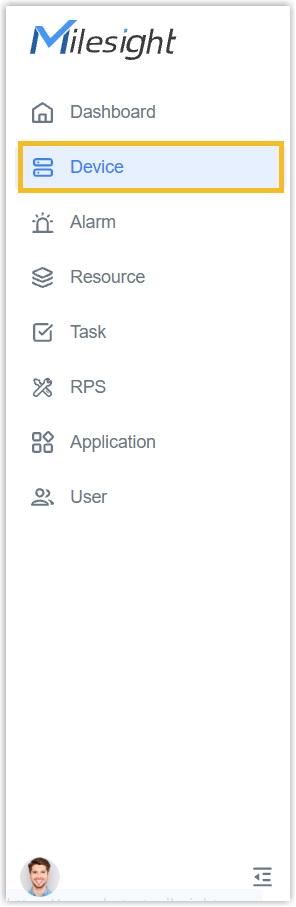
- On the left bar, select the Device
tab.
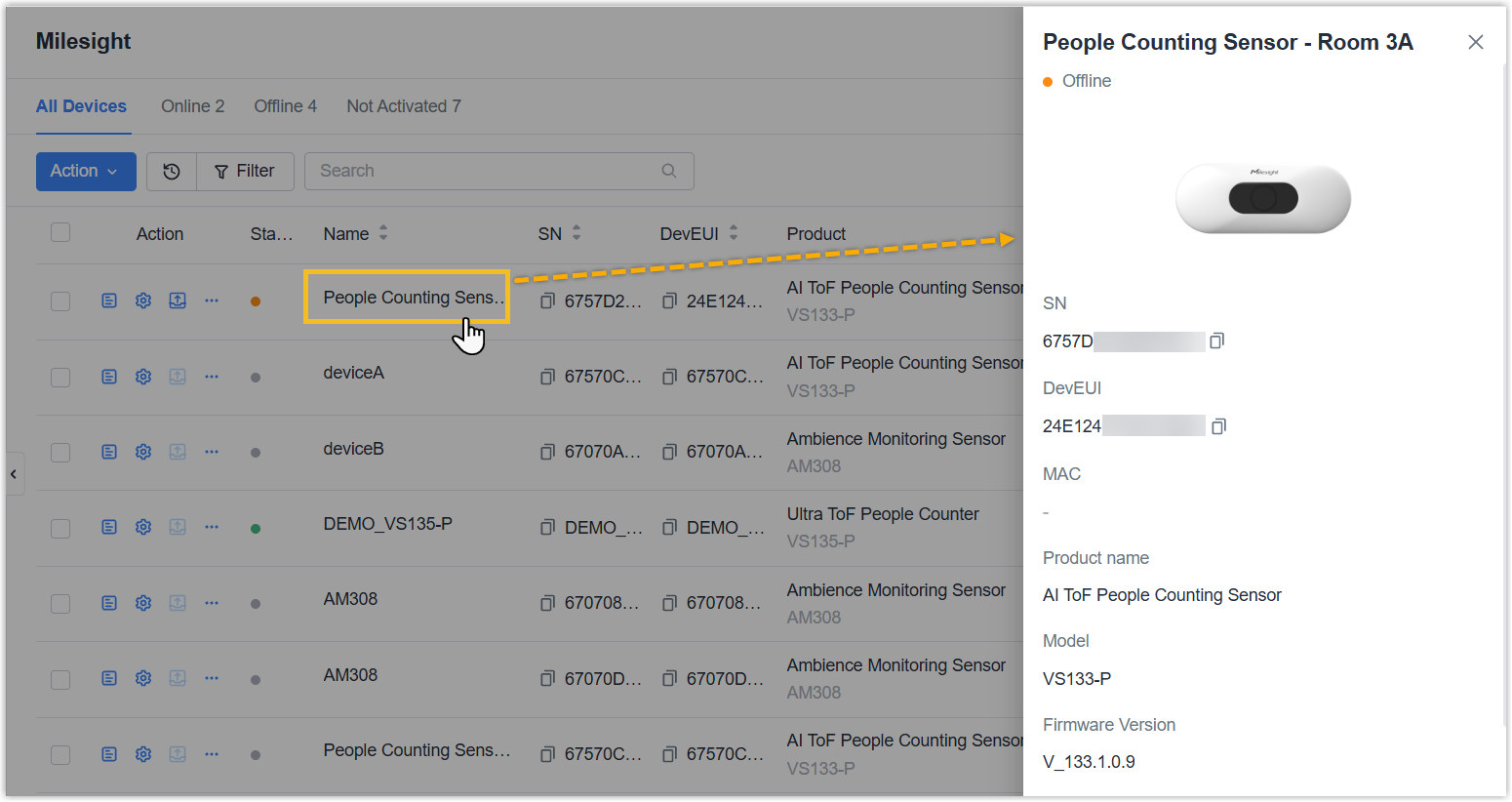
- To check the basic information, click the device
name.
- Click
 icon or double-click the desired device to view
its details, modify parameter, and invoke services.
icon or double-click the desired device to view
its details, modify parameter, and invoke services.- To view device details, go to the following tabs:
Tab Description Basic Info This tab contains all the basic information of this device. Properties This tab displays the status or information of a running device. For example, the temperature humidity data collected by a sensor, the snapshots captured by a sensing camera.Note:- Click the card to display to historical data and search the data by specifying a time range.
- Demo devices do not have properties by default, please use simulate report to generate the property records: Device Simulate and Debug.
Event This tab displays the information that a device reports to Milesight Development Platform. Service This tab displays the records of invoking device services.Note: If this tab is NOT displayed, it indicates that the device does not support service invocation.Config Task This tab displays the config task status of this device. OTA Task This tab displays the OTA task status of this device. Initial Configuration This tab displays the initial configuration information of this device. And it can also add, configure, and delete the configuration or check the log. For more, see RPS Overview. Log This tab displays the operation time, operator and details of this device including Add, Edit, Share, Remote Access, Delete, OTA task, etc.
Note: refer Device Data Storage to configure whether to store properties and logs of devices.- To invoke services on the device, go to the following tab:
Tab Description & Instruction Service Invocation Note: If this tab is NOT displayed, it indicates that the device does not support service invocation.- Description
- This tab displays services that can be invoked for this device.
- Instruction
- Click the desired service and follow the prompts in the pop-up window to invoke it.
- To view device details, go to the following tabs: