Edit or Delete Devices
This topic describes how to edit the basic information of devices added to Milesight Development Platform and how to delete the added devices.
Restrictions
Confirm with your enterprise administrator whether current account role permits access to this feature.
Edit a device's basic information
- Restrictions
-
- Device status is not Banned (pro plan of this account expires).
- Procedure
-
- Log in to Milesight Development Platform.
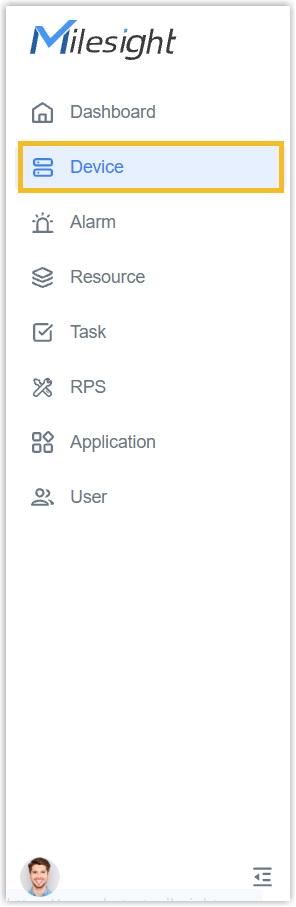
- On the left bar, select the Device
tab.
- Select the desired group or sub-node from the list on the left.
-
Double-click or tap the Details icon for the desired device to view its details.
-
In the Basic Info tab, edit the device.
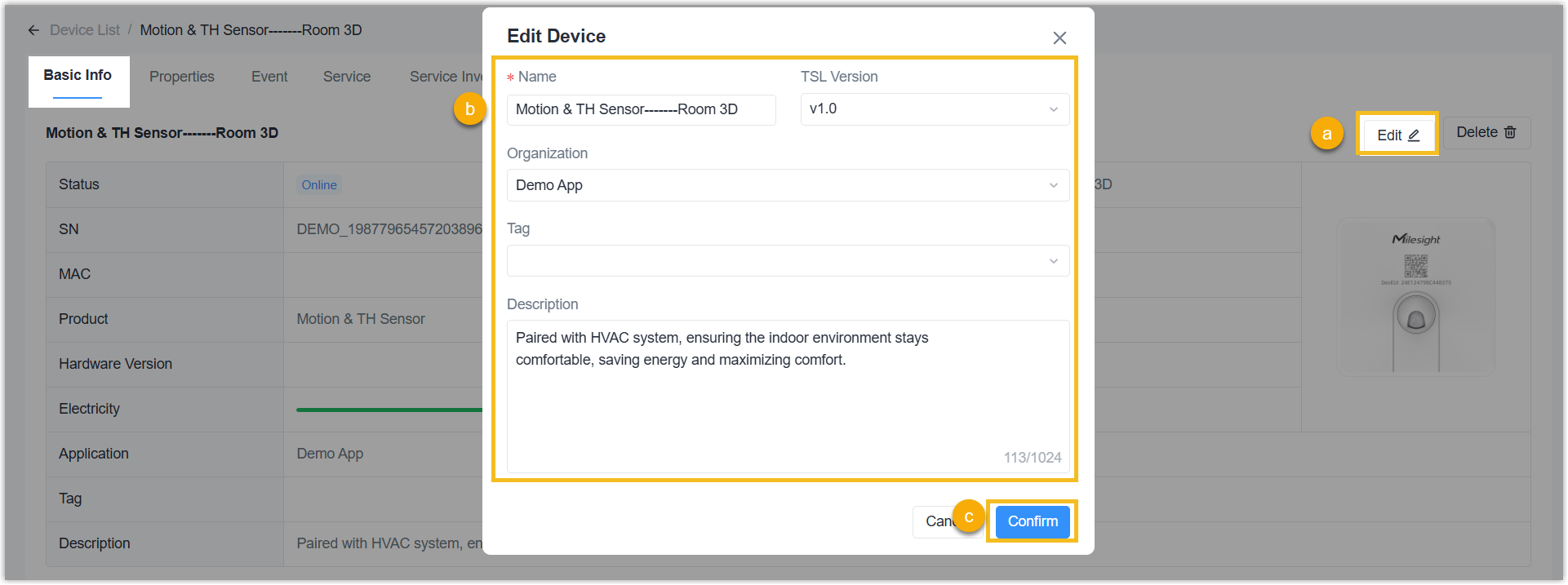
- Click Edit on the top-right corner.
- Edit the device's name, TSL version, group, tag, and description as needed. For LoRaWAN devices, edit the custom AppKey as needed.
- Click Confirm.
- Result
- The device's basic information is updated.
Delete devices
- Procedure
-
- Log in to Milesight Development Platform.
- On the left bar, select the Device
tab.
- Select the desired group or sub-node from the list on the left.
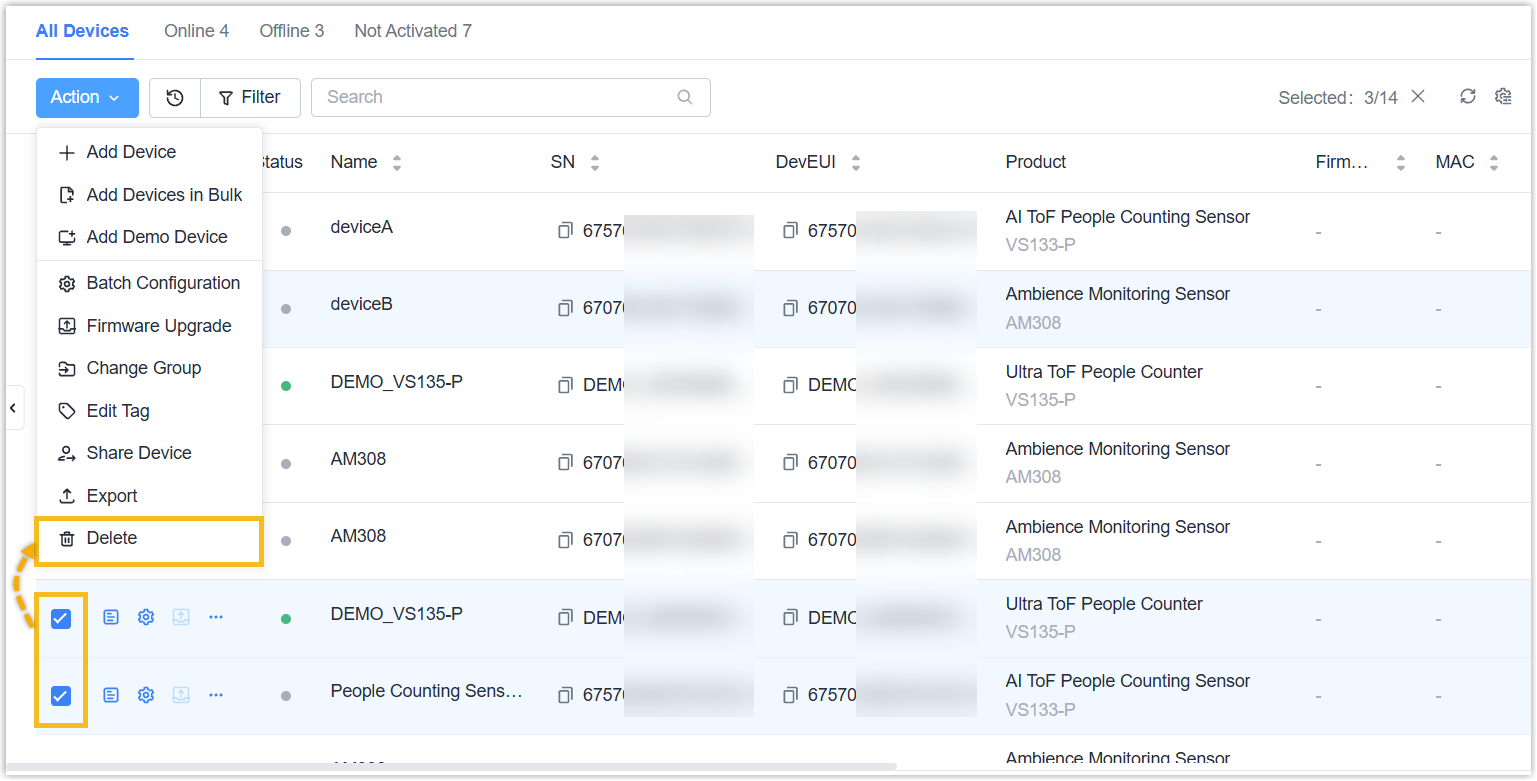
- Select the desired device(s) to
delete.
Delete Devices in Bulk: Select the devices (s), move to Action button and select Delete.
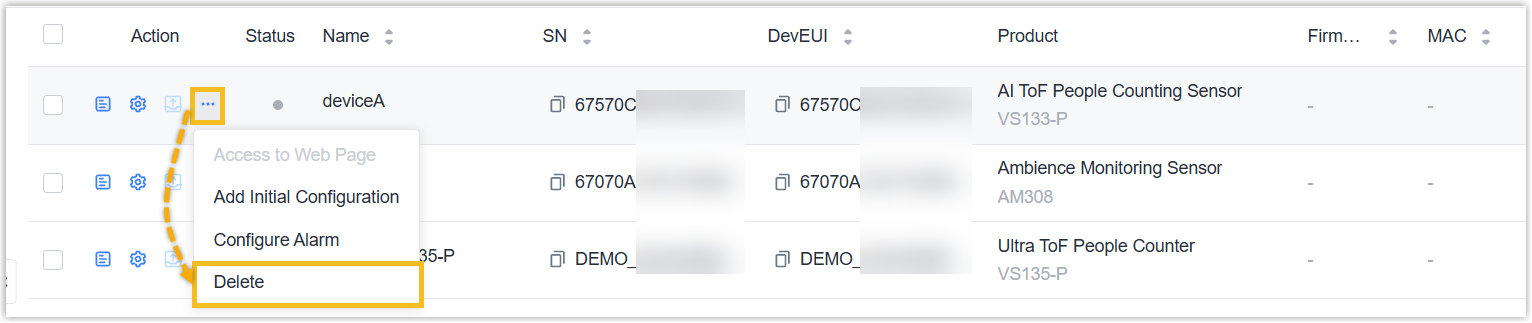
Delete a Device Individually: Click Delete of a device.
- In the pop-up window, click Delete.
- Result
- The devices are deleted from both Application and Device page of Milesight Development Platform, along with the associated data and the corresponding Device Initial Configurations. If you only need to delete the RPS records of the device, see Delete RPS Records.