General
This chapter describes the general access settings and time settings.
General
This section is used to change the gateway hostname.
- On the left bar, select System page.
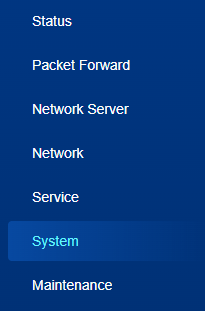
- On the top bar, select General tab.
- Change the hostname as required.

- Click Save & Apply to save the settings.
User
This section is used to change account info.
- On the left bar, select System page.
- On the top bar, select User tab.
- Change the username and password as required.
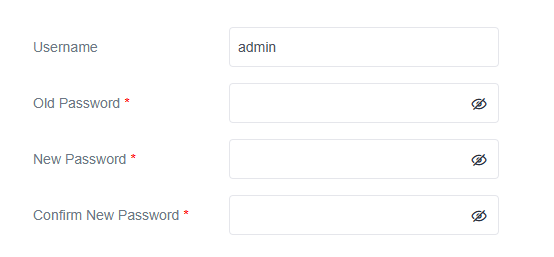
Parameter Description Username Enter a new username. Only letters, digits, "-" and "_" are allowed, and the first character must be a letter or "_". Length limitation: 3-31 characters. Old Password Enter the old password. New Password Enter a new password. Only ASCII characters are allowed except spaces. The password must contain at least one letter and one number, and be 8 to 31 characters long. Confirm New Password Enter the new password again. - Click Save & Apply to save the settings.
- Log in to the gateway with new account info.
Time
This page is used to configure the device system time.
- On the left bar, select System page.
- On the top bar, select Time tab.
- Configure the general parameters as required.
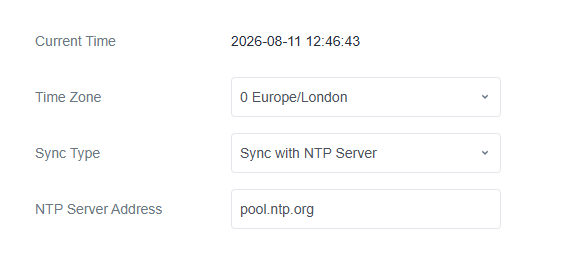
Parameter Description Current Time Displays the current device time. Timezone Select the time zone of the device. Sync Type Select the time sync source from Sync with Browser and Sync with NTP server. Sync with NTP Server NTP Server Address Set the NTP server address (domain name/IP) to synchronize the time. This requires the gateway to be able to access this server. Sync with Browser Browser Time Display the browser time. - Click Save & Apply to save the settings.
Access Service
This page is used to configure access parameters.
- On the left bar, select System page.
- On the top bar, select Access Service tab.
- Configure the parameters for web access.
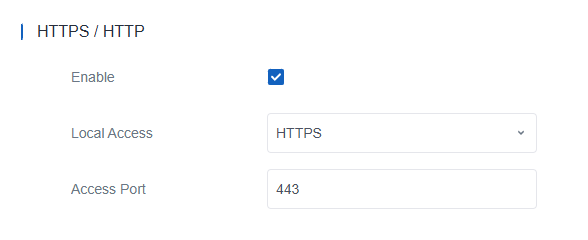
Parameter Description Enable Enable or disable the web access service. Local Access Select the local access protocol from HTTPS or HTTP. Access Port Select the port for local web access. - Click Save & Apply to save the settings.