WLAN
The gateway can work Wi-Fi as either access point or client. This chapter describes how to configure Wi-Fi settings.
Access Point Settings
The device can work as an Access Point for device web access.
Note: One gateway only supports 2 devices’ WLAN
connection to login this device at the same time.
- On the left bar, select Network page.
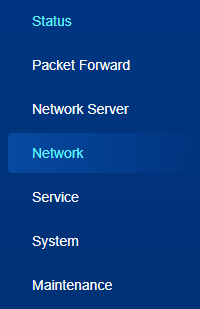
- On the top bar, select WLAN tab.
- Enable WLAN feature.
- Select the interface type as Access Point and configure the related
parameters.
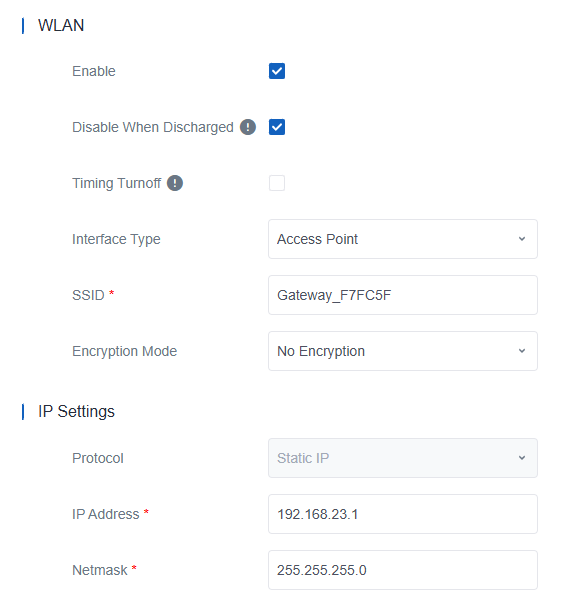
Parameter Description Disable When Discharged Enable or disable turning off the Wi-Fi when the battery is discharging to save power. Timing Turnoff Enable or disable turning off the Wi-Fi during a preset time range. SSID Define the Service Set Identifier (SSID) to identify this access point. The default value is Gateway_XXXXXX (XXXXXX=last 6 digits of WLAN MAC address). BSSID Display the MAC address of WLAN interface. Encryption Mode Select the encryption mode for connection. Options: No Encryption, WPA-PSK. Key Set the key to connect to this access point when encryption mode is WPA-PSK. Only ASCII characters without spaces are allowed. The length is 8 to 63 characters. IP Settings Protocol It's fixed as Static IP. IP Address Set the IP address of this WLAN interface. The default value is 192.168.23.1. Netmask Set the subnet mask of this WLAN interface. - Click Save & Apply to save the settings.
- Connect a smart phone or a computer to the access point. This requires the parameters the same as the access point.
Client Settings
The device can work as a Client to connect to another Access Point for Internet access.
Prerequisites: A 2.4 GHz WLAN access point and the gateway is within its
coverage area.
Note: If you access the device's web GUI via
Wi-Fi, you will no longer be able to access it through Wi-Fi after setting the
WLAN to client mode. Please connect your computer to the same WLAN access point as
the device and use the IP address assigned to the device by the AP.
- On the left bar, select Network page.
- On the top bar, select WLAN tab.
- Enable WLAN feature.
- Select the interface type as Client and configure the related
parameters.
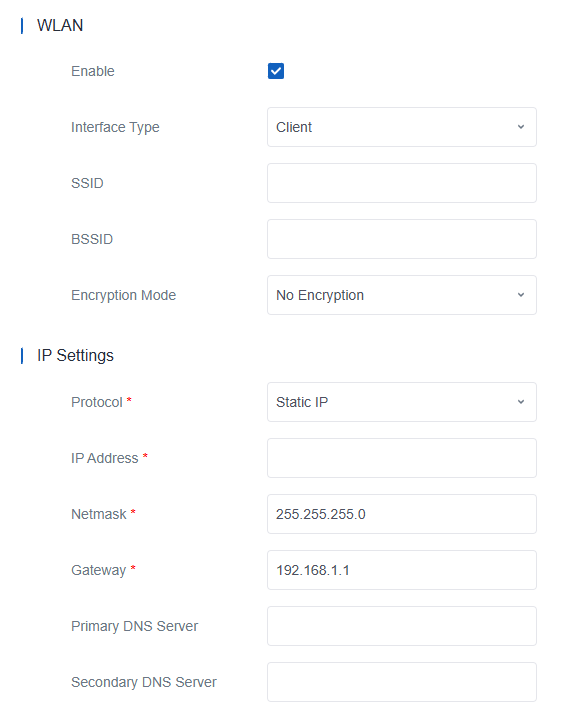
Parameter Description SSID Set the Service Set Identifier (SSID) of the WLAN access point. BSSID Set the MAC address of the WLAN access point. Typically, enter either the SSID or the BSSID. Encryption Mode Select the encryption mode for connection. Options: No Encryption, WPA-PSK, WPA2-PSK, WPA-PSK/WPA2-PSK. Key Set the key to connect to the WLAN access point when encryption mode is not No Encryption. IP Setting Protocol Select the mode to get the WLAN IP address. DHCP Client: Receive IP address from the access point.
Static IP: Assign the IP address manually.IP Address Set the WLAN interface IP address with the same subnet as the access point. Subnet Mask Set the subnet mask of the WLAN interface IP address. Gateway Set the IP address of the connected gateway. Primary DNS Server The primary DNS server address to send the ICMP packet. Secondary DNS Server The secondary DNS server address to send the ICMP packet if the device does not receive the replies from the primary server. - Click Save & Apply to save the settings.
- After connected, go to Status page to check if the status is Connected.