Configure Network Parameters
Configure TCP/IP Parameters
The device uses the Ethernet port for data transmission and multi-device stitching. This section describes how to configure TCP/IP parameters.
For the cellular version, data reporting depends on the current network. When both cellular network and Ethernet connections are available, the device prioritizes cellular networks for data reporting.
- In the main page, click Communication from the left navigation tree.
- In the TCP/IP area, the page is displayed.
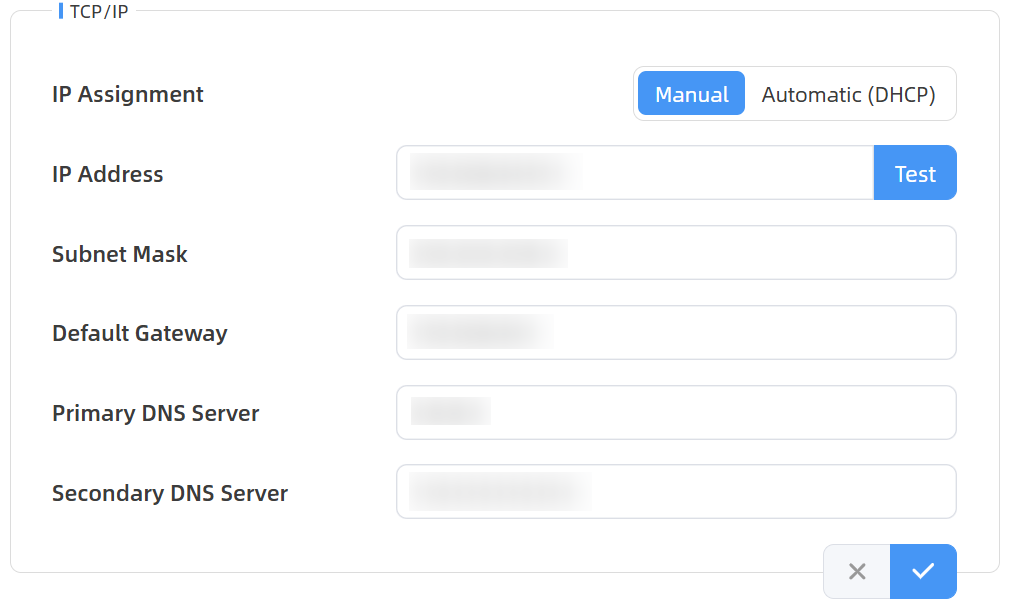
- Set the IPv4 address assignment method. Options: Manual or
Automatic (DHCP).
- If Automatic (DHCP) is selected, the device will obtain an IP
address and configuration parameters from the DHCP server
automatically.Note: The hostname displayed on the server will be updated to match the device name, with the change taking effect within 20 seconds or upon DHCP lease expiration.
- If Manual is selected, configure the following parameters
manually.
Parameters Description IP Address An address that used to identify the sensor on the network. Click Test button to test if the IP address is conflicting. Subnet Mask It is used to identify the subnet where the sensor is located. Default Gateway The default router address. Primary DNS Server Preferred DNS server used to resolve domain names into IP addresses. Secondary DNS Server Backup DNS server used when the Primary DNS Server is unavailable.
- If Automatic (DHCP) is selected, the device will obtain an IP
address and configuration parameters from the DHCP server
automatically.
- Click
 to save the configuration.
Configure WLAN Parameters
This section describes how to configure WLAN parameters.
- In the main page, click Communication from the left navigation tree.
- In the WLAN area, the page is displayed.
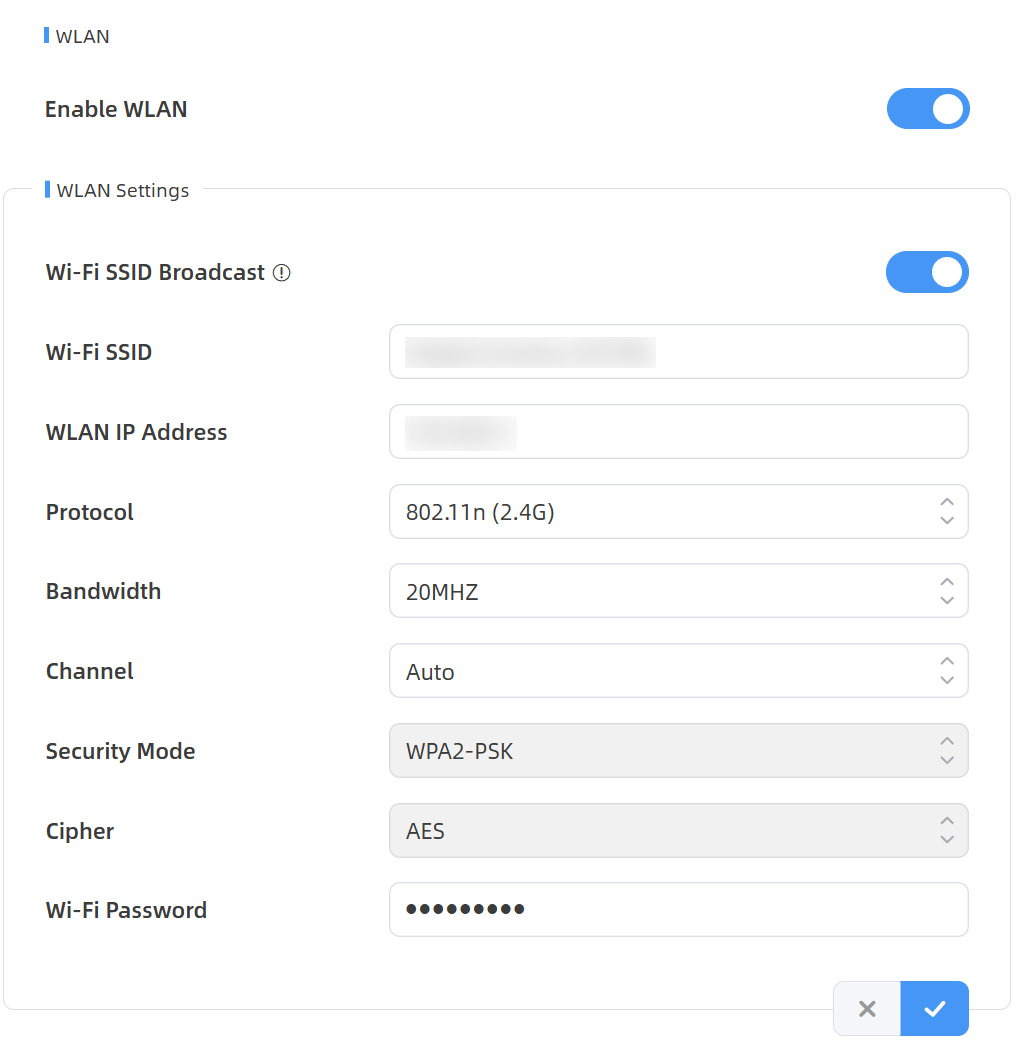
- Click
 to enable the Wi-Fi function, configure the
following parameters as needed.
to enable the Wi-Fi function, configure the
following parameters as needed.Parameters Description Wi-Fi SSID Broadcast When disabled, the WiFi SSID will not be automatically discovered, but can still be connected by manually entering the SSID. Wi-Fi SSID Unique Wi-Fi access point identifier for this device. Format: People Counter_xxxxxx. It can be found on the device label.WLAN IP Address WLAN IP address for web access. Default value: 192.168.1.1. Protocol Options: 802.11b (2.4G), 802.11g (2.4G) and 802.11n (2.4G). Bandwidth Options: 20MHz, 40MHz. Channel Wireless channel. Range: Auto, 1-11. Security Mode Fixed value: WPA2-PSK. Cipher Fixed value: AES. Wi-Fi Password Customize the password. It must include numbers, lowercase letters, uppercase letters and special characters. Range: 8-63 characters. - Click
 to save
the configuration.
to save
the configuration.
Configure OpenVPN Parameters
This section describes how to configure OpenVPN parameters.
- In the main page, click Communication from the left navigation tree.
- In the VPN area,
configure VPN parameters as needed. For parameter descriptions, refer to the
following table.
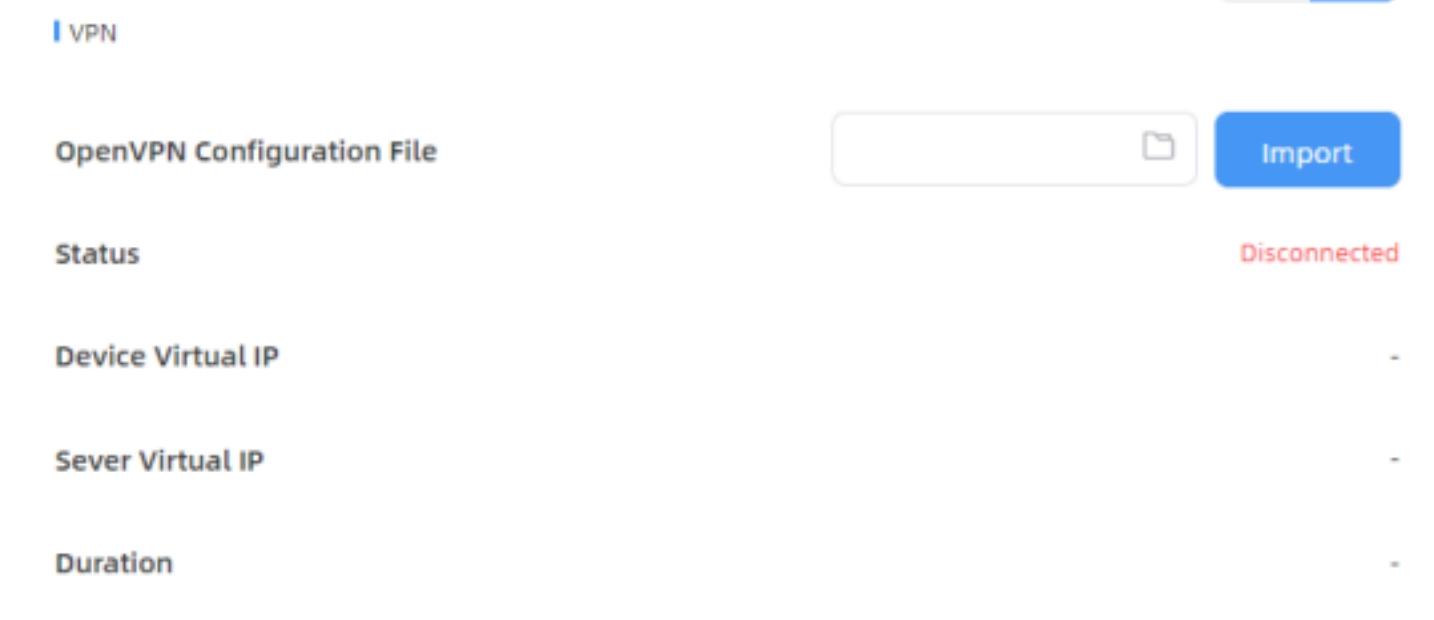
Parameters Description OpenVPN Configuration File Import the ".conf" or ".ovpn" format OpenVPN client configuration profile. Status Show the connection status of the device and the VPN server: Disconnected, Connecting or Connected. Device Virtual IP Show the virtual IP of device. Server Virtual IP Show the virtual IP of VPN Server. Duration Show the connection duration.
Configure Cellular Parameters (Cellular Version Only)
This section describes how to configure cellular parameters.
- In the main page, click Communication from the left navigation tree.
- In the Cellular Status area, click Detail to check the cellular status details.
- In the
Cellular Settings area, configure cellular parameters as
needed. For parameter descriptions, refer to the following
table.
Parameters Description APN Access point name for cellular dial-up connection provided by a local ISP. Maximum length: 31 characters. Username Username for cellular dial-up connection provided by a local ISP. Maximum length: 31 characters. Password Password for cellular dial-up connection provided by a local ISP. Maximum length: 31 characters. PIN Code PIN code to unlock the SIM. Length: 4-8 characters. PLMN Select Select the way to configure the PLMN. PLMN ID Manually fill in the PLMN ID. Authentication Type Options: None, PAP, CHAP, PAP and CHAP. Roaming Enables the Roaming function. DNS Configuration Mode Options: Auto and Manual. - If DNS Configuration Mode is set to Auto, the device automatically obtains the DNS assigned by the carrier.
- If DNS Configuration Mode is set to Manual, both Primary and Secondary DNS server addresses must be entered.
Restart When Dial-up Failed Enables automatic device restart when multiple dial-up failed. ICMP Server Configures the IP address of the ICMP detection server. ICMP Detection Max Retries Sets the maximum number of retries when ICMP detection failed. ICMP Detection Timeout Configure ICMP detection timeout duration. ICMP Detection Interval Configures the ICMP detection interval. - Click Refresh to manually refresh the above status. The
following parameters are displayed.
Parameters Description Modem Status Show the corresponding detection status of the module and SIM card. - No SIM Card
- SIM Card Error
- PN Error
- PIN Required
- PUK Required
- No Signal
- Ready
- Down SIM
Model Show the model name of the cellular module Version Show the version of the cellular module. Signal Level Show the current signal strength of the network. Register Status Show the connection status of the network, including “connect” and “disconnect”. IMEI Show the IMEI of the module. IMSI Show IMSI of the SIM card. ICCID Show ICCID of the SIM card. ISP Show the network provider which the SIM card registers on. It will display "-" when the SIM card is not inserted or not recognized.
Network Type Show the connected network type, such as LTE and 3G. It will display "-" when the device is not connected to network.
PLMN ID Show the current PLMNID, including MCC, MNC, LAC, and Cell ID. LAC Show the location code of the SIM card. It will display "-" when the SIM card is not inserted or not recognized.
Cell ID Show the Cell ID of the SIM card location. It will display "-" when the SIM card is not inserted or not recognized.
Network Status Show the information of the current network. If the SIM card is not inserted or not recognized, it will display 0.0.0.0.
IP Address Netmask Gateway DNS Connection Duration Show the cellular dial-up connection duration. - Click to
save the configuration.
Configure HTTPs Parameters (PoE Version Only)
HTTPs encrypts data transmitted between a web browser and a server. It ensures confidentiality, verifies server authenticity, and protects data integrity against tampering. This section describes how to configure HTTPs parameters to ensure secure communication.
- In the main page, click Communication from the left navigation tree.
- In the HTTPs area, enable HTTPS.
- Set HTTPS Port to configure the web GUI login port. It is 443 by default.
- Select Certificate Installation Method. Options: Create Self-Signed Certificate, Direct Installation Certificate.
- Perform the following
operations as needed.
If Do If Certificate Installation Method is set to Create Self-Signed Certificate - Click Update. The Update Certificate Information dialog box is displayed.
- Update certificate
information as needed and click . The
certificate is uploaded.
- (Optional) To check certificate properties, click Show Properties. The Certificate Properties information box is displayed.
If Certificate Installation Method is set to Direct Installation Certificate - Click File to upload the CA certificate file.
- (Optional) To check certificate properties, click Show Properties. The Certificate Properties information box is displayed.
- (Optional) Enter the certificate key password to parse the certificate.
- Click to save
the configuration.
Configure 802.1x Protocol Parameters (PoE Version Only)
The IEEE 802.1x is an authentication protocol to allow access to networks with the use of RADIUS server. This section describes how to configure 802.1x protocol parameters.
- In the main page, click Communication from the left navigation tree.
- In the 802.1x area, click
 to enable the 802.1x function.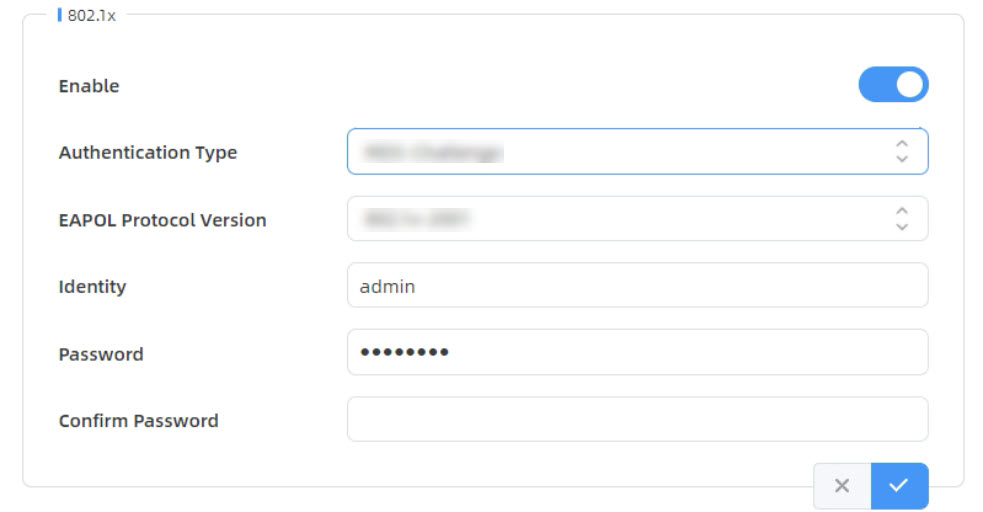
- Select
Authentication Type, configure the following parameters as
needed.
- If Authentication Type is set to
MD5-Challenge:
Parameters Description EAPOL Protocol Version Options: 802.1x-2001, 802.1x-2004. Identity Sets the identity for 802.1x authentication. Password Sets the password for 802.1x authentication. Confirm Password Enter the password again. - If Authentication Type is set to EAP-TLS:
Parameters Description EAPOL Protocol Version Options: 802.1x-2001, 802.1x-2004. Identity Sets the identity for 802.1x authentication. CA File Upload the CA file. Client Certificate File Upload the certificate file. Client Key File Upload the client keys. Key Password Sets the password for the client key.
- If Authentication Type is set to
MD5-Challenge:
- Click to save
the configuration.