Configure Sub Regions
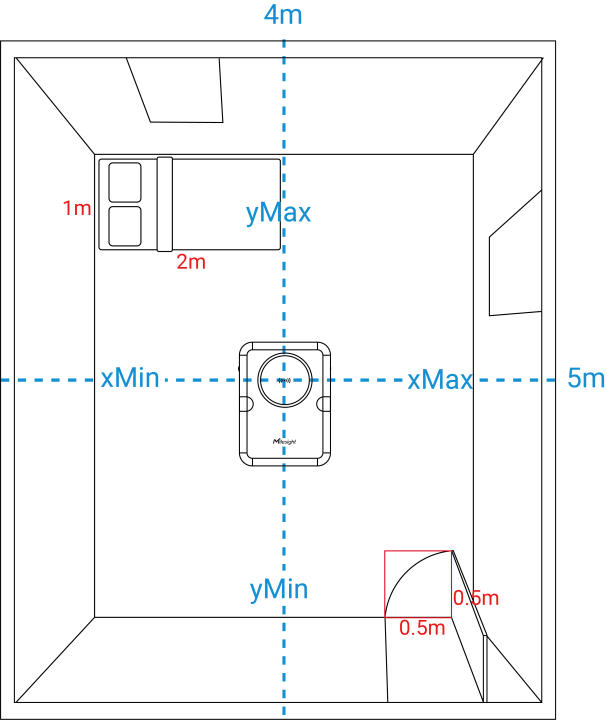
Draw Door Sub-Region
This sub-region enables the device to detect entries and exits of targets. All alarms related to this sub-region are governed by the general system settings.
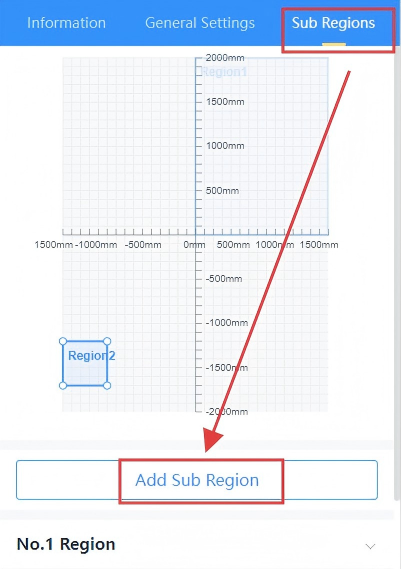
Step 2: Select the region type as Door, set the name, width, length, and location of the door according actual information, you can also adjust these parameters by dragging or zooming the region in the view above.
Step 3: Click Apply to save configuration.
Please wait 1~2 minutes; the device will automatically restart and apply the new settings.
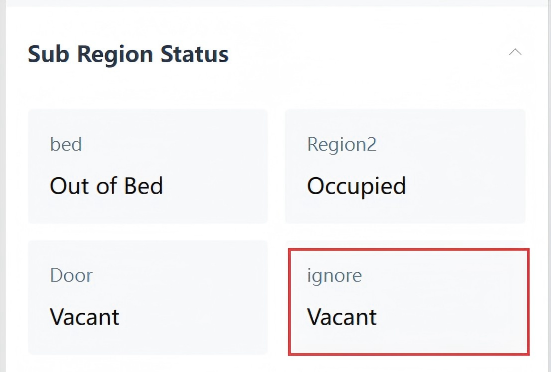
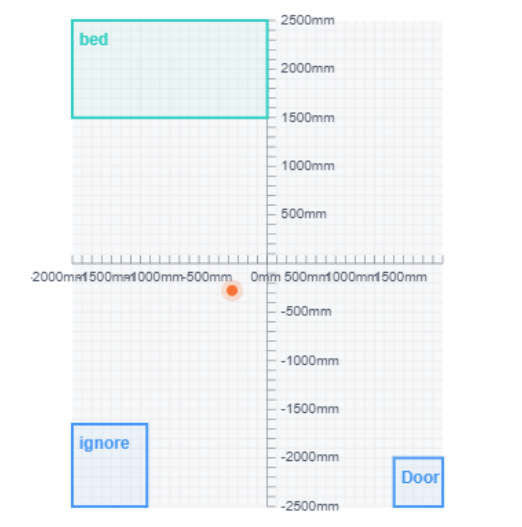
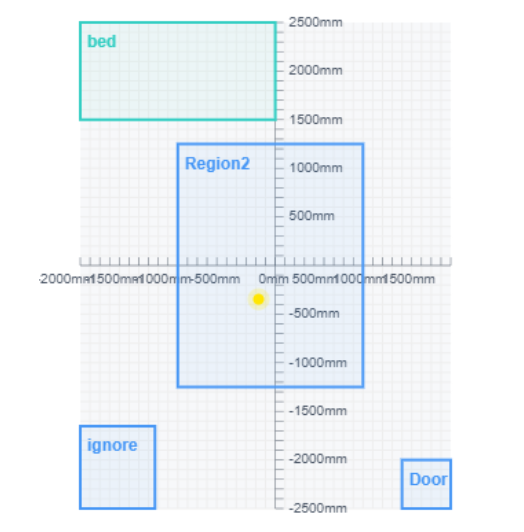
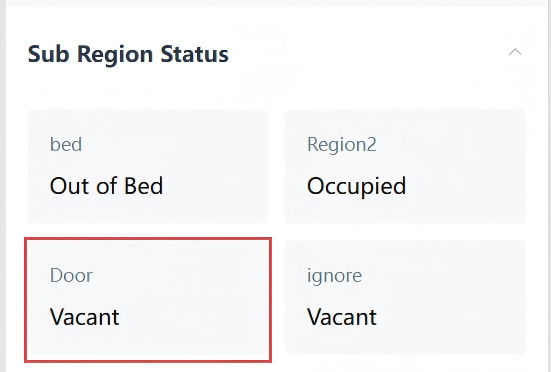
Step 4: Navigate to <Information>, you can see this subregion and the target's point displayed on the coordinate axis. Scroll down to view the status of this sub-region.
Draw Bed Sub-Region
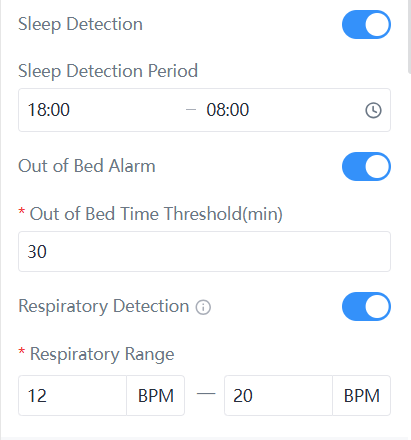
This sub-region defines a monitoring zone around a bed, used to detect when a target leaves the area and to collect health data such as respiratory rate. All alarms related to this sub-region are governed by the general system settings.
Step 2: Select the region type as Bed.
- Only the monitoring bed supports respiratory detection.
- The first added bed is automatically set as the monitoring bed. Any additional bed sub-regions are set as regular beds.
- A maximum of three beds can be configured, each at least 50 cm apart.
Then set the name, width, length, height, and location of beds according actual information, you can also adjust these parameters by dragging or zooming the region in the view above.
Step 3: Click Apply to save configuration.
Please wait 1~2 minutes; the device will automatically restart and apply the new settings.
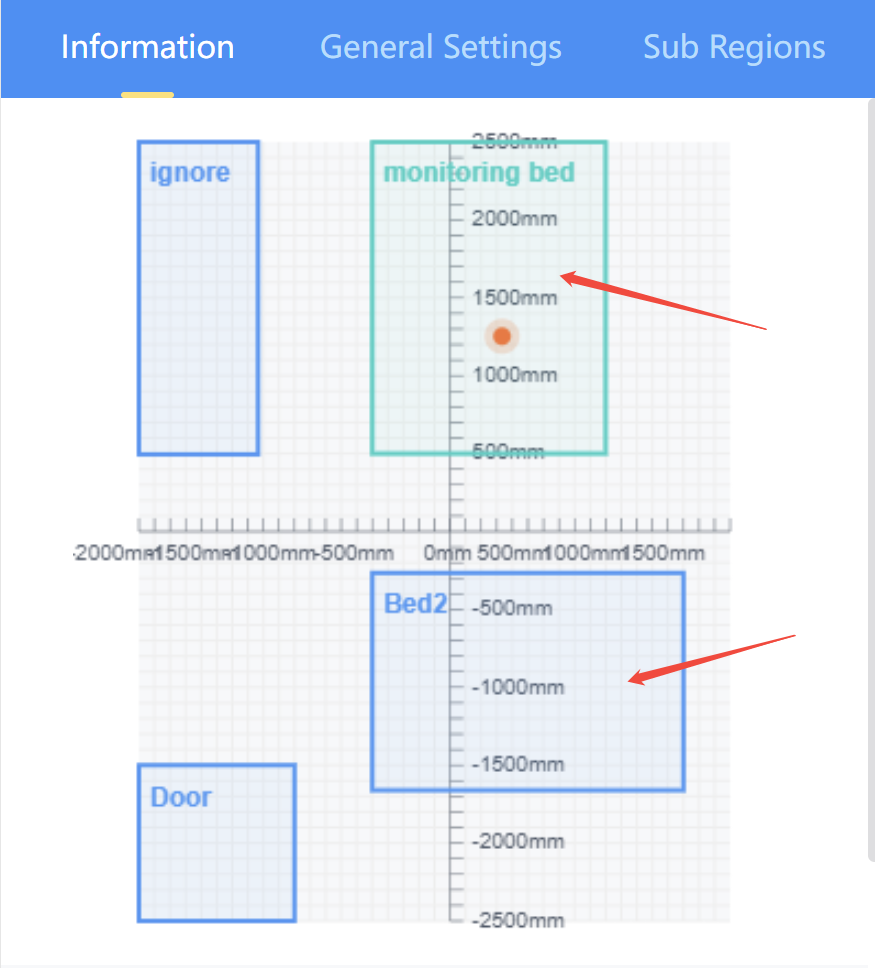
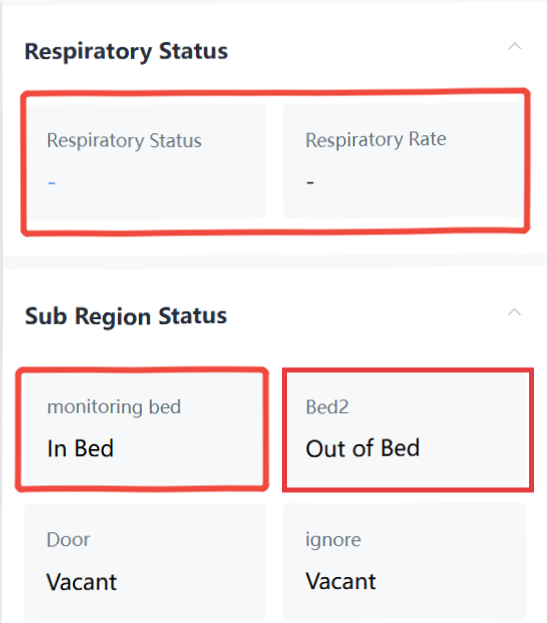
Step 5: Navigate to <Information>, you can see that the monitoring bed subregion is displayed in green, the regular bed subregion is displayed in blue.
| Parameters | Description |
|---|---|
| Respiratory Status | When no data is entered, when no monitoring bed is present, or when the monitoring bed has no target, display "-"; When a monitored bed is detected with the target present on the bed, Respiratory Status displays "Normal", "Bradycardia", "Tachypnea" or "Unable Detect", and Respiratory Rate is shown in bpm. |
| Sub Region Status | Display the name and status of the subregion. When the target is in bed, display "In Bed"; when the target is out of bed, display "Out of Bed". |
Draw Custom Sub-Region
This sub-region is user-defined, allowing focused monitoring of specific areas (e.g., a sofa). Detection can be independently enabled or disabled, with customizable parameters to suit application needs.
Step 2: Select the region type as Custom, set the name, width, length, height, and location of sub-region according actual information, you can also adjust these parameters by dragging or zooming the region in the view above.
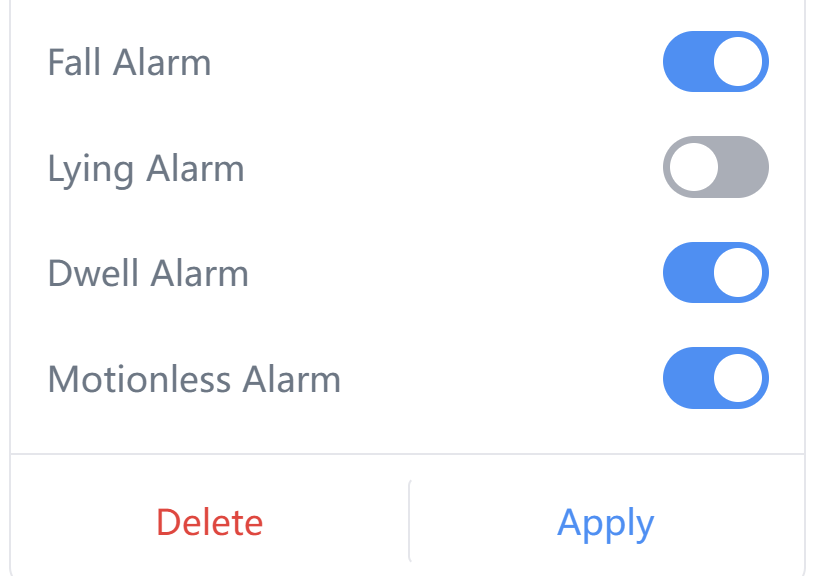
Step 4:Click Apply to save configuration.
Please wait 1~2 minutes; the device will automatically restart and apply the new settings.
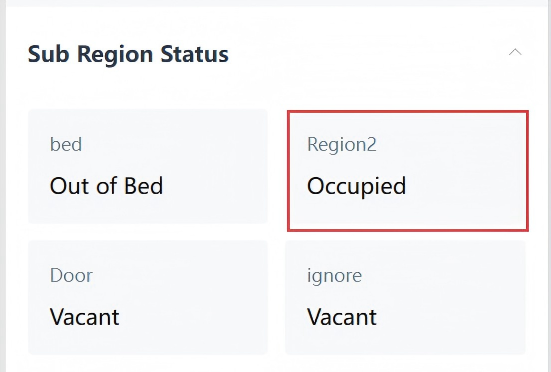
Step 5: Navigate to <Information>, you can see this subregion and the target's point displayed on the coordinate axis. Scroll down to view the status of this sub-region.
Draw Ignore Sub-Region
This sub-region maintains detection capability while suppressing all alarm triggers within its boundaries. It is useful for areas with interfering objects (e.g., ceiling fans, moving decorations) to reduce false alarms.
Step 2: Select the region type as Ignore, set the name, width, length, height, and location of sub-region according actual information, you can also adjust these parameters by dragging or zooming the region in the view above.
Step 3: Click Apply to save configuration.
Please wait 1~2 minutes; the device will automatically restart and apply the new settings.
Step 4: Navigate to <Information>, you can see this subregion and the target's point displayed on the coordinate axis. Scroll down to view the status of this sub-region.