ANPR
This part is to enable the license plate recognition function and set related detection configuration for Milesight cameras which supports LPR function.
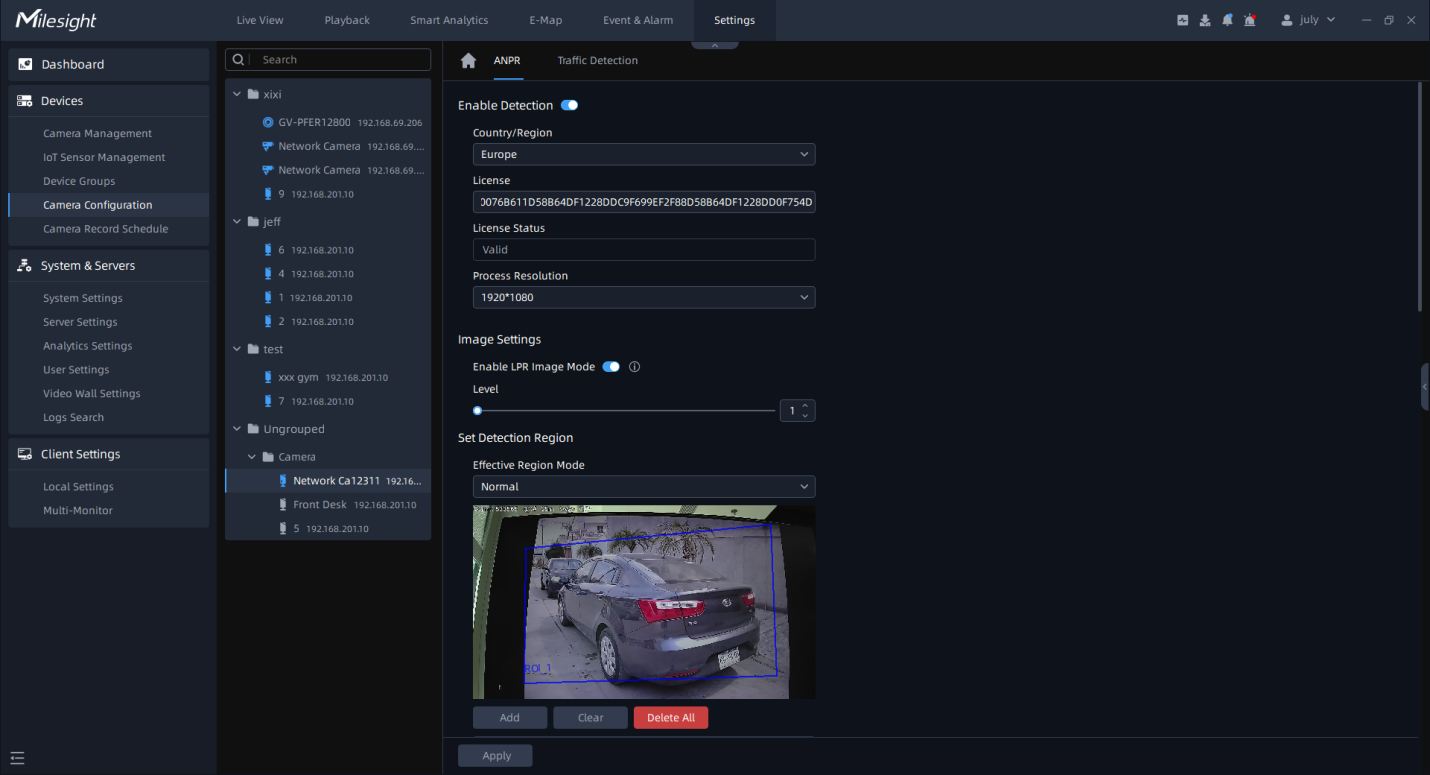
Step1: Click plates; button to enable Detection, the camera can start
detecting the license
button to enable Detection, the camera can start
detecting the license
|
Parameters |
Function Introduction |
|---|---|
|
|
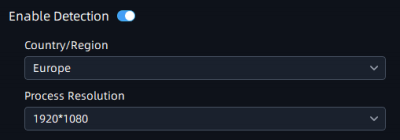
Click the button to enable detection function. |
|
License (Only for LPR2 and LPR3) |
Generated by camera’s information. |
|
License Status (Only for LPR2 and LPR3) |
Show present license status, including Valid and Invalid. |
|
Country/Region |
Select Country/Region to detect the license plate. |
|
Process Resolution |
Resolution of the stream for LPR Analytics, including 1920*1280, 1280*720. |
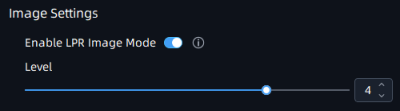
Step2: The LPR Image Mode supports the optimal LPR night recognition effect by adjusting different parameter levels. Level 1~5 are available.
To enable LPR Image Mode, parameters of Backlight, Exposure and Day/Night Switch will be set to special values. Minimum Shutter of each Level: 1- 1/250, 2- 1/500, 3 - 1/750, 4 - 1/1000, 5- 1/2000.
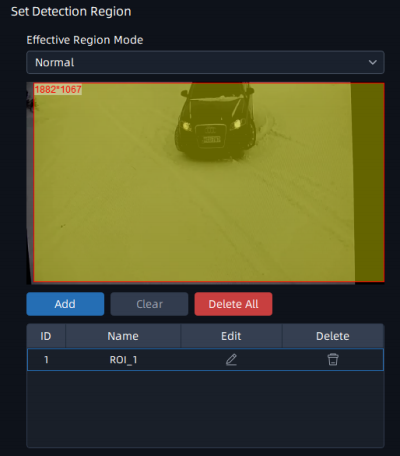
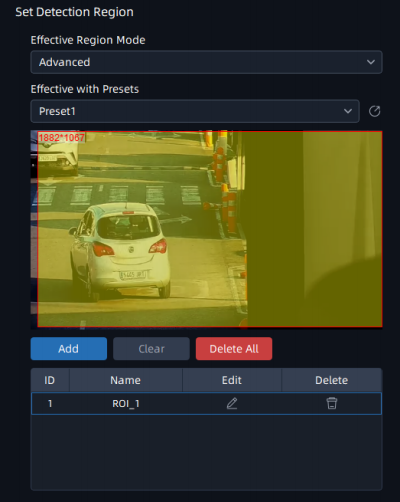
Step3: Set Detection Region. You can draw the screen to select interested areas;
Advanced Mode (For PTZ camera):
|
Parameters |
Function Introduction |
|---|---|
|
Effective Region Settings |
Normal: Configure the LPR detection regions for the current area. Advanced: Configure different LPR detection regions for different PTZ presets(Only support Preset 1~4 so far). |
|
Add |
Draw the screen to select the interested areas, then click “Add”button to add the area, and only four recognition areas can be added. You can edit the name of the areas or delete the areas in the list below. 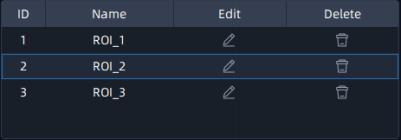 Note: Minimum width of detection
area is 150 pixels, and Minimum height of detection area is 40 pixels. |
|
Clear |
Click the "Clear" button to clear the area being drawn. |
|
Delete All |
Click the "Delete All" button to delete all the added areas. |
 button;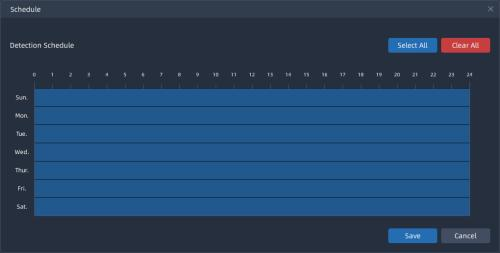
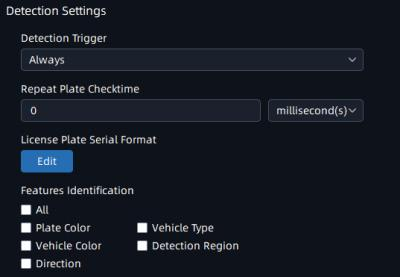
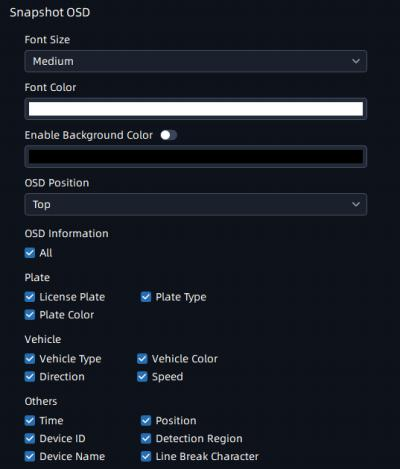
Step5: Set Detection Settings, Snapshot OSD and LPR Message Post Settings, then click “Apply” button.
|
Parameters |
Function Introduction |
|---|---|
|
Detection Trigger |
Always: in this mode, camera will always detect license plates. Alarm Input: in this mode, camera will only detect license plates during Alarm Input is being triggered. |
|
Confidence Level |
You can set the confidence level from 1 to 10. When the confidence level of the license plate is higher than the set confidence level, it will push the license plate image to the Smart Search interface. |
|
Repeat Plate Checktime |
Set the time interval for repeatedly reading license plates to effectively avoid duplicate identification of parking vehicles. You can set Repeat Plate Checktime from 0 to 60min or 0 to 60000ms. |
|
License Plate Serial Format |
Click 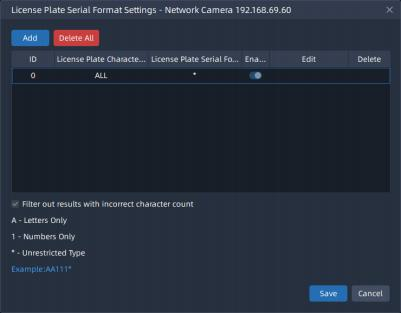 |
|
Features Identification |
Check All, Plate Color, Vehicle Type, Vehicle Color, Detection Region, Direction, or Region(Only for LPR2) to enable Feature Identification, and it will display the corresponding information on the ANPR Search interface. |
|
Font Size |
Small/Medium/Large are available. |
|
Font Color |
Set different colors for the image OSD. |
|
Enable Background Color |
Enable to set different colors for display information background on screen. |
|
OSD Position |
OSD display position on the image . |
|
OSD Information |
Customize the OSD content. You can set OSD Information as shown below: 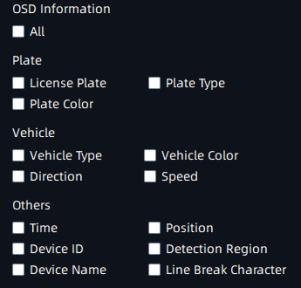 |
|
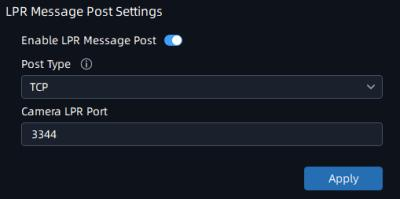
Enable LPR Message Post |
Check the checkbox to enable LPR Message Post. It will push information to some third-party devices or software that are compatible with our sales. |
|
Post Type |
Information can be pushed by RTSP, TCP or HTTP. TCP: Default Post Type, recommended for current VMS. HTTP: To push License Plate information to the configured HTTP server. RTSP: Only works with those server which support to receive ONVIF alarm stream via RTSP. |
|
HTTP Method |
There are two HTTP push methods: Post and Get. |
|
Snapshot Type |
Three kinds of snapshot can be chosen: All, License Plate and Full Snapshot. When you choose All, License Plate Snapshot and Full Snapshot will be pushed. Note: This option is available just for Post HTTP Method.
|
|
HTTP Notification URL |
The VMS system can use the API URL to send LPR information to other devices when the license plate is recognized. The API URL format is as below: http://IP:Port/api/lpr? |
|
User Name |
User name for HTTP Server. |
|
Password |
Password for HTTP Server. |
|
Camera LPR Port |
This option is available for TCP Post type. |
 button to customize the license plate
serial format. It supports formulating identification rules and can
automatically do further processing, filter license plates in
non-compliant formats to achieve more intelligent and accurate
license plate recognition.
button to customize the license plate
serial format. It supports formulating identification rules and can
automatically do further processing, filter license plates in
non-compliant formats to achieve more intelligent and accurate
license plate recognition.