Behavior-Fall Detection
The VMS supports the integration of Fall Detection between AI Box and VMS Enterprise. Users only need to add the AI Box and video streams to the VMS system, then the Fall Detection can be enabled on the VMS side.
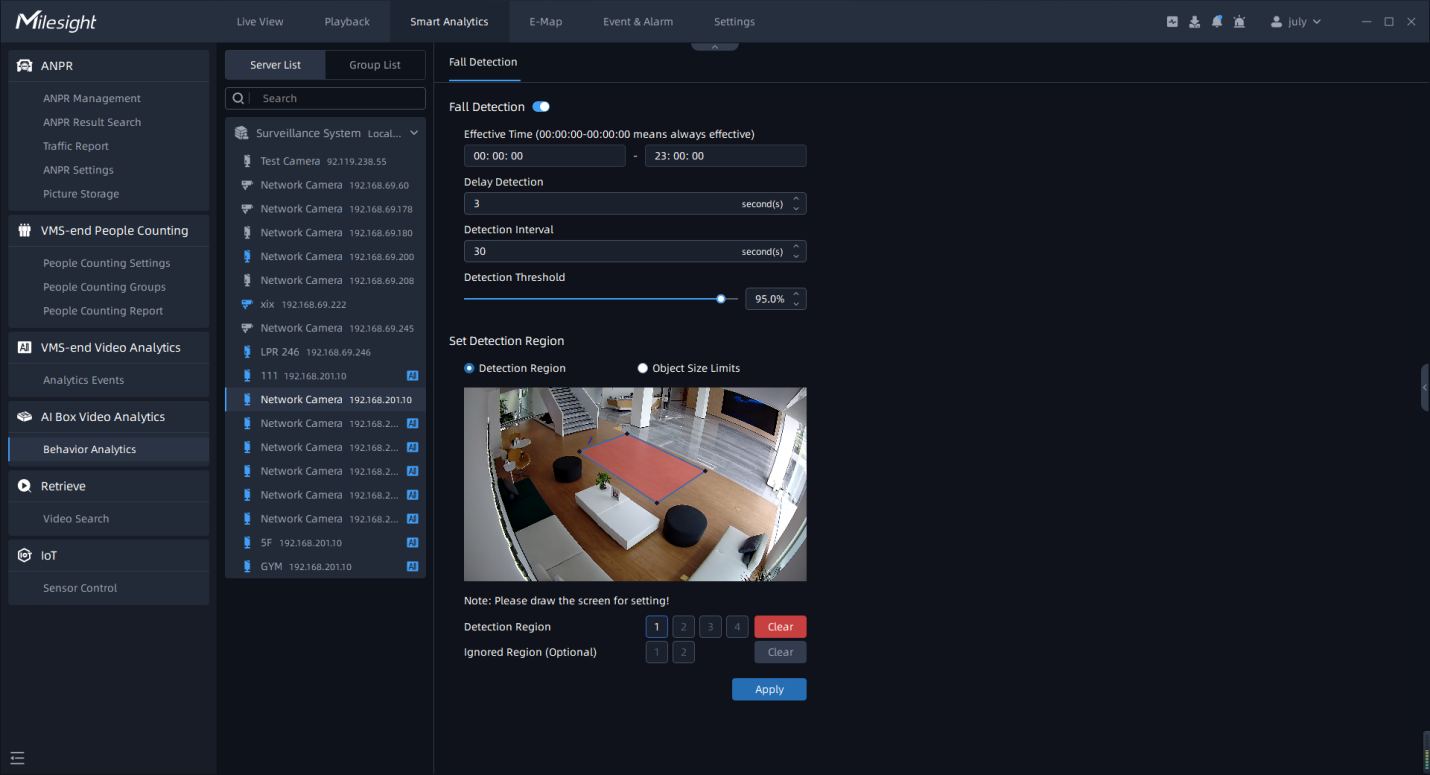
Fall Detection
Step1: Select the camera and enable Fall Detection function;
Step2: Set Effective Time;
Step3: Set Delay Detection. If you set the time, when the moving duration of an object is within the setting time, the alarm will not be triggered;
Step4: Set Detection Interval. If you set the time, the alarm will not be triggered again the time interval ;
Step5: Set Detection Threshold. Depending on the needs of different usage scenarios, you can customize the threshold that triggers fall detection;
Step6: Draw the Detection Region, it supports drawing of 4 detection areas.
-
Minimum Size: Draw the screen or input pixel number to set the minimum size of the detected object. When the object is smaller than this size, it will not be detected. The default minimum size is 1%.
-
Maximum Size: Draw the screen or input pixel number to set the maximum size of the detected object. When the object is larger than this size, it will not be detected. The default maximum size is 50%.
 to save the settings.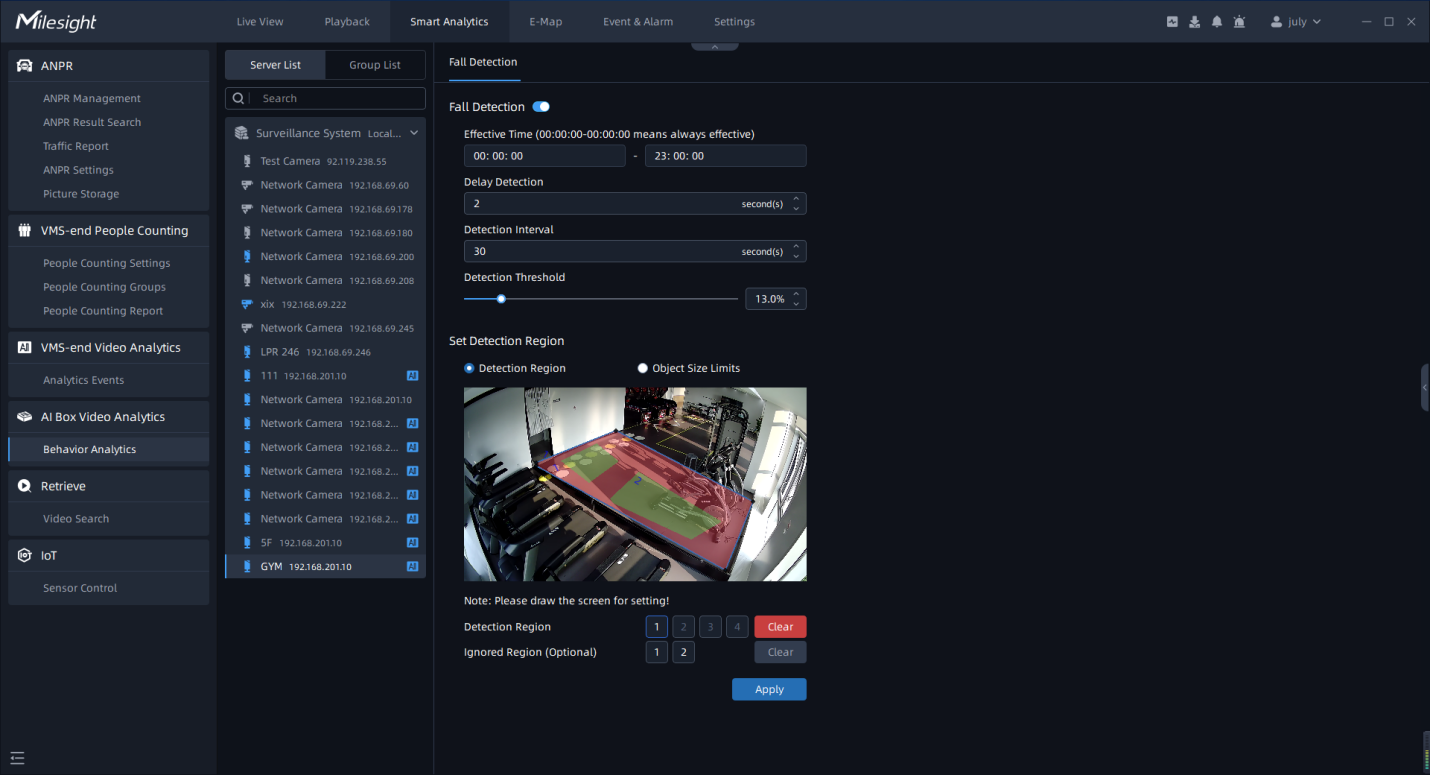
-
One AI Box can analyze up to 8 channels of fall detection simultaneously.
-
An AI Box cannot be used simultaneously with different VMS.
-
The recommended resolution for network cameras is 1080P, since the total resolution of all channels exceeds 1080P*8 may cause decoding issues with the AI Box.
-
The system automatically assigns which AI Box is used to analyze each channel, eliminating the need for users to select.
When the AI Box's computing capability is insufficient to analyze the channels on VMS Enterprise, the interface will display a prompt message: "Compute capability full, please check AI Box's compute capability".