Device Library
The device supports converting the terminal device data to objects for quick and easy integration. This chapter describes to how update the inbuilt device repository or custom device repository.
Update Inbuilt Device Repository
The device has built-in the repository of Milesight LoRaWAN® end devices.
- On the left bar, select Data Service > Data Library page.
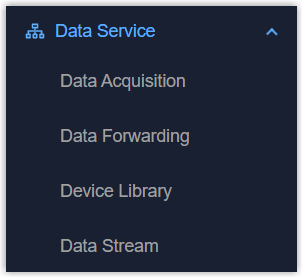
- On the top bar, select Inbuilt Device Repository tab.
- Update the device repository by the following
methods:
Update Online: Click Obtain to update the device repository. This requires the device to access the Internet.
Update Locally: Click Upload to select the repository file from the local path. The latest repository file of Milesight products can be download here.Note: Only supports importing versions later than the current version.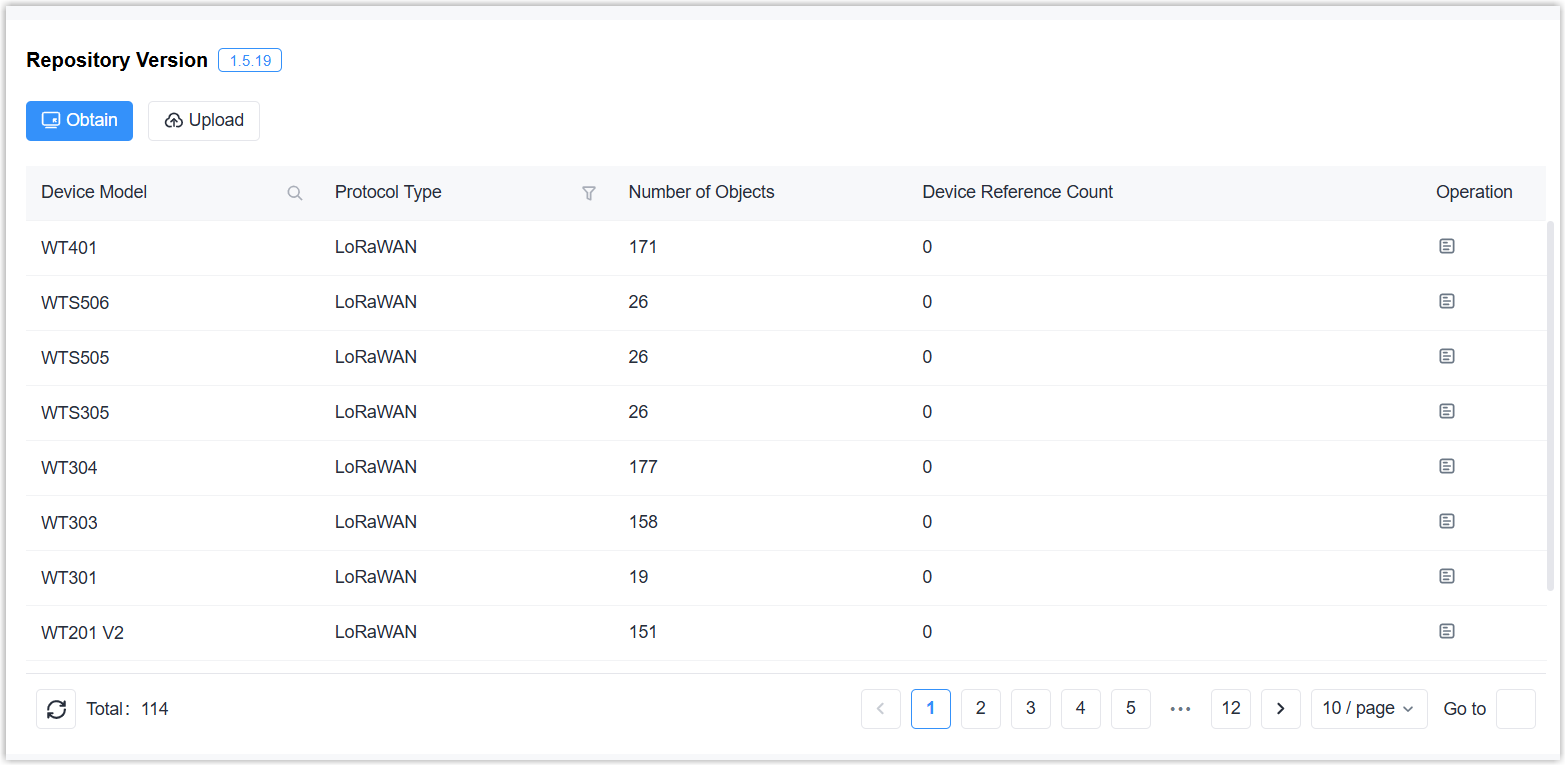
Custom Device Repository
The device can add custom device repository for third-party devices or adding customized content.
Prerequisites: Obtain the device's communication protocol or encoders/decoders from the device vendor.
- On the left bar, select Data Service > Data Library page.
- On the top bar, select Custom Device Repository tab.
- Click +Add to add a device repository and configure the basic parameters.

Parameter Description Device Model Set the device model name. Template Select a template from inbuilt device repository. This is suitable for adjusting custom content to Milesight LoRaWAN® device models. For third-party devices or other protocol types, select None. Protocol Type Select the protocol type of the device model. Description For noting this device model. Protocol type is LoRaWAN® DevEUI Prefix (9 chars) Set the first 9 characters of the device EUI. Device-Profile Select the device profile of this model. - Add a payload decoder and encoder for LoRaWAN®-type devices. For other
protocol types, skip this step.
- Add decoder to decode Hex format raw data to JSON format results; or add encoder
to encoder JSON format command to Hex format raw commands. The supported language is
JavaScript ES2020.Note: If a variable appears in both the decoder and encoder, the variable names used must be identical.
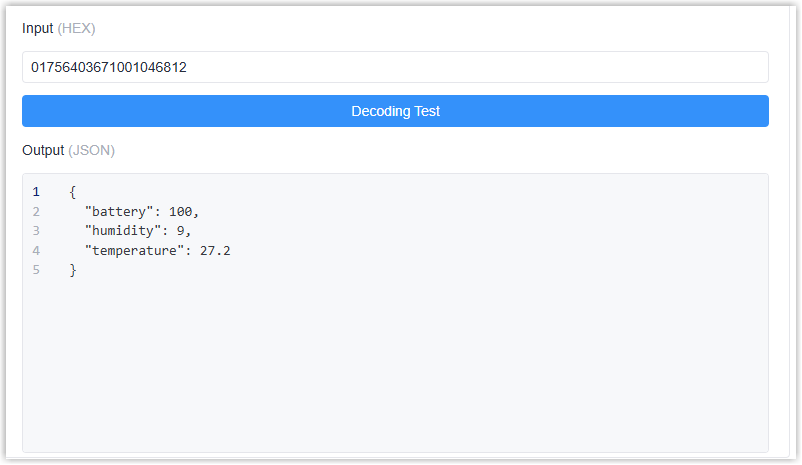
- Enter a HEX raw data, click Decoding Test to check if the decoder works
well.
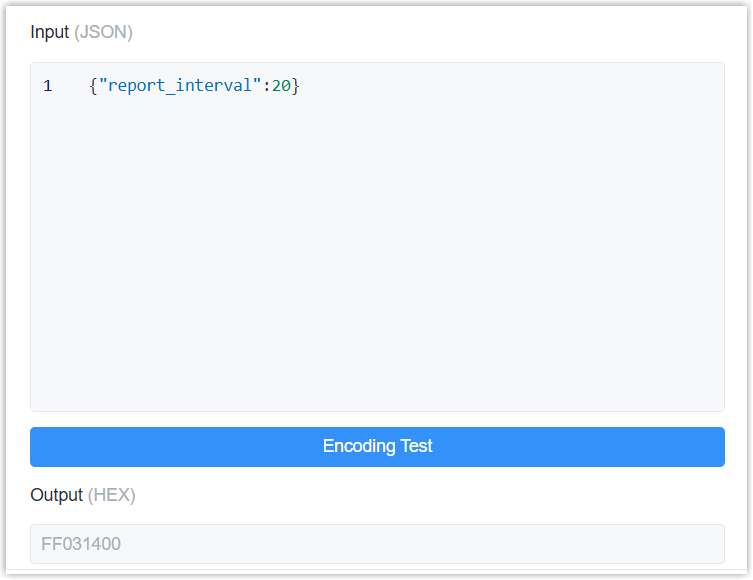
- Enter a JSON format content, click Encoding Test to check if the encoder
works well.
- Add decoder to decode Hex format raw data to JSON format results; or add encoder
to encoder JSON format command to Hex format raw commands. The supported language is
JavaScript ES2020.
- Click +Manually Add to add objects.
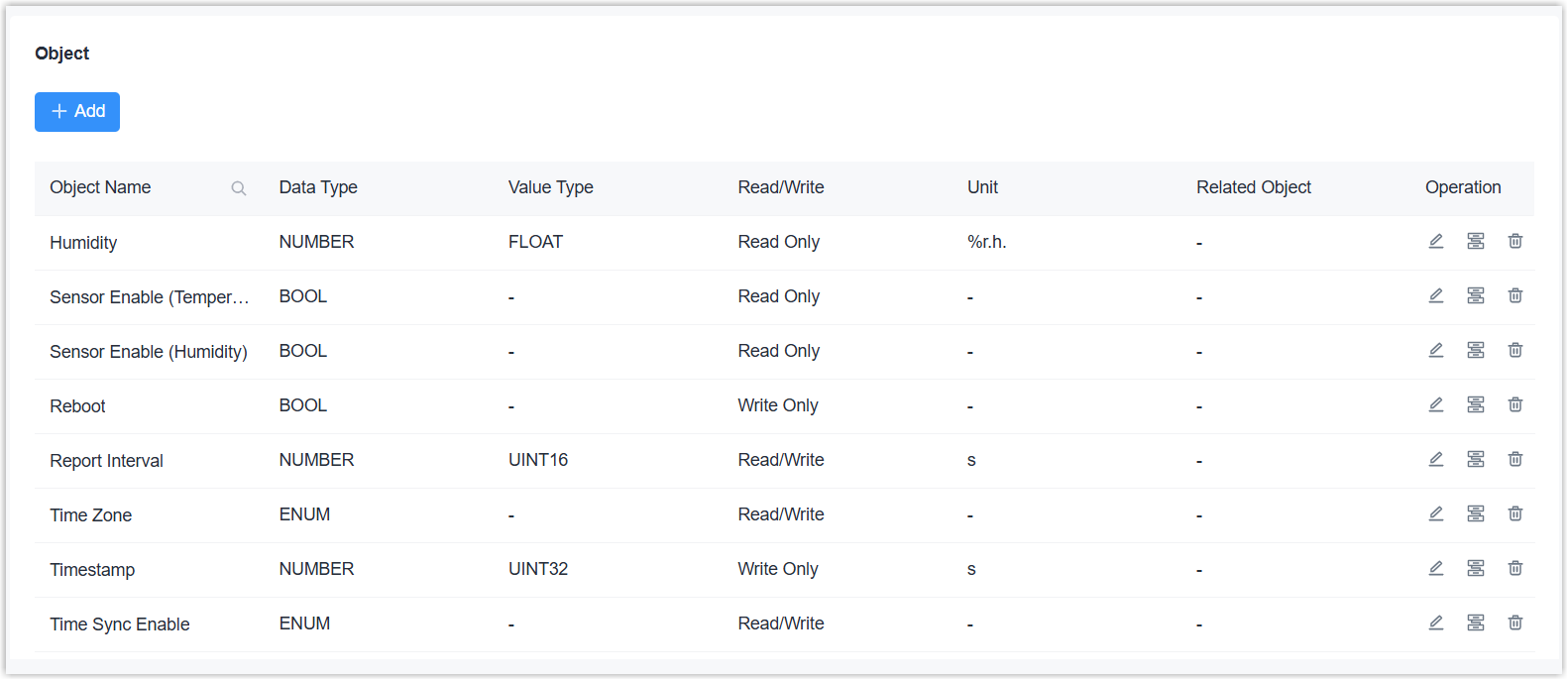
If the protocol type is LoRaWAN, two additional methods are available:
Import Codec File: Click Import to upload a codec file to import all objects. The codec file can be exported or edited as described here.
Parse Add: Click Parse Add to go to the Parse Object page to parse the decoder to add objects.- Enter the HEX data and click Decoding Test to check output result.
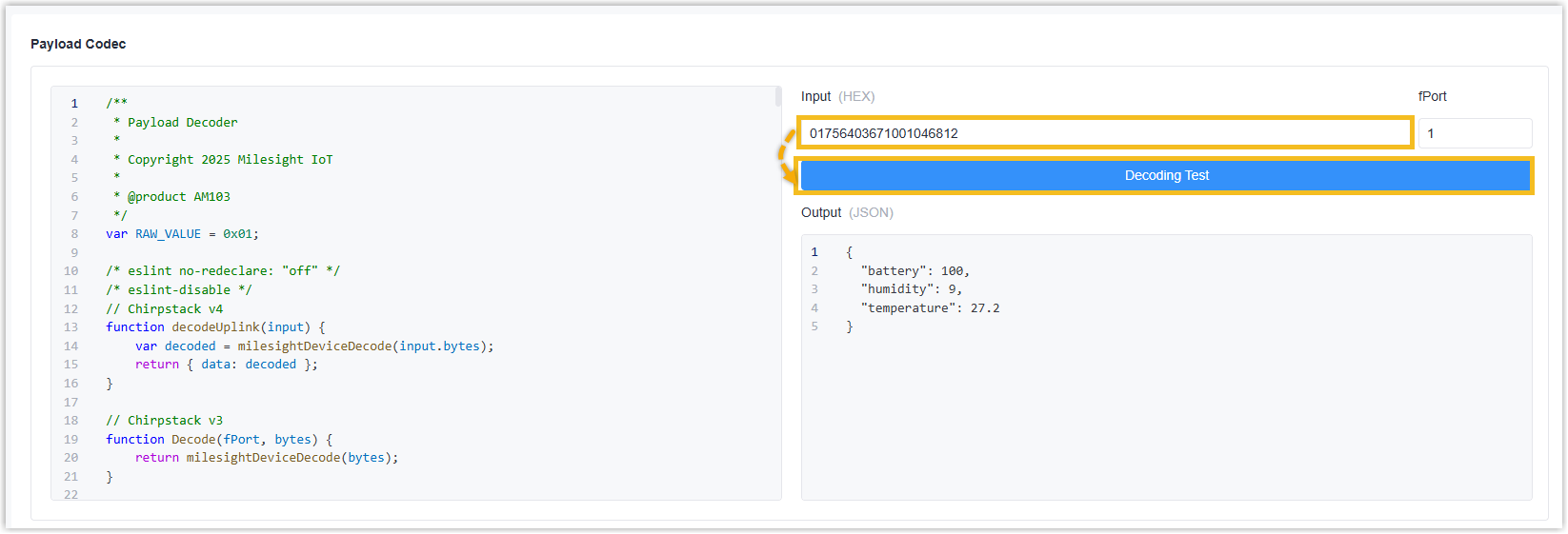
- The output result will be parsed into objects. Click
 to edit the
object parameters, then check the desired objects to add to this custom device
repository.
to edit the
object parameters, then check the desired objects to add to this custom device
repository.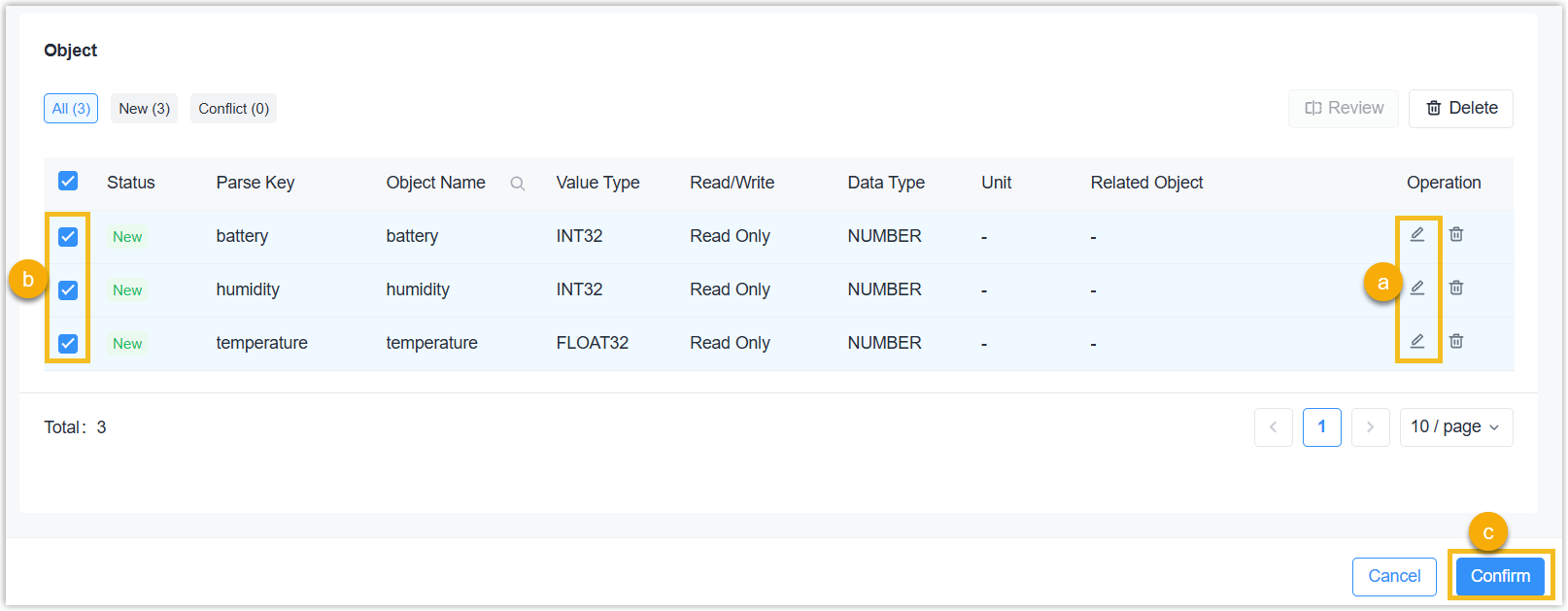
- Enter the HEX data and click Decoding Test to check output result.
- Configure the object information according to the protocol type.
- LoRaWAN
-
Parameter Description Parse Key Define a unique key for this object. Object Name Define a unique name for this object. Object Description For noting this object. Data Type Select the data type of this object and configure the related parameters. BOOL: Set the values for the 0 or 1 state.
ENUM: Set the enumeration count and each enumeration value.
NUMBER: Select the data value type.
TEXT: Set the maximum length of the string.Read/Write Select the access mode of this object. BACnet Forward BACnet Forward Enable or disable to convert this object to BACnet object. Object Type Select BACnet object type. After selecting the Data Type and Read/Write options, the device matches the object type and parts of BACnet parameters automatically. Polarity Select the binary input/output/value status as Normal or Reverse. Active Text Add the text to indicate the active status for Binary Input/Output/Value types. It is the same as Value 1. Inactive Text Add the text to indicate the active status for Binary Input/Output/Value types. It is the same as Value 0. Number of States Set the number of status when object type is MultiState type. It is the same as Enumeration Number. State Text: Add the text to indicate every status. It is the same as Enumeration Value.
Relinquish Default Set the default output value for Analog Output, Binary Output, or MultiState Output types. Modbus Forward Modbus Forward Enable or disable to convert this object to Modbus object. Register Type Select the Modbus register type according to the Data Type and Read/Write options. Discrete Input: Select for BOOL type and Read-Only access
Coil: Select for BOOL type
Input Register: Select for ENUM, NUMBER or TEXT type and Read-Only
Holding Register: Select for ENUM, NUMBER or TEXT typeData Format Select the data type when register type is Input Register or Holding Register. Register Quantity Displays the quantity based on the data format.
- BACnet/IP or BACnet MS/TP
-
Parameter Description Object Name Define a unique name for this object. Object Description For noting this object. Data Type Select the object type. Object Instance Nr Set a unique object instance number.
- Modbus TCP/RTU or Modbus RTU over TCP
-
Parameter Description Object Name Define a unique name for this object. Register Type Select the Modbus register type. Discrete Input: Reads on/off values
Coil: Reads/Writes on/off values
Input Register: Reads measurements and statuses
Holding Register: Reads/Writes configuration valuesData Format Select the data type when register type is Input Register or Holding Register. Register Quantity Displays the quantity based on the data format. Register Address Set the start address for reading/writing this object's value in the register. Unit Select the unit of this value when register type is Input Register or Holding Register. Object Description For noting this object. BACnet Forward BACnet Forward Enable or disable to convert this object to BACnet object. Object Type Select BACnet object type. After selecting the Register Type, the device matches the object type automatically. Polarity Select the binary input/output/value status as Normal or Reverse. Active Text Add the text to indicate the active status for Binary Input/Output/Value types. Inactive Text Add the text to indicate the inactive status for Binary Input/Output/Value types. Number of States Set the number of status when object type is MultiState type. State Text Add the text to indicate every status when object type is MultiState type. Relinquish Default Set the default output value for Analog Output, Binary Output, or MultiState Output types.
- KNX/TP
-
Parameter Description Object Name Define a unique name for this object. Object Description For noting this object. Datapoint Type Select the KNX Data Point Type (DPT) to define the value. If the type is Custom, you need to define the data length. Unit Displays the data unit after selecting the datapoint type. Access Mode Select the access mode for this object. BACnet Forward BACnet Forward Enable or disable to convert this object to BACnet object. Object Type Select BACnet object type. After selecting the Datapoint Type, the device matches the object type automatically. Polarity Select the binary input/output/value status as Normal or Reverse. Active Text Add the text to indicate the active status for Binary Input/Output/Value types. Inactive Text Add the text to indicate the inactive status for Binary Input/Output/Value types. Number of States Set the number of status when object type is MultiState type. State Text Add the text to indicate every status when object type is MultiState type. Relinquish Default Set the default output value for Analog Output, Binary Output, or MultiState Output types. Modbus Forward Modbus Forward Enable or disable to convert this object to Modbus object. Register Type Select the Modbus register type. After selecting the Datapoint Type, the device matches the register type automatically. Data Format Select the data type when register type is Input Register or Holding Register. Register Quantity Displays the quantity based on the data format.
- Click to adjust the object parameters in the object list as
required.
- Click Save to save this object.
- If an object must be written at the same time as other objects, click
 in the object list to add related objects.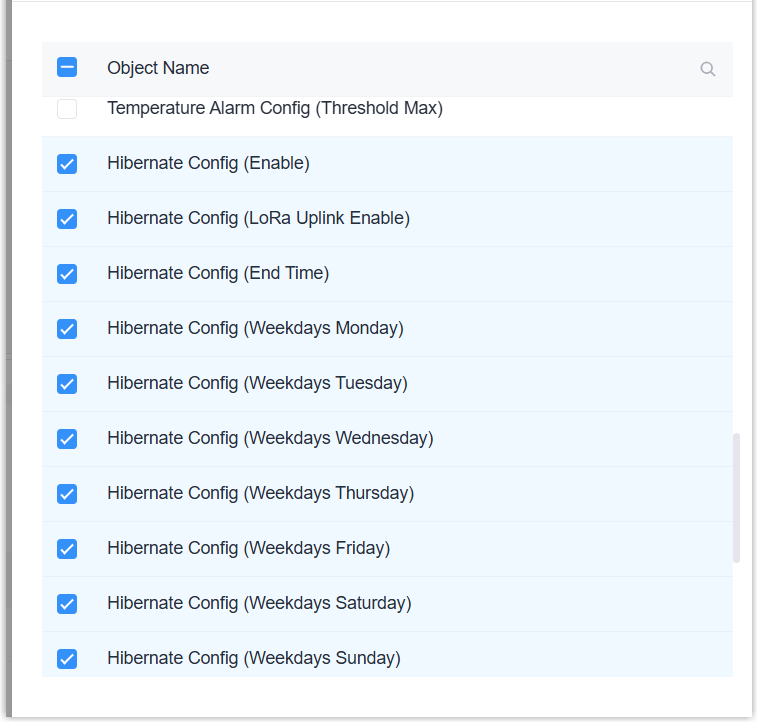
- Click Apply to save this custom device model.
- On the left bar, select Data Service > Data Library page.
- On the top bar, select Custom Device Repository tab.
- If there is already at least one custom device repository, select all and click
Batch Export to export the .ZIP file.Tip: It is recommended to add one or more devices manually, then export the files to check the format.
- Modify the exported files to add the new device models.
- Click Import to select the device repository .ZIP file from local path. After
importing, the device will pop up the import result.Note: When importing the files, the device will overwrite the repository instead of appending to it.
