Data Forwarding
This chapter describes how to forward data to external servers (clients).
Add Data Forwarding Rules
The gateway supports connecting to HTTP/MQTT servers or working as BACnet/Modbus servers to forward the data or receive the downlink control commands.
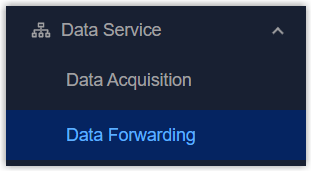
- On the left bar, select Data Service > Data
Forwarding page.
- Click +Add and select the protocol from HTTP, MQTT, Modbus and
BACnet.

- Configure the related parameters according to the protocol.
- HTTP
-
Parameter Description Enable Enable or disable to forward data to a HTTP(s) server. Name Define a unique name for this data forwarding rule. Description For noting this data forwarding rule. Metadata After enabled, the gateway will add selected items to forwarding content for Uplink Data. HTTP Header Click Add to add an HTTP header name and value. URL Set the URL starting with http://orhttps://to send different types of data. For more details, refer to MQTT&HTTP Application Guide.Data Up: Normal data uplinks.
ACK Notification: ACK notification after sending confirmed downlink commands to LoRaWAN® devices.
Error Notification: Device error notification.
Online Notification: Device online notification.
Offline Notification: Device offline notification.
- MQTT
-
Parameter Description Enable Enable or disable to set up the communication with a MQTT broker. General Name Define a unique name for this data forwarding rule. Description For noting this data forwarding rule. Broker Address The IP address or domain name of the MQTT broker. Broker Port The service port of the MQTT broker. Client ID The unique identifier of the gateway. Connection Timeout If the gateway does not get a response after the connection timeout, the connection will be considered as broken. Keep Alive Interval The interval to send heartbeat packets regularly to keep alive. User Credentials Enable or disable to authenticate with username and password. Username: The username for authentication.
Password: The password for authentication.TLS Enable or disable TLS authentication. SSL Security: After enabled, the gateway will verify the certificate’s validity.
Mode: Select the certificate mode as CA Signed Server Certificate to use preloaded certificates, or Self Signed Certificates to import the custom CA certificates(.crt or .pem), client Certificates(.crt) and client key(.key) for verification.Data Retransmission When enabled, it supports storing up to 10,000 pieces of data when the network is disconnected and re-transmits the data after network recovery. Data Data Format Select the report format for uplink object data. Combined: Report all object data in a single message.
Per Object: Report each object's data separately.Metadata After enabled, the gateway will add selected items to forwarding content for Uplink Data. Topic Data Type The data type to communicate with MQTT broker. For more details, refer to MQTT&HTTP Application Guide. Uplink Data: Receive device uplink packets. If you need to limit the received content, add wildcards "$gatewaySN", "$deviceName", "devEUI", "deveui", "objectID", "objectName" to this topic and replace them with the actual values when subscribing to this topic.
Downlink Data: Send downlink commands to devices. If you require to send downlink command to specific device or object, add wildcards “gatewaySN”, “$devEUI”, "devui", "$deviceID" or "$objectID" to this topic and replace them with the actual values when subscribing to this topic.
Multicast Downlink Data: Send downlink commands to LoRaWAN® multicast group.
Online Notification: Receive device online notification.
Offline Notification: Receive device offline notification.
ACK Notification: Receive ACK notification after sending confirmed downlink commands to LoRaWAN® devices.
Error Notification: Receive device error notification.
Management Request: Send a blank packet to enquire the device and object info added to this data forwarding rule.
Management Response: Receive the device and object info (include count, name, and ID) added to this data forwarding rule after sending request to Management Request topic.Topic Topic name of the data type used for publishing. QoS QoS0, QoS1 or QoS2 is optional. Retain Enable or disable to set the latest message of this topic as retain message. Will Will Enable or disable sending will message. The last will message will be sent automatically when the MQTT client is abnormally disconnected. It is typically used to send device status information or notify other devices or proxy servers of the device’s offline status.
Will Topic The topic to receive last will messages. Will QoS QoS0, QoS1 and QoS2 are optional. Will Retain Enable or disable to set last will message as retain message. Will Message Customize the content of the last will message.
- Modbus
-
Parameter Description Enable Enable or disable to this Modbus server (slave). Name Define a unique name for this data forwarding rule. Port The communication port of this server. Connection Type Select the connection type with the remote Modbus client (master). Modbus TCP: The Modbus client sends Modbus TCP-format commands to this Modbus server.
Modbus RTU over TCP: The Modbus client sends Modbus-RTU format commands to this Modbus server.Network Interface Select the network interface for this server to communicate with Modbus clients (masters). After saving the settings, the IP address of this interface will display. Server ID Define a unique ID to identify this server. Description For noting this data forwarding rule. Global Object Once enabled, the selected global objects will be automatically added to the forwarding object when adding device objects.
- BACnet
-
Parameter Description Enable Enable or disable this BACnet/IP server. Name Define a unique name for this data forwarding rule. UDP Port The communication port of this server. Network Interface Select the network interface for this server to communicate with BACnet clients. Device Instance Nr Define a unique ID to identify this server within the BACnet network. Device Name Define a unique name to identify this server in the BACnet network. Description For noting this data forwarding rule. Global Object Once enabled, the selected global objects will be automatically added to the forwarding object when adding device objects. BBMD BBMD Enable BBMD (BACnet/IP Broadcast Management Device) if BACnet devices of different network subnets should work together. BBMD Type Select the BBMD type. BBMD: Work as the device to broadcast messages to different network subnets.
Foreign Device Registration: Register to a BBMD to receive broadcast messages.Broadcast Distribution Table Click Add to add BBMD or foreign device information (including IP address, port, and subnet mask) to forward messages. At most 10 devices can be added. IP Address When BBMD type is Foreign Device Registration, set the IP address of BBMD. IP Port When BBMD type is Foreign Device Registration, set the UDP/IP port of BBMD. Registration Interval When BBMD type is Foreign Device Registration, set the registration interval.
- Click Apply to save the settings.
- (MQTT Only) In the data forwarding list, click
 to go to
edit page of MQTT data forwarding rule, click Connect to set up the
connection with MQTT broker.
to go to
edit page of MQTT data forwarding rule, click Connect to set up the
connection with MQTT broker.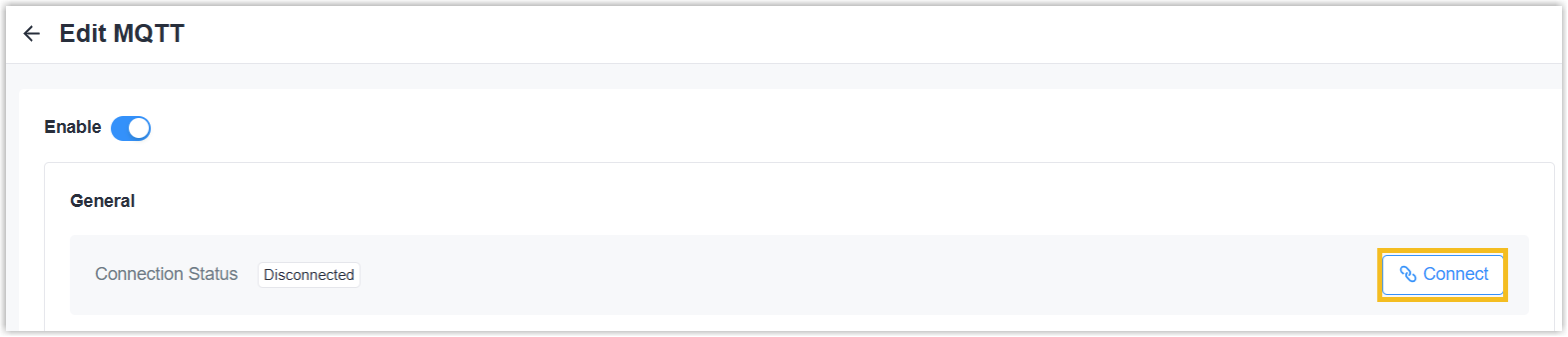
Add Data Forwarding Objects
The gateway supports defining the forwarding contents to external servers (clients).
Add Device Objects
After adding the device objects, the object data supports forwarding to HTTP/MQTT servers or being read by Modbus/BACnet clients.
Prerequisites: Enable the IO interfaces or enable the desired device objects.
- On the left bar, select Data Service > Data
Forwarding page.
- Select the desired data forwarding rule, click
the object count value to go to Device Object page.
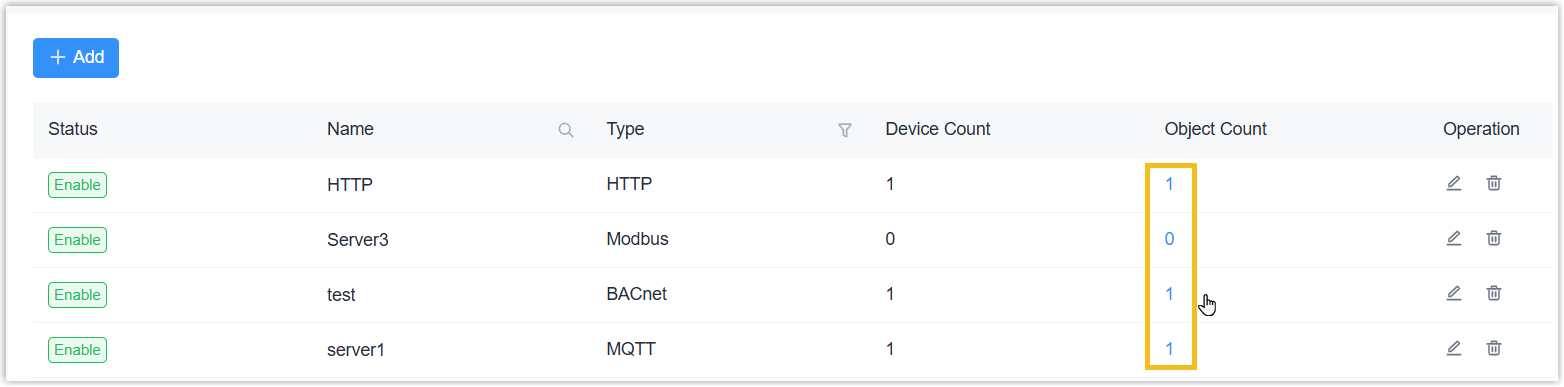
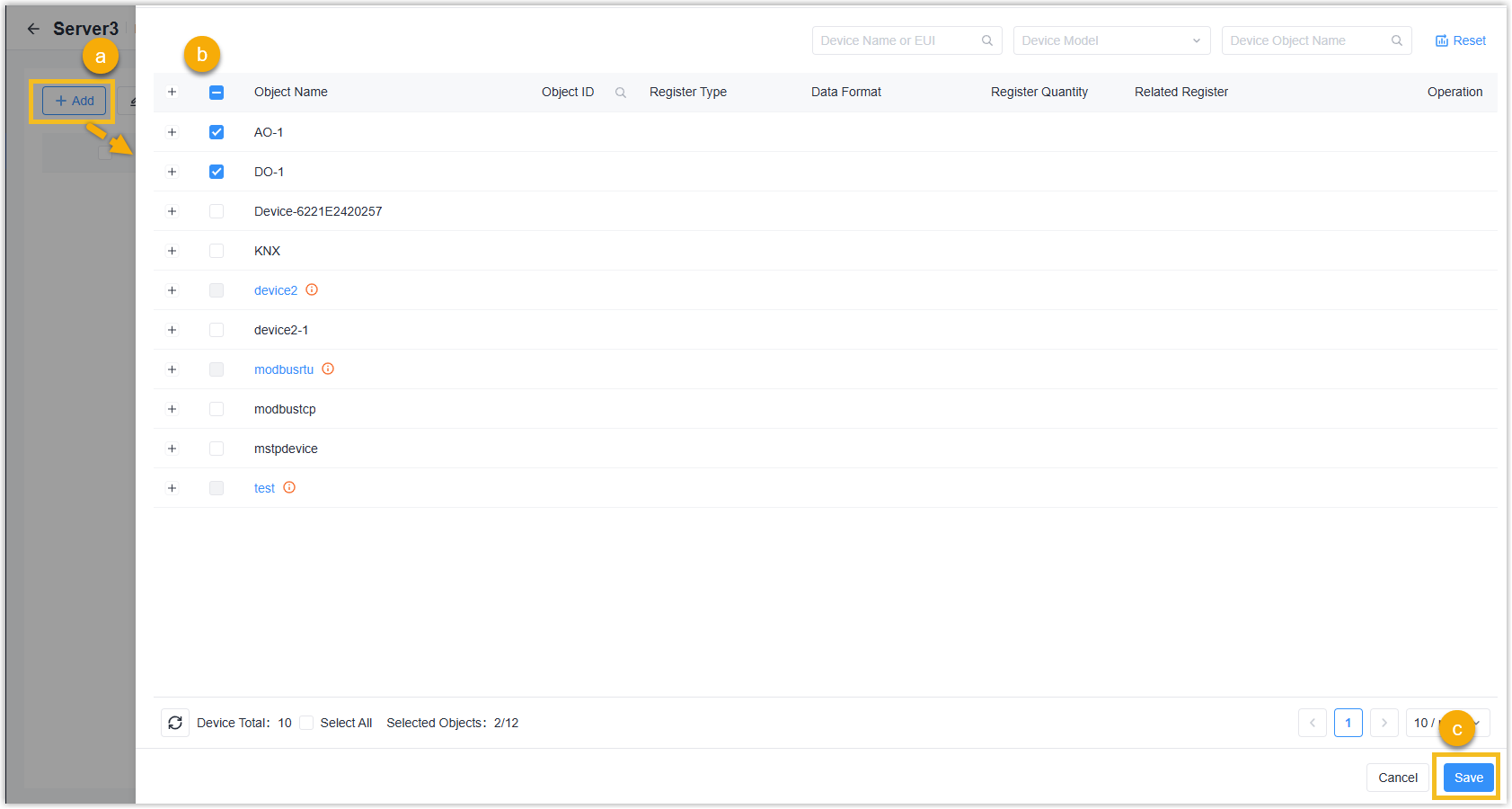
- Click +Add to select the objects to add, then click Save.
For
HTTP/MQTT type, it supports selecting the LoRaWAN® device
directly if the device objects are not added.
Add NC Object for BACnet Clients
- On the left bar, select Data Service > Data
Forwarding page.
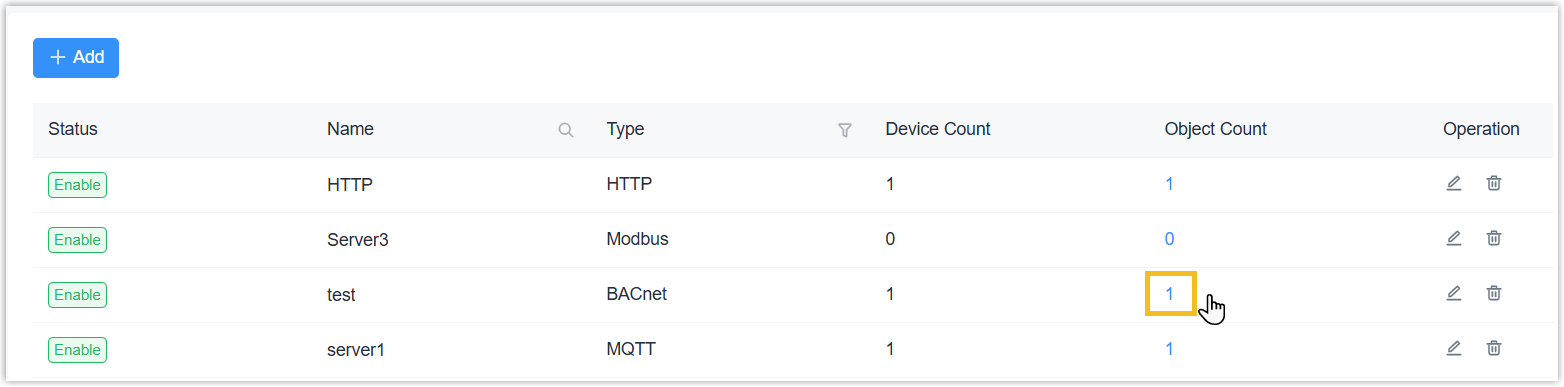
- Select the desired BACnet data forwarding rule, click the object count value
to go to Device Object page.
- On the top bar, select NC Object page.
- Click +Add to add a new notification class object to determine the alarm
parameters.
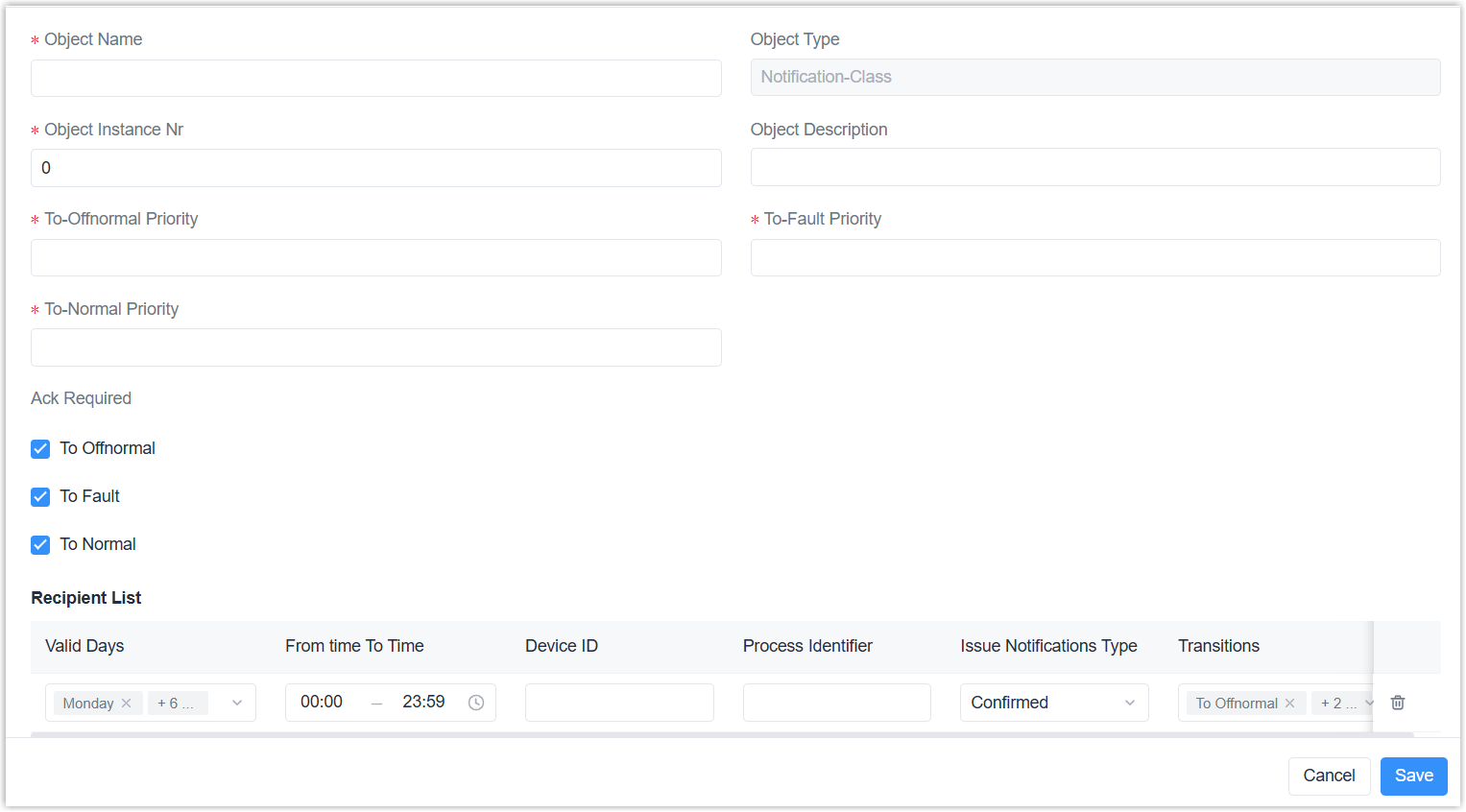
Parameter Description Object Name Define a unique name for this object. Object Type It is fixed as Notification-Class. Object Instance Nr Set a unique object instance number. Object Description For noting this object. To-Offnormal Priority Set the priority number used by recipients to sort event notifications. Range: 0-255 (0 being most important, 255 least important) To-Fault Priority To-Normal Priority Ack Required Specify if this event requires the recipient to send the Acknowledgement Alarm message back to gateway. Recipient List When event is triggered, the event notification will be sent to recipients in this list. One list supports to add 10 recipients at most. Valid Days: Valid days to send notifications.
From time to time: Valid time to send notifications.
Device ID: The target recipient device ID.
Process Identifier: An identifier indicating which process the alarm is intended for. For example, maybe process identifier 1 means maintenance alarms, 2 means critical alarms and 3 means life safety alarms, etc.
Issue Notifications Type: Select the notification type as confirmed or unconfirmed. If the gateway does not receive a response to the Confirmed notification, it will send the notification once again.
Transitions: select the reported event types. - Click Save to save the NC object settings.
- On the top bar, select Device Object page.
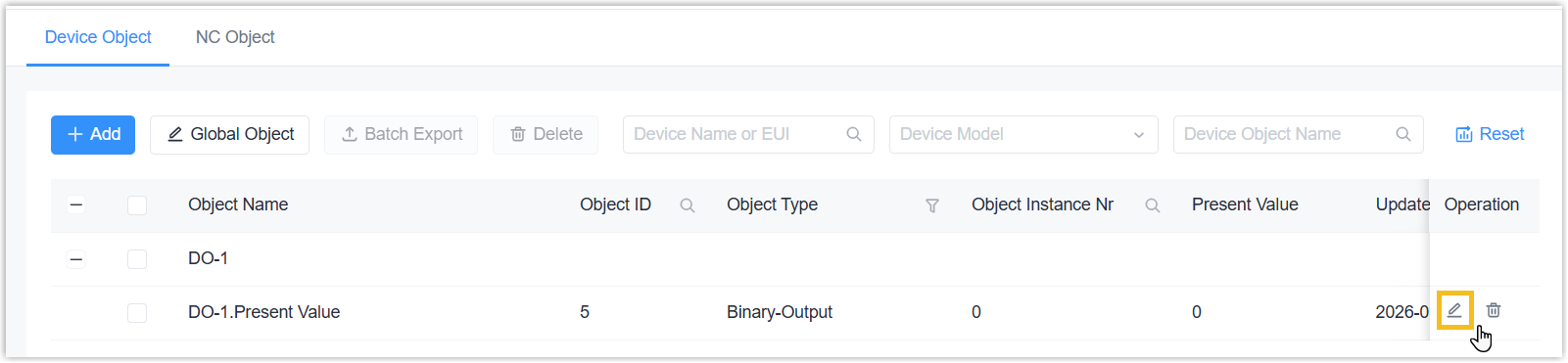
- Select the desired object, click to
edit this object.
- Enable the Event Detection and configure the related parameters. This
feature is supported for all object types except for Character String
Value.
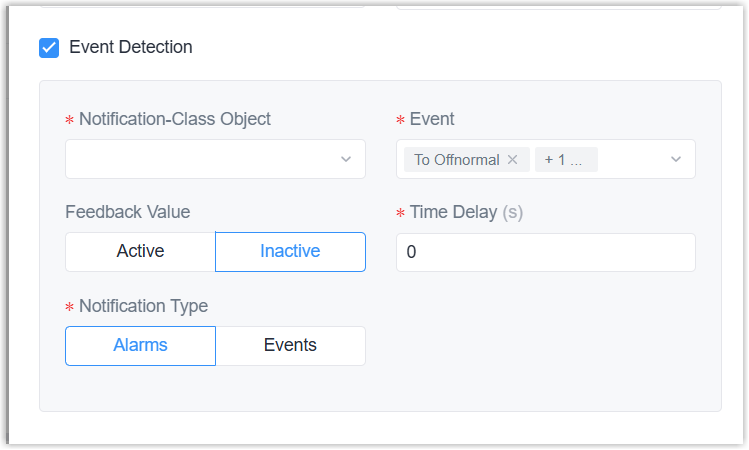
Parameter Description Notification-Class Object Select the notification class to determine the recipients and other alarm configuration. Event Select the event type to report. Time Delay Only when current value matches the threshold condition or is out of threshold for this time, the device will report the corresponding event. Notification Type Select the notification type as Alarms or Events. Object Type is Analog Input/Output/Value Limit Event Select if reporting the event when reaching the high limit or low limit. High Limit Define the high limit threshold value. Low Limit Define the low limit threshold value. Deadband Under To Offnormal status, when current value returns to (high limit - deadband) value or (low limit + deadband) lasting the delay time, the device will generate To Normal event. Object Type is Binary Input/Output/Value Alarm/Feedback Value Report To Offnormal event if the current value is equal to this value for delay time; report To Normal event if the current value is not equal to this value for delay time. Object Type is Multi-State Input/Output/Value Alarm Value For Multi-State Input/Value, report To Offnormal event if the current value is equal to alarm value for delay time; report To Normal event if the current value is not equal to alarm value for delay time. Fault Value For Multi-State Input/Value, report To Fault event if the current value is equal to fault value. Feedback Value For Multi-State Output, report To Offnormal event if the current value is equal to feedback value for delay time; report To Normal event if the current value is not equal to feedback value for delay time. - Click Save to save the object settings.