Configure System Maintenance Parameters
This section describes how to configure system maintenance parameters.
Steps:
- In the main page, click System from the left navigation tree.
- Click
 in the lower right corner to go to
the System Management page.
in the lower right corner to go to
the System Management page.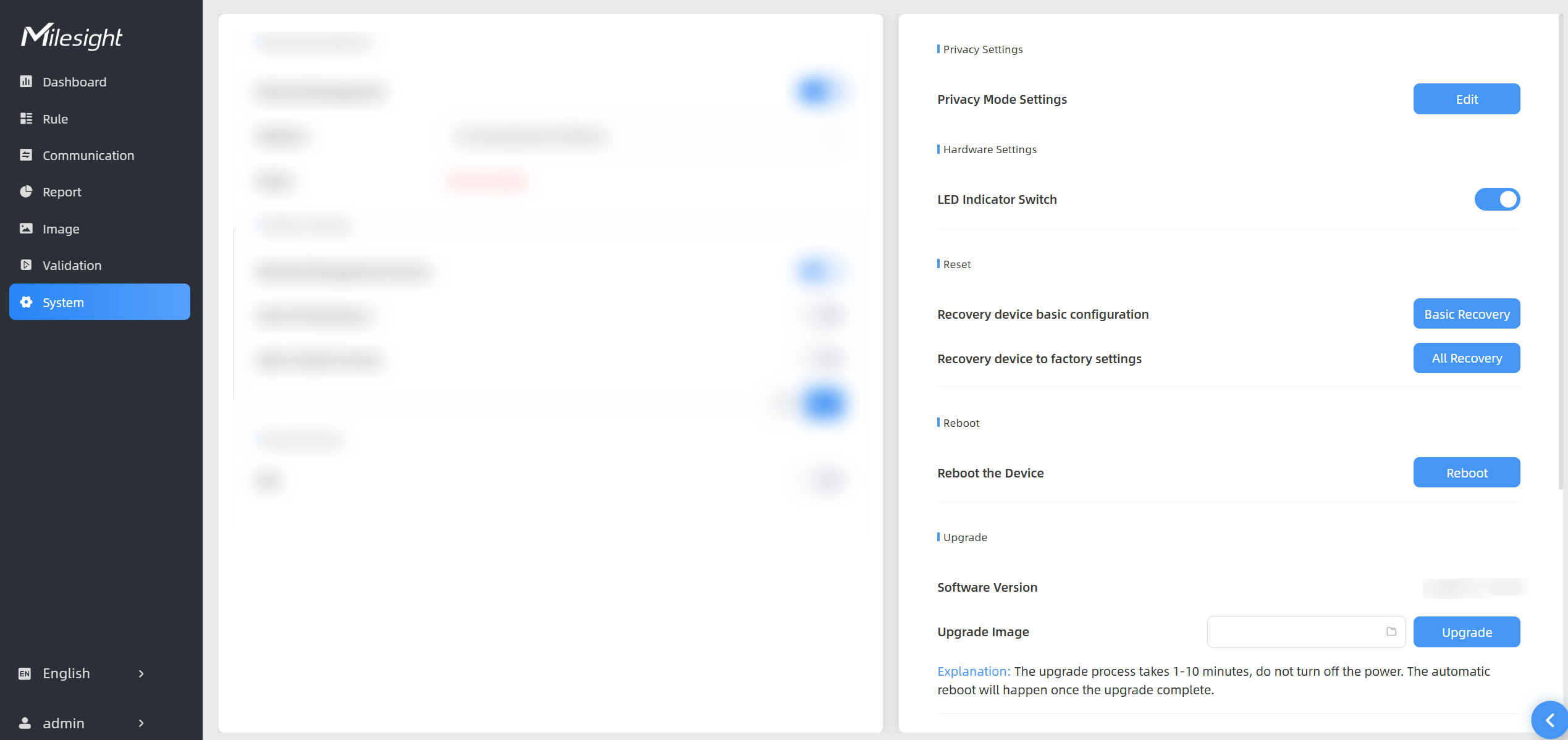
- In the Privacy Settings area, configure the following parameters as
needed:
Parameters Description Privacy Mode Settings Click Edit to switch the preview mode when they want to change the Dashboard display. For parameter definitions, please refer to First Login. - In the Hardware Settings area, configure the following
parameters as needed:
Parameters Description LED Indicator Switch Enable or disable the LED indicator when the device is in normal operation. - In the Reset area, configure the following parameters as
needed:
Parameters Description Recovery device basic configuration Click Basic Recovery to reset the device while keeping the IP settings and user information. Recovery device to factory settings - Click All Recovery to reset the device to
default factory settings. The Tips dialog box
is displayed.
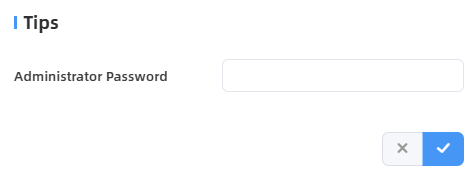
- Enter the login password of the device.
- Click All Recovery to reset the device to
default factory settings. The Tips dialog box
is displayed.
- In the Reboot area, click Reboot button to restart the device immediately.
- In the Upgrade area, configure the following parameters as needed:
Parameters Description Software Version The software version of the sensor. Upgrade Image Important: Once upgraded to version 1.0.5 or later, the device cannot be downgraded to an earlier version.- Click
 to upload the
upgrade file.
to upload the
upgrade file. - Click Upgrade. The upgrade takes 1-10 minutes
, and the device will restart automatically upon
completion.Note: Do not disconnect the power of the device during the upgrade process.
- Click
- In the Backup and Restore area, configure the following
parameters as needed:
Parameters Description Export Config File Export configuration file. Import Config File Click the button and select
the configuration file, click Import button to import
configuration file. - In the Diagnostics area, configure the following parameters as
needed:
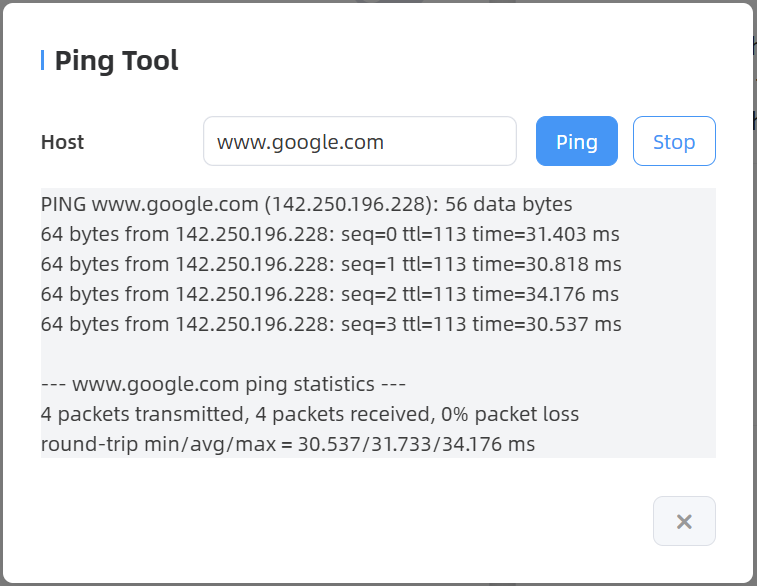
Parameters Description System Log Click Download to download log files for troubleshooting. Logging Level Settings System logs do not include debug information by default. To obtain more detailed debug logs for troubleshooting, please switch to Include Debug. IP Ping - Click Open Ping Tool. The Ping Tool dialog box is displayed.
- In the Host area, enter an IP address or a URL to test network connection.
- Click Ping.