Configure Remote Management Parameters
This section describes how to configure remote management.
Milesight provides remote management service for this device via Milesight
DeviceHub platform or Development Platform.
Note: Before connecting, do ensure that the
device has been connected to the network via Ethernet port, and there is seamless
Internet connection.
Steps:
- In the main page, click System from the left navigation tree.
- Click
 in the lower right corner to go to Remote
Management page.
in the lower right corner to go to Remote
Management page. - In the Remote Management area, enable
Remote Management.
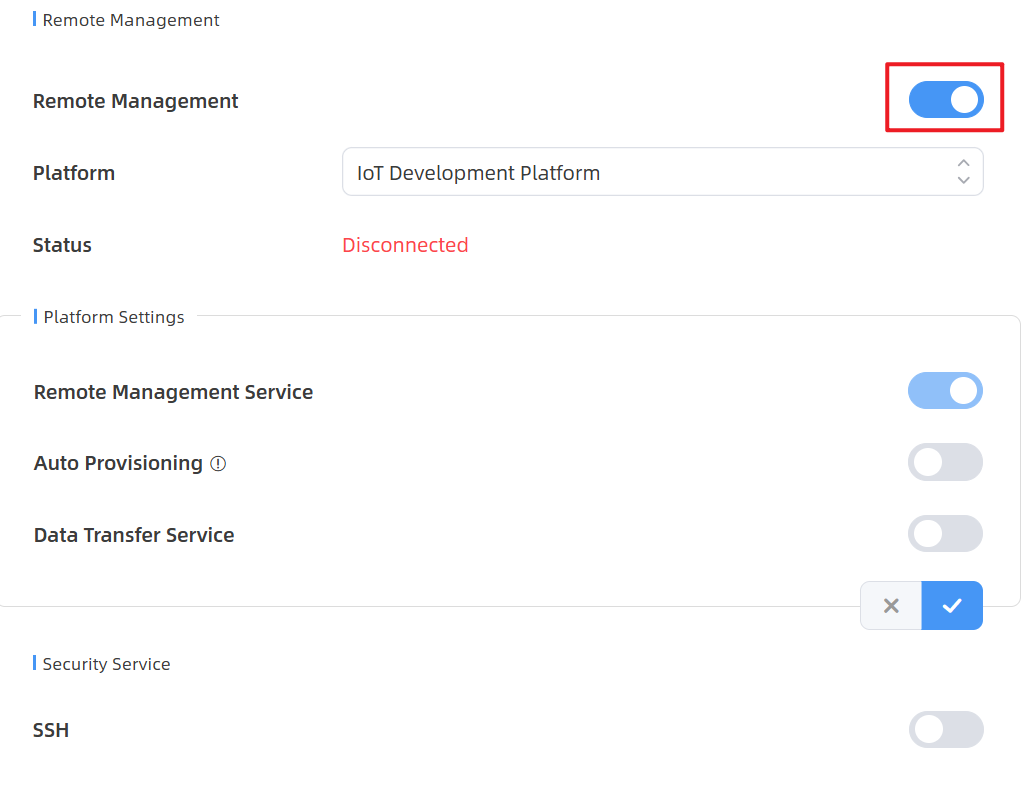
- Set Platform to DeviceHub2.0 or IoT Development Platform as needed. For detailed platform information, refer to DeviceHub2.0 and Milesight Development Platform respectively.
- Perform the following operations as needed.
If Do If Platform is to DeviceHub2.0 - In the Platform Settings area, enter the IP address or the host name for the DeviceHub 2.0 management server.
- Enable Synchronize Device Name to synchronize the device name with DeviceHub 2.0.
- Enable Synchronize Customized ID to synchronize the device ID and site ID with Devicehub 2.0.
- Click Connect to apply the settings.
If Platform is set to IoT Development Platform - Enable Remote Management Service to modify device configuration through the Milesight Development platform.
- Enable Auto Provisioning to receive and deploy the configurations from Milesight Development Platform after the device is connected to Internet.
- Configure data transfer parameters to report people
counting data to the Milesight Development platform
at the specified interval.
- Enable Data Transfer Service. Periodic Report is enabled automatically.
- Set Periodic Report Scheme to On the Dot or From Now On as needed.
- Select Period.
- Enable Trigger Report as needed.
- Click
 to apply the
settings.
to apply the
settings.
- In the Security Service area, enable SSH to enable SSH access. The SSH port is fixed as 22.