5.4.2 Configure Time Parameters
This section describes how to configure the time parameters to ensure the correct time.
Synchronize the Device Time
Synchronize by ToolBox
- On the homepage of ToolBox, click Basic Information.
- Click
 to synchronize the time and the time zone.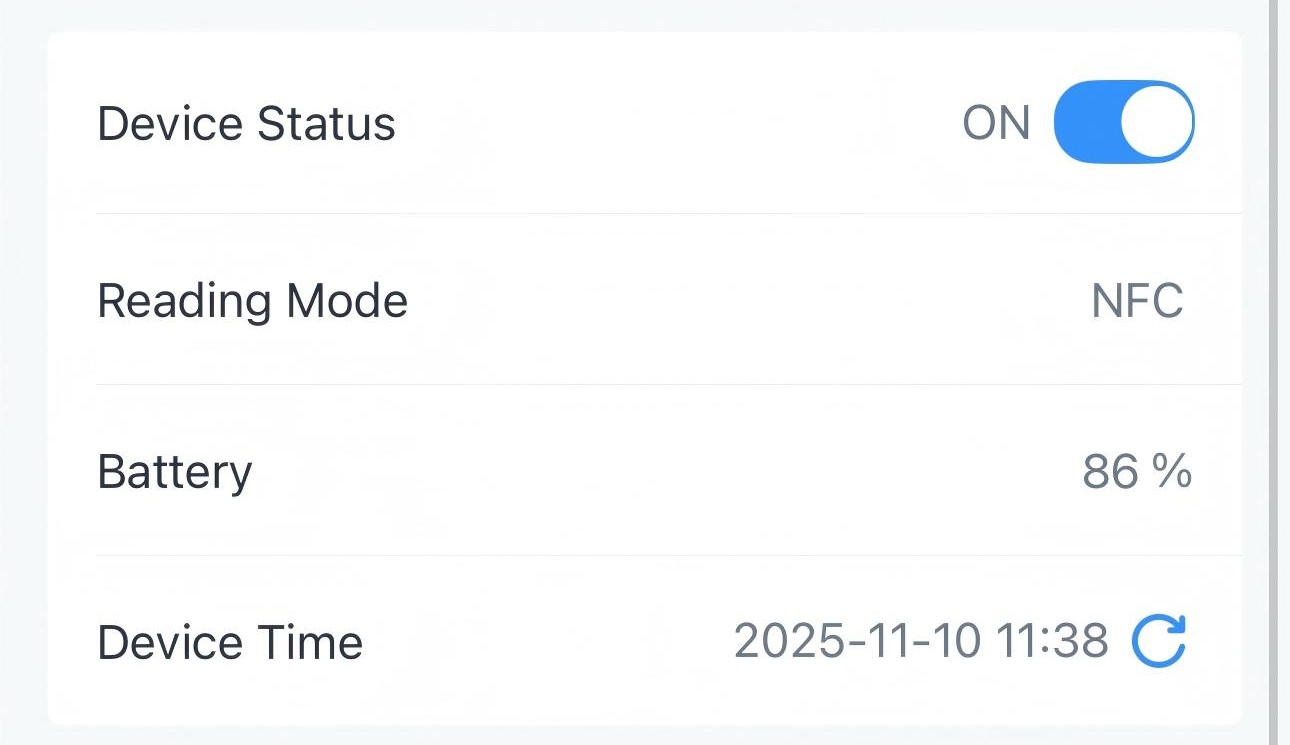
- Put the NFC detection area of the phone close to the NFC
antenna of the device. If the time is synchronized successfully, the
following page is displayed.
Synchronize by LoRaWAN® Network Server
Prerequisites: The LoRaWAN® network server supports the device time synchronization feature.
Limitation: This only supports time retrieval; the time zone is not included.
- Set the LoRaWAN® version of the device to V1.0.3.
- Connect the device to the network server. Once the device successfully joins the network, it sends a MAC command to query the time from the network server.
Note: The device will send the DeviceTimeReq command every 5
days since the last sync. You can also send downlink command to ask the device
to send the DeviceTimeReq command immediately.
- JSON Command: synchronize_time
- BACnet: Synchronize Time
- Raw Hex Command: Sync Time from LNS
Configure the Time Zone
Configure by ToolBox
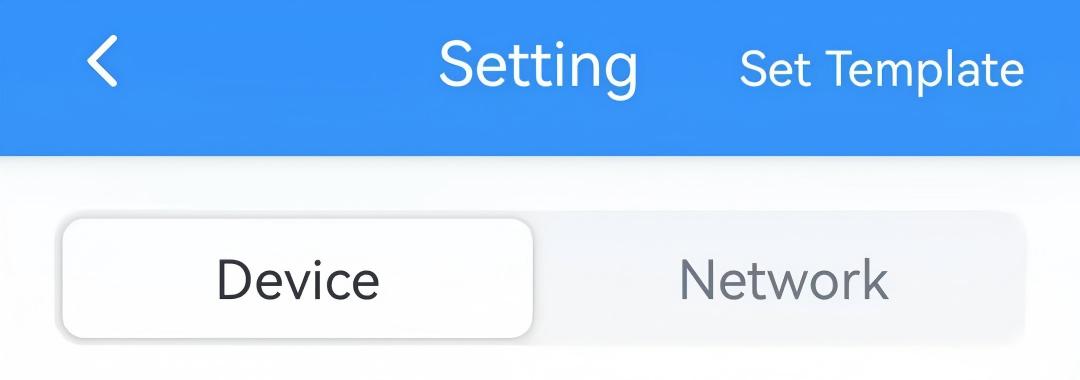
- On the homepage of ToolBox, click Setting to enter the Setting page.
- On the top bar, select Device tab.
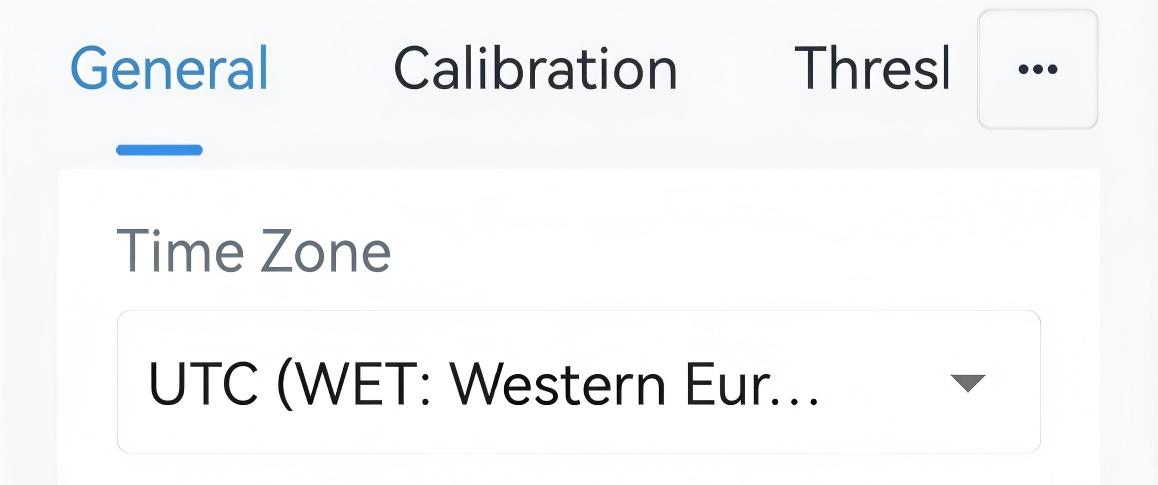
- On the General page, select Time Zone as required.
- Click Write in the lower right corner, and
put the NFC detection area of the phone close to the NFC antenna of device.
If the configuration succeeds, the following page is displayed.
Configure by Downlink
- JSON Command: time_zone, timezone_index
- BACnet: Timezone Index
- Hex Command: Time Zone, Timezone Index
Configure Daylight Saving Time
Configure by ToolBox
- On the homepage of ToolBox, click Setting to enter the Setting page.
- On the top bar, select Device tab.
- On the General page, enable Daylight Saving Time and configure
the related parameters.
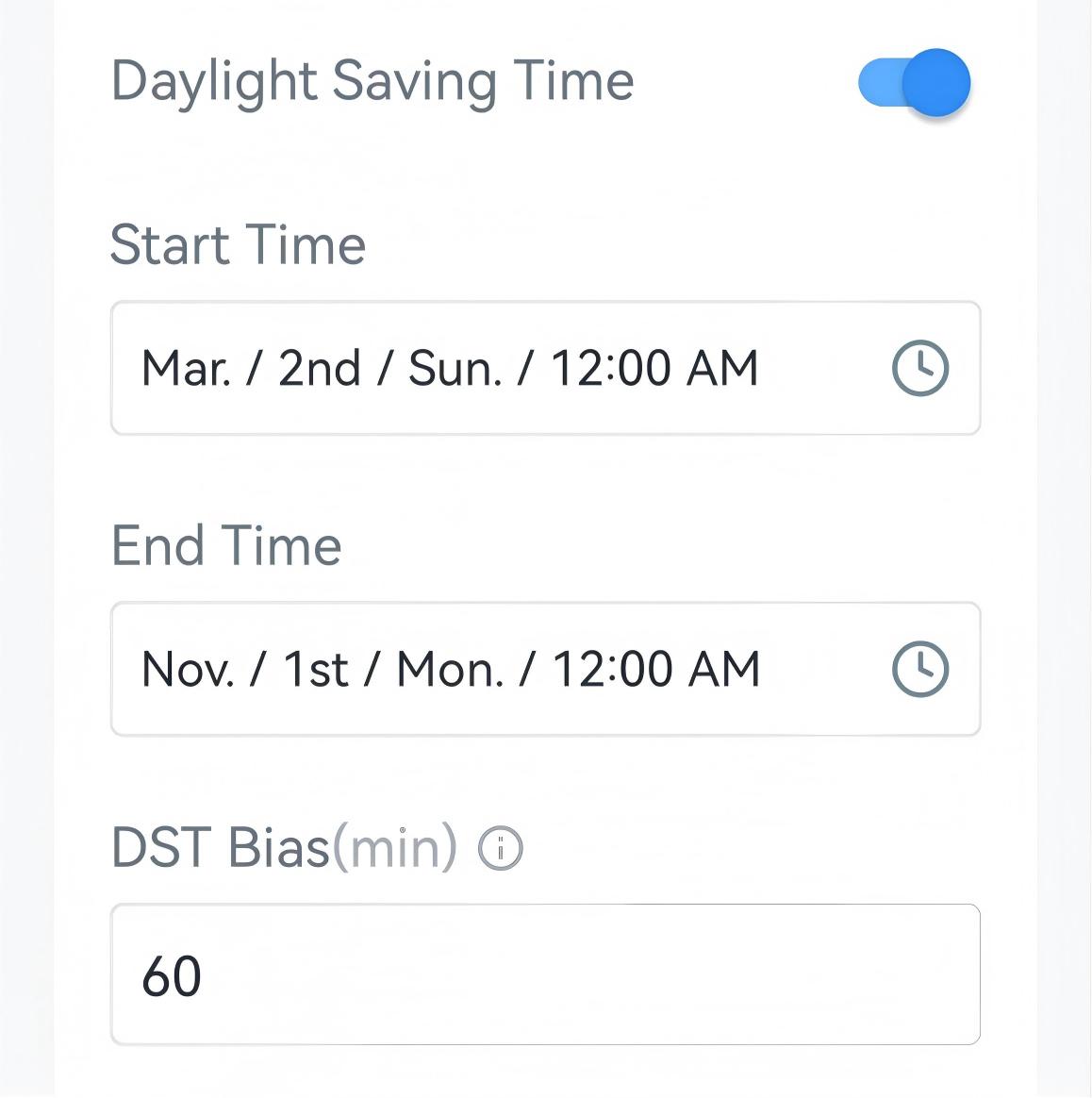
Parameter Description Start Time The start time of DST time range. End Time The end time of DST time range. DST Bias The DST time will be faster according to this bias. - Click Write in the lower right corner, and
put the NFC detection area of the phone close to the NFC antenna of device.
If the configuration succeeds, the following page is displayed.
Configure by Downlink
- JSON Command: dst_config
- Raw Hex Command: Daylight Saving Time
Configure Time Zone Offset
The device supports adding an offset to the current time for flexible time
adjustment.
Note: After setting this offset to a non-zero
value, Daylight Saving Time will be disabled, and vice versa.
Configure by Downlink
- JSON Command: timezone_offset
- BACnet: Timezone Offset
- Raw Hex Command: Time Zone Offset