Node-RED
The gateway has built-in the Node-RED tool. This chapter introduces the Node-RED software in this gateway.
Overview
Node-RED is a flow-based development tool for visual programming and wiring together hardware devices, APIs, and online services as part of the Internet of Things. Node-RED provides a web-browser-based flow editor, which can easily wire together flows using the wide range of nodes in the palette. For more details please refer to Node-RED official website.
Start the Node-RED
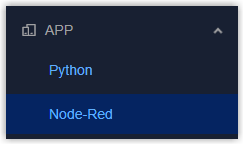
- On the left bar, select APP > Node-Red page.
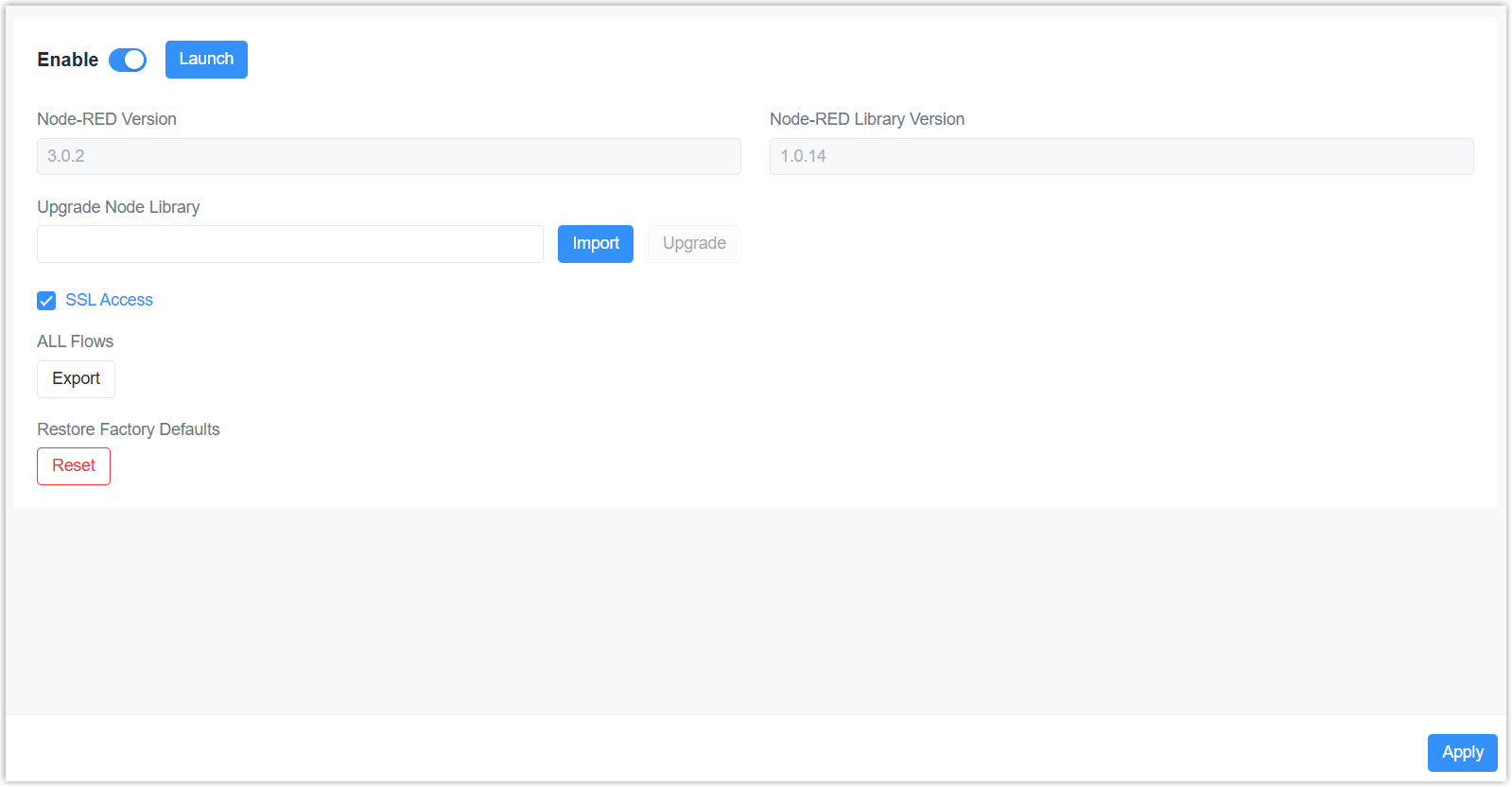
- Enable the Node-RED.
- If you require Node-RED web access via HTTPS, enable SSL Access option; if you require Node-RED web access via HTTP, disable SSL Access option.
- Click Apply to save the settings and start the Node-RED.
- Click Launch to open the Node-RED web GUI.
- Log into the Node-RED web GUI using the credentials the same as gateway web GUI.
Create a New Node-RED Flow
Here are the basic steps to create a Node-RED flow, for more details please refer to Node-RED User Guide.
- Click "+" to add a new flow.
- Drag and drop any nodes onto the workspace.
- Configure the parameters of some nodes as required.
- Connect the nodes together to make a flow.
- Click Deploy in the upper right corner to save the settings.

- Trigger the flow and check the results.
Node-RED Library Update
Nodes are the basic building blocks for creating a flow. The device has preloaded the basic nodes from Node-RED official library and custom nodes from Milesight.
- Click Launch to open and log in to the Node-RED web GUI.
- Click
 in the upper right corner, select Manage
palette.
in the upper right corner, select Manage
palette. - Select Install tab, search for the module name and select the target
one to install. This requires the device access the Internet network.
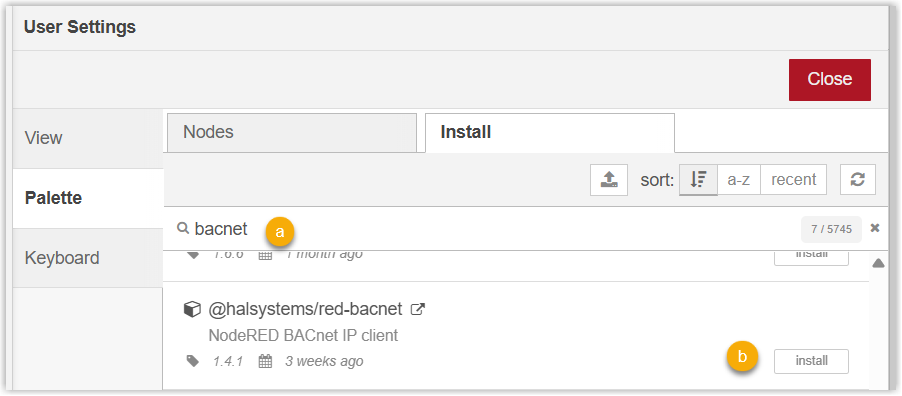 Note: If the device cannot connect to the Internet, please search and download the node-red module package from Node-RED official library, then upload the file to the device.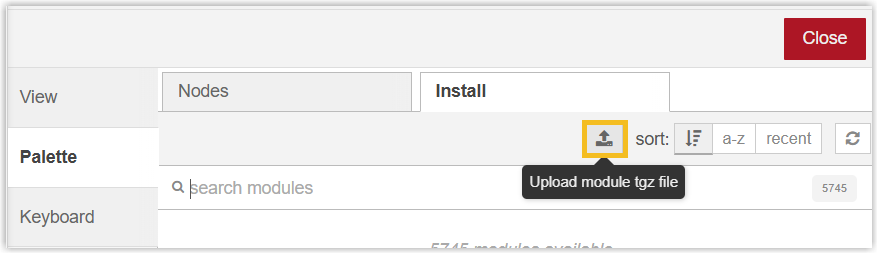
Update Custom Node-RED Library
| Node | Description |
|---|---|
| LoRa Input | Input all received LoRaWAN® packets from the LoRaWAN® network. |
| LoRa Output | Send downlink command to the specific LoRaWAN® end device. |
| Device Filter | Filter out the input data from LoRa Input or Device Input node. |
| GW Info | Monitor events of the device. Event Notification must be enabled first. |
| Email Output | Send custom emails. If the SMTP Option is Same as gateway, it is necessary to configure the SMTP Client settings first. |
| SMS Input | Receive SMS message. This feature is only available for -L08GL model and ensure the cellular connection is active. |
| SMS Output | Send SMS messages. This feature is only available for -L08GL model and ensure the cellular connection is active. |
| Device Input | Input all object values from BACnet/Modbus/KNX/IO devices. |
| Device Output | Send downlink command to device
objects (except for LoRaWAN® end devices). It
requires adding an inject node at the front and sending with the
following
format: {
"objectID": 5,
"objectValue": "1123"
}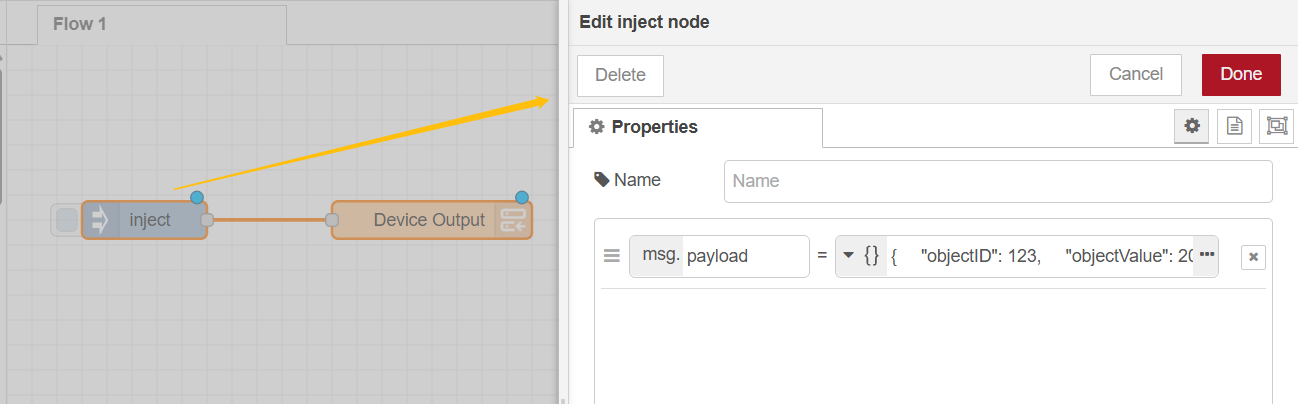 |
- Receive the custom node library package from Milesight.
- Click Import to select the library package from a local path, then
click Upgrade.
