Configure View Direction Detection
This section describes how to configure View Direction Detection function.
The device supports the View Direction Detection function. It tracks targets' view tracks to effectively evaluate advertisement reach-through.
Applicable Installation Height: 2.2-4m
Prerequisites:
- The tracking mode is set to Heads Tracking.
- The working mode is set to Standalone.
Steps:
- In the main page, click Rule from the navigation tree on the left.
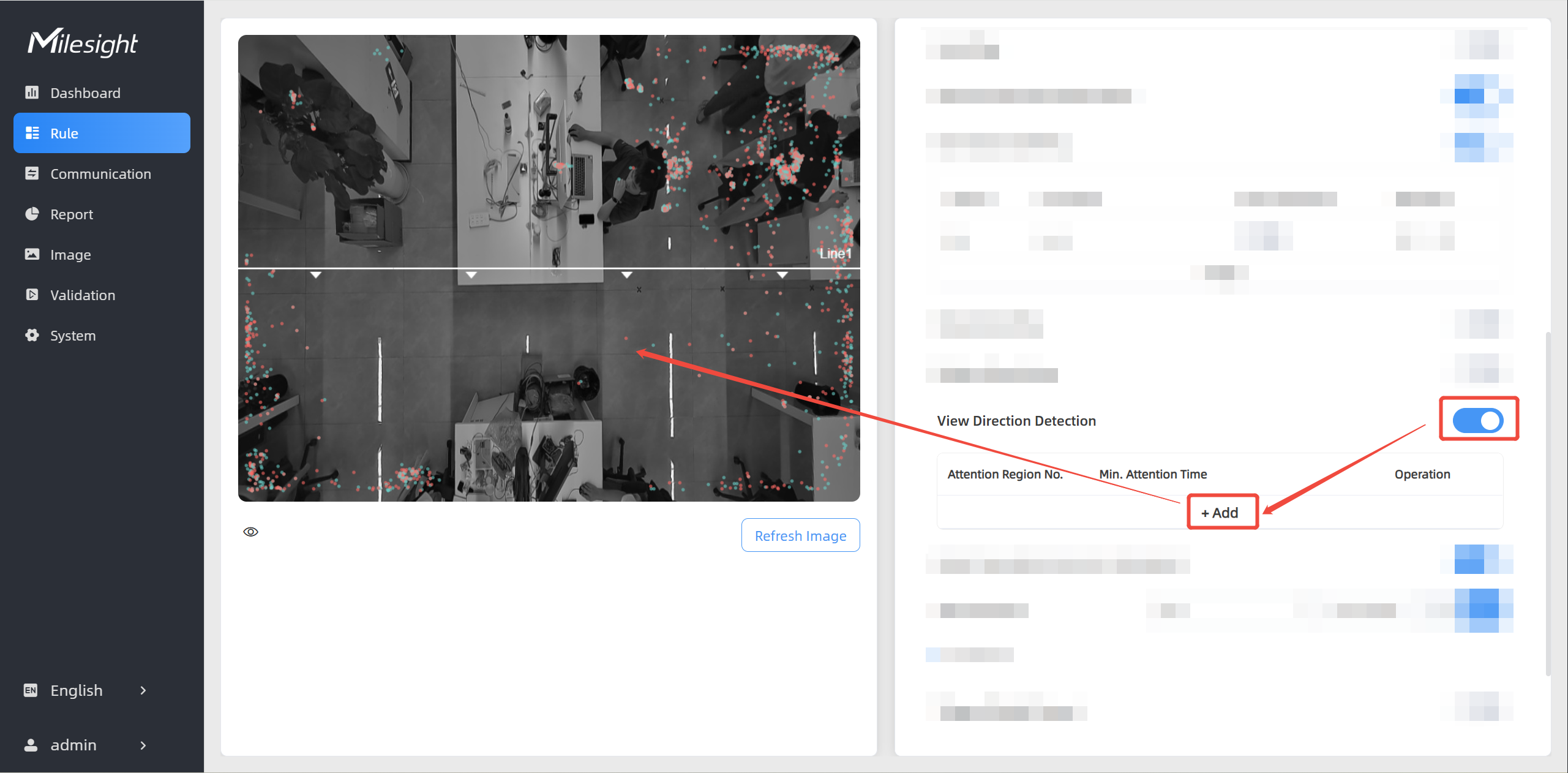
- Enable View Direction Detection on the right and click
+Add. The How-to Settings information box is
displayed.
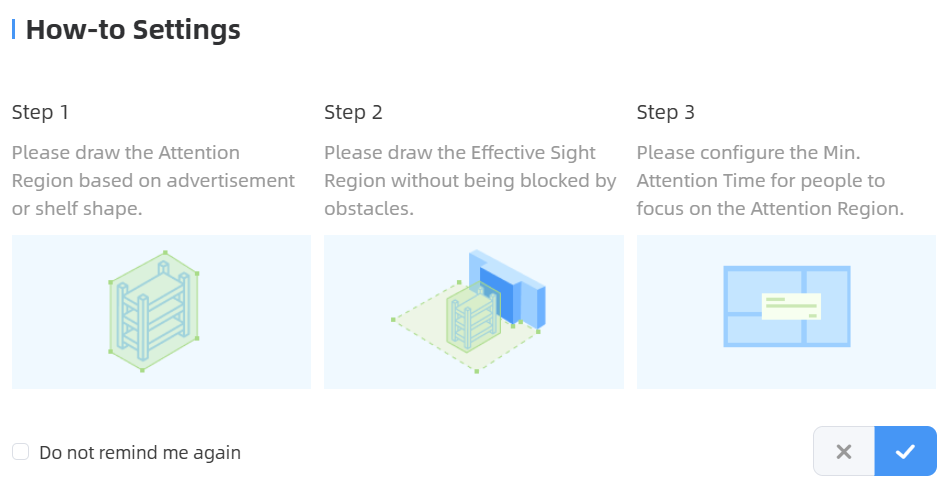
- Browse the steps and click
 .
.
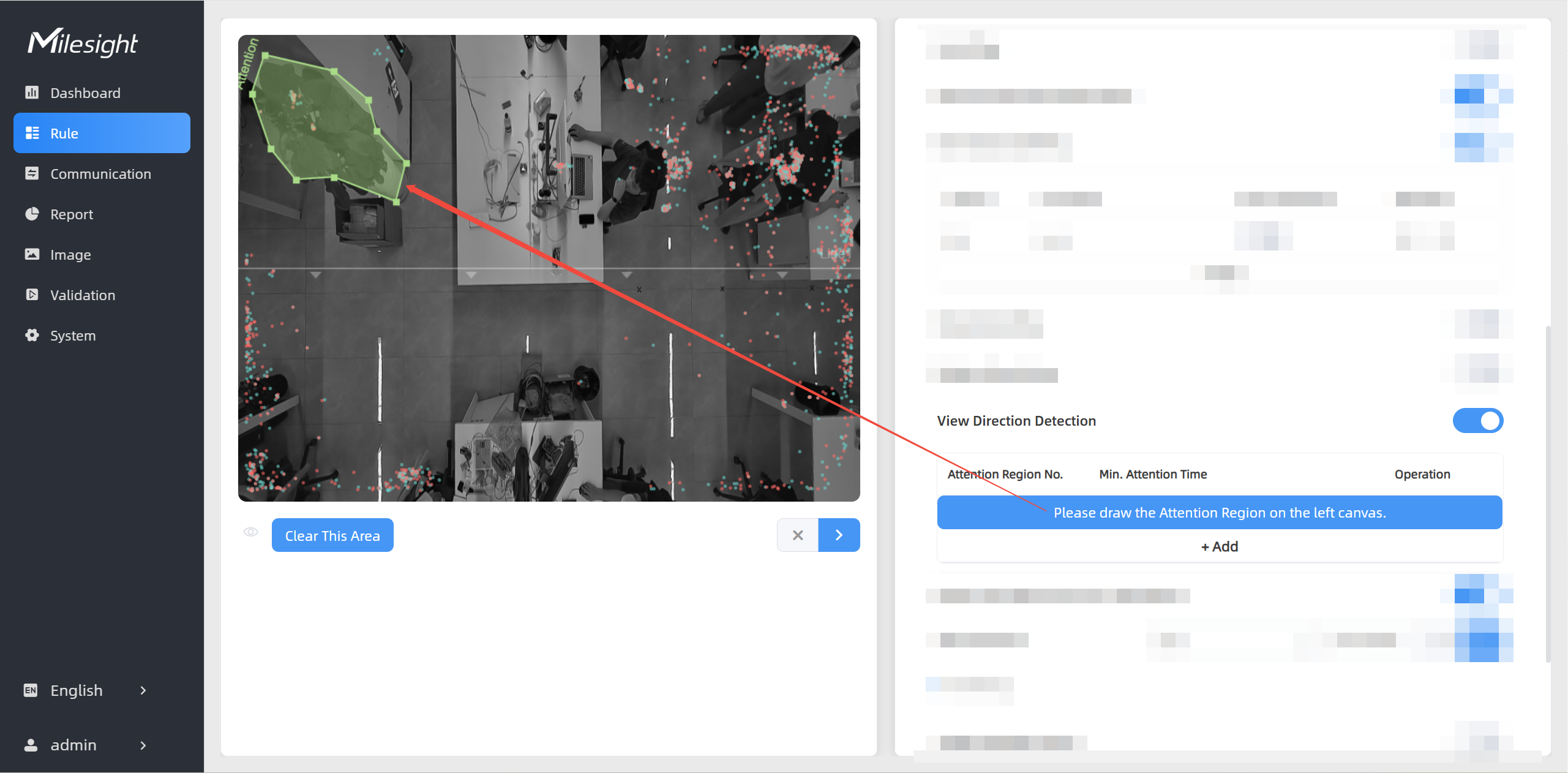
- Draw an attention region that requires analysis of customer
engagement levels, you can draw up to 6 regions with a maximum of 10 line
segments per region:
- Left-click to start and drag to draw the first line segment.
- Left-click to add vertices and change direction and drag to draw another line segment.
- Repeat step b to draw more line segments as needed.
- Right-click to finish.
- (Optional) Adjust the region by dragging.
- (Optional) To redraw a region, click Clear This Area.
- Click
 .
.
- Following the same steps in Step 4 to draw an effective sight
region, you can draw up to 6 regions with a maximum of 10 line segments per
region:
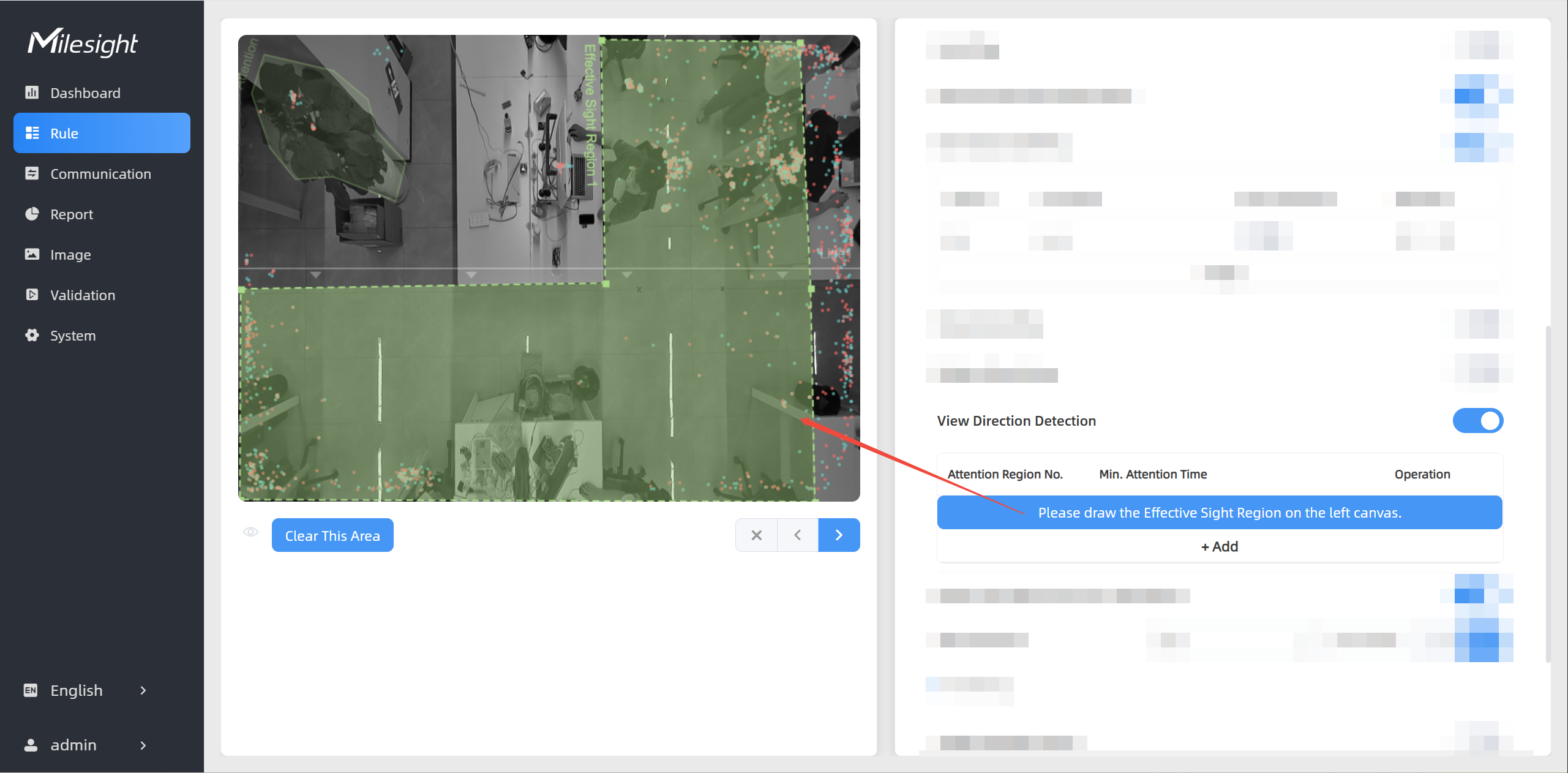
Any individual within this region must have an unobstructed view of the attention region.Once configured, the device analyzes gaze direction within the effective sight region based on the following logic:
- Effective Viewer: Target who accumulates attention time > Min. Attention Time
- Accumulation Starts: When gaze overlaps with attention region for >1 second
- Accumulation Pauses: When gaze moves outside attention region
- Click . The Advanced Properties
dialog box is displayed.
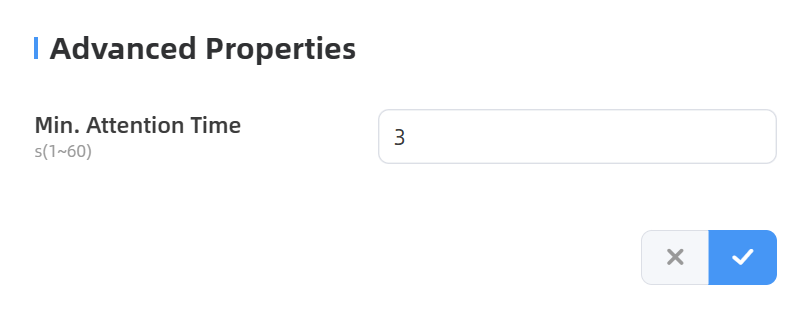
- Set Min. Attention Time and click to save
the configuration. Then the device identifies any target as an effective viewer
if his gaze remains on the attention region for a duration longer than this
specified value.
- To validate configuration:
- Stand in the effective sight region and look toward the attention region.
- Observe the real-time tracking on Dashboard.
- Verify gaze direction is accurately represented.
- Check that attention time accumulates when gazing at the target.
- Check data through any of the following methods:
- To check the visual configuration effect, click
Dashboard from the left navigation tree.
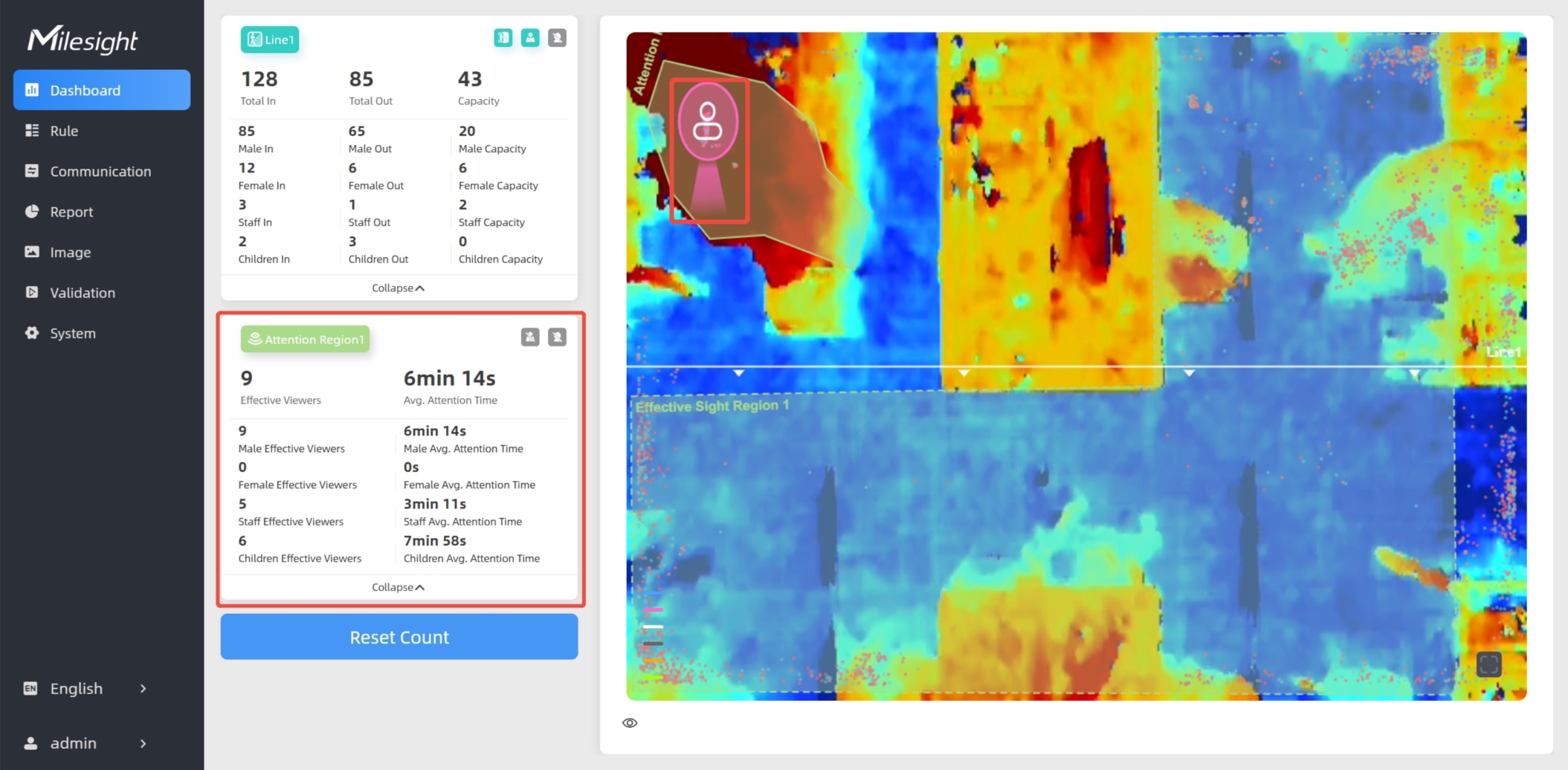
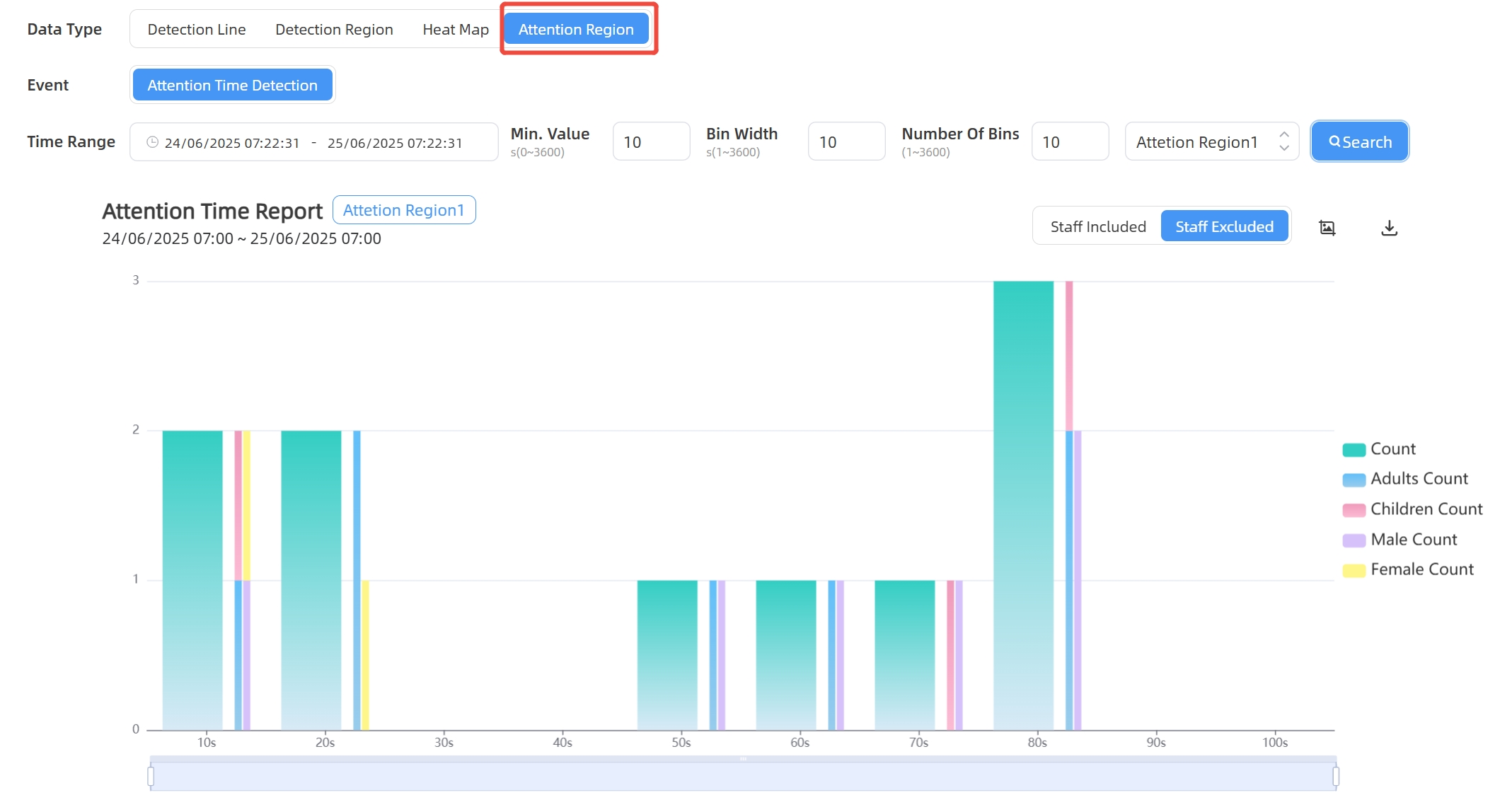
- To view attention region data for a certain time period
and generate the corresponding report, click Report from the
left navigation tree. For details, refer to Generate
Reports.
- If recipients are added, check data through command line outputs. For "attention_region_total_data", refer to Uplink Data Example for Periodic Reporting. For "attention_region_trigger_data", refer to Uplink Data Examples for Trigger Reporting.
- To check the visual configuration effect, click
Dashboard from the left navigation tree.