Link Failover
This chapter describes how to configure the link failover settings.
Steps
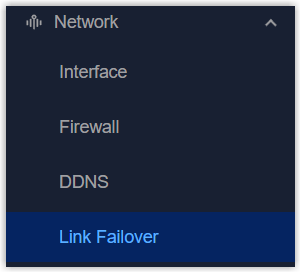
- On the left bar, select Network > Failover page.
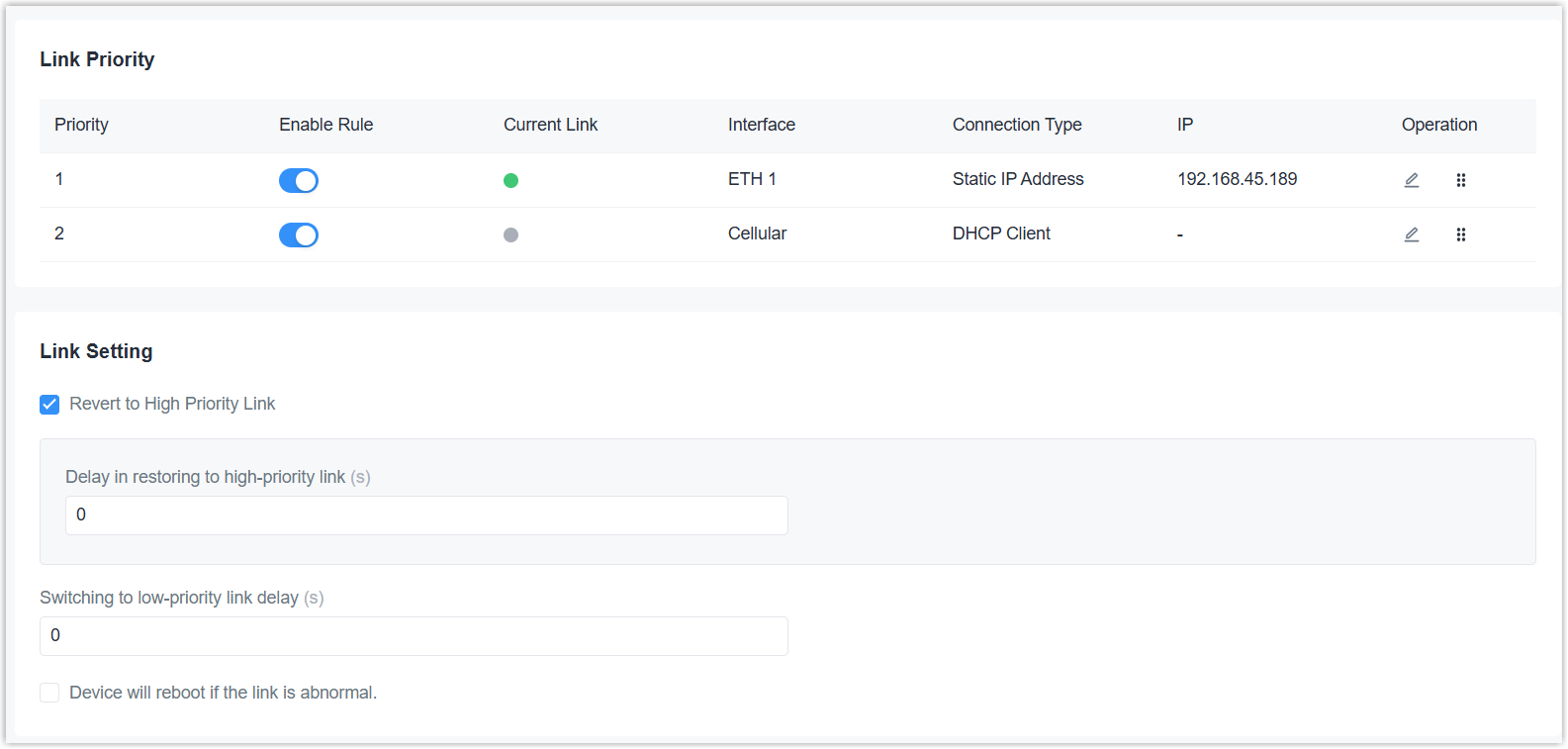
- Tap Enable Rule buttons to enable the interfaces as network links of this
device, then drag
 to adjust the priorities of these
network links.
to adjust the priorities of these
network links.Parameter Description Priority Display the priority of this link. 1 means the highest priority. Enable Rule Enable or disable to use this interface as network link. Current Link Mark the current network link as green. Interface Display the available interfaces to work as the network links. Connection Type Display the connection type of this interface. For cellular interface, it's fixed as DHCP client. IP Display the IP address of this interface. Operation  : Click to edit ping detection
settings.: Drag to adjust the link
priorities.
: Click to edit ping detection
settings.: Drag to adjust the link
priorities. - Click to enable the ping detection of selected link as
required, and configure the related parameters.Note: If the device registers to a private network, it is recommended to disable the ping detection or configure the server addresses as private network reachable addresses.
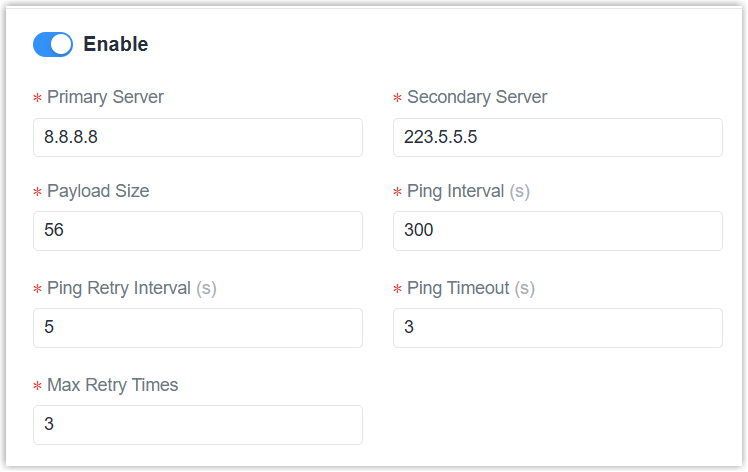
Parameter Description Enable After enabled, the device will periodically detect the connection status of the link by sending ICMP packets. Primary Server The primary server address to send the ICMP packet. Secondary Server The secondary server address to send the ICMP packet if the device does not receive the replies from the primary server. Payload Size The payload size of the ICMP packet. Ping Interval The interval between two Ping detections. Ping Retry Interval The interval to retry the ping if the previous ping reaches the timeout and does not reach the max retry times. Ping Timeout The maximum amount of time the device will wait for a response to a ping request. If it does not receive a response within the amount of time predefined in this field, the ping request will be considered a failure. Max Retry Times The retry times of the device sending ping request until determining that the connection has failed. - Configure the Link Setting parameters as required.
Parameter Description Revert to High Priority Link After enabled, switch back to high priority link if it recovers. Delay in restoring to high-priority link: The delay time to switch back to high priority link. 0 means immediately.
Switch to low-priority link delay The delay time to switch to low priority link. 0 means immediately. Device will reboot if the link is abnormal If all links are unavailable, reboot this device. If the links still fail to recover after three reboots, no further reboots will be performed. - Click Apply to save the settings.